SharePoint throttling occurs when too many API requests are sent to Microsoft 365 within a short period of time. Ultimate Forms helps you identify and troubleshoot throttling through the Monitoring page, where you can review SharePoint API activity and identify the components generating the highest number of requests.
It's important to remember that SharePoint counts API requests from all applications, not just Ultimate Forms. Requests may also originate from Power Automate flows, custom code, migration tools, synchronization software, SPFx solutions, and other third-party applications.
A throttling error does not necessarily mean that an operation failed. Ultimate Forms automatically retries throttled requests, allowing many operations to complete successfully. However, repeated throttling over a longer period usually indicates excessive API activity that should be investigated.
This tutorial shows how to use the Monitoring page to identify the source of excessive API activity and optimize your configuration.
Instructions
Step 1: Open Monitoring Page
You can access the Monitoring page in two ways:
- At any time, open the profile menu in the upper-right corner of the Ultimate Forms app and select Monitoring.
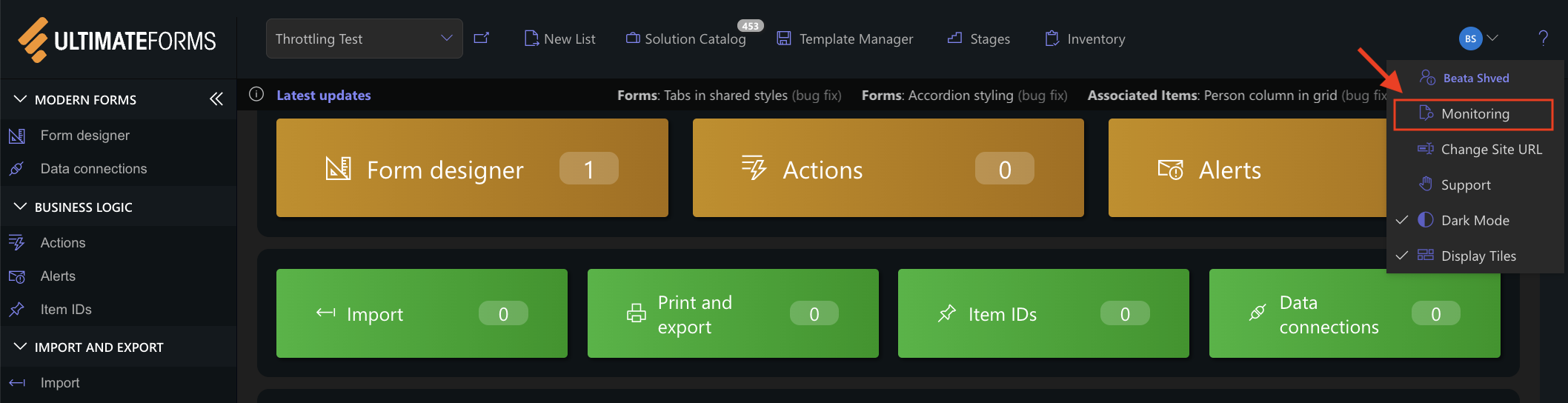
- When Ultimate Forms detects repeated throttling, it displays a notification on the home page. Select Investigate to open the Monitoring page directly.

Regularly reviewing the Monitoring page helps you identify excessive API activity before it results in throttling. If throttling has already been detected, use the Investigate button to begin troubleshooting immediately.
Step 2: Review SharePoint API Activity
Open the SharePoint API Calls tab to review API activity for the last 24 hours.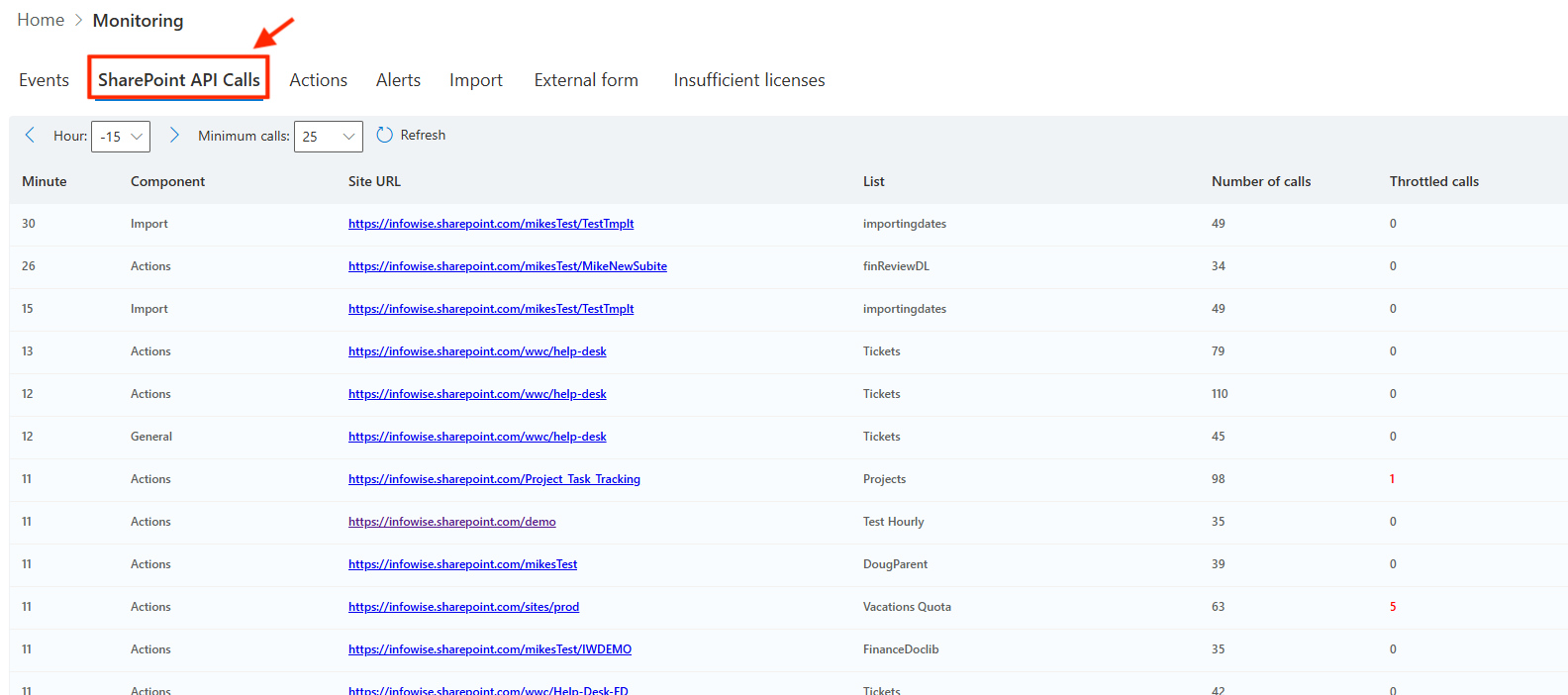
Each entry includes:
- Minute – when the activity occurred.
- Component – the Ultimate Forms component generating the requests.
- Site URL – the SharePoint site where the activity originated.
- List – the affected list or library.
- Number of calls – total SharePoint API requests.
- Throttled calls – requests that were throttled by SharePoint.
Review the entries with throttled calls to see where throttling occurred.
Step 3: Review the Configuration
Review the configurations that may be generating a high number of API requests.
| Component |
What to review |
| Actions |
Review Actions that process large numbers of items, update related items, perform unnecessary lookups or calculations, or run without conditions. |
| Import |
Review Import profiles that run too frequently, process large batches, or import unchanged records. |
| Alerts |
Review Alerts configured to run after every item modification instead of only when required. |
|
Associated Items Summary |
Review Summary columns that recalculate frequently on large lists. |
Whenever possible:
- add conditions to Actions so they process only the required items;
- reduce Import batch sizes;
- import only new or modified records;
- configure Alerts to trigger only when necessary;
- reduce unnecessary Summary recalculations.
The following example illustrates a common throttling scenario:
Suppose an Import profile creates 1,000 new items in a list.
The list also contains an Action configured to run after every item is created.
As the import runs, every new item triggers the Action, dramatically increasing the number of SharePoint API requests.
To reduce API activity, you could:
- use Bulk Update Mode during the import;
- configure the Action to run only when specific conditions are met;
- process the imported items separately after the import has finished.
Step 4: Check for other sources of API activity
Remember that SharePoint throttling is based on the total number of API requests made to your Microsoft 365 environment, regardless of where they originate.
In addition to Ultimate Forms, API requests may originate from:
- Power Automate flows
- SPFx solutions
- custom code
- migration tools
- synchronization software
- other third-party applications
If your Ultimate Forms configuration appears to be optimized, investigate other solutions that may be generating excessive SharePoint API activity.
Large imports, bulk updates, or Actions that update many items in a short period of time are common causes of throttling. If you regularly perform these operations, consider using Bulk Update Mode to temporarily suspend event processing.
Summary
In most cases, throttling is not caused by a product issue, but by configurations that generate more SharePoint API requests than necessary. Use the Monitoring page and the SharePoint API Calls tab to identify excessive API activity, optimize your configuration, and help prevent throttling before it affects your users.



