SharePoint lists and libraries often grow quickly, becoming difficult for users to navigate. Finding the right document, task, record, or asset can require browsing multiple locations or building complex views.
List Search, a web part included in Ultimate Forms, solves this problem by providing a unified, intuitive, and highly configurable search experience directly inside SharePoint.
Ultimate Forms: List Search allows users to search across one or more lists, filter by selected columns, combine multiple conditions, and instantly act on returned results.
It is designed to work in both Microsoft 365 and On-Premises versions, offering consistent functionality and a seamless, user-friendly interface.
Instructions
Why Use List Search?
Organizations often rely on multiple lists and libraries to store business information. As the volume grows, searching becomes harder and more time-consuming.
List Search helps users:
- Find records across multiple lists from one place
- Apply simple or advanced searches
- Combine up to five conditions with AND/OR logic
- Search by lookup columns and automatically load related values
- Save and reuse search profiles
- Interact directly with results (open, edit, delete, run actions)
- Avoid navigating multiple pages or building extra views
It turns SharePoint into a fast, powerful, centralized search hub tailored to your business needs.
How List Search Works
List Search is built around Profiles — reusable configurations that define:
- which lists and libraries are available for search
- which list serves as the default view
- how results display
Once the profile is created in Ultimate Forms Design, you add the List Search web part to a page (Modern or Classic) and point it to the profile name.
Users then interact with the search panel and instantly see results below.
When to Use List Search
List Search is ideal when:
- Users frequently search across multiple lists
- Lists contain hundreds or thousands of items
- You need a dedicated search center
- You want more flexibility than standard SharePoint filtering
- Users require instant interaction with results (open/edit/run actions)
- Lookup relationships should be searchable and filterable
Typical use cases include:
- Document centers
- Task or ticket management
- Asset or inventory tracking
- HR or employee directories
- Project dashboards
- CRM-style data search
- Knowledge bases
The result grid includes full item functionality — allowing efficient data exploration without leaving the page.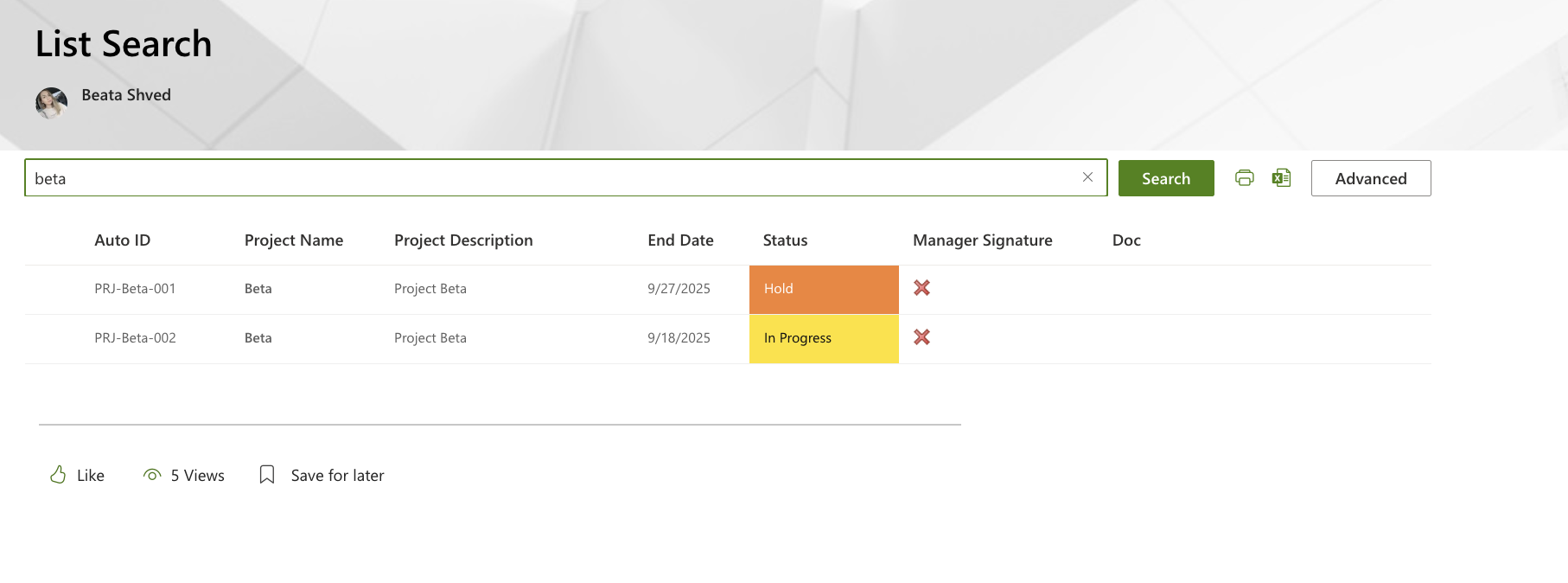
What You Will Learn Next
In the following tutorials, you will learn how to configure and use the List Search web part through practical examples.
We will walk through creating search profiles, adding the web part to SharePoint pages, building advanced search conditions, and working with search results to streamline data discovery in your environment.
Summary
Ultimate Forms: List Search extends SharePoint with a powerful and customizable search experience that helps users quickly locate information across lists and libraries.
With advanced filtering, search profiles, lookup support, and direct interaction with results, it becomes an essential tool for building efficient business solutions.



