Actions
Working with Dates
Kickstart Training
Getting Started
Form Designer
Tabs and Tab Permissions
Views and View Customization
Event Calendar
Item IDs
Print Formatting
Associated Items
How to Set up Associated Items
Signature
Connected Lookups
List Search
Voting Columns
Rollups
Counter
Charts
Import
Filters
Approval
Monitoring
In this tutorial, we’ll configure Projects as the parent list and Tasks as the child list. This setup will allow you to manage project-related tasks directly inside the project form—without switching between lists or writing any code.
By the end, you’ll have a working Projects + Tasks solution where users can:
- Create a project.
- Add and edit tasks directly inside the project form.
- Keep all related records connected automatically.
Instructions
Step 1: Create the parent list (Projects)
- Create a new SharePoint list named Projects.
- Add columns:
- Title (default) → Project name
- Description (Multiple lines of text)
- Project Manager (Person/Group)
- Start Date, End Date (Date/Time)

Step 2: Create the child list (Tasks)
- Go to the Projects list.
- Open Design.
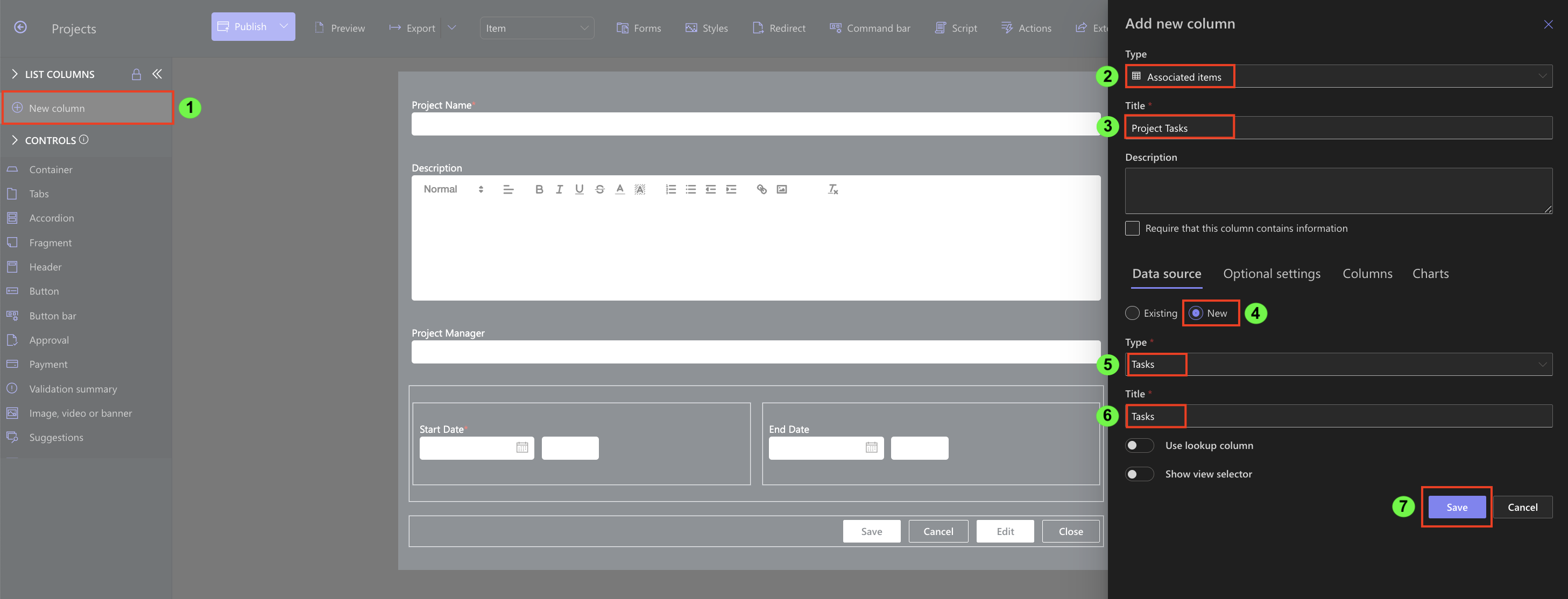
- In Form Designer, click Add Column.
- Choose type Associated Items.
- Name it Project Tasks.
- In the column settings:
- Select Create new list
- Type: Tasks
- Enter list name: Tasks
- Save.
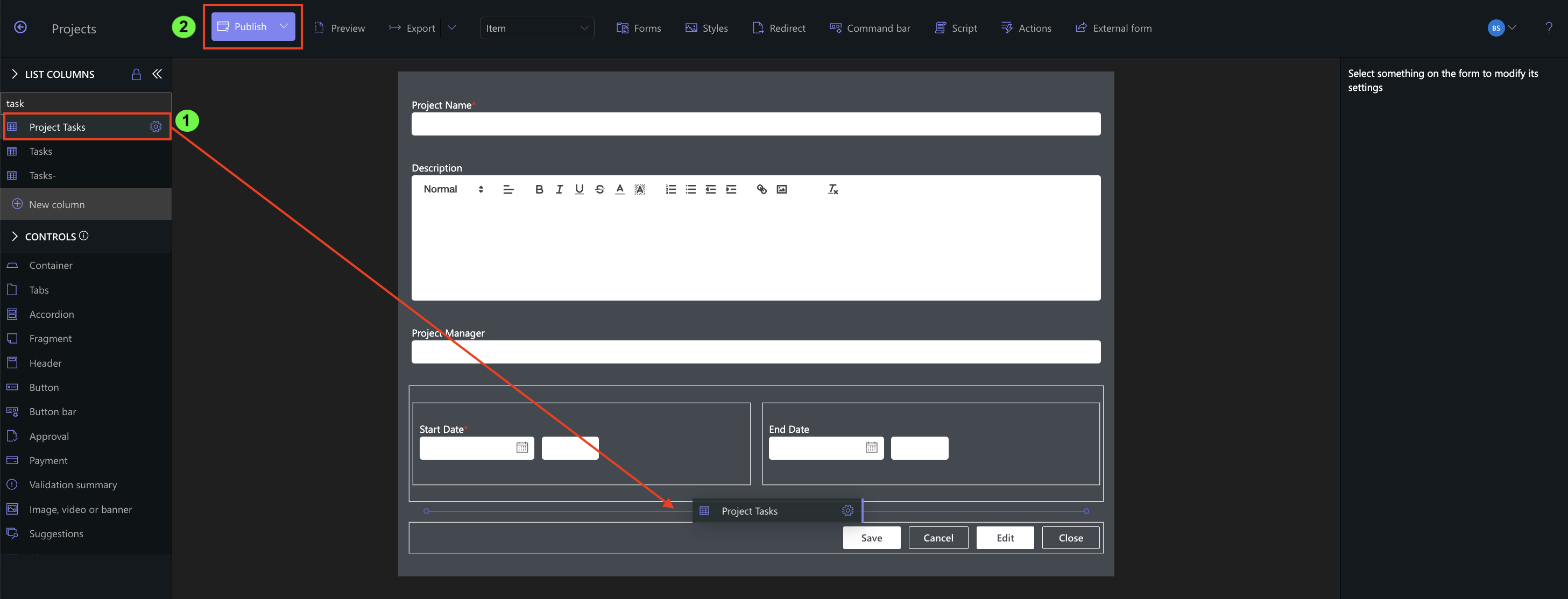
- Drag the Project Tasks column into Project form and Publish.
Step 3: Configure the child list
- After creating the list, configure its fields::
- Task Title (Single line of text)
- Assigned To (Person/Group)
- Status (Choice: Not Started, In Progress, Completed)

Step 4: Test the setup
- Create a new Project.
- Inside the Project form, you’ll now see a Project Tasks section.
- Add tasks directly in this section.
- Save the project.


Summary
You’ve just set up your first Associated Items configuration in Ultimate Forms. With only a few steps, you connected Projects and Tasks so that tasks can be managed directly within the project form.
Last modified: 3/24/2026 12:18 PM
Loading...
Add your comment
Comments are not meant for support. If you experiencing an issue, please open a support request.
Reply to: from



