Email based approvals are a fast, user-friendly alternative to system-based approvals. They are especially useful when approvers are frequently away from their computer, outside the corporate network, or do not have direct access to a SharePoint environment. Using Ultimate Forms: Alerts combined with Ultimate Forms: Import, a process can be created to interact with SharePoint without the user needing to have access to the SharePoint system in question.
This approach works on both Office 365 SharePoint and On-Premises SharePoint versions, making it a flexible solution for distributed teams and external approvers.
Instructions
What you will learn in this topic
- Key concepts of Email approvals
- Required list columns and form behavior
- How Email matching and Status updates work
- Testing approval responses
Process Overview
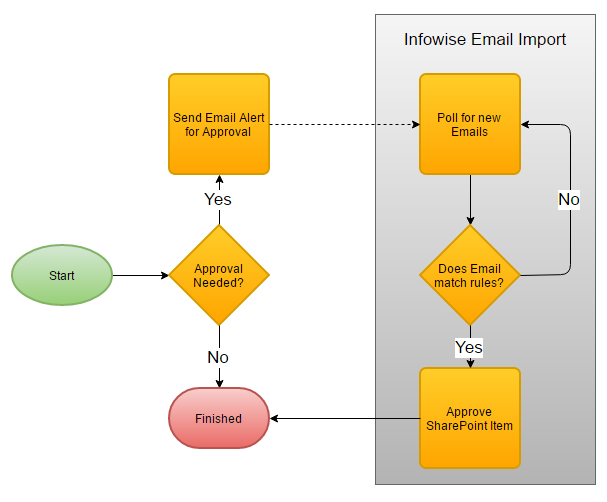
- A SharePoint item is created or updated
- An Email alert is sent to assigned approvers
- The approver replies with Approve or Reject
- The system imports the reply and matches the SharePoint item
- The list item Status column is updated accordingly
Why this matters
Because approvals should follow humans — not the other way around.
Traditional approvals require users to:
- login to SharePoint,
- navigate to the list,
- open the form,
- click Approve/Reject manually.
Email approvals reverse that flow.
Instead, the system:
- sends the request to the person,
- accepts reply,
- does the matching,
- updates the list,
- stores the result.
No delays. No UI friction. Just decision → import → update.
Example use case story
Imagine this:
A team lead is traveling, a department head is in a meeting all day, and the finance approver is external — they don’t even have a corporate login.
But approvals must move today, not when someone “gets back to the computer”.
With Email Approvals you can:
- Send a dynamic approval request directly to the responsible person’s mailbox
- Let the approver respond: Approve or Reject
- System reads the email in the background using Infowise Email Import
- It identifies the correct SharePoint list item by the Item ID in the subject
- Updates the Status — instantly and automatically
- Optional comment is also saved if written after the decision word
✔ The user never opens SharePoint
✔ The system does all the matching
✔ The workflow keeps running
This is why email approvals shine when approvals must move faster than access allows.
Next Step: Setup Sharepoint List



