The Ultimate Forms: Signature column adds a secure, trackable, and verifiable electronic signature directly to SharePoint forms.
Instead of uploading scanned signatures or relying on external systems, users can sign items inside the form — and the system automatically ensures the integrity of the signed data.
A Signature column is more than just a visual drawing or checkbox. It is a data integrity mechanism: whenever a user signs, Ultimate Forms stores the signer’s identity, the exact time of signing and the item version.
This makes the Signature column valuable not only for convenience, but also for compliance, approvals, auditing, and controlled business processes.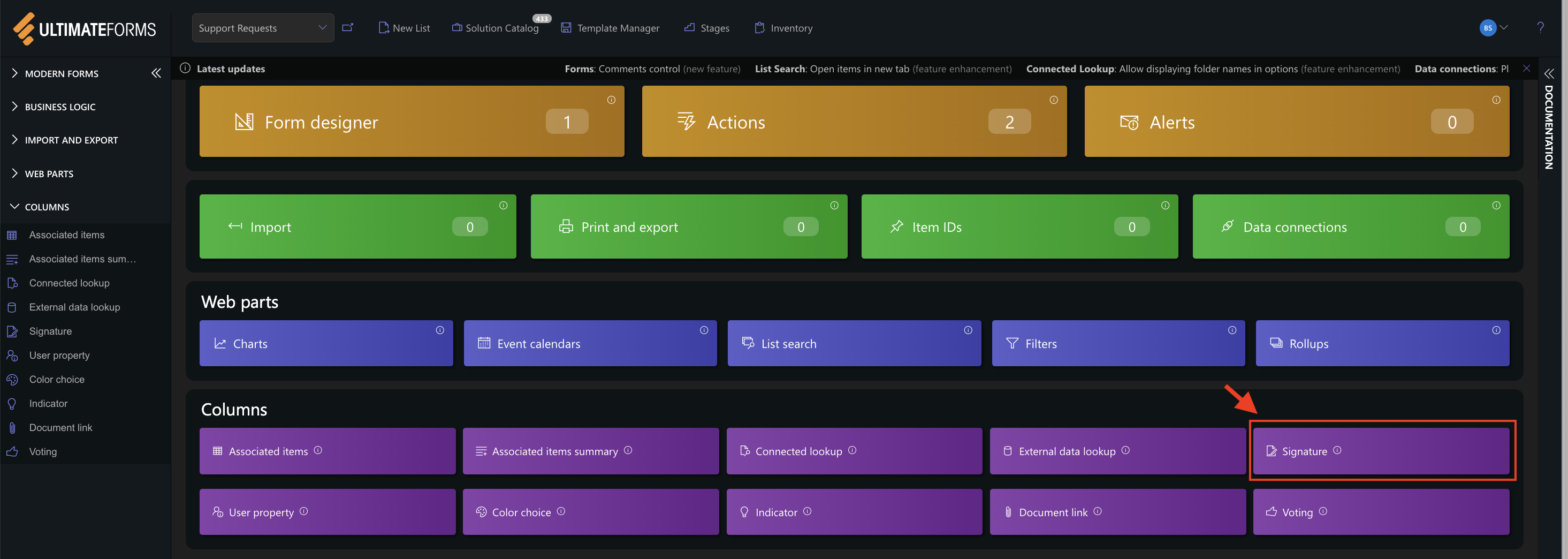
Instructions
How the Signature Column Works
When you add a Signature column, you also choose which list columns it protects.
Once signed:
- the values of those columns are locked to the signature
- any change to them invalidates the signature
- the system displays a clear indicator (valid ✔️ or invalid ✖️)
- workflows or validation rules can react to signature status
The signature becomes part of the list item and can be:
- shown in New/Edit forms
- included in PDF templates
- sent in notifications
- used in automated approval steps
- recorded in item version history
Multiple Signature columns can be used in the same form if your process requires multiple people to sign at different stages (e.g., employee + manager + quality auditor).
Signature Types
Ultimate Forms supports three ways of signing, depending on your process and security needs: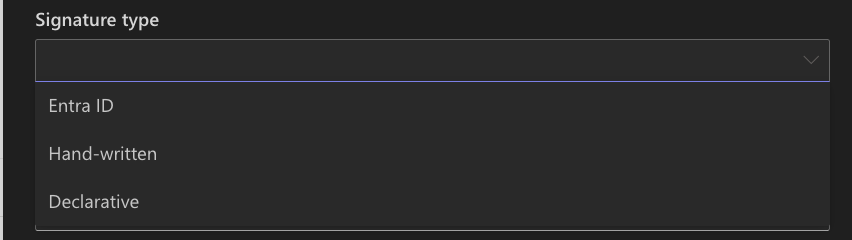
Entra ID Signature (formerly Azure AD)
The user must re-enter their credentials.
Identity verification happens at the moment of signing, ensuring the signer is truly who they claim to be.
Ideal for regulated processes, audit trails, and high-trust approvals.
Hand-written Signature
The user enters their full name and draws a signature using mouse, stylus, or touch.
Simple, intuitive, and mobile-friendly — great for tablets, field work, HR forms, service confirmations, or front-office scenarios.
Declarative Signature
A simple confirmation (“I confirm…”).
The logged-in user is used automatically; the signer’s name cannot be modified.
Good for quick acknowledgments and low-risk confirmations.
What Makes the Signature Column Important
- Accountability & Verified Identity
- Signatures are tied to real user identities (via Entra ID, account name, or logged-in user), creating clear responsibility.
- Tamper Detection
- If any signed value is changed after approval, the system flags the signature as invalid — preventing unnoticed data manipulation.
- Compliance & Process Control
- Many industries require formal sign-off and proof that approved information has not been altered. Signature column supports these requirements natively.
- Embedded Into Forms & Workflows
- No external systems, no PDFs, no uploads — signatures are part of your SharePoint processes, automation, and reporting.
- Flexible for Different Scenarios
- From simple consent checkboxes to multi-step authenticated approvals, you choose the type and behavior that matches your workflow.
Typical Use Cases
- Manager approvals for requests or expenses
- Quality control checks in manufacturing
- HR onboarding/offboarding confirmations
- Legal or compliance sign-off steps
- Delivery/service confirmation signatures
- Multi-role approval processes (e.g., Employee → Manager → QA → Director)
- Controlled business processes where changes must be traceable
Any scenario where data must be approved, tracked, protected from changes, and auditable benefits from the Signature column.
Summary
In the next tutorials, you will learn how to: add and configure Signature columns



