The Rollups web part provides the ability to locate and display items from multiple lists or document libraries. The source lists/library can reside in one or all sites of the site collection. You can even display lists from a different site collection.
The resulting aggregated view behaves similarly to the built-in list views. It offers sorting, filtering, paging and grouping as well as complete context menus for each item.
Rollups works with and support other Infowise components, such as color-coded columns or Associated items. It ensure smooth integration and seamless experience.
Instructions
How Rollups Behave
The aggregated view produced by Rollups behaves similarly to built-in SharePoint list views.
Users can interact with the results using familiar features such as sorting, filtering, paging, and grouping, as well as access full context menus for each item.
Because Rollups display real list items, users can open, edit, or act on them directly from the Rollup view, depending on their permissions.
Rollups also integrate smoothly with other Infowise components, such as color-coded columns or Associated Items, providing a consistent and seamless user experience across forms and pages.
What Rollups Are Used For
Rollups are commonly used to solve scenarios where data is spread across multiple locations but needs to be reviewed or managed together.
Typical use cases include:
- displaying items from multiple lists in one place
- consolidating data across sites or site collections
- creating overview or summary pages without duplicating data
- surfacing related items for reporting or review
- building pages where users can act on items directly
Each Rollup shows real list items, not copies or summaries.
How Rollups Work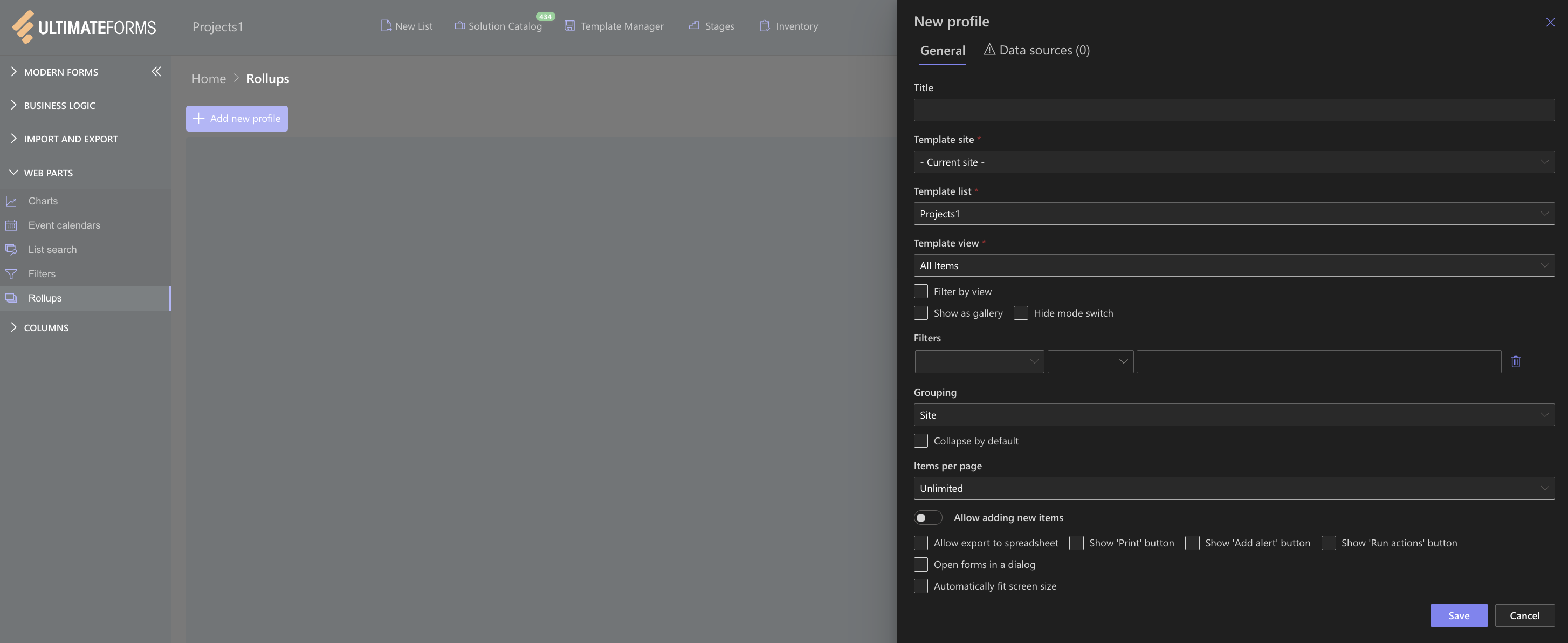
A Rollup is configured by creating a profile that defines:
- which site or scope to search
- which lists or libraries to include
- which view to use as a template
- optional filters to narrow results
- optional grouping to organize items visually
Once configured, the Rollups web part displays all matching items using the structure and layout of the selected template view.
Because Rollups rely on existing lists and views, they automatically follow SharePoint permissions and security rules.
Microsoft 365 and SharePoint On-Premises
Rollups are available in both Microsoft 365 and On-Premises environments, with differences in how they are configured.
Microsoft 365
- Rollups are configured using the Ultimate Forms design interface
- Profiles define data sources, template lists, and display options
- Rollups are added to Modern SharePoint pages
SharePoint On-Premises
- Rollups are configured directly in the Web Part Properties
- Lists, views, and filters are defined per page
- Typically used on Classic SharePoint pages
While the configuration experience differs, the core behavior of Rollups is the same in both environments.
Example Scenario
Imagine you manage multiple project sites, and each site has its own Projects or Requests list.
To get an overall picture, you would normally have to open each list separately and compare the data manually.
With Rollups, you can create a single page that displays items from all those lists together.
For example, you can show all active projects across sites in one view, sorted by status or grouped by site — without moving or copying any data.
Users can open or edit items directly from the Rollup view, just as they would in a regular SharePoint list, making it easy to review and act on information from one central location.
Summary
The Rollups web part provides a practical and reliable way to aggregate SharePoint list and library items into a single view.
By supporting both Microsoft 365 and SharePoint On-Premises environments, Rollups help users surface, review, and work with related data without restructuring existing lists or duplicating content.



