In this tutorial, you will learn how to use the Signature column as part of an approval process.
You will configure signatures to be required, shown conditionally, and locked after approval, ensuring that signed data cannot be modified without re-approval.
All examples are based on practical, real-world scenarios and can be adapted to any list or form.
Instructions
Scenario Setup
For the examples below, assume the form includes:
- Status (Choice): Draft, Ready for Approval, Approved
- Manager Signature (Signature column)
- Approval Date (Date)
- Amount (Currency)
The Signature column protects key business columns such as Status, Amount and Request Date.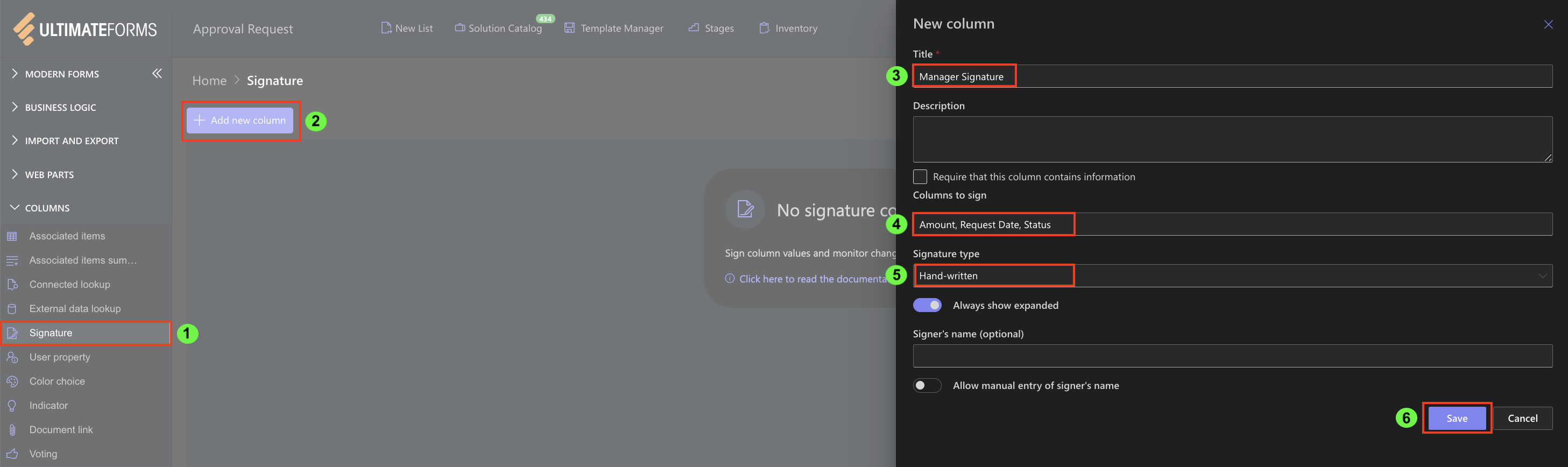
Step 1: Requiring a Signature Before Approval
In many processes, an item should not move forward without a valid signature.
Goal
Require a signature when Status = Ready for Approval.
How it works
- The Signature column remains optional in Draft
- Once Status changes to Ready for Approval, the signature becomes required
Configuration
- Open Designer
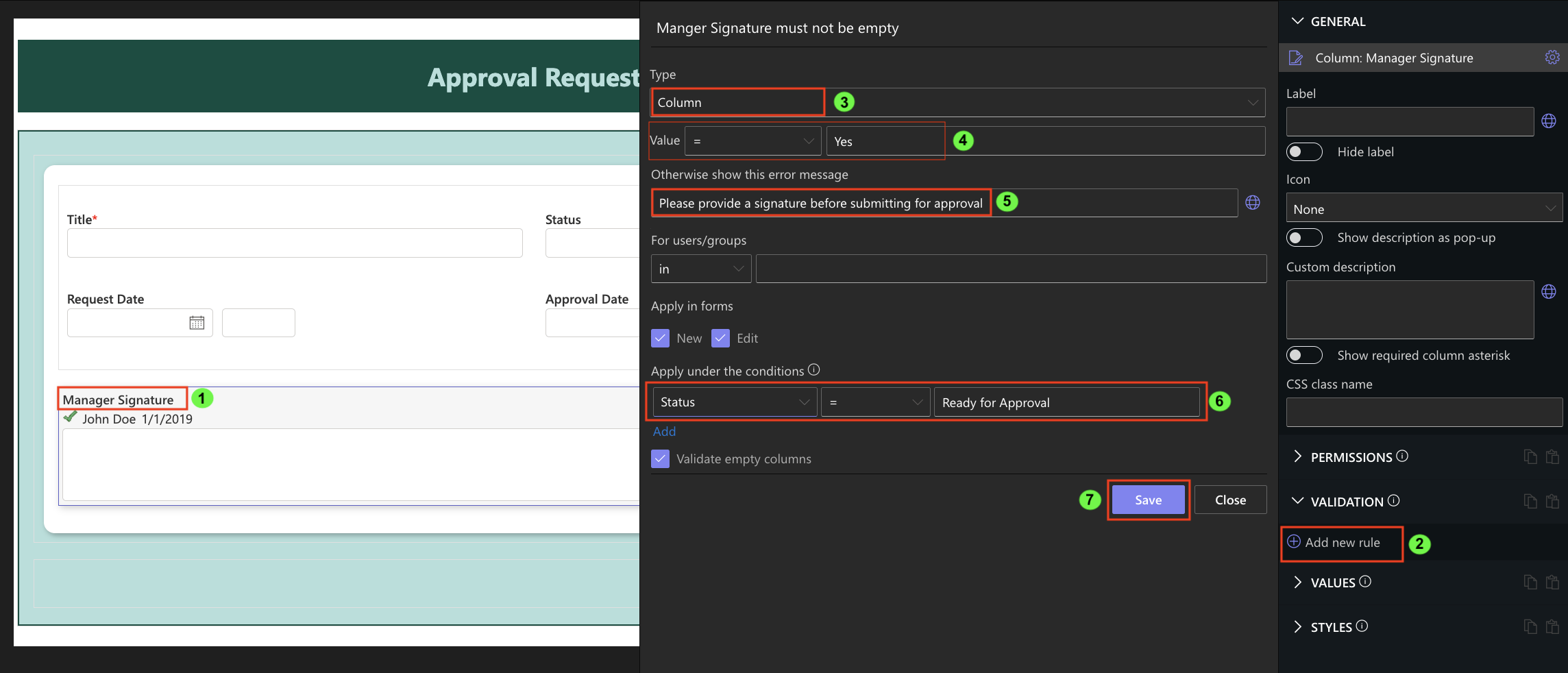
- Create a Validation Rule
- Name: Manager Signature must not be empty
- Error message:
- “Please provide a signature before submitting for approval.”
- Condition:
- Status = Ready for Approval
Result:
The form cannot be saved in “Ready for Approval” state without a signature.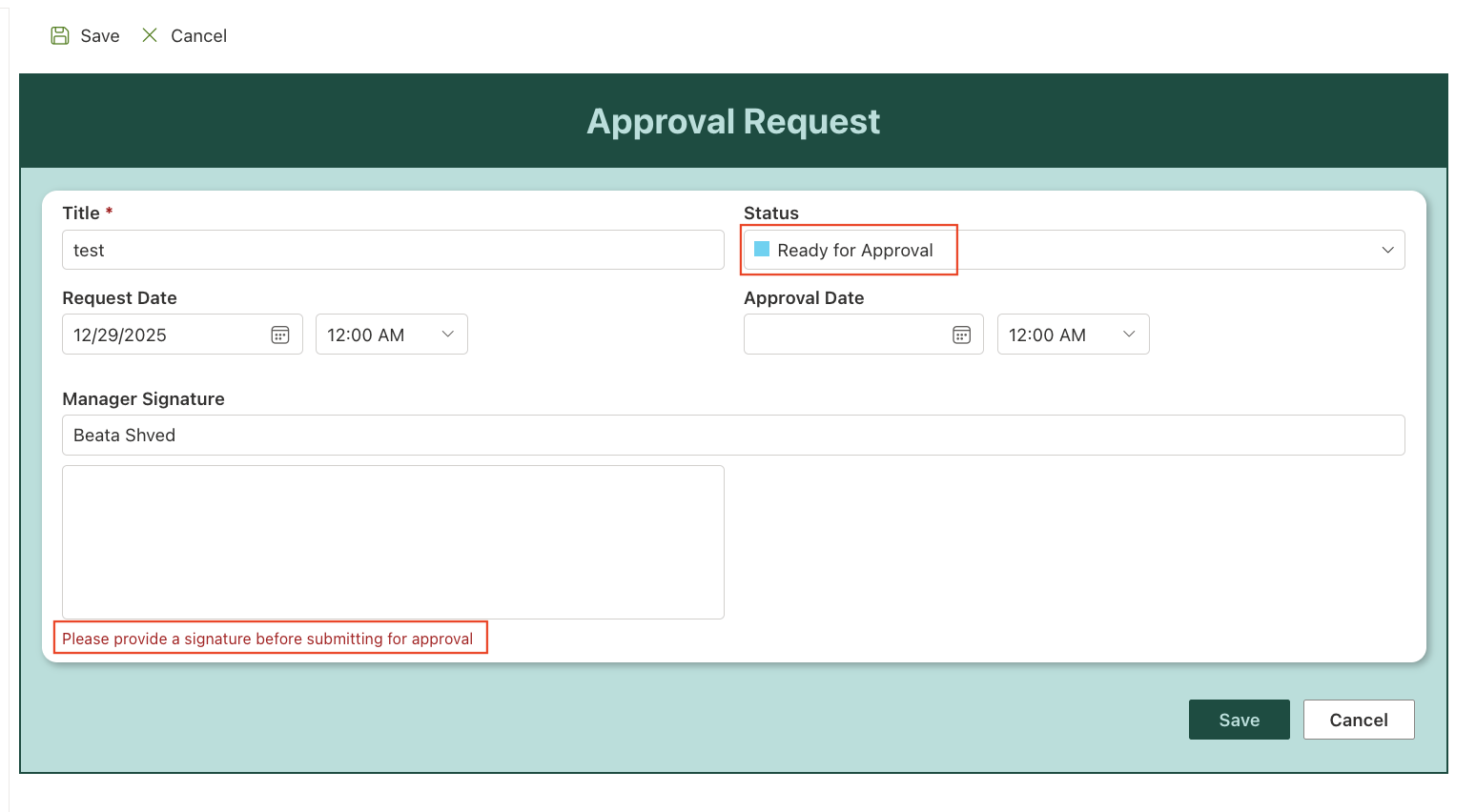
Step 2: Showing the Signature Only at the Right Stage
Signatures should appear only when they are relevant.
Goal
Show the signature column only when approval is required.
Configuration
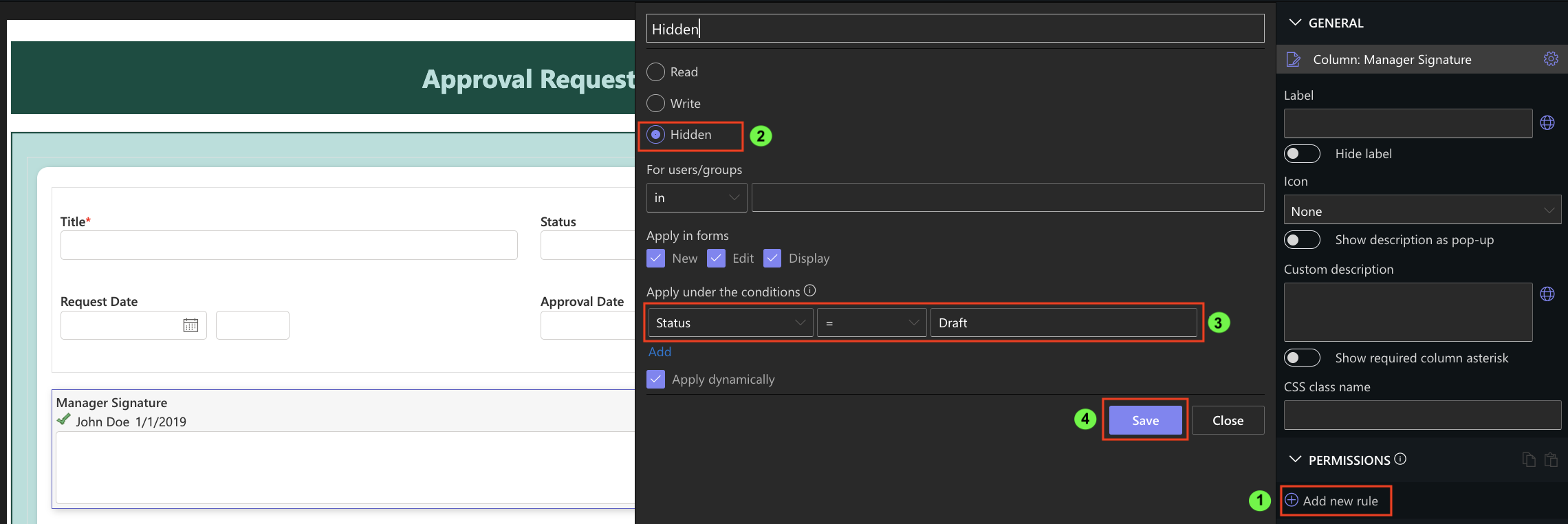
- Create a Permission Rule for Manager Signature
- Set: Hidden
- Condition:
- Status = Draft
- Create the next Permission Rule for Manager Signature
- Set: Write
- Condition:
- Status = Ready for Approval
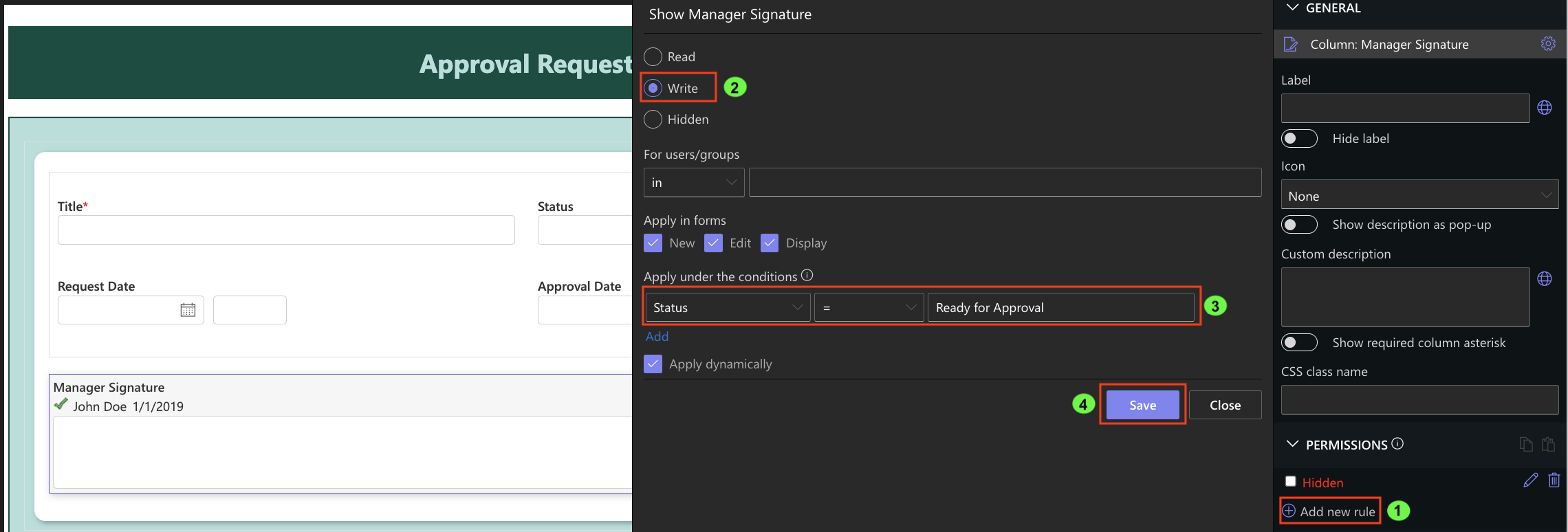
Result:
The form stays clean and simple until the approval stage.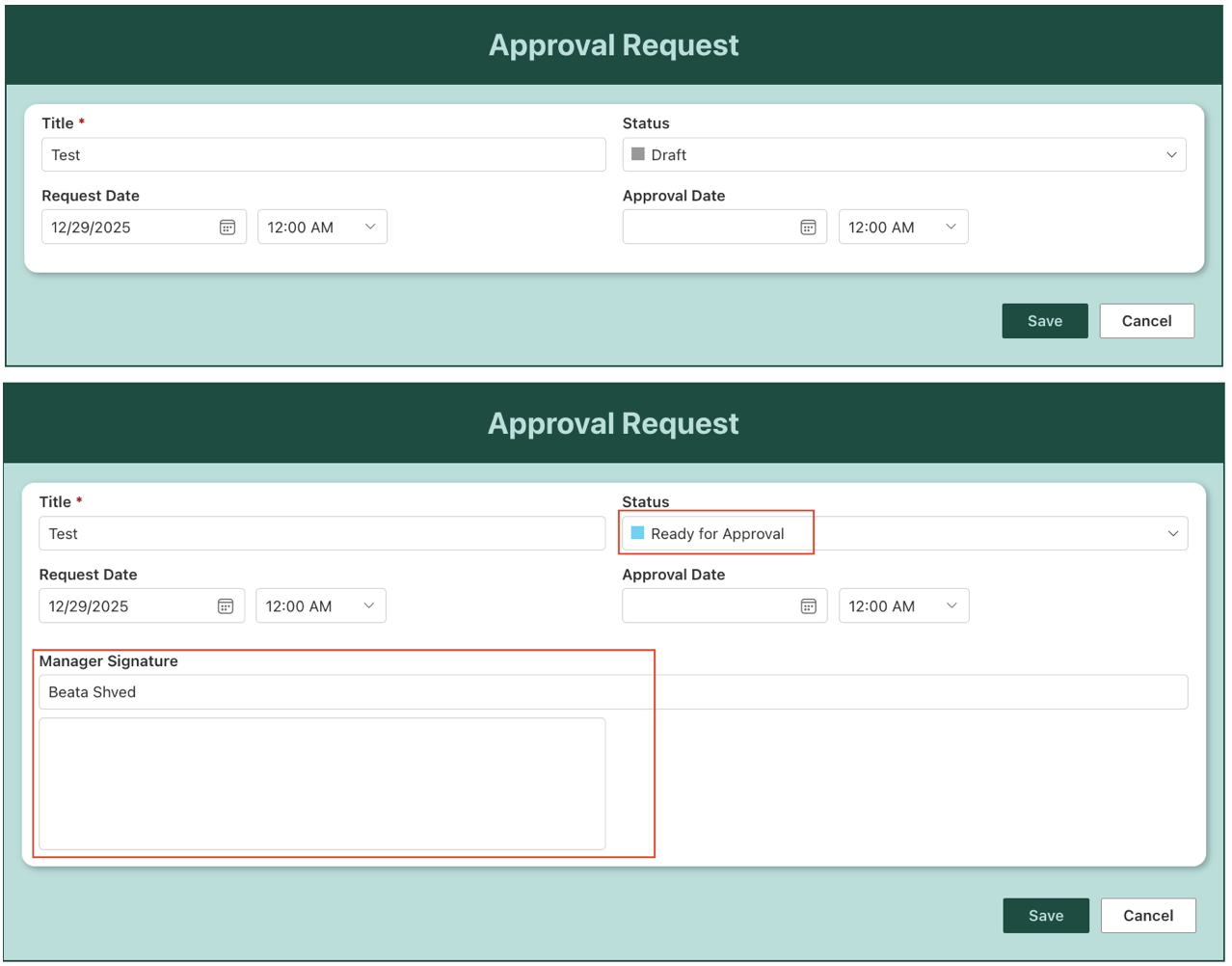
Step 3: Locking the Signature After Approval
Once an item is approved, the signature must not be changed.
Goal
Prevent editing the signature after Status = Approved.
Configuration
- Create a Permission Rule
- Set: Read
- Condition:
- Status = Approved
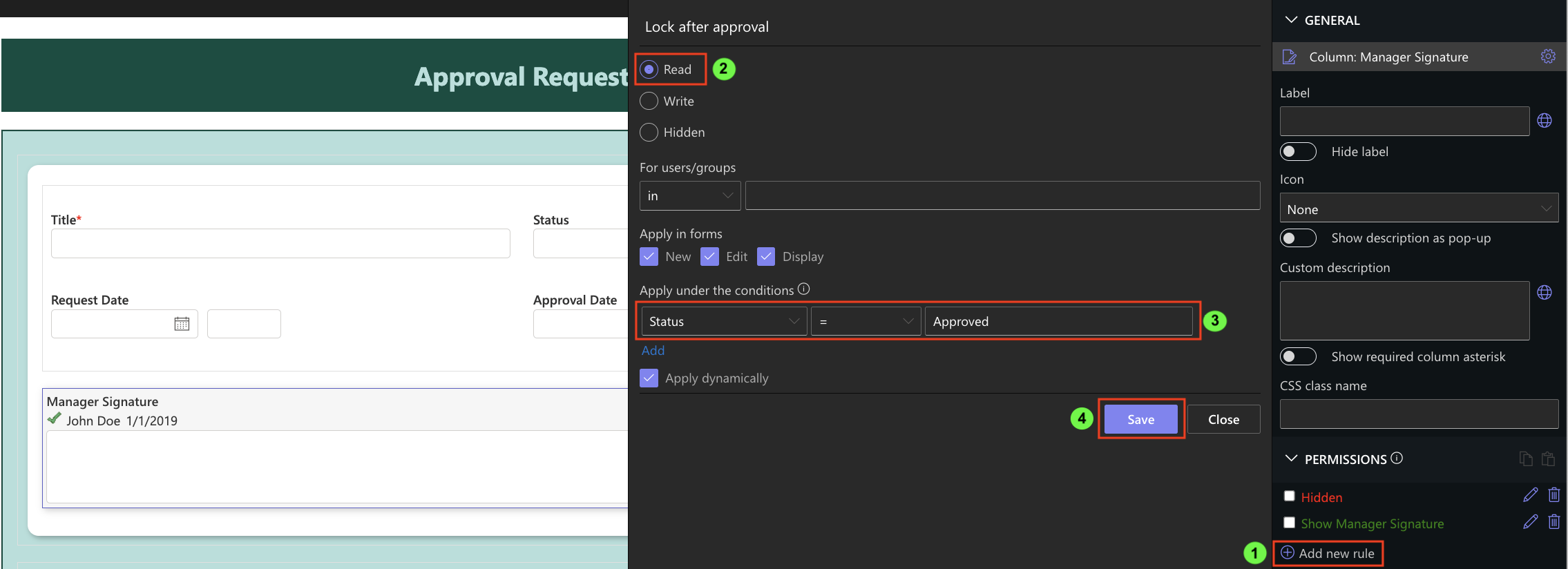
Result:
The signature becomes read-only and cannot be modified after approval.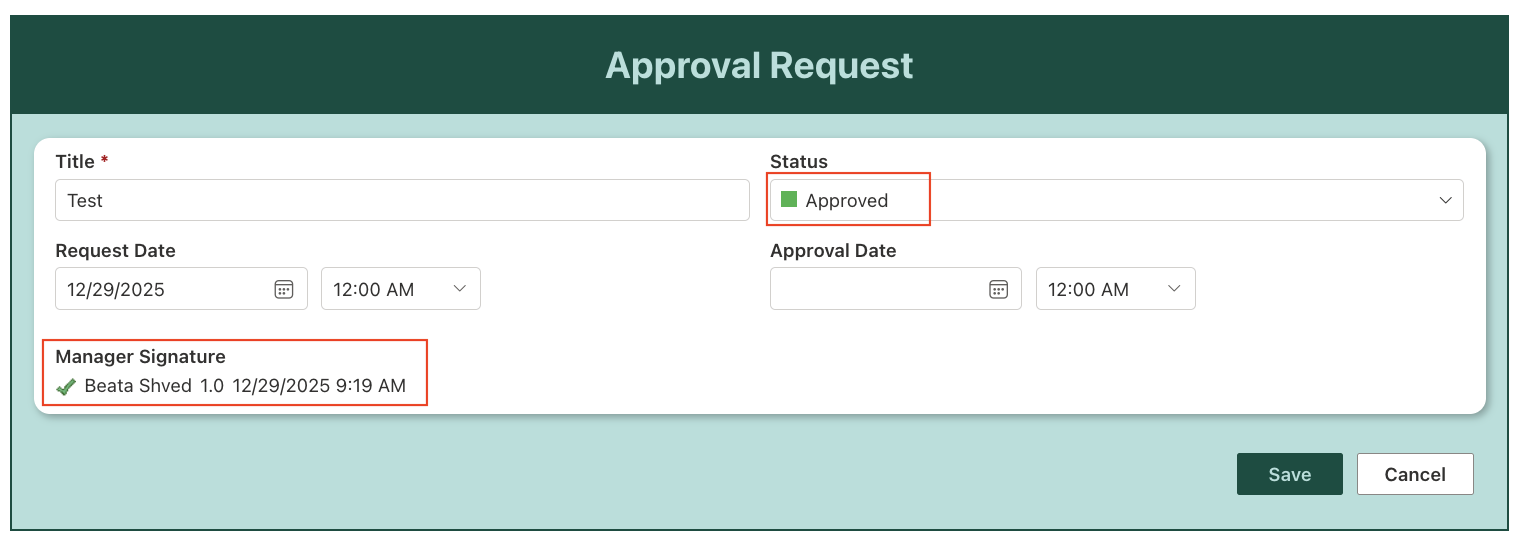
Preventing Changes to Signed Data
The Signature column automatically protects selected columns.
How it works
- If a signed column value changes after signing
- The signature becomes invalid
- The system visually indicates the broken signature
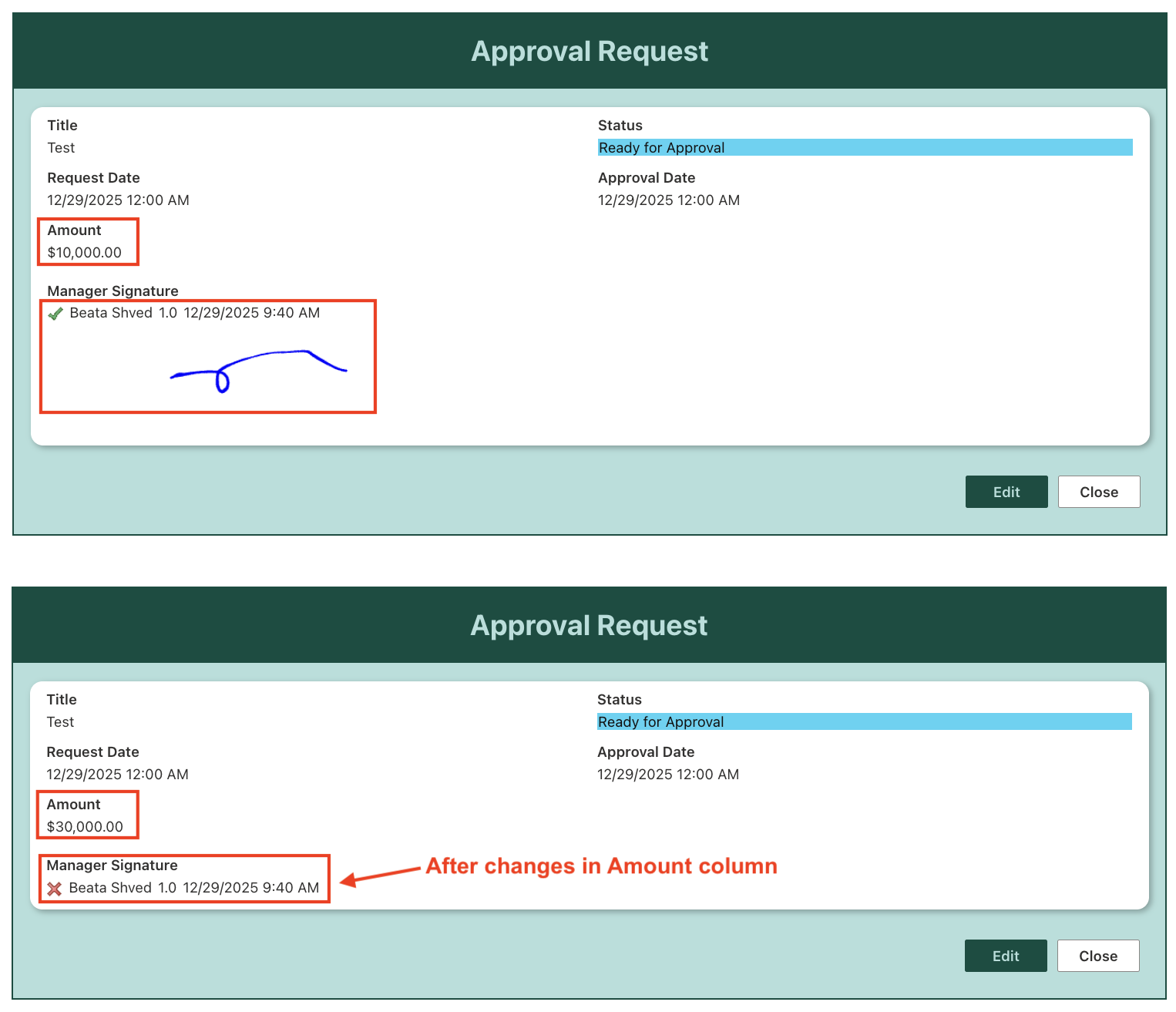
You can use this behavior to:
- block further processing
- require re-signing
- notify managers or owners
This ensures that approved data cannot be silently altered.
Using Multiple Signatures in One Approval Flow
Complex processes often require more than one approval.
Example:
- Employee Signature → confirms submission
- Manager Signature → approves request
- Finance Signature → final confirmation
Each signature can:
- protect different columns
- appear at different Status values
- be locked independently
This allows you to build multi-step approval workflows entirely inside the form.
Summary
In this tutorial, you learned how to use the Signature column as part of an approval workflow by making it required, showing it conditionally, and locking it after approval. You also saw how signature validation protects approved data from changes, allowing you to build secure, auditable, and controlled business processes directly inside SharePoint forms.



