Forms
Actions
Alerts
Associated Items
Connected Lookup
Print
Import
Signature
External Data Lookup
Calendar
Rollups
Charts
Counters
List Search
Filters
Item IDs
Color Choice
User Property
Document Link
Voting
Stay in the know
Get helpful videos
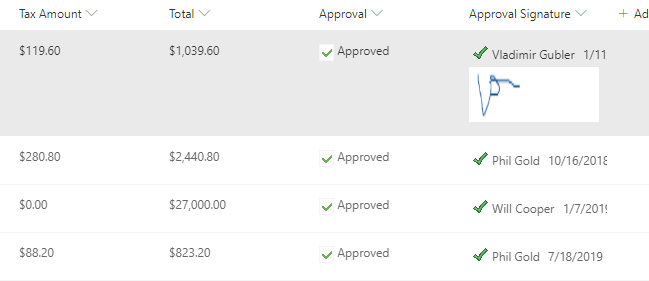
Add electronic signatures to SharePoint forms and documents: tamper-evident, FDA 21 CFR Part 11 oriented, with handwritten signing on any touchscreen.
Ultimate Forms: Signature adds electronic signatures directly to SharePoint lists, forms, and documents. Users sign by entering their credentials or by hand on any touchscreen, the signed values are sealed with an encrypted hash, and if anyone changes the data afterward, the signature visibly invalidates. Signatures record who signed, when, and which item version, supporting regulated processes such as FDA 21 CFR Part 11 environments, with no code and no external signing service required.
A signature that cannot detect change is just a picture. This one is evidence.
Why signatures need to live in the data
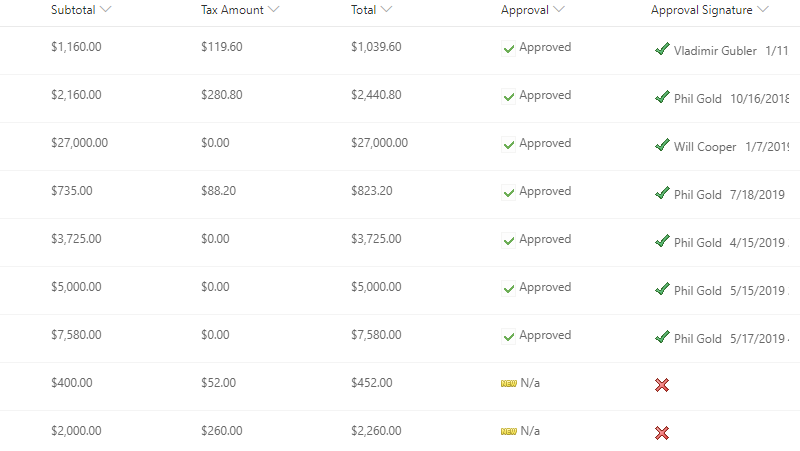
Most e-signature workflows export the record to a PDF, send it through an external service, and file the signed copy somewhere else, disconnected from the live data it certifies. The moment the record changes, the signed PDF is silently out of date, and nobody knows.Signature works where the data lives. You choose which columns a signature covers; as long as those values stand, the item shows a valid signature icon. If any covered value changes, by anyone, the signature immediately displays as invalid, in real time, right in your views. The certification and the data can never drift apart.
What Signature can do
Sign what matters, prove it stays true
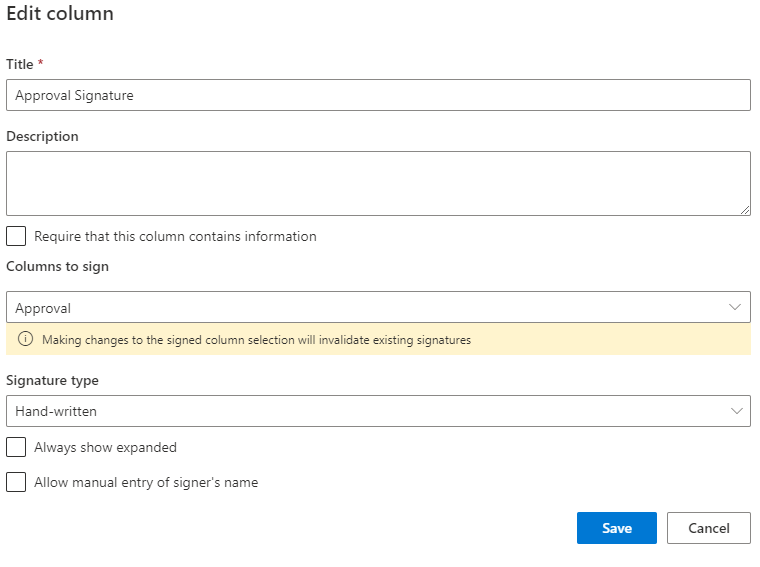
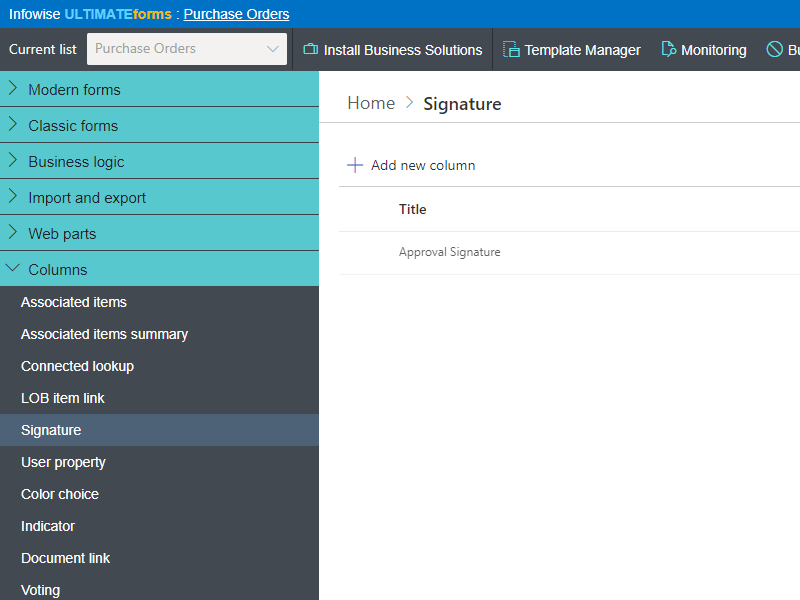
Cover any number of columns in a list or library with a single signature, and sign both list properties and document content. At signing, an encrypted hash of the covered values is stored, making tampering detectable by design. Every signature records the signer's name, the exact time, and the item version, and validation runs in real time with clear valid/invalid indicators.Verify the signer, not the session
Signing requires entry of the user's own name and password, independent of who is logged into the machine. That distinction is what regulations demand, and it unlocks kiosk mode: a shared terminal on a manufacturing floor where ten operators sign their own steps on one machine, each signature provably theirs.Sign by hand when the process calls for it
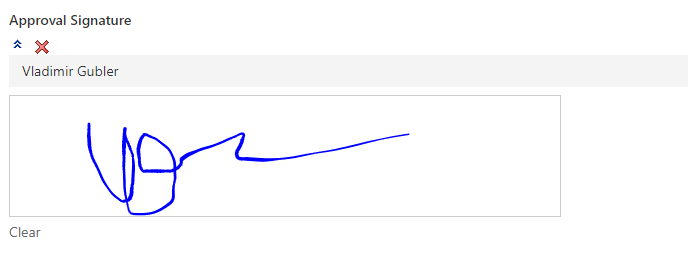
Capture handwritten signatures on touchscreens and mobile devices, or through a Topaz signature pad at fixed stations. Delivery confirmations, patient consent, visitor acknowledgments: wherever a drawn signature is the norm, the form accommodates it without extra hardware beyond what you have.Built for regulated environments
The credential-based signing model is oriented to regulations such as FDA 21 CFR Part 11 that require identity re-entry at the moment of signature. Combined with SharePoint's version history and the Approval control's logged decisions, you get an auditable chain from data entry to sign-off. (As with any compliance topic, your quality team validates the full system; Signature gives them the mechanism they need.) Read more in our article on electronic signatures and regulatory compliance in SharePoint.Compared with Native SharePoint
| Ultimate Forms | Native SharePoint | |
|---|---|---|
| Sign any number of columns | ✓ |
|
| Confirms to regulations requiring entry of user name and password (FDA CFR part 11) | ✓ |
|
| Signature contains user name, version and date of signature as well as signature status | ✓ |
|
| Hand-written signature using touchscreens/mobile devices | ✓ |
|
| Hand-written signature using Topaz Signature Pad | ✓ |
|
| Localized into Enlgish, French, Spanish and German | ✓ |
✓
|
Where teams use it
Quality inspections signed at each step on the shop floor. Patient and client consent captured on tablets in intake processes. Policy acknowledgments in HR, where the signature invalidating on edit is exactly the audit trail regulators want. Training sign-offs, delivery confirmations, and approval decisions that need more than a status change. Paired with Print, the signed record becomes a signed document; paired with Alerts, an invalidated signature can notify the process owner the moment it happens.Frequently asked questions
Q: Can I add electronic signatures to SharePoint forms without DocuSign?
A: Yes. Signature captures and validates signatures directly on SharePoint lists, forms, and documents, with no external signing service, no per-envelope fees, and no export step. (For processes that do route through DocuSign, Ultimate Forms integrates with it as well.)
Q: What happens if signed data is changed?
A: The signature immediately shows as invalid. An encrypted hash of the signed values is stored at signing time, so any later change to a covered column is detected in real time.
Q: Does it support FDA 21 CFR Part 11 requirements?
A: Signature is built for that model: signing requires entry of the user's own name and password rather than relying on the logged-in session, and each signature records signer, time, and item version. Your compliance team validates the complete system.
Q: Can several people sign on one shared device?
A: Yes. Because identity is verified at signing, kiosk mode works: multiple users sign their own entries on a shared terminal, common on manufacturing floors.
Q: Can signatures be handwritten?
A: Yes. Users can sign by hand on touchscreens and mobile devices, or with a Topaz signature pad, in addition to credential-based signing.
Q: Can documents be signed, or only list items?
A: Both. Signature covers list properties and document content, with any number of columns under one signature.
Screenshots