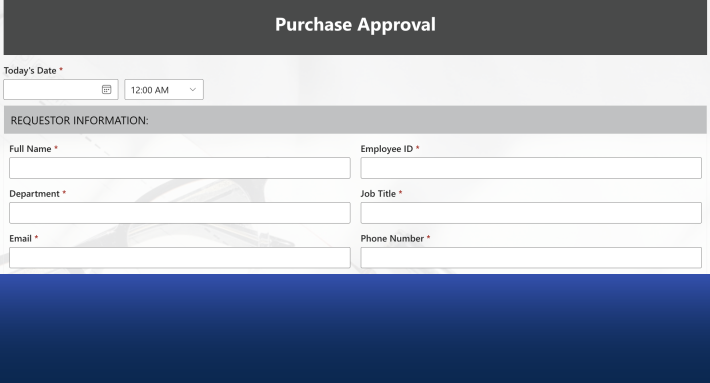
An approval workflow in SharePoint routes an item, a request, a document, an expense, through review stages until it is approved or rejected, with notifications at each step and a complete record of who decided what and when. SharePoint provides the foundation: lists, libraries, permissions, and versioning. Ultimate Forms adds everything the foundation lacks, starting with a dedicated Approval control that carries stages, decisions, comments, and history in a single component, plus escalation, signatures, and audit-grade history, without code. This guide is the map of the whole territory: the patterns, the build, the hard cases, and links to a deep-dive guide for each.
What a SharePoint approval system is
The anatomy is always the same, whatever the process. An item is submitted into a list or library. It is routed to reviewers, one after another or in parallel. Reviewers decide, comment, and sometimes send the item back. Statuses change as decisions land, notifications keep everyone informed, and every action is logged. When the final decision arrives, the item locks, and the record stands.
What varies is the routing logic, the formality, and the volume, and those three variables decide how much machinery you need. A two-step vacation approval and a five-stage capital expenditure sign-off are the same anatomy at very different scales. The sections below follow that progression.
The four routing patterns
Nearly every approval process is one of four shapes, or a combination.
Sequential routing sends the item through stages in order: manager, then finance, then director. Each stage waits for the previous one. This is the most common shape, and a complete three-stage process takes about ten minutes to build, with tabs as stages and permission rules as the transitions.
Parallel routing asks several reviewers at once and proceeds when all, or any, have decided. Right for peer reviews and multi-department sign-offs where order carries no meaning, and the fastest shape when reviewers do not depend on one another's answers.
Conditional routing picks the path from the data: amounts over the threshold go to senior approval, contracts route by department, requests from one site go to that site's approver. Conditional approvers express this as readable rules rather than branching diagrams.
Dynamic routing goes one further: the approver is not fixed anywhere, but read from the data itself, the requester's manager from their profile, the owner from a lookup. Dynamic approvers keep the process correct as the org chart changes, with nothing to reconfigure.
The fast path: the Approval control
Start here, because for most processes this is the whole build. The Approval control is a dedicated component you place on the form in Form Designer, and it carries the entire approval machinery inside it: the stages, the approvers for each, the approve and reject decisions, the comments, and the complete approval history, all in one place on the form.
Configure the stages and who approves at each, and the control does the rest. Approvers see their pending decision the moment they open the item. Decisions are recorded with who, when, and why. The stage advances automatically, and the history accumulates on the form where everyone can read it. There are no actions to wire, no status columns to manage, and no notification plumbing to build by hand: a working multi-stage approval takes minutes, and the seven unique features of the Approval control cover what makes it more capable than it first appears. For the gentlest end-to-end introduction, see fast and simple approvals.
The control covers the four routing patterns above, and it is the right default for the overwhelming majority of approval processes. Reach past it only when your process needs something genuinely unusual.
The custom path: tabs, rules, and actions
For specialized processes, the same result can be assembled by hand from the platform's general-purpose parts, and sometimes that assembly is exactly right: when each stage carries its own large block of data entry, when stages belong to different departments with different forms-within-the-form, or when the process is less an approval than a staged handoff.
The custom build runs on three mechanisms. Tabs represent the stages, one per department or step, as in the ten-minute three-stage build. Permission rules are the transitions: each tab writable while its stage is active, read-only once its decision is recorded, with sequential status enforcement keeping items from skipping steps. And Actions carry the side effects: moving statuses, notifying the next stage, stamping decision dates, each a self-contained rule rather than a flowchart. Alerts complete it, telling submitters their request arrived and reviewers that work awaits; notifications are half of what users experience as "the system", so write them well.
Whichever path you take, finish the same way: counters, indicators and charts showing approvals in progress, average cycle time, and bottlenecks by department, no Power BI required.
The hard cases, and their answers
Every approval system meets the same four complications sooner or later. Each has a dedicated guide.
The approver is away. Vacations, sick days, and departures stall more approvals than any design flaw. Delegation, substitutes, and out-of-office handling are covered in approvals when the approver isn't available.
Nobody responds. Reminders before the deadline, escalation past it, and exception reporting for management: escalation rules make the process do its own chasing.
The approver is not at a desk. Decisions can arrive from a phone as an SMS-based approval, or from a Teams message with action buttons, so the warehouse manager approves from the floor.
The volume is relentless. When approvals arrive daily, tracking them individually stops working. Daily approval tracking and automated approvals with check-in and check-out cover the high-throughput patterns.
Making it formal: signatures and audit
Some approvals are conveniences; others are evidence. When the process must stand up to an audit, two additions carry the weight.
Electronic signatures bind the decision to the data: the signature covers the approved values, and any later change to them is flagged. An approval becomes tamper-evident rather than merely recorded.
The audit trail assembles itself from parts you already built: action history on every automated step, version history on every edit, the status column's progression, and the locked final state. Six months later, "who approved this, when, and what exactly did they approve" is a lookup, not an investigation.
Where approval workflows earn their keep
The same skeleton serves every department. HR runs leave requests, onboarding sign-offs, and training enrollments. Finance runs budget approvals, expense claims, and invoice reviews. Legal routes contracts and compliance sign-offs. Procurement reviews purchase requests and vendor evaluations. Operations approves change requests and access grants.
None of these need to start from a blank list: the solution library includes ready-made approval systems, leave requests, purchase orders, content approval, compensation reviews, that install in minutes and adapt in the browser. The step-by-step build guide covers adapting them.
Why not just use Power Automate?
For a single simple approval, Power Automate works. The differences appear at the second process and compound from there: flows are owned by individuals and break when they leave, branching logic grows into flowcharts only the author can read, and every change is a development task. The Ultimate Forms approach keeps approval logic as named, readable rules owned by the people who own the process, a contrast examined in Actions versus Power Automate and, for the broader platform question, the full Power Apps comparison.
The practical rule: if the process owner cannot maintain it, the process does not really have an owner. Approval systems live for years and change often, which is exactly the life cycle that rewards configuration over code.
Start with one process
The way into approval workflows is not a platform decision; it is one process. Pick the approval that generates the most chasing emails today. Build it with the seven steps, or install the nearest template and adjust. Run it for two weeks alongside the old way, and count the status-inquiry emails that stop arriving.
Build it with the Approval control first; move to the custom path only if the process demands it. Then reuse everything: the second process borrows the first one's patterns, the third takes an afternoon, and somewhere around the fourth, approvals stop being something the organization does by email and memory, and become something the platform simply does. The deep-dive guides linked throughout are the map for that journey, one hard case at a time.
Frequently asked questions
Add your comment