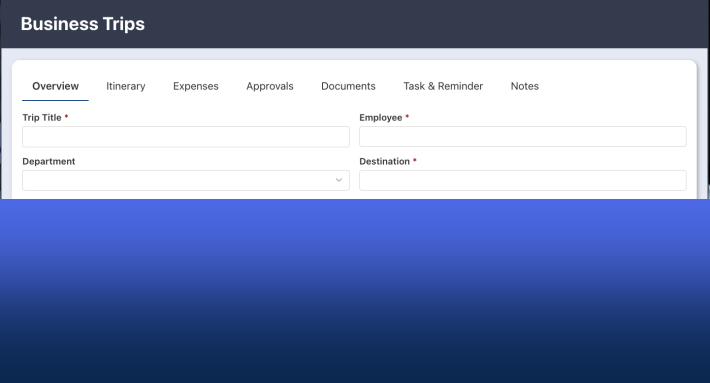
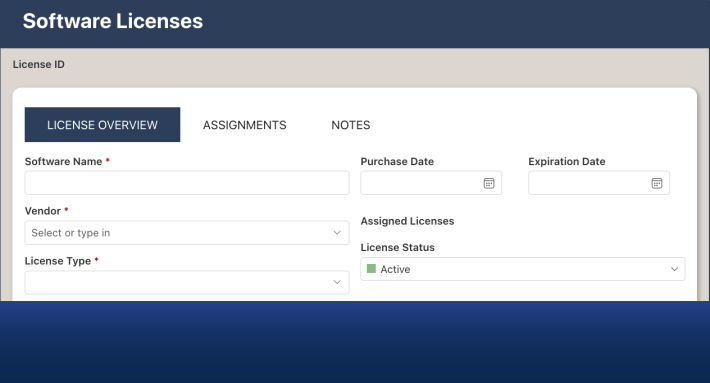
Every approval process has the same weak point: the approver. Not because approvers are careless, but because they're busy. They travel, they take vacations, they change roles, and sometimes a request simply sinks to the bottom of an overflowing inbox. When that happens, the process doesn't fail loudly — it just stops. The purchase order sits unsigned, the leave request stays pending, the contract waits. And someone, eventually, has to notice and start chasing.
We've just added a feature to the Ultimate Forms Approval control that closes this gap for good: escalation rules. Before we get into the details, let's take a step back and look at what the Approval control does. Because if you haven't used it yet, you may be surprised how much approval machinery you get without building anything.
Approval-in-a-box: what you get out of the box
Traditionally, building an approval process in SharePoint meant workflows. Designing them, debugging them, and maintaining them every time the process changed. The Ultimate Forms Approval control takes a different approach. It's a single form control that contains a complete approval process: you drag it onto your form in the Form Designer, pick one or more approvers, and save. That's genuinely the whole setup — the most common settings are pre-selected, and the process is ready to run the moment you publish the form.
Behind that simple setup sits a serious feature set:
- Single and multi-stage processes, running sequentially or in parallel — including a "first to respond decides" mode for parallel stages.
- Flexible approver selection: a specific user, a SharePoint group, or a column value from the item itself. Select a lookup column and you can even pull the approver from the related list — choose the Department lookup, point to its Manager column, and every request is automatically routed to the right department's manager.
- Conditional approvers: each approver can have conditions, so they're only included when relevant. CFO sign-off only for purchases above a threshold? One condition, no branching logic to design.
- Automatic notifications and reminders, with four pre-configured, fully customizable email templates and control over when reminders start, how often they repeat, and how many are sent.
- Form locking during and after approval, so nobody edits an item mid-review.
- A built-in review and re-submit cycle: when an approver rejects, the initiator can revise and request a new review, and the process resumes from the same point — no starting over.
- Clear visibility everywhere: a color-coded status column and a live progress bar right in your list views — green when on track, orange when the due date is near, red when overdue.
Everything is configured from the browser by the same people who build the rest of the form. No workflow designer, no Power Automate licenses, no development queue. That's why we call it approval-in-a-box: the box is the control, and the process lives inside it.
The new piece: escalation rules
Here's the scenario every process owner knows. A purchase requisition goes to a manager for approval. The manager is at a conference. Reminders go out — to the same unavailable person. A week later, procurement calls IT asking why the system is "stuck." The system isn't stuck; it's waiting, politely and indefinitely.
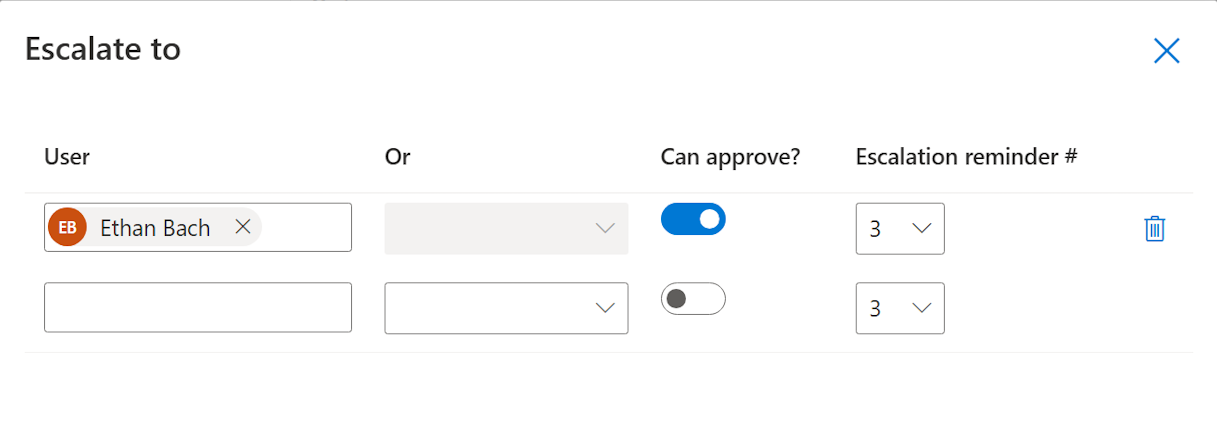
Escalation rules make the process handle this situation itself. For each approver in your process, you can now optionally define one or more escalation rules. Each rule specifies:
- Who to escalate to. Just like approvers, escalation users can be named directly, resolved from a SharePoint group, or pulled from a column value on the item — so the escalation target can vary per request, exactly like the approver can.
- When escalation kicks in. You set the reminder number that triggers the rule. Once that many reminders have gone to the original approver without a decision, the escalation user starts being CC'ed on every subsequent reminder email. The nudge is no longer private.
- Whether they can act. Optionally, escalation users can be allowed to open the form and approve or reject on behalf of the original approver. When they do, the approval log records their name with an explicit remark that the decision was made on behalf of the main approver — the audit trail stays honest.
That last point matters. Escalation isn't a workaround or an admin override; it's a first-class part of the process with full traceability. Compliance-minded organizations get exactly what they need: the process keeps moving, and the record shows precisely who moved it.
What this looks like in the real world
Purchasing. A mid-market company routes purchase requisitions through department managers, with CFO approval conditional on amounts over $10,000 — the pattern we described in Fast and Simple SharePoint Approvals with Ultimate Forms. Now they add one escalation rule per approver: after the second reminder, the manager's own manager is CC'ed; after that, they may approve on behalf. Urgent orders no longer die in an inbox while a manager is on a plane.
Leave requests. HR runs leave approvals where the approver comes from the employee's Manager column. The escalation rule points at an HR Operations group. If a manager hasn't responded after three reminders — perhaps they're on leave themselves — HR is copied in and can approve on their behalf. The employee gets an answer before the trip, not after it.
Contract reviews. Legal review is often the slowest stage of a contract process. An escalation rule that CC's the head of legal from the second reminder onward has a remarkable effect: most approvals happen right before the escalation email would go out. Often, the mere existence of escalation is enough — visibility is its own motivator.
Invoice processing. Accounts payable approvals stall at month-end when everyone is busy. An escalation rule to a backup approver with approve-on-behalf rights means invoices are paid on time, early-payment discounts aren't lost, and the log still shows exactly who decided what.
Notice what these examples have in common: nobody built anything new. Each is one small rule added to an existing approver line — a user, a reminder number, a checkbox.
Ease of use is the feature
It would have been easy to implement escalation as another layer of configuration complexity. We deliberately didn't. Escalation rules live inside the Approvers tab, attached to each approver, and they're entirely optional — a process without them works exactly as before. When you need one, it's three decisions: who, after how many reminders, and whether they can act. If you can fill out a form, you can configure an escalation chain.
That philosophy runs through the whole Approval control, and through Ultimate Forms in general: sophisticated behavior, configured simply, by the people who actually own the process. Business users and power users shouldn't need to wait for developers to make an approval process robust — and with this release, they don't.
Getting started
If you're already running approval processes with Ultimate Forms, open your form in the Form Designer, select the Approval control, and look at the Approvers tab — escalation rules are waiting there. The full configuration reference is in the Approval documentation.
If you're new to the Approval control, three good starting points:
- Watch the recording of our webinar Easy Setup Approval System for SharePoint, where we build a working approval process live.
- Browse the solution templates — many, from Leave Requests to Purchase Orders, can benefit from approval processes. You can install in one click and study or adapt.
- For a deeper, guided path, our instructor-led training covers approvals alongside the rest of the platform.
Approvals are where business processes most often stall — and where visibility and accountability matter most. With escalation rules, your SharePoint approval processes now watch themselves: reminding, escalating, and, when authorized, deciding — so your team doesn't spend its week chasing signatures.
Try it in your next form. It takes about a minute to add, and it's the last time that process will ever wait silently.
Add your comment