Approval control allows you to implement sophisticated approval processes without any complexities, quickly and easily. The main features include:
- Single and multiple stages
- Form locking during and after approval
- Email notifications and reminders
- Automatic, conditional and manual start
- Customizable email templates
- Integrated review and re-submit process
- Clear status and progress indicators in list views
Configuration
Open the list in Form Designer. Once you are satisfied with the initial form design, drag the Approval control onto the form.
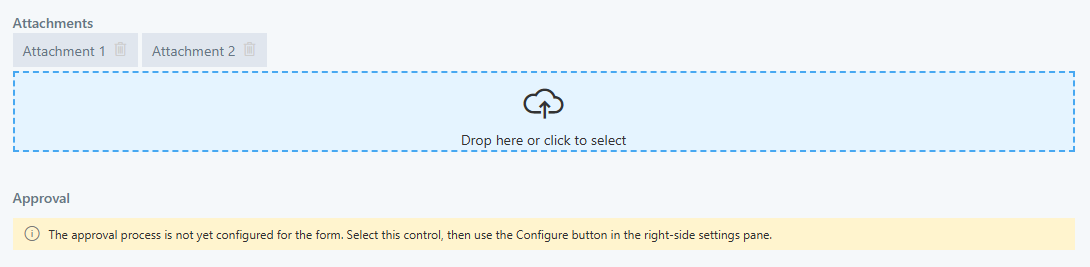
Select the control, then click on Configure in the right pane.
It will open the approval configuration pane.
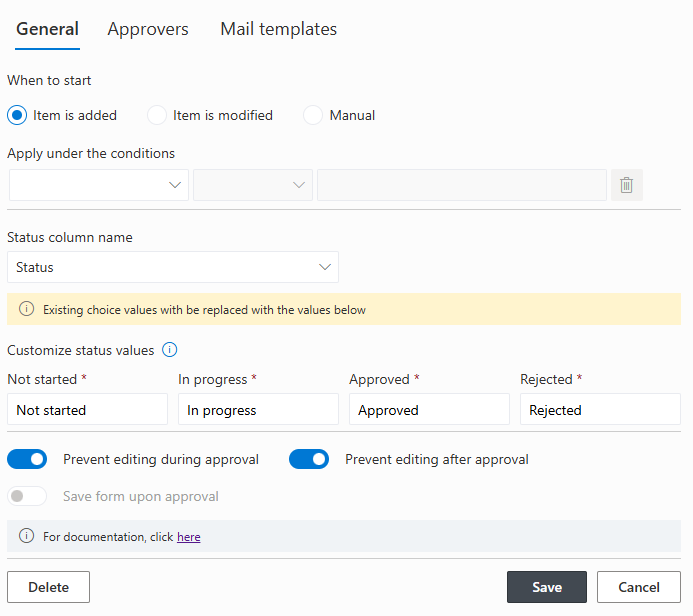
Most common settings are already pre-selected. You only need to choose one or more approvers and you can save the process. Once it is saved, you can publish the form and the process is ready to operate.
Settings
If you want to customize the approval process to your needs, you can make the following changes:
General
When to start
Controls when the process starts. It can start automatically (when an item is added or modified), or manually with a button on the form.
For automatic start, you can optionally add conditions. The process will only start if the item satisfies the conditions. With the manual option you can accomplish the same by setting permission rules on the Approval control itself. The start button will only appear if there are no permission rules or the currently active rule sets the control in Write mode.
Status Column
The approval process works by controlling the value in the status column. You can select an existing Choice column in your list or create a new one (recommended). The choice values must only include the 4 values specified. You can change the labels of the values, but you cannot remove or add values. If you select an existing choice column, the choice values will be overwritten.
Edit Prevention
You can block the form from editing when there is an approval process in progress and/or when the item is approved. All item columns will appear in Read mode and Edit/Save buttons will be hidden. This will also override any permission rules you have. You can remove the block from the approval control itself if you are the process initiator or an administrator.
When the form is not blocked for editing during the approval process, approvals can both set the approval decision and modify the properties of the item itself. You can enable saving the form itself together with making an approval decision. When enabled, the form will submit the decision and save the data with a signle click.
Approvers
You must enter at least one approver to be able to save the approval settings. You can select a user, SharePoint group or a column that contains users or emails. If a single approver entry resolves to more than one email address, all will be assigned parallel approval tasks. The first one to answer makes the decision on the approval stage.
If you select a lookup column, you can specify a secondary column from the lookup list. For example, if you select the Departments lookup, you can then select the Manager column from the Departments list. For each department, the approver would be the manager of that particular department.
For each approver you can specify how many days they have to respond. Reminder email will be automatically sent out according to the reminder settings (see below).
Conditional Approvers
You can optionally specify conditions for each approver. If an approver doesn't pass their conditions, they are not included in the approval process. The process then skips to the next approver or to the end of the process. If no approver is included in the process, it skips directly to Approved status. You can use conditions to include specific approvers in special cases only. For example, CFO approval might be needed for larger purchases only. You simply set that approver's conditions to Amount greater than the threshold value.
Approval Escalation
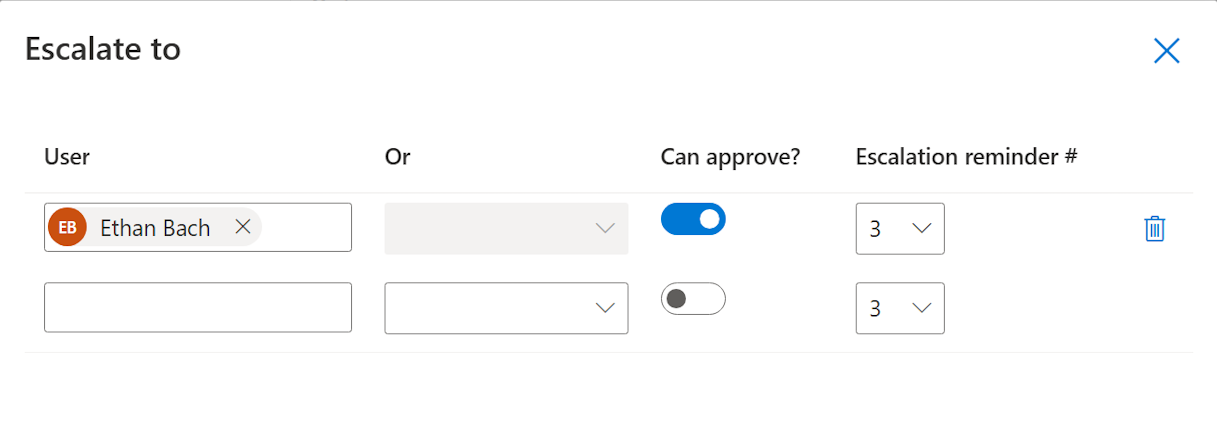
For each approver, you can optionally define escalation users. Every escalation user will be able to open the Form and Approve or Reject the process instead of the actual approver, if it is allowed to do so in the settings. Also define from which reminder number this user will be copied to the Reminder email template. When an Escalation user approves or rejects the process, the log will show his name and a remark stating that the decision was made on behalf of the main approver.
Order
The approval process can be either sequential or parallel. In a sequential process, next approver gets assigned and notified upon an approval of the previous approver. In a parallel process all assignments and notifications happen at once.
Also in parallel processes you can opt for the "first to respond" option. The first approver to respond makes the final decision.
Rejection Behavior
You can control what happens when an approver rejects. In "Resume after revision" mode, the item status remains "In progress" and the process initiator is notified. They can then make the necessary changes and request a review from the approver. If the approver then approves, the approval process resume from the same point. The review process can happen an unlimited number of times.
The other option is "Rejection is final". In this case the item status is set to Rejected. The approval process then needs to start from the beginning.
Require Comments
Specify when comments become required. It can be for any decision, just for approvals, just for rejections or always. When comments are required, users won't be able to submit their decision without entering a comment.
Allow Reset or Cancellation
Specify when users can stop or reset the approval process. In any case, only the original initiator of the process or an administrator are able to use this option. You can choose from the following options:
- Always - both in-progress and completed processes can be reset back to Not Started. This option is the default.
- When in progress - only processes currently in progress can be reset. All pending approval tasks are cancelled.
- When completed - only completed processes (both approved and rejected) can be reset back to Not Started.
- Never - no processes can be cancelled or reset, regardless of the status.
Allow Approver Delegation
Allow approvers to delegate their decision to another person. The approval task will then be created for the selected person and the current task will be cancelled. Full record of both operations will be entered in the approval log.
Mail Templates
The approval process already contains all 4 pre-configured email templates. You can modify the templates to better suit your needs. You can specify Subject, Body and From account. The Reminder email is a special case and contains additional setting. You can also configure:
- When the reminders start (how many days before the due date of the approval task)
- What's the frequency of the reminder
- How many reminders in total to send
- The time of day when reminders are sent.
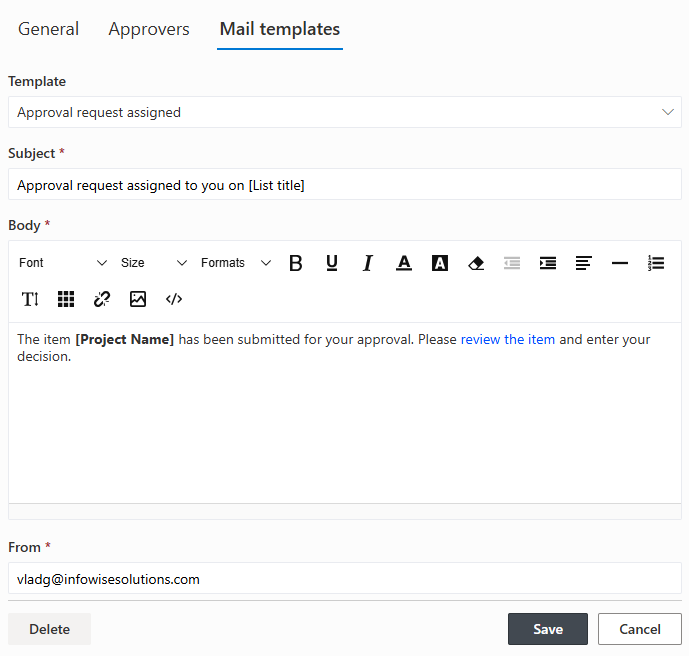
The From account is controlled by the Global Settings of the Actions component. You can either enter an email address or select from a list of authorized senders.
Note that in SharePoint Online a permission to send via your Exchange Online must be granted. It is granted by a Global Administrator under Alert component's Administration or Global Settings.
Control Behavior
Once your approval process is configured, saved and published, you can start your first approval. Depending on how your configured it, it might not appear at all on the New/Edit/Display form or appear as a button.
Note that pressing the Submit for Approval button first saves the item. If there are any validation errors, the form will not save and the process will not start. You can then resolve the validation issue and click the button again.
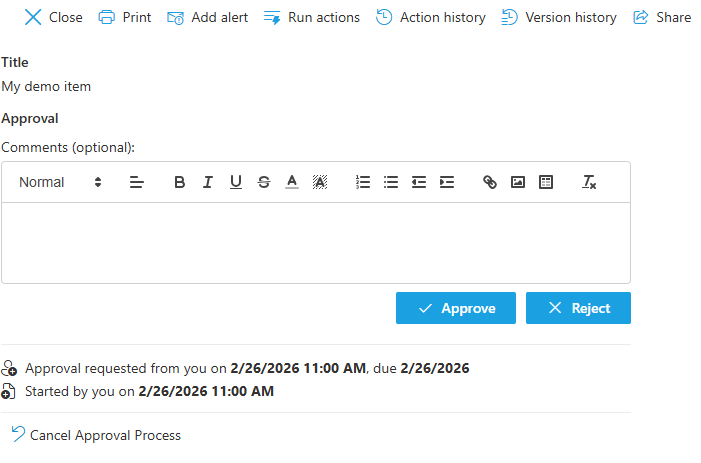
The Approval control serves the following purposes:
- Displays the current status. There is no need to place the Status column on the form separately. Moreover, never place the status button in editable state on the form to avoid manual changes by users.
- If you have an approval task assigned to you on the current item, a mini-form will appear within the item form. It will present the ability to add comments and submit your decision.
- A log of approval steps and actions.
- If a rejection is given, the rejection behavior allows reviews. If you are the initiator of the approval process, you will see a button to request a review. Enter your comment and submit. The system will then request an approval from the original rejecting approver.
- An ability to cancel a process in progress or reset an approval (initial submitter or administrator only).
List Views
In the list views, you can choose to include Status and Approval Progress columns. The Status column displays the current item status, color-coded and with the appropriate icon.
If the Status is In progress, the Approval Progress column will display a progress bar. It shows the current stage of the approval (how many approvers out of the total number have approved). The color of progress bar depends on the pending approval. If the due date is at least 2 days in the future, the progress bar is green. If it's between today and 2 days in the future, it is orange. If the approval is overdue, the bar is red. It will also turn solid red when an approved rejected the item, but the approval progress allows reviews. The Status in this case will remain In progress.
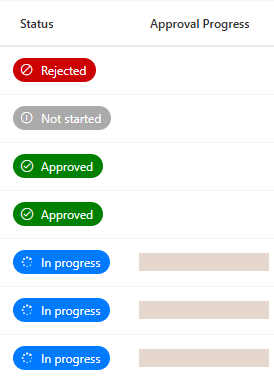
If the approval progress encountered major errors, the progress bar will be replaced with an error message. An example would be missing or invalid approvers specified.
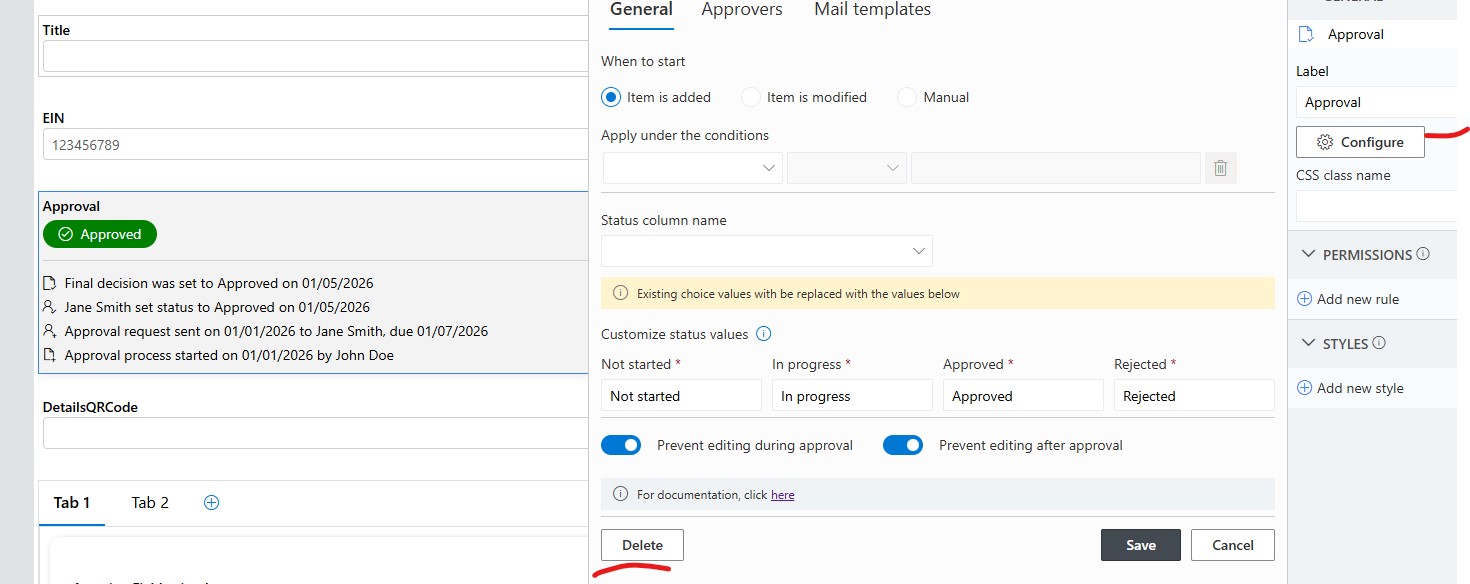
Note: If you want to remove the Approval Control frm your form, you will need to first open the configuration of this control and click on the Delete button to fully remove the approval process from this form/list.
Add your comment



