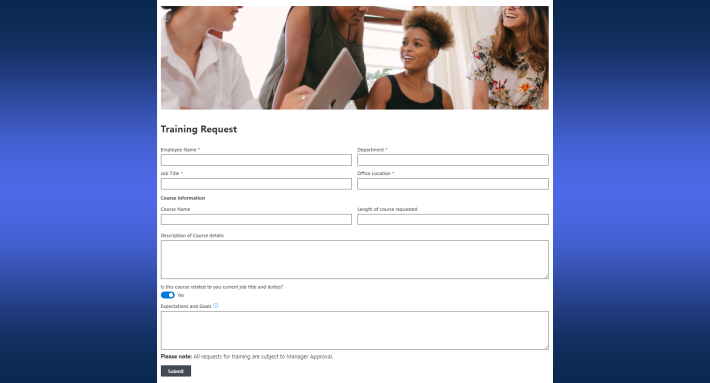
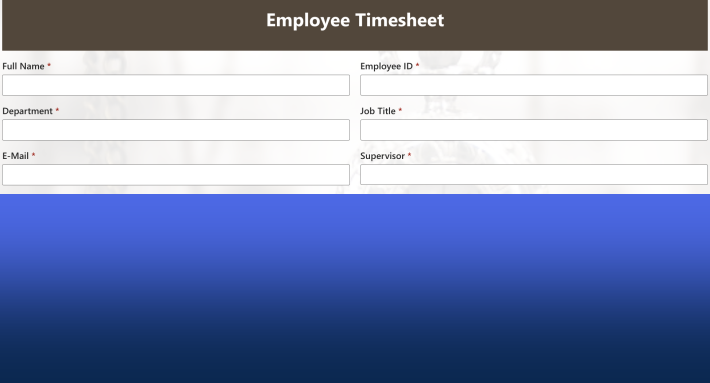
The fastest way to add an approval process to a SharePoint list is a form control: drag the Ultimate Forms Approval control onto the form, pick approvers, and publish. Multi-stage routing and reminders are included.
Approvals are essential to nearly every organization. Purchase requests, HR forms, policy acknowledgments, contract reviews, budget approvals, project sign-offs, and compliance processes all require structured review and decision-making. The challenge is not defining the process. The challenge is implementing it without adding unnecessary complexity.
Many SharePoint approval solutions rely on external workflow tools, complex flow builders, or custom development. While powerful, those approaches often require technical expertise, ongoing maintenance, and troubleshooting. For many organizations, especially those with limited development resources, this slows down implementation and increases long-term support costs.
The new Approval Control in Infowise Ultimate Forms is designed to solve this problem. It enables you to configure sophisticated approval processes directly inside your SharePoint form, quickly and without coding. The focus is not just functionality. It is speed, clarity, and ease of management.
Rapid Setup Without Workflow Builders
One of the strongest advantages of the Approval Control is how quickly it can be implemented.
To configure an approval process:
-
Open your list in Form Designer.
-
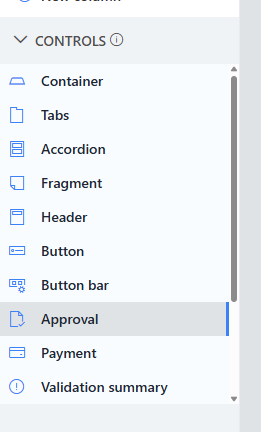
Drag the Approval control onto the form.
-
Place it anywhere on design canvas, including within tabs. You can even place multiple instances of the control if needed.

-
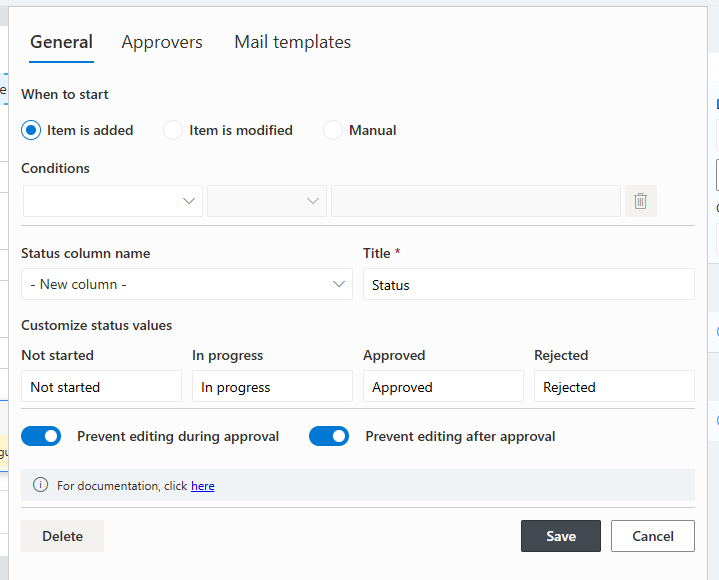
Click Configure in the configuration pane on the right.
-
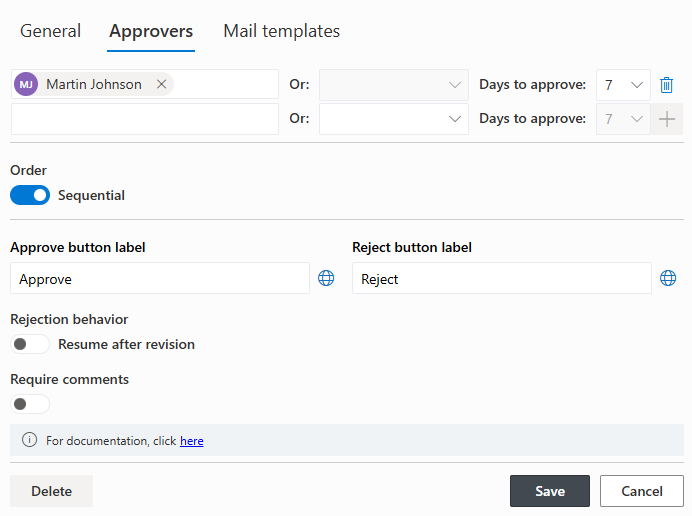
Choose one or more approvers.
-
Save and publish.
That is enough to activate a working approval process.
Most common settings are already pre-selected. You do not need to design flow diagrams, configure triggers manually, or build parallel branches. For straightforward approval scenarios, the entire setup can be completed in minutes.
This dramatically reduces deployment time compared to traditional SharePoint workflows.
Flexible Approval Structures Without Extra Tools
Although the setup is simple, the Approval Control supports sophisticated structures.
You can configure:
-
Single-stage approvals
-
Multi-stage approvals
-
Sequential approvals
-
Parallel approvals
-
First-to-respond logic
- Revision requests
Sequential mode ensures that one approver completes their review before the next begins. Parallel mode assigns tasks to multiple approvers at once. The first-to-respond option speeds up decision-making when only one approval is required from a group.
Your approvers can be users, SharePoint groups or even column values. This makes the process fully dynamic, item-specific and resilient. Using specially designed SharePoint groups allows you to automatically include backup approvers. This way you can easily avoid approval bottlenecks due to designated approvers being away or sick.
All of this is controlled through a clear configuration interface. There is no need for external workflow automation tools.
Automatic or Manual Start with Conditions
Approval processes can start automatically or manually.
Automatic start can be triggered when an item is created or modified. You can also apply conditions, such as:
-
Only start approval if Amount exceeds a threshold
-
Only start if Status equals Submitted
-
Only trigger for certain categories
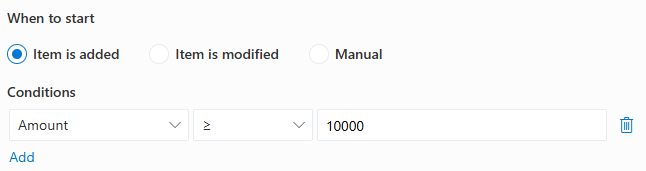
Manual start provides a Submit for Approval button, which can also be controlled by permission rules.
This flexibility ensures that approvals run only when necessary, without overcomplicating your list structure.
Built-In Status Management
The Approval Control manages the Status column automatically. You can create a new status column or use an existing one. The required status values are predefined to ensure consistency.
The system updates the status based on (you can customize each stage label with your own wording):
- Not started
-
In progress
-
Approved
-
Rejected
Because the control manages the status internally, users cannot manually change it and compromise the integrity of the workflow.
This built-in management eliminates the need for custom status logic.
Intelligent Form Locking
During approval, it is often critical to prevent changes. Especially in multi-stage processes, it's imperative that the item is not changed in between approvals.
The Approval Control allows you to:
-
Lock the form while approval is in progress
-
Lock the form after approval
When locked:
-
All columns switch to read-only mode
-
Edit and Save buttons are hidden
This prevents accidental modifications and ensures data consistency. It's no longer necessary to implement permission rules. The locking mechanism will take care of it with a flick of a toggle.
Importantly, administrators and process initiators can override the lock when necessary. This balance between control and flexibility supports both governance and operational needs.
Configurable Rejection Behavior
Not all rejections are final. The Approval Control allows you to define what happens when an approver rejects.
You can choose between:
-
Resume after revision
-
Rejection is final
In Resume mode, the initiator can make corrections and request another review without restarting the entire workflow. This allows collaborative correction while preserving the process stage.
In Final mode, the process ends and must be restarted from the beginning.
This simple configuration supports both iterative and strict governance models.
Email Communication That Works Automatically
Approval processes rely heavily on communication. The Approval Control includes built-in email notifications for:
-
Task assignments - an email goes out to the designated approver informing them of the new approval request.
-
Approval confirmation - notification once a positive decision is made by an approver.
-
Rejection notification - notification once a negative decision is made by an approver.
-
Reminder emails - sent to approver at predefined intervals.
Each email template is fully customizable. You can define:
-
Subject
-
Body - full rich content, which can include branding, images, links and formatted text.
-
Sender - subject to your organizational policies.
Dynamic placeholders are supported with the subject and the body. They allow you to include item-specific details, such as requester name, item title, or properties.
Reminder emails can additionally be configured with:
-
Start timing - how many days before the approval due date should we start to remind
-
Frequency - how often should reminders go out
-
Maximum number of reminders - a total number of reminders to send to each recipient
-
Time of day - when to send the reminder
This eliminates the need to build separate reminder workflows and reduces manual follow-up efforts.
Embedded Approval Experience for Convenience
While speed and simplicity of implementation are the primary advantages, user experience also matters.
The Approval Control places the approval interface directly inside the form. This includes:
-
Approval status - color-coded and easy to spot
-
Approval log - each step of the process is logged and time-stamped.
-
Approve and Reject buttons - when you are the current approver, you make your decision directly in the item form
-
Comment entry - comments can be set to required or optional
- Reset button (for process initiators or administrators) - resets the approval status to Not started.
-
Request Revision button - if rejections are not final, request a review from the requesting approver with your comments.
Approvers can review the full item and submit their decision in one place. There is no need to navigate to a separate task page.
This reduces confusion and shortens decision cycles.
Clear Visibility in List Views
Beyond the form, the Approval Control enhances list views with:
-
Color-coded status indicators
-
Progress bars showing stage completion
-
Visual overdue indicators
Green indicates on-time progress. Orange indicates approaching deadlines. Red indicates overdue or rejection states.
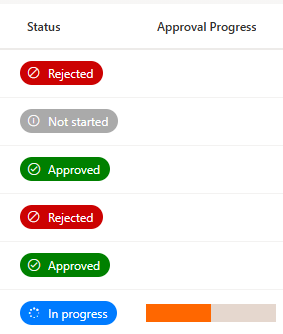
Managers can quickly identify stalled approvals without building custom dashboards.
Real-World Scenario: Purchase Requests
In a purchase request system:
-
Employees submit requests
-
Managers approve
-
Finance reviews
With Approval Control:
-
Setup takes minutes
-
Automatic start can trigger only above certain amounts
-
Sequential stages enforce proper review order
-
Form locks during review
-
Notifications and reminders are automatic
-
Status updates happen automatically
There is no need for a separate workflow engine.
Real-World Scenario: HR Performance Reviews
Performance reviews often require multiple approvers, structured feedback, and revision cycles.
Using Approval Control:
-
Review cycles can start automatically
-
Sequential stages enforce review hierarchy
-
Resume-after-revision supports collaborative correction
-
Status tracking provides management visibility
-
Email notifications keep the process moving
The HR team avoids building complex automation from scratch.
Reduced Maintenance and Long-Term Simplicity
A major benefit of implementing approvals through the Approval Control is reduced maintenance.
There are:
-
No external flows to update
-
No complex workflow diagrams to debug
-
No disconnected status logic
-
No duplicate notification systems
All approval configuration lives inside the Form Designer. Updates can be made quickly as business rules change.
This simplicity reduces technical debt and long-term support costs.
Designed for Business Users
The Approval Control is built for administrators and business users, not just developers.
You can:
-
Add or remove approvers
-
Change stage structure
-
Modify email content
-
Adjust reminder timing
-
Control rejection behavior
All without writing code.
This enables faster solution delivery and greater independence from IT development teams.
Conclusion
Implementing approval workflows in SharePoint does not need to be complicated. The Approval Control in Infowise Ultimate Forms focuses on rapid deployment, straightforward configuration, and built-in communication tools.
By combining flexible approval structures, automatic notifications, intelligent locking, and clear status tracking, it delivers a powerful yet simple approval framework. The embedded approval interface enhances usability. But the true value lies in how quickly and easily sophisticated processes can be implemented and maintained.
For organizations seeking to standardize approvals while minimizing complexity, the Approval Control offers a practical, scalable solution that saves time from day one.
Add your comment