The Alerts module of Ultimate Forms now also delivers to Microsoft Teams. The same alerts that have always watched your SharePoint lists can send their notifications to a one-on-one chat, a group chat, or a channel. Everything the module already does comes along: the rich editor, conditions, changed-column summaries, digests, and scheduled delivery. And Teams adds a capability email never had: including automatic mentions that integrate the user details and actions directly within the message.
If your team's attention lives in Teams, your notifications can now live there too. Here is what the feature does and how to put it to work.
Why Teams and not email
Email is where notifications go to queue. The average inbox holds hundreds of unread messages. A system notification lands somewhere in that pile and waits its turn, often for hours.
Teams is different. It is the app people keep open all day. Messages surface immediately. Mentions light up the activity feed. A notification in Teams competes with a conversation, not with a backlog.
There is also a context argument. The discussion about a ticket already happens in the support channel. When the notification about that ticket arrives in the same channel, the alert and the conversation meet. Nobody forwards an email into Teams to talk about it, because the message started where the talking happens.
Email alerts are not going anywhere. They remain right for external recipients, formal records, and anyone outside your Teams environment. But for the working team, Teams delivery closes the gap between "notified" and "aware."
Three destinations
A Teams alert can deliver to three kinds of places.
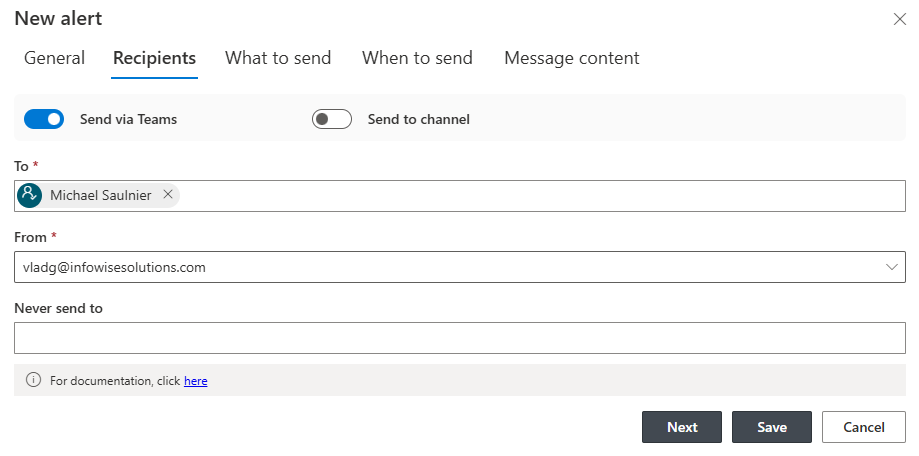
One-on-one chat. The message arrives as a direct chat to a single person. This is the approver's nudge, the assignee's heads-up, the personal reminder.
Group chat. The message goes to a group conversation. Right for small working groups that coordinate in a chat rather than a formal channel.
Channel. The message posts to a team channel, visible to everyone there. This is the shared queue pattern: new tickets in the support channel, submitted requests in the operations channel.
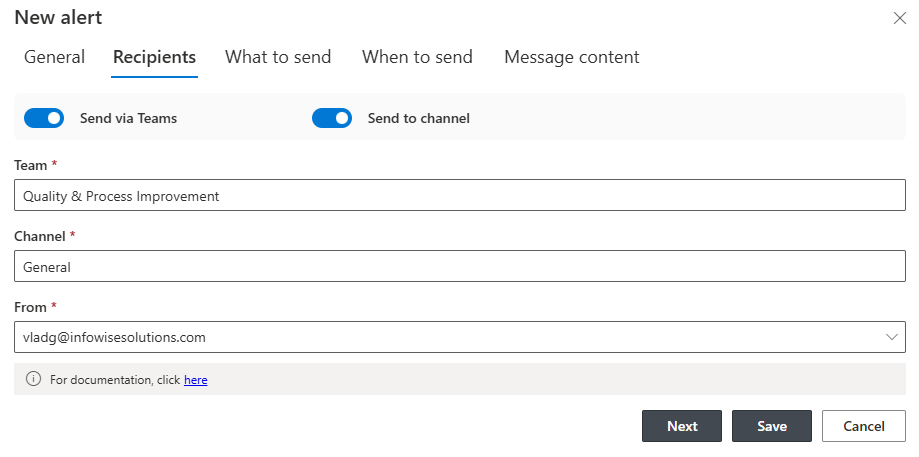
One rule to remember: you cannot send a chat message to yourself. Teams simply does not allow it, unlike email, where self-notification is common. If you rely on alerts as personal reminders for your own actions, keep those on email delivery or ask your administrator to add a supervised Authorized Sender account. For everything aimed at other people, which is most of what alerts do, Teams delivery works exactly as you expect.
The same alerts you already know
There is no separate Teams alert system to learn. You configure Teams delivery in the same Alerts interface you already use. Conditions, events, and recipients work identically. If you can set up an email alert, you already know how to set up a Teams one.
The rich editor comes along too. Message content is composed the same way, with formatting and live column values from the item. And the summary of changed columns is available in Teams messages just as in email: the notification shows exactly which columns changed and how, so the recipient understands the update without opening anything.
Digests and scheduled delivery
Just as emails, Teams delivery supports summary mode. Instead of one message per change, a single message lists all the items that changed, or all the items registered for notification. One organized post replaces a stream of pings, which matters even more in Teams than in email. A channel flooded with individual notifications trains people to mute it. A daily digest keeps the channel worth reading.
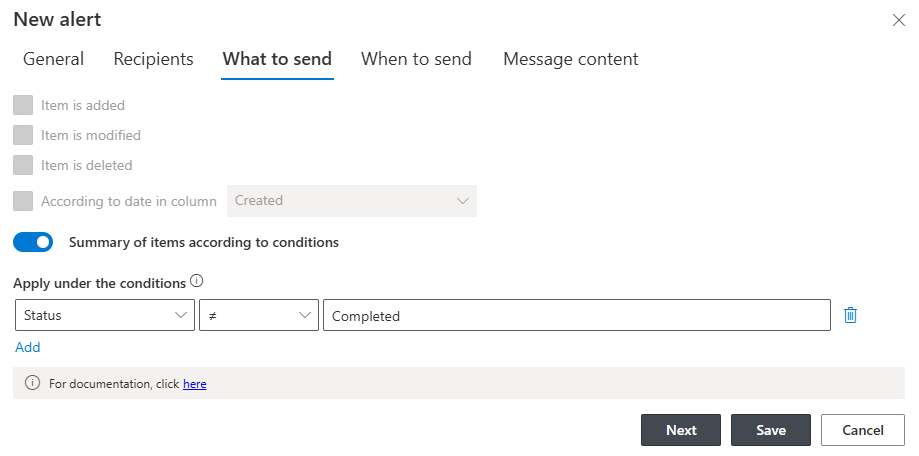
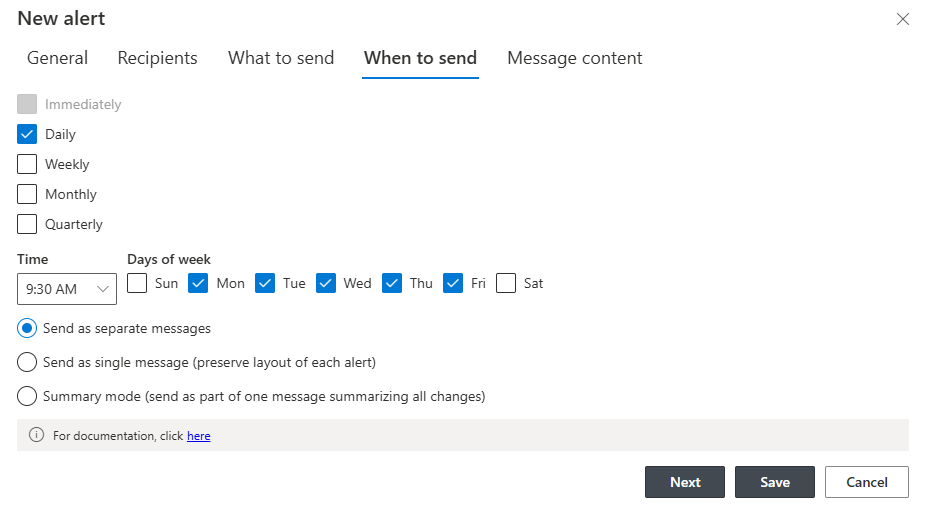
Delivery timing is equally flexible. Alerts can be delayed and batched: next workday (when triggered outside business hours), daily, weekly, monthly, or quarterly. The support channel gets its digest every morning. The management channel gets a weekly summary. The compliance review posts quarterly. The schedule matches the rhythm of the audience, not the rhythm of the changes.
Mentions, handled automatically
Here is the capability that changes behavior. When the message body includes a Person or group column value, that value is automatically converted into a real Teams mention.
Include the Assigned To column in your message, and the assignee is @mentioned in the channel post. Their activity feed lights up. The notification is not just visible in the channel; it is addressed to the person responsible, by name, dynamically, based on whoever the item says is responsible.
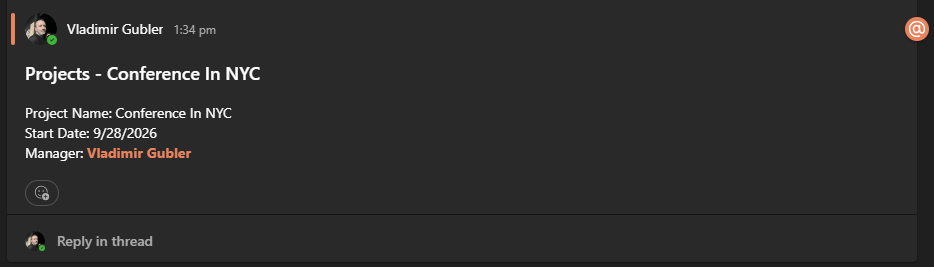
No configuration is involved. Person and group columns in the body become mentions on their own. The mention list is data, and the data drives it. This is the difference between a message the channel scrolls past and a message someone owns.
Attachments, linked to the source
Item attachments are handled automatically as well. The Teams message links to the file at its SharePoint location.
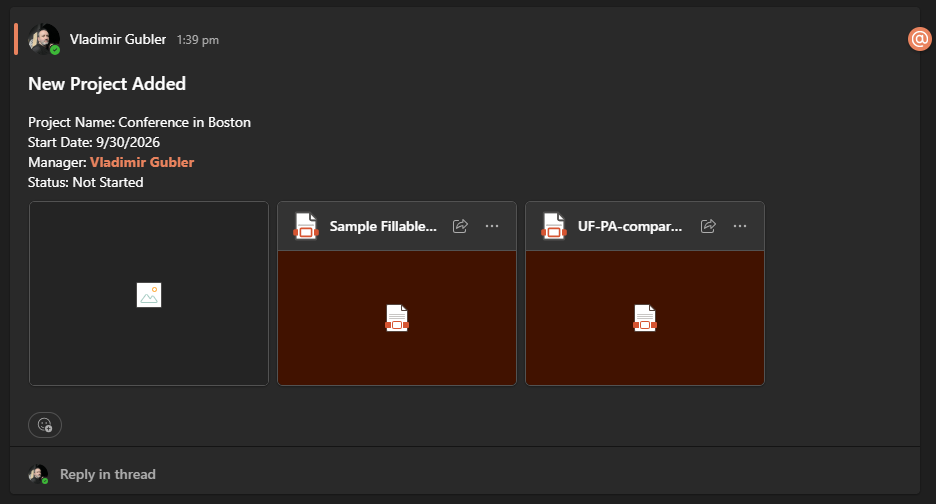
That design carries two benefits. Recipients open the actual file, not a copy, so there is one version and it is always current. And access follows SharePoint permissions: the link leads to the document only for people entitled to see it. Nothing is duplicated into Teams, and nothing leaks through a forwarded copy.
Buttons that act
Just like emails, Teams messages can carry buttons, and the buttons trigger Ultimate Forms Actions directly from the message.
Think about what that means for an approval. The request posts to the approver's chat with the amount, the requester, and two buttons. Approve is a click, in Teams, without opening SharePoint at all. The action runs, the record updates, the process moves. The same pattern serves acknowledgments, escalations, and any one-click response your process needs.
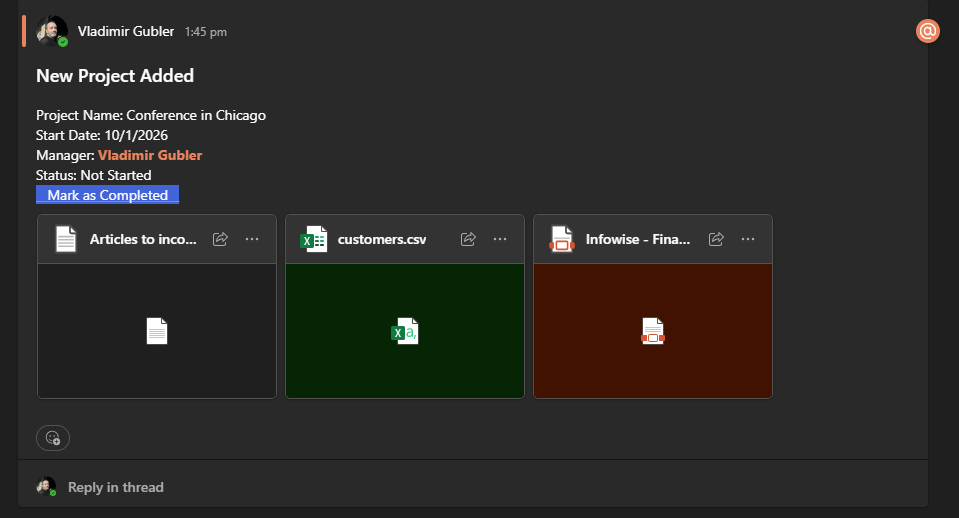
Notifications that can be acted on where they are read stop being notifications. They become the process's front line.
Security: each sender speaks for themselves
Teams delivery uses delegated permissions for each individual sender. By default, messages are sent under the identity of the actual sending user, with that user's own permissions, and each sender grants their own consent.
The practical consequences are all good ones. Messages come from a person, not an anonymous system account, so recipients see who the notification represents. Nothing is sent that the sender could not send themselves. And permissions administration stays clean, because there is no all-powerful service identity posting on everyone's behalf.
There might still be cases where centralized managed of the sender accounts is desired. Then an administrator can create and manage a list of pre-approved Authorized Sender email accounts. Regular user can then select a sender from one of these accounts. The administrator can also make the authorized senders mandatory by blocking the ability for the users to choose their own accounts as senders. Authorized senders are granted permissions to send to Teams chats and channels by the administrator, thus completely removing the need for regular users to deal with permission grants.
Where to start
Pick one alert that people currently miss in email. The ticket assignment. The approval request. The overdue reminder. Switch its delivery to Teams, include the responsible Person column in the body for the automatic mention, and add a button if a one-click response fits.
Then watch the response time. That number, more than any feature list, will tell you which of your remaining alerts belong in Teams. The Alerts module documentation covers every setting, and your existing alert templates and conditions carry over as they are.
Frequently asked questions
Add your comment