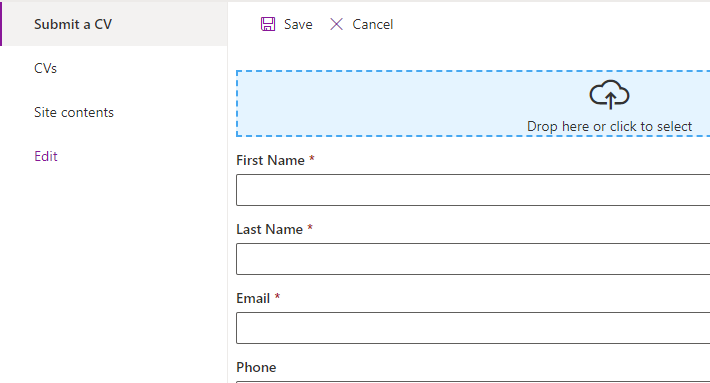
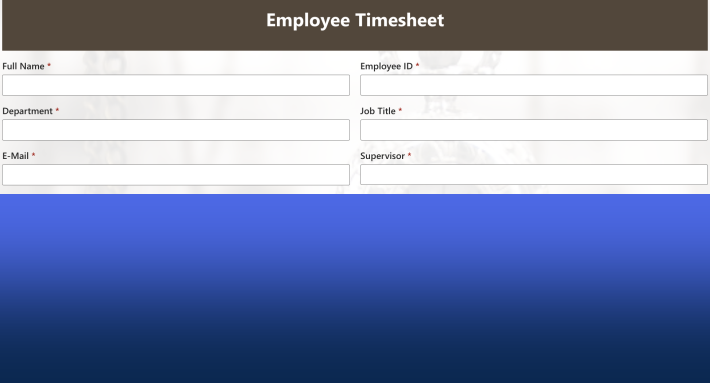
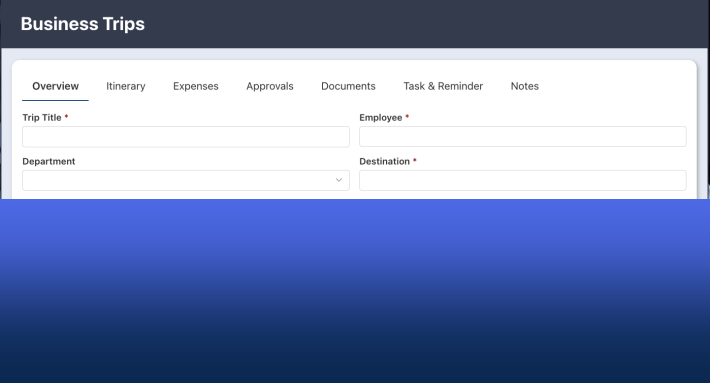
SharePoint has no real way to print or generate documents from its lists, and Ultimate Forms closes that gap completely: design a template as an ordinary Microsoft Word document with column tokens like [[Title]], and any list item renders through it as a polished Word, PDF, or Excel document, printed on demand from views and forms, emailed automatically, filed into a library, or generated on a schedule. List views and calendars print without any template at all. This guide is the map of the whole capability, what you can print, in which formats, delivered how, with the detailed build for every branch linked along the way.
The gap, and why it matters
Documents already stored in libraries print fine; download and print. The problem is the data: SharePoint lists hold the requests, orders, timesheets, and inspections that run the business, and out of the box there is no way to turn an item or a view into a presentable page. Teams improvise with screenshots, copy-paste into Office, and hand-built exports, and every improvisation costs the same two things: someone's time, repeatedly, and the formatting lottery of whatever they produced that day.
The gap matters because paper and PDF are not going anywhere. Purchase orders go to vendors, expense reports to finance, inspection reports to regulators, quotes to customers, and each one is judged partly by how it looks. A process whose records cannot leave the list in a professional format is a process that ends in manual work, exactly where automation was supposed to take over.
The core idea: your Word document is the template
The Print component is built on one approachable idea: if you can make a Word document, you can make a print template. Design the layout in Word, fonts, tables, borders, logos, headers, everything Word does, and reference the list's columns in double square brackets: [[Title]], [[Amount]], [[Due Date]]. Upload the document to the Print Templates screen, and it becomes the rendering layer for every item in the list, each one filling the tokens with its own values. What you see in Word is what you get in the output.
Precise layouts come from Word tables, columns for side-by-side content, merged cells for headers, and the table layouts guide is the craft article for making templates genuinely professional:
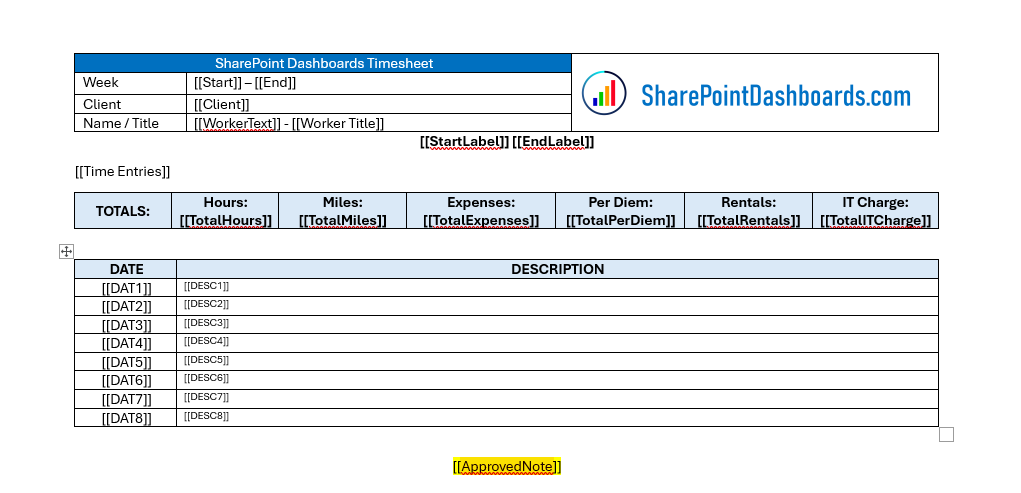
From there, the template system deepens by need. The complete Word generation walkthrough builds one end to end. Filters inside templates control which related data each print includes. Attachments can ride along with the printed item, and parent and child records consolidate into one PDF, the order with its lines, the project with its tasks. Multiple templates per list are normal, the internal copy and the customer copy, with automatic selection choosing the right one. And for inspiration before building, ten ready-made print template ideas cover the usual suspects: timesheets, expense reports, purchase orders, sales orders, approval requests, project summaries, inspection reports.
No template at all is also an option: a form prints straight to PDF as the form itself, the right tool when the form layout is the document.
Beyond the single item: views and calendars
Printing a list view needs no Word document either: a few options in the Print Template manager produce clean tabular output of any view, columns, filters, and sorting respected, with style:
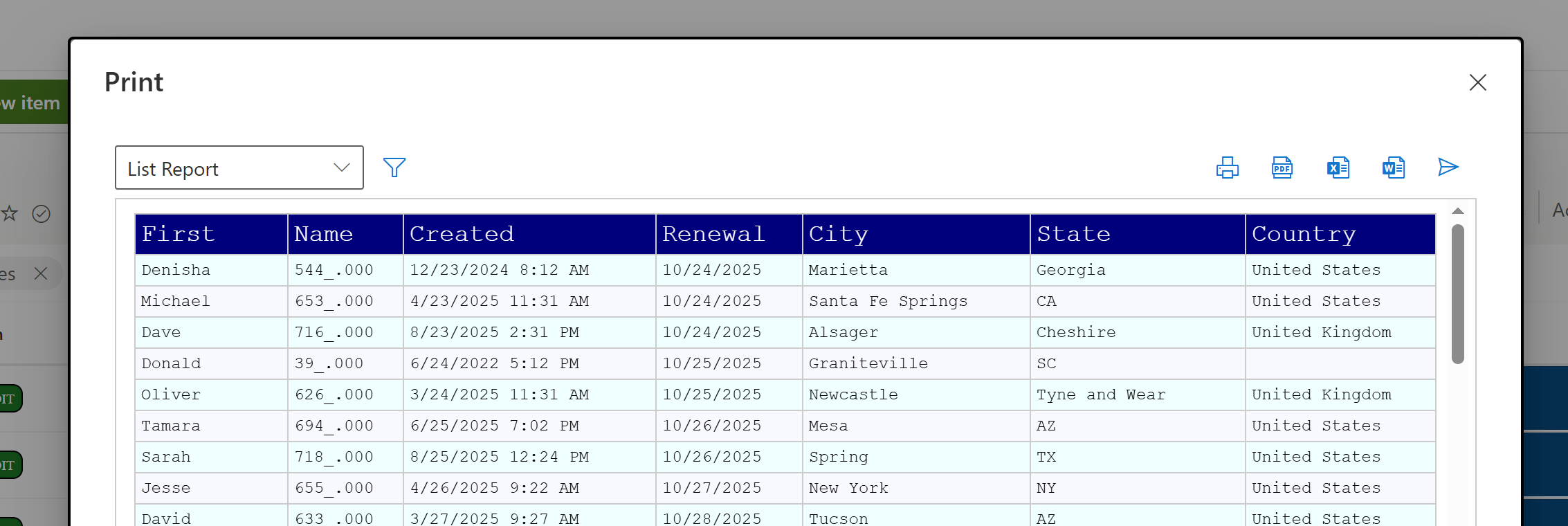
Views printed this way become instant operational reports, the open tickets, this week's orders, and the dedicated guides take reporting further: professional printable reports for the designed versions, and automated report generation for the ones that produce themselves.
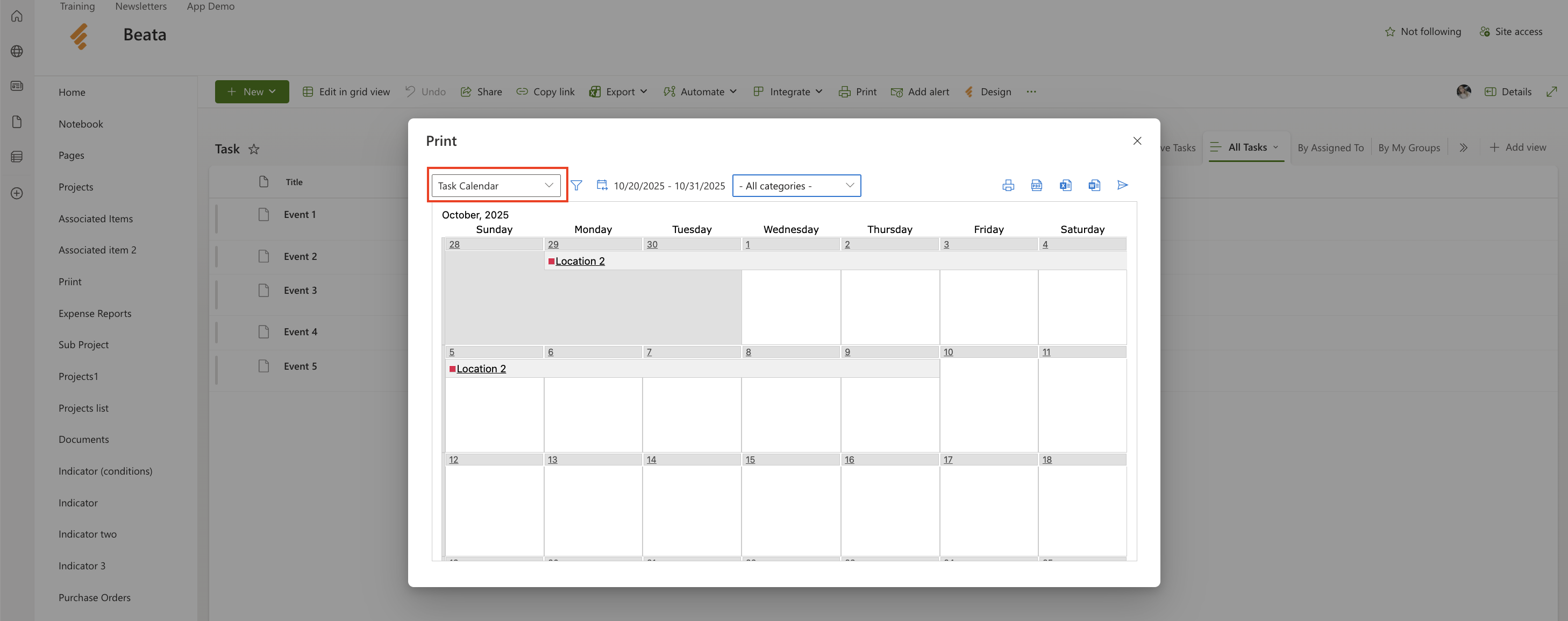
Calendars print too, the event calendar renders to printable output directly, with its own guide:
Three formats, chosen per job
Output renders to PDF for anything final, shared, or archived; Word when the recipient will edit, the draft contract, the letter to personalize; and Excel when the output is data wearing a layout, covered in generating Excel documents. The PDF family has its own depth: converting SharePoint data to PDF broadly, merging PDFs for packets and dossiers, fillable PDFs both directions, generated from data and read back on return, and emails converted to PDF for correspondence that must be filed as documents.
Delivered how: the four paths
On demand. Print buttons on list views and forms render the document in a click, single items or several at once, which covers the daily "I need this on paper" without ceremony.
By email. An action renders the template and sends the result as an attachment, the invoice PDF mailed to the client the moment the record is approved, with the recipient resolved from the item's columns.
Into a library. The same action files the generated document into a SharePoint library instead, or as well, building the contract archive or the compliance file with no human filing anything.
On schedule. Timer actions pair with printing to generate and distribute recurring documents, the Monday report that sends itself, which is where this cluster meets the automation engine that powers all three automatic paths.
The delivery choice is where document generation becomes process design: the same template serves the clerk's print button, the customer's email, the archive's library copy, and the manager's scheduled summary, one layout, four doors.
Choosing your first build
The fastest way into the capability is one template for the document your team reproduces most often by hand. The decision tree is short. If the document is one record presented formally, the purchase order, the certificate, the report of one inspection, build an item template in Word, starting from the table-layouts craft. If it is many records presented together, this week's orders, the open tickets, print the view, and graduate to a designed report template only when the view's tabular output stops being enough. If it is the form itself that matters, the filled form as evidence, print the form without a template. And if it recurs on a calendar rather than on demand, start from the scheduled path and let the first automated delivery make the case to the rest of the team. Each first build takes under an hour, and the second takes fifteen minutes, because the template habits transfer.
Where it completes the process
Generation is usually the last step of something larger, and the adjacent machinery completes it. Signatures print with the documents, so the approved, signed record leaves SharePoint looking approved and signed, with the e-signature guide covering the signing itself. Documents generate from the form at the moment of submission. And the classic pairings run through the other clusters: the approval whose outcome is a generated contract, the alert that carries the fresh PDF, the external form whose submission returns as a formatted acknowledgment. For the still-deeper options, the extended printing capabilities tour rounds out the catalog.
The summary the whole cluster stands on: data should live in lists and leave as documents, and the leaving should cost nobody any work. A Word document with tokens, a few delivery settings, and every record in the list can present itself, to a vendor, a regulator, an archive, or a printer, correctly, identically, forever.
Frequently asked questions
Add your comment