Bringing Scattered Documents Together
SharePoint is an excellent platform for storing, organizing, and managing business documents, but what happens when you need to combine multiple files into one? PDF merge is a surprisingly common business requirement, whether you are assembling customer reports, organizing financial records, or preparing documentation for distribution. Unfortunately, neither SharePoint nor Power Automate includes native, out-of-the-box functionality for merging multiple PDF documents into a single file. This limitation often forces organizations to rely on additional software or time-consuming manual processes.
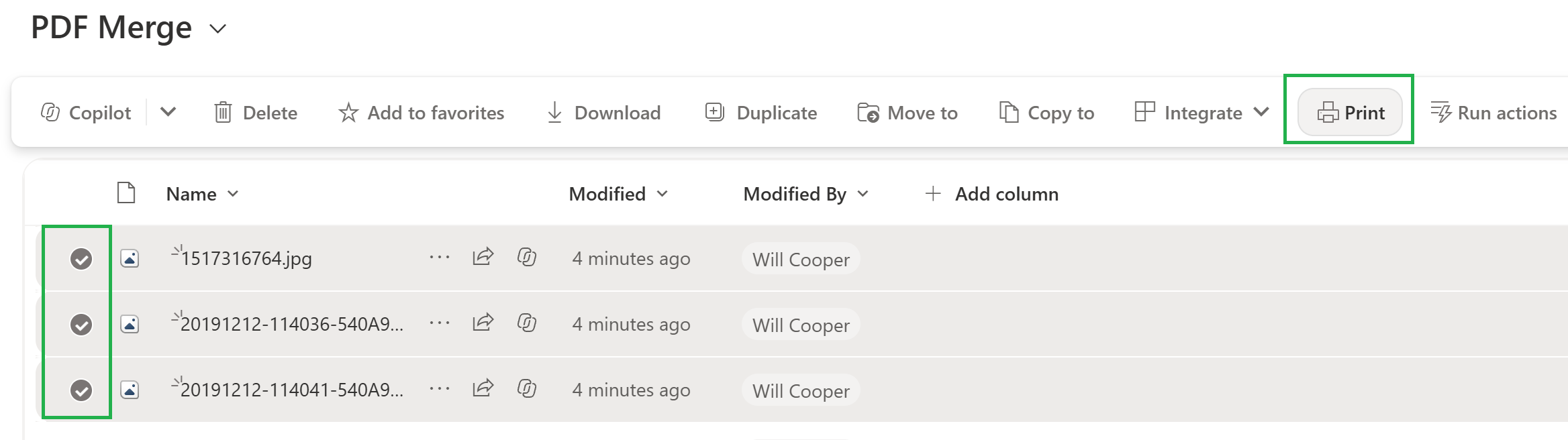
With Infowise Ultimate Forms, organizations can overcome this limitation using the PDF Merge functionality available through the Print component. This feature combines existing PDF documents, Word files, and images into a single PDF, including documents stored in SharePoint libraries or attached to list items. Better still, the process can be automated so that documents are selected, merged, and delivered without requiring users to download and combine files manually.
More Than Simply Combining PDF Files
The real value of PDF Merge comes from its ability to support everyday business processes. Documents can be selected based on SharePoint data, allowing organizations to assemble different collections of files according to customers, projects, equipment, or reporting periods. As described in the PDF Merge feature announcement, supported source formats include PDF, Word, PNG, JPEG, GIF, and BMP, making it possible to consolidate different types of business documentation. This flexibility opens up opportunities for producing customized reports and documentation packages without changing how individual files are originally created or stored.
The process can also be integrated with Ultimate Forms Actions to create documents automatically or through a user-initiated button click. The resulting PDF can be saved to a SharePoint document library, attached to a list item, or distributed by email, depending on the business requirements. Documents can be assembled on demand or generated as part of an established workflow. This transforms PDF Merge from a simple document utility into a valuable component of automated SharePoint business solutions.
1. Consolidating Expense Reports and Supporting Receipts
Expense reporting frequently involves collecting numerous supporting documents from different sources. Employees may photograph paper receipts with their phones, attach PDF invoices received by email, or submit other documentation supporting their reimbursement requests. Combining these materials into a single expense report package makes the final submission much easier to review, distribute, and archive. Without consolidation, accounting personnel may need to open numerous attachments just to review one employee's expenses.
Consider an expense reporting solution built with SharePoint and Ultimate Forms. Once an expense report has been approved, the report and its associated receipts can be assembled into one PDF containing the complete expense documentation. Accounting receives a single consolidated file instead of having to retrieve the approved report and open each receipt separately. This makes financial reviews, reimbursement processing, and recordkeeping considerably more convenient.
2. Creating Consolidated Customer Work Order Reports
Companies that service or repair equipment often maintain individual work orders documenting the services performed for each customer. Over time, these work orders can accumulate into dozens or even hundreds of separate PDF documents stored in SharePoint. Producing a complete customer service history traditionally requires locating the relevant files and manually combining them into one report. For businesses handling large volumes of service activity, this can become a significant administrative burden.
In a real customer implementation, we used Ultimate Forms to automate this exact process. A button on the customer record triggers a Print Action that identifies PDF work orders containing the customer's number in their filenames, merges the matching documents, and saves the consolidated report to a separate SharePoint library. With a single button click, employees can generate a comprehensive customer work order report that is ready to distribute without manually assembling individual documents. The entire process takes place directly from the customer record, making it convenient for employees who need to respond quickly to customer requests.
This approach is particularly valuable when customers request documentation covering multiple service visits or equipment repairs. A consolidated work order report provides a convenient record of completed services while eliminating repetitive administrative work for employees. The same concept can be applied to other customer-related documents that share a common identifier.
3. Building Complete Equipment Maintenance Histories
Individual pieces of equipment often accumulate substantial documentation throughout their operational lives. Maintenance reports, repair records, inspection findings, and technician notes may be stored as separate documents associated with a specific asset. Reviewing the complete maintenance history of a machine or device becomes unnecessarily difficult when this information is scattered across numerous files. Technicians may need to examine records spanning several years to understand recurring problems or previous repairs.
PDF Merge provides a convenient way to assemble all documentation associated with an individual piece of equipment into one report. Maintenance teams can review a complete service history to identify recurring problems, evaluate repair costs, and make informed decisions about continued maintenance or equipment replacement. This approach can be useful for manufacturing machinery, vehicles, facilities equipment, and IT hardware. A consolidated history can also be valuable when equipment is transferred between locations or responsibility for maintenance changes.
4. Assembling Comprehensive Project Documentation
Large projects generate substantial documentation over time, including planning notes, meeting summaries, assessments, progress reports, and final reviews. These materials are often maintained as individual documents within a SharePoint project site or document library. Creating a complete project documentation package can become a time-consuming exercise when dozens of files must be collected and organized manually. The challenge becomes even greater when a project involves multiple departments, contractors, or external stakeholders.
With PDF Merge, organizations can consolidate project documents into a single PDF organized by project phase, document type, or chronological order. The resulting package provides a comprehensive record of project activities and decisions that can be distributed to stakeholders, delivered to customers, or retained for future reference. This is especially useful during project closeout, when organizations need to preserve important documentation and communicate the results of completed work.
5. Combining Inspection and Safety Photographs
Many business processes rely heavily on photographs rather than traditional documents. Safety inspections, property assessments, equipment evaluations, and construction projects frequently generate collections of images documenting conditions, deficiencies, or completed work. Combining these images into a single PDF makes them much easier to review and distribute than a folder containing numerous individual photographs. It also provides a consistent format that recipients can open without specialized image management software.
Imagine a safety inspector documenting hazardous conditions throughout a manufacturing facility. Instead of sending twenty separate photographs to management, the inspector could use PDF Merge to consolidate the images into a single document that can be reviewed page by page. The resulting visual report provides a convenient record of inspection findings that can be distributed to supervisors, safety committees, or other stakeholders. These consolidated documents can also serve as historical records when comparing inspection findings over time.
This scenario also highlights an important advantage of the PDF Merge feature in Ultimate Forms. Source documents do not need to be PDFs, since supported image formats can also be included in the merged output. Organizations can combine photographs with existing PDF inspection documents when those files are part of the same collection, creating a more complete record of the inspection.
6. Preparing Job Applicant Documentation Packages
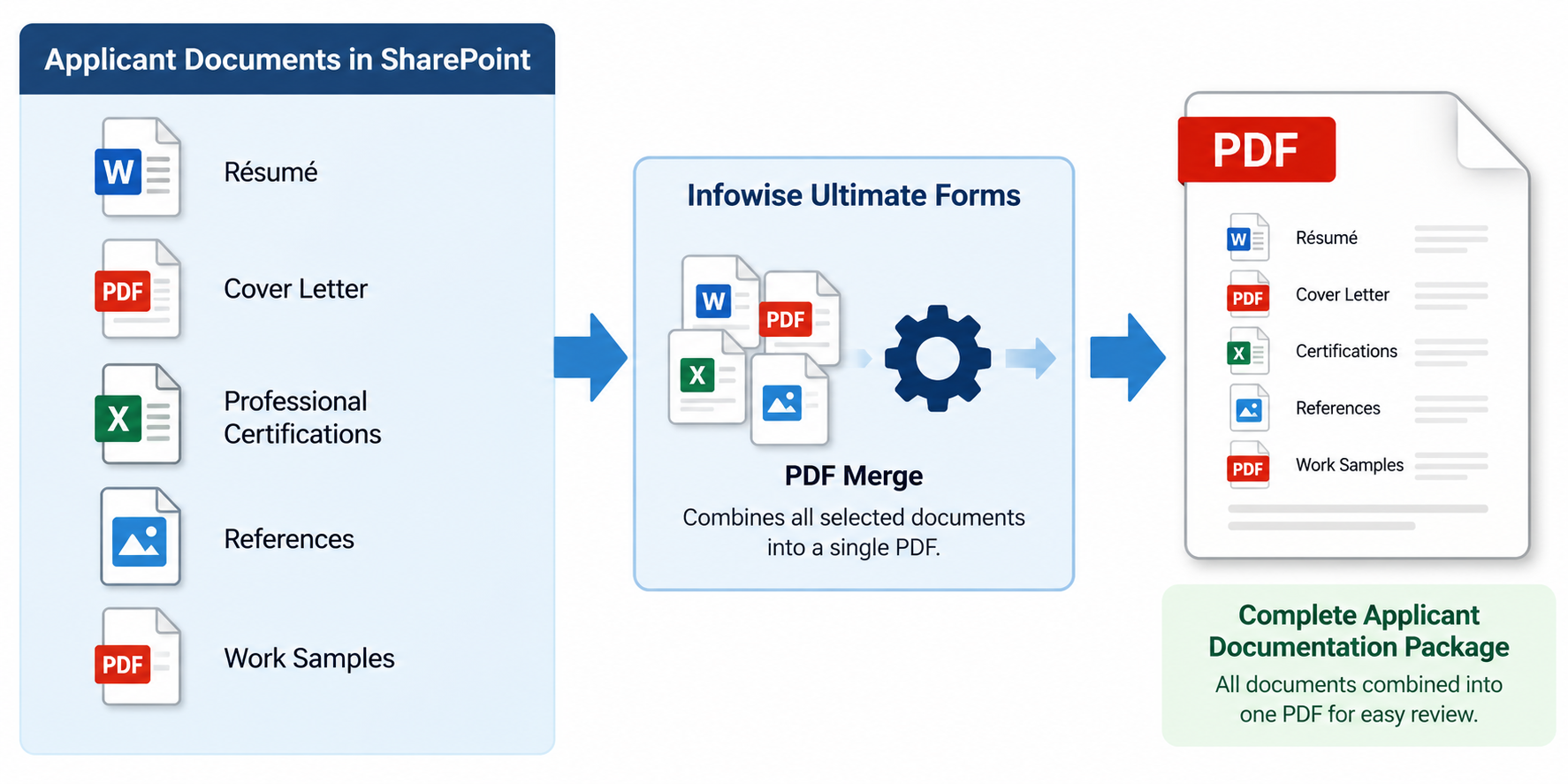
Recruitment processes often require candidates to submit several different documents, including résumés, cover letters, professional certifications, references, and work samples. These materials may be submitted at different times and stored as separate files associated with an applicant's record in SharePoint. Reviewing a candidate's complete application can become inconvenient when hiring managers must repeatedly open individual attachments. The inconvenience is multiplied when several people participate in the interview and selection process.
PDF Merge allows organizations to consolidate submitted application materials into a single PDF for each candidate. Hiring managers and interview committees receive a complete applicant documentation package containing the relevant materials in one convenient file. This simplifies application reviews, supports consistent distribution of candidate information, and makes it easier to prepare documentation for interviews. It also reduces the likelihood that individual supporting documents will be overlooked during the review process.
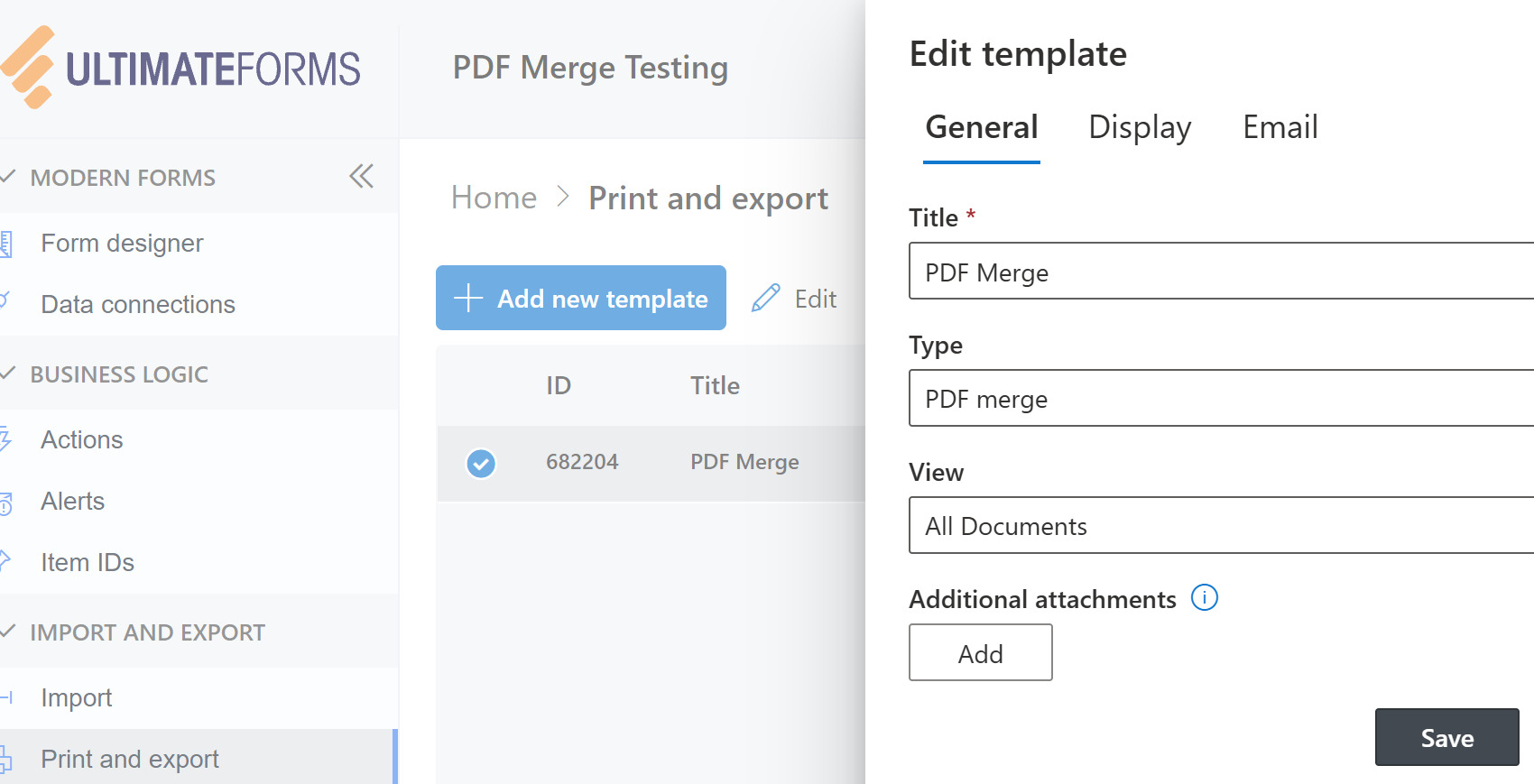
Organizations using Ultimate Forms Print Settings can define PDF Merge templates for combining existing documents and attachments. The same general approach can support different document collection requirements throughout an organization, including HR processes where multiple supporting files must be reviewed together. Appropriate SharePoint permissions and document handling policies remain important when working with confidential applicant information.
7. Consolidating Customer Invoices and Billing Records
Businesses frequently generate multiple invoices for individual customers throughout the year. These invoices may cover different services, projects, purchases, or billing periods, creating a growing collection of financial documents. Producing a consolidated customer billing report becomes much easier when the relevant invoices can be selected and combined automatically. Customers may request these consolidated records when reviewing annual expenses, reconciling accounts, or preparing their own financial reports.
With PDF Merge, invoices stored in SharePoint can be consolidated according to customer number, service category, billing year, or other identifying information. A single PDF can contain all invoices matching the selected criteria, providing customers and accounting departments with a convenient collection of billing records. For example, a customer requesting all invoices for a particular service category during the previous calendar year could receive one consolidated document instead of numerous separate attachments. The same approach could be used to prepare monthly, quarterly, or annual billing packages.
This approach can be particularly useful during year-end accounting, customer account reconciliation, and financial reviews. Automated document consolidation reduces repetitive administrative work while helping organizations produce consistent billing documentation. Using the Print List Items Action, organizations can also automate delivery of the resulting document to a SharePoint library or email recipient.
Transforming SharePoint Documents into Useful Business Deliverables
These seven scenarios demonstrate how PDF Merge can improve business processes across finance, operations, maintenance, project management, safety, and human resources. The greatest benefit is not simply creating a single PDF, but eliminating the repetitive effort of finding, downloading, organizing, and combining files whenever a consolidated document is needed. Organizations can turn existing SharePoint document collections into useful reports and deliverables with significantly less manual work. Because the process can be automated, employees can spend more time on productive business activities instead of routine document preparation.
With Infowise Ultimate Forms, PDF Merge becomes part of a larger document automation strategy that connects SharePoint information with practical business workflows. Organizations can produce consolidated PDFs on demand or integrate document generation into automated processes, building on capabilities such as those demonstrated in consolidated PDF reporting with parent and child records. By bringing related documents together at the right time, businesses can make their SharePoint solutions more efficient, convenient, and valuable to the people who use them every day.
Add your comment