You can save a SharePoint form to PDF without building any print template at all. The approach: send the user to the display form with a button, add brief printing instructions, hide the toolbar, and include one CSS rule that suppresses the buttons and instructions in the printout. The user then presses Ctrl+P and chooses Save as PDF, and the output matches the form exactly as it appears on screen, styling, conditional sections, and all. Setup takes minutes, and this article gives the exact steps, along with the honest list of cases where a real print template is still the right tool.
What you see is what you get, and sometimes that is precisely the requirement.
The four ways to print, and where each fits
Print templates and their output can be challenging, especially with highly customized forms, so it helps to see the whole menu before choosing. Ultimate Forms offers three template-based options, and this article adds a fourth, template-free path.
- Simple print template. Select fields, add section headers, done. Fast and easy, but the output is basic and cannot be specially formatted. Right for internal records where content matters and appearance doesn't.
- Advanced print template. Highly configurable for precise formatting, which makes it the choice when output must match a pre-existing format exactly, a government form, a carrier label. Getting there may involve custom HTML and CSS with tables, and it can be time consuming; coding may be required.
- Word template. Generally the best option for advanced custom layouts: design a Word document exactly the way you want and reference fields in square brackets, like [Title]. User friendly, powerful, and the option we recommend first for polished documents; see Word Print Template Table Layouts for the layout techniques.
- Browser print of the display form. The subject of this article: no template at all, output identical to the screen.
Why skip the template at all?
Three drawbacks of template-based printing motivate the fourth option, and they compound on exactly the forms you have invested in most.
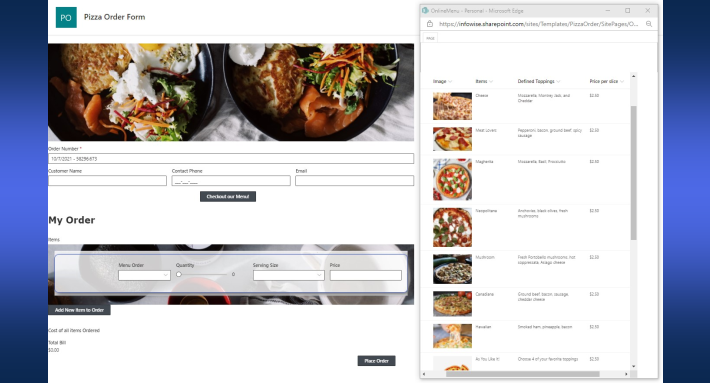
First, the double work problem. When a form is highly customized, matching it in print means reproducing all of that formatting a second time inside a template, two artifacts to build and, worse, two to keep synchronized every time the form changes.
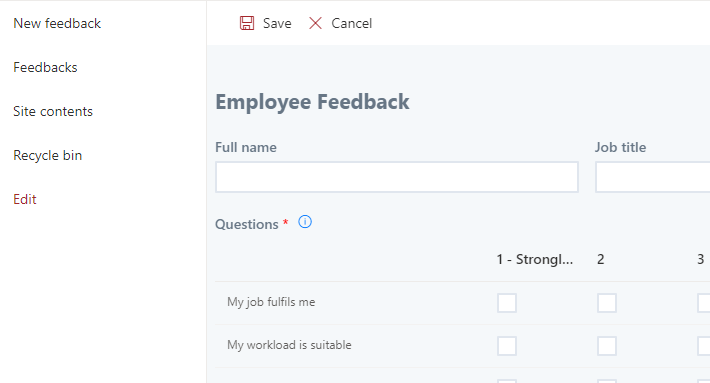
Second, and this is the decisive one: conditional logic. Good forms use rules to show or hide sections that don't apply, hide the equipment block for remote employees, reveal the justification only above a threshold. Print templates don't carry this logic, so a template either prints empty sections or you maintain multiple templates for the different situations. The display form, by contrast, has already applied every rule by the time the user sees it. Print what is on screen and the conditional logic comes along for free, which no template can offer without duplication.
Third, plain economics. For an advanced form, template work is time consuming enough that it often simply doesn't get done, and the process limps along with screenshots. A five-minute setup that produces acceptable PDFs beats a perfect template that never ships.
Know the limitations first
This approach trades automation and layout control for speed and fidelity, so check the constraints before committing.
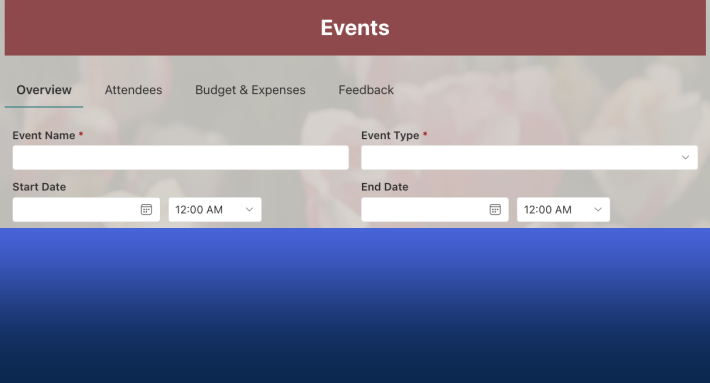
- Everything must be visible at once. Tabbed forms are not compatible, because tab content stays hidden from the printout. If the form uses an accordion control, disable its Collapsible setting so all sections render open. (If your form must keep its tabs, this approach is out; use a Word template.)
- Users participate. They apply a few simple settings in the print dialog, which is why the on-form instructions below matter.
- No automation. The print command is executed manually by a person. For PDFs that generate themselves on a status change or a schedule, use print actions, as in Automate Timer Actions and Printing in SharePoint.
If those constraints fit your scenario, the setup is four short steps.
Step 1: A button to the display form
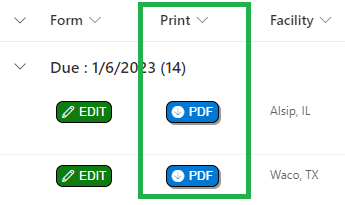
Provide a button that directs users to the display form, since that is the screen worth printing. Create a text field called "Print" and add a View Button using this free template: https://sharepointdashboards.com/PRE/?t2
The button can carry any text and even a custom icon, "PRINT," "PDF," whatever reads clearly, but its only job is navigation to the display form:
Step 2: Instructions on the form itself
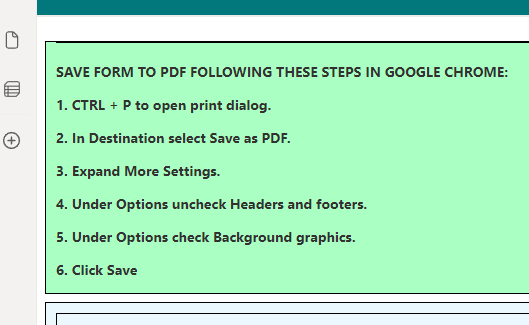
Add a short instruction block at the top of the display form so users know exactly what to do. Reuse this text or adjust as needed:
SAVE FORM TO PDF FOLLOWING THESE STEPS IN GOOGLE CHROME:
- CTRL + P to open the print dialog.
- In Destination select Save as PDF.
- Expand More Settings.
- Under Options uncheck Headers and footers.
- Under Options check Background graphics.
- Click Save.
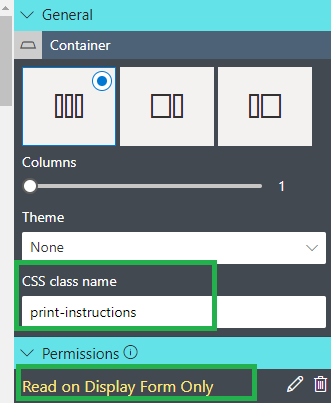
Two settings make this block behave: give it a permission rule so it shows only on the display form, and assign the container a CSS class name of print-instructions, which step 4 will use to keep the instructions out of the printout:
The two unchecked-and-checked options deserve a word. Headers and footers off removes the browser's date-and-URL stamps that scream "screenshot" rather than "document." Background graphics on preserves your form's colors and shading, which browsers otherwise strip to save ink, exactly the styling you are printing this way to keep.
Step 3: Hide the toolbar
Select ToolBar and disable Show Toolbar in the command menu. This prevents that part of the interface from appearing in the print output.
Step 4: One line of CSS
Finally, add CSS that hides the print instructions and the form buttons in printed output:
@media print{.buttonBar, .print-instructions{display: none !important;}}

The @media print rule applies only when the page is printed, so on screen the buttons and instructions remain, and on paper they vanish. It is the entire trick, and it is reusable verbatim on every form you set up this way.
What you end up with
No print template exists, and none needs maintaining. The output is the display form exactly as rendered in the browser, with every conditional rule already applied, so a remote employee's printout genuinely lacks the equipment section rather than showing it blank. The instructions teach users the routine once, the CSS keeps the chrome out of the document, and the whole arrangement took a fraction of the time an advanced template would have.
It will not cover every scenario, tabbed forms and automated generation remain template territory, and when you need both worlds, the template-based options are one article away: An Easy to Use SharePoint Printing Solution at Last surveys them, and Effortlessly Convert SharePoint Data to PDF goes deeper on PDF output. But as an additional tool, browser printing earns its place: when the requirement is "give me this form, as I see it, as a PDF, today," nothing beats it.
Frequently asked questions
Add your comment