You can print a SharePoint item together with all of its related child records as a single PDF. The recipe in Ultimate Forms takes two Print List Items actions: the first prints each child record with its own Word template and attaches the resulting PDFs to the parent item, and the second prints the parent and appends those attachments as additional pages of the same file. The result is one document, a timesheet with all its entries, an invoice with all its line items, formatted with the precision of Word print templates, and generated automatically by whatever trigger you choose.
One process, one PDF. Here is the whole setup, screenshot by screenshot.
The problem: relational data, but the PDF comes out in pieces
Out-of-the-box SharePoint has no print functionality at all, which is why the Print component exists in the first place. Word print templates solve the formatting side elegantly: you design the document in Word, drop in field placeholders, and get polished PDF output from any form. (If you have not built one yet, start with the walkthrough in our documentation and the layout techniques in Word Print Template Table Layouts.)
The complication arrives with related records. Any solution built on the Associated Items pattern has a parent and its children: a timesheet with its daily entries, like this one:
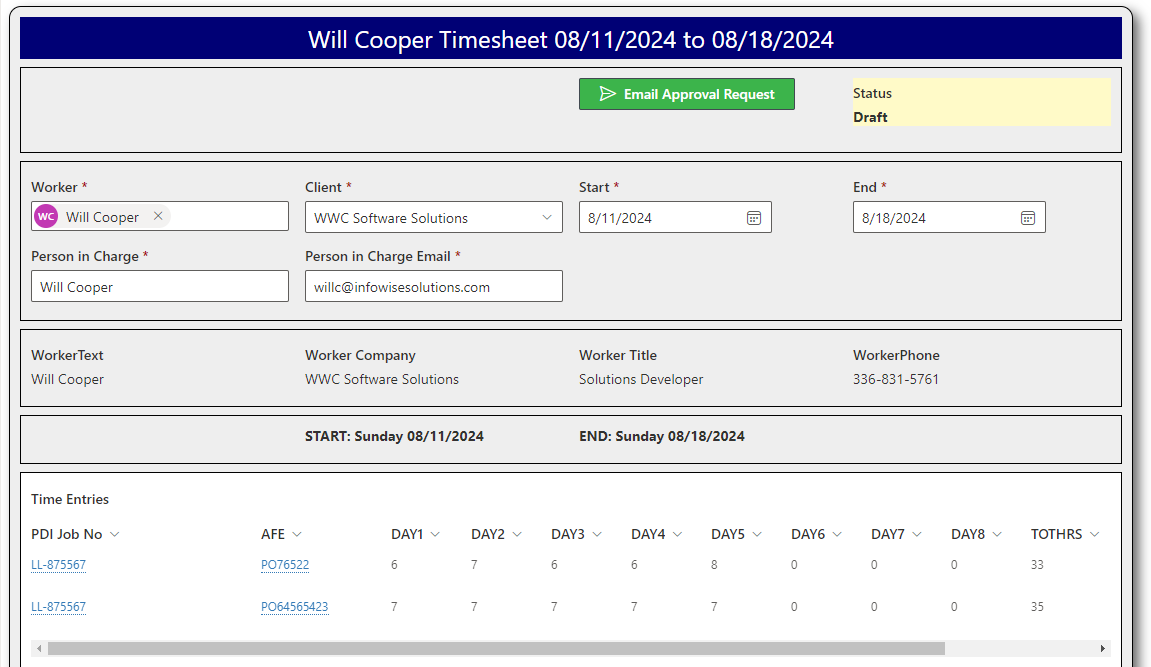
Here there are two print templates in play, one for the parent record and one for the child records, because the two record types carry different fields and deserve different layouts. Each prints beautifully on its own. But printing them individually yields a folder of separate PDFs, one for the parent and one per child, and nobody wants to email a timesheet as nine attachments. What the process actually needs, for approval, for the customer, for the audit file, is everything in one document.
That is exactly what the Attach to current item capability of the print action delivers, and the entire consolidation takes two actions.
Action 1: Print the children onto the parent
With both Word templates ready, add the first Print List Items action on the parent list. This action creates a PDF of each child record and attaches those PDFs to the parent record:
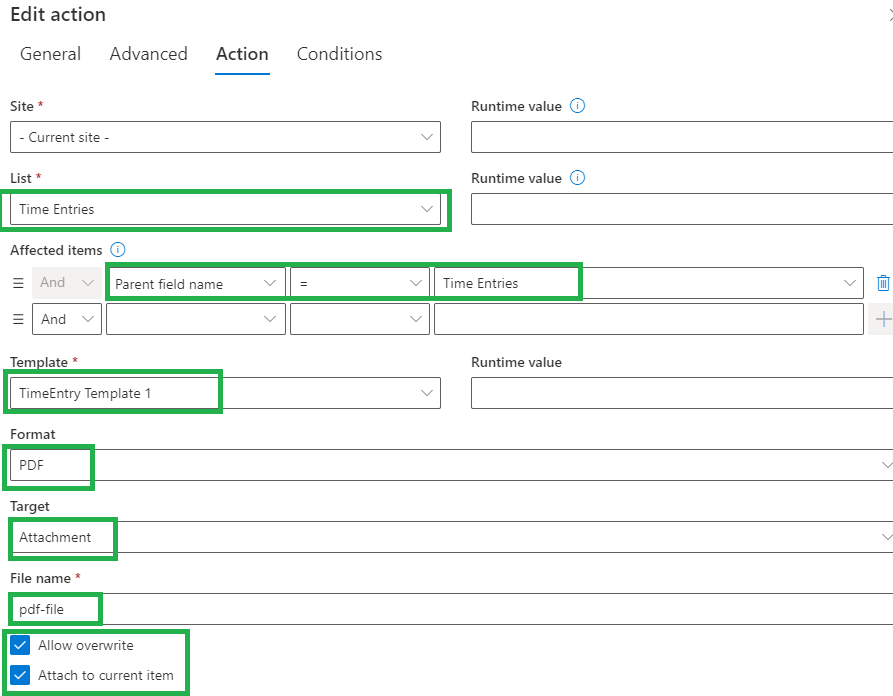
The settings shown do five things: select the child list; target the child records using the special "Parent field name" reference, so only the children belonging to this parent are printed; select the child print template; specify PDF output; and set the target to the special "Attachment" option, attaching the output to the parent record with the overwrite option enabled. Overwrite matters more than it looks: when the action runs again after a child record changes, the fresh PDFs replace the stale ones instead of piling up alongside them.
Trigger the action with whichever conditions fit the process, when a Status field changes to complete, say, or as a manually triggered action a user fires from the form. Then test this step on its own before building the second one; debugging is far easier one action at a time. If everything works, the attachments appear on the parent record:

Action 2: Print the parent and pull it all together
On the parent list, add one more Print List Items action. This one prints the parent record itself and consolidates the attached PDFs into the same file:
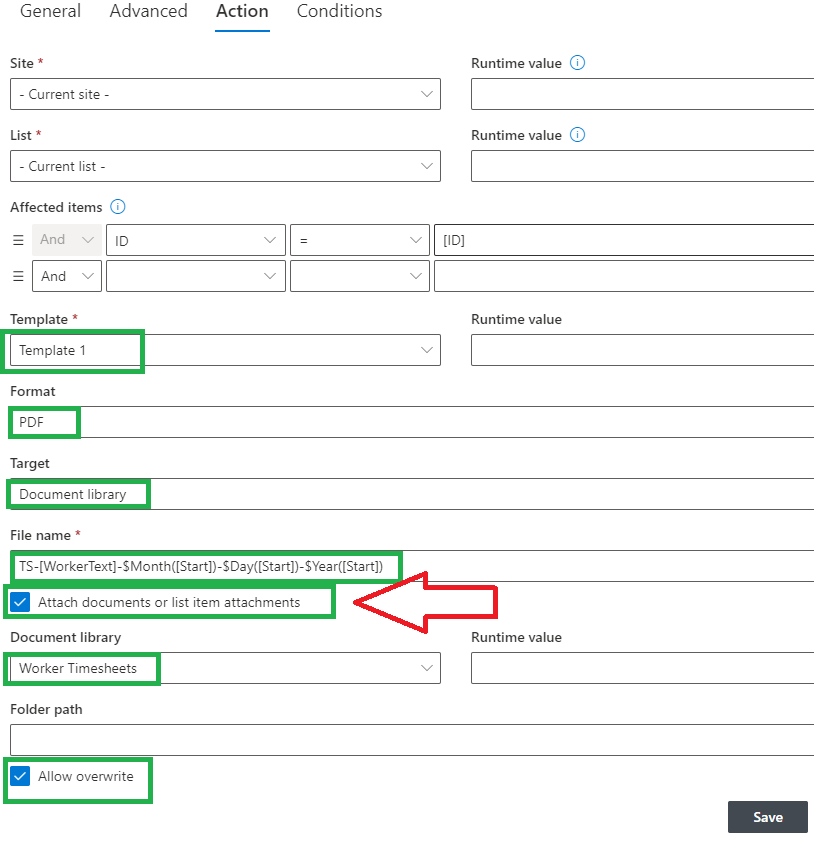
The configuration: select the current record with the ID = [ID] setting; choose the parent print template; specify PDF output; target a document library of your choice; give the file a dynamic name, including a date stamp such as Month([Now])−Month([Now])- Day([Now])-$Year([Now]) keeps report generations distinct; check the Attach Documents option, which is the setting that does the consolidating; select the library; and enable Allow overwrite.
The output is one PDF whose opening pages come from the parent template, with each attached child PDF appended as additional pages after it. And the destination is flexible: instead of, or in addition to, filing the PDF in a library, the output can be sent via email automatically, which turns the whole construction into a report that delivers itself.
Why the two-action pattern is worth learning
Beyond solving the immediate problem, this recipe demonstrates a composition principle that pays off across the platform: print actions produce documents, and documents can be inputs to other print actions. Once children can be printed onto their parent and a parent can absorb its attachments, variations come cheaply. Chain the pair behind an approval so the consolidated PDF is generated the moment a request is approved. Run them from a scheduled action to produce a dated report pack every Friday. Use print filters to control which children make the cut, only billable entries, only approved lines.
The pattern fits anywhere Associated Items keeps parent and children together: invoices with line items, purchase orders with order lines, inspections with findings, projects with task logs, patient records with visit entries. If the data is relational and the world outside SharePoint expects a single tidy document, this is the bridge. For the broader document-generation picture, see Generate Documents from SharePoint Data Using Word Templates and Effortlessly Convert SharePoint Data to PDF.
Frequently asked questions
Add your comment