To generate documents from SharePoint data, map list columns to a Word template once, then produce consistent, fully populated Word or PDF documents in one click or automatically with Ultimate Forms Print.
Why Document Generation Is Still a Pain in SharePoint
Many organizations rely on SharePoint to store and manage their data, but when it comes to turning that data into usable documents, the process often breaks down.
You collect information in lists. You track requests, approvals, and records. But when someone needs a formal document such as a report, invoice, form, or confirmation, the process becomes manual again.
Users copy and paste data into Word. They format documents by hand. They double-check values. They fix layout issues. They send files back and forth for corrections.
This leads to:
- Errors and inconsistencies
- Time-consuming manual work
- Delays in delivering documents
- Frustration for both users and administrators
Even worse, many solutions that attempt to automate document generation require complex tools, scripting, or development skills that your typical SharePoint user simply does not have.
There is a much easier way to solve this problem.
A Simpler Approach to Document Generation
With Infowise Ultimate Forms, you can generate professional documents directly from your SharePoint data using simple, familiar tools.
One of the most powerful and practical approaches is using Microsoft Word as your document template.
Instead of building layouts in code or learning complex systems, you simply design your document in Word, just like you normally would, and let Ultimate Forms handle the rest.
The result is a solution that is:
- Easy to build
- Easy to maintain
- Accessible to non-technical users
- Fast to implement
How Word Templates Work in Ultimate Forms
At its core, the concept is straightforward.
You create a regular Word document and place placeholders where your data should appear. These placeholders correspond to your SharePoint columns and are written using a simple format such as:
When the document is generated, Ultimate Forms replaces those placeholders with actual data from your SharePoint item.
That’s it.
There is no coding. No complex configuration. No external tools.
You upload your Word document into the Print component, and it becomes the template used to generate PDF or Word files on demand.
Why Word Templates Are So Powerful
1. Familiar Environment for Everyone
One of the biggest advantages of using Word templates is that everyone already knows how to use Word.
You do not need to:
- Learn a new design tool
- Understand HTML or scripting
- Depend on developers
Users can:
- Design documents visually
- Adjust layout instantly
- Add branding, images, and formatting
This dramatically lowers the barrier to entry.
Instead of requiring specialized skills, document generation becomes something that business users can handle themselves.
2. Full Control Over Layout and Design
When you use Word as your template, you are not limited by predefined layouts or rigid structures.
You can:
- Use tables for structured data
- Apply styles and formatting
- Insert logos and branding
- Control spacing and alignment
- Create multi-page documents
This gives you complete flexibility to design documents exactly as needed.
Unlike many automated tools that restrict formatting, Word allows you to create professional, polished outputs that match your organization’s standards.
3. Faster Implementation
Traditional document generation solutions often require:
- Development time
- Configuration effort
- Testing cycles
With Word templates, you can:
- Create a template in minutes
- Upload it to Ultimate Forms
- Start generating documents immediately
There is no long setup process.
This is especially important for organizations that need to move quickly and cannot afford long implementation timelines.
4. Easy Updates and Maintenance
Business requirements change.
Documents evolve. Fields are added. Layouts need to be adjusted.
With Word templates, making changes is simple:
- Open the document
- Edit the layout
- Update placeholders
- Upload the new version
There is no need to rebuild logic or reconfigure systems.
This makes ongoing maintenance much easier and reduces dependency on technical resources.
5. Accessible to Non-Technical Users
Ultimate Forms is designed for business users, not developers.
Word templates reinforce this philosophy.
Because everything is visual and intuitive:
- Power users can build and maintain templates
- Departments can manage their own documents
- IT involvement is minimized
This empowers organizations to deliver solutions faster and more efficiently.
From Data to Document in Seconds
Once your template is in place, generating documents becomes effortless.
Users can:
- Select an item
- Click Print
- Choose the template
- Generate a PDF or Word document instantly
The system handles everything:
- Data insertion
- Formatting
- File generation
There is no manual work required.
Support for Complex Scenarios
While the approach is simple, it is also highly capable.
Ultimate Forms supports:
- All SharePoint column types
- Custom Infowise columns
- Multiple templates per list
- Batch printing of multiple items
For example, you can:
- Generate reports that include multiple records
- Create invoices with multiple line items
- Produce audit documents or summaries
Batch printing even allows you to combine multiple records into a single PDF file, which is especially useful for reporting and documentation.
Integration with Business Processes
Document generation does not exist in isolation.
With Ultimate Forms, it becomes part of your overall process.
You can:
- Trigger document creation automatically using Actions
- Generate documents after approval
- Send documents via email
- Store generated files for future reference
This turns document generation into a seamless part of your workflow.
Real-World Use Cases
Word-based templates can be used across a wide range of scenarios:
Invoices and Financial Documents
Automatically generate invoices, reimbursement forms, or financial summaries using structured SharePoint data.
HR Documents
Create employment letters, onboarding documents, and policy acknowledgments with consistent formatting.
Reports and Audits
Produce audit reports, summaries, and compliance documents without manual compilation.
Requests and Approvals
Generate confirmation documents for requests, approvals, and transactions.
In each case, the same principles apply:
- Design once in Word
- Generate automatically from SharePoint
Why This Approach Works Better
Many document generation solutions focus on power and flexibility but overlook usability.
Word templates strike the perfect balance:
- Powerful enough for complex documents
- Simple enough for everyday users
By combining Word with Ultimate Forms, you get:
- A familiar design experience
- A no-code implementation model
- Fast and reliable document generation
This approach aligns perfectly with how modern organizations work.
A Better Experience for Everyone
For users:
- No more copying and pasting
- No more formatting documents manually
- No more errors
For administrators:
- No complex setup
- No ongoing maintenance burden
- No dependency on developers
For organizations:
- Faster processes
- Consistent documents
- Improved efficiency
Conclusion
Generating documents from SharePoint should not require complex tools or technical expertise.
With Infowise Ultimate Forms, you can use something as simple and familiar as a Word document to create powerful, automated document generation solutions.
By leveraging Word templates, you gain:
- Ease of use
- Flexibility in design
- Speed of implementation
- Accessibility for non-technical users
Instead of turning document generation into a development project, you turn it into a simple, visual task that anyone can manage.
And that is what makes this approach so effective.
Print Templates are a fantastic part of the Ultimate Forms. There are many options that can be used when creating templates and automating output.
This week we have expanded support on print templates to include many additional fields including:
- Image Fields
- Rich Text Fields
- Hyperlink Fields (for images or links)
- Barcode / QR Codes
- Indicator Fields
- Signature Fields
- File Type
This means that you are not longer limited in which field types that you can select when building print templates. You can safely reference all the fields in your forms and get complete output displayed just as it is in your forms.
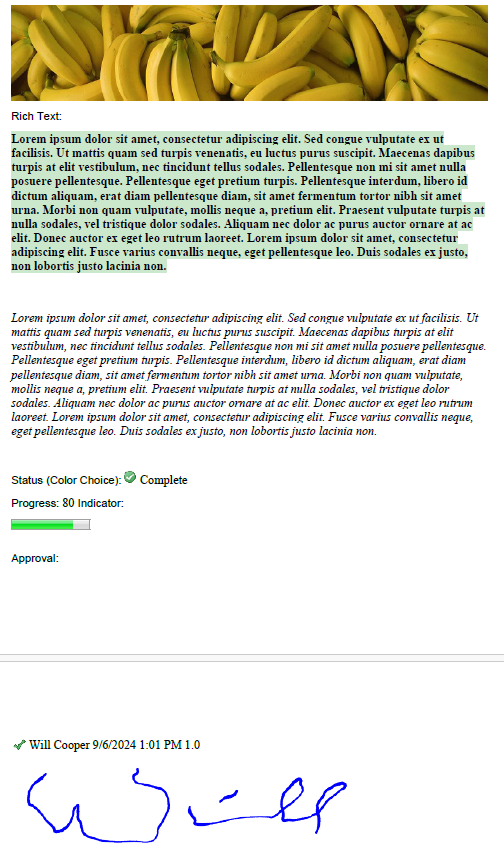
Using a Word Template, in the below example you can see print output including image field, color choice, Inidcator and signature fields:
Setting up the Word Template is easy - just reference your fields in double square brackets as shown:
Image:
[[Image]]
Rich Text:
[[Rich Text]]
Status (Color Choice): [[Status]]
Progress: [[Progress]] Indicator: [[Progress Indicator]]
Approval:
[[Approval]]
Another new useful option is to combine print output for multiple files by selecting a set of files. The print output will be consolidated to a single file.
In order to take advantage of this feature, select multiple list items before selecting print. In the below example, selecting the options shown produces a single PDF including the print content from all records selected.
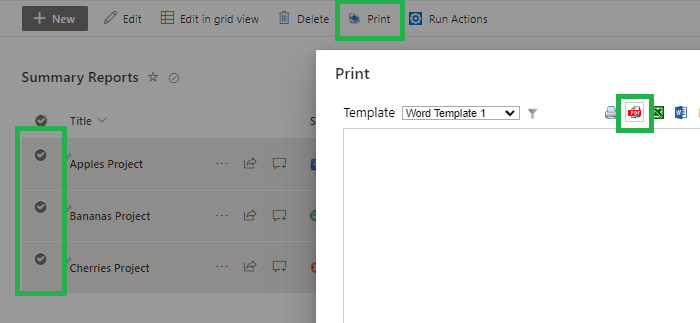
Now you can get complete print template output include specialized formatting from all your SharePoint and Ultimate Forms fields. Good luck!
Add your comment