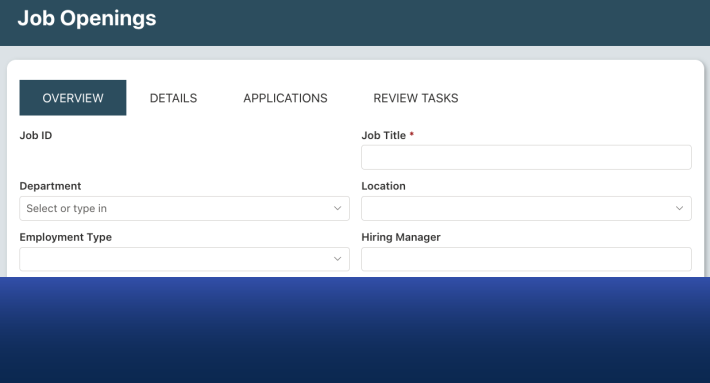
A capable SharePoint form needs ten things: tabs, conditional visibility, validation, pre-filled values, repeating sections, signatures, permissions by role, attachments handling, printing, and automation hooks. Here is each one in detail.
SharePoint lists are capable of storing a lot of data. What they are not capable of, out of the box, is doing much with that data in a way that feels intentional. The default form is a flat list of columns — no grouping, no logic, no visual hierarchy, no ability to control what different users see at different stages of a process. For simple data capture, that is fine. For anything that resembles a real business process, it falls short quickly.
This is why form design matters as much as data architecture. A well-designed form guides users through a process, prevents errors before they happen, adapts to context, and makes the experience of submitting or reviewing information straightforward rather than confusing. A poorly designed form generates bad data, user frustration, and IT support requests.
Ultimate Forms extends SharePoint's native form capabilities to cover everything a real business process requires. Here are ten features that make the difference.
1. Fluid Layout, Mobile Ready
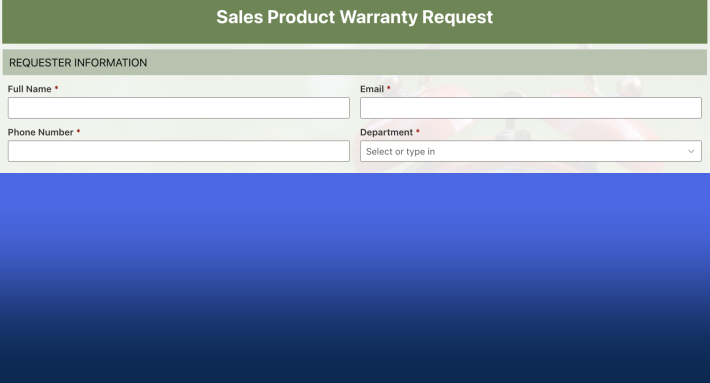
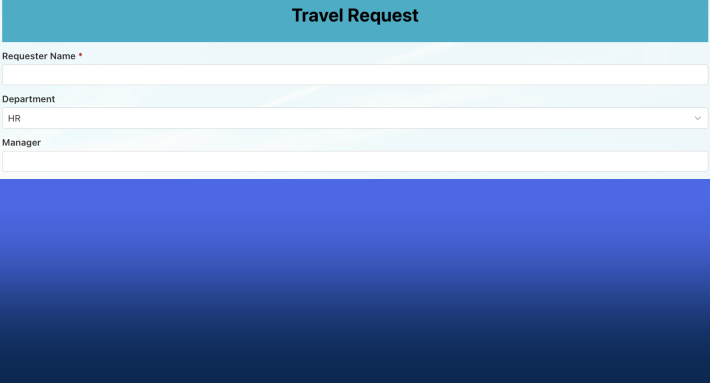
Every form built with Ultimate Forms renders correctly on any device — desktop, tablet, or phone — without any additional configuration. Columns stack and reflow automatically based on screen size. For organizations where employees are submitting forms from a warehouse floor, a job site, or a client office, this is not optional. A form that only works on a desktop is a form that will be worked around.
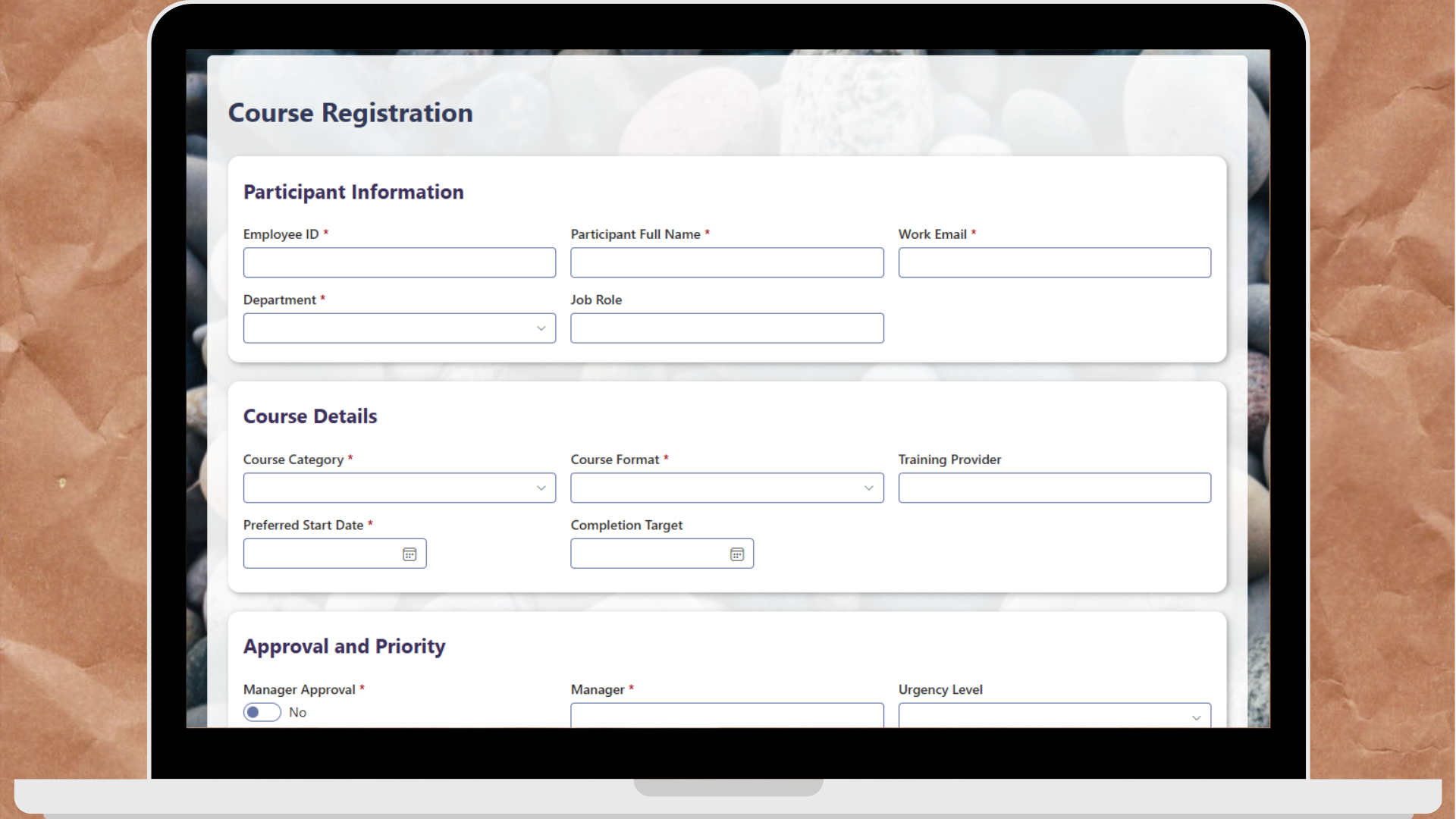
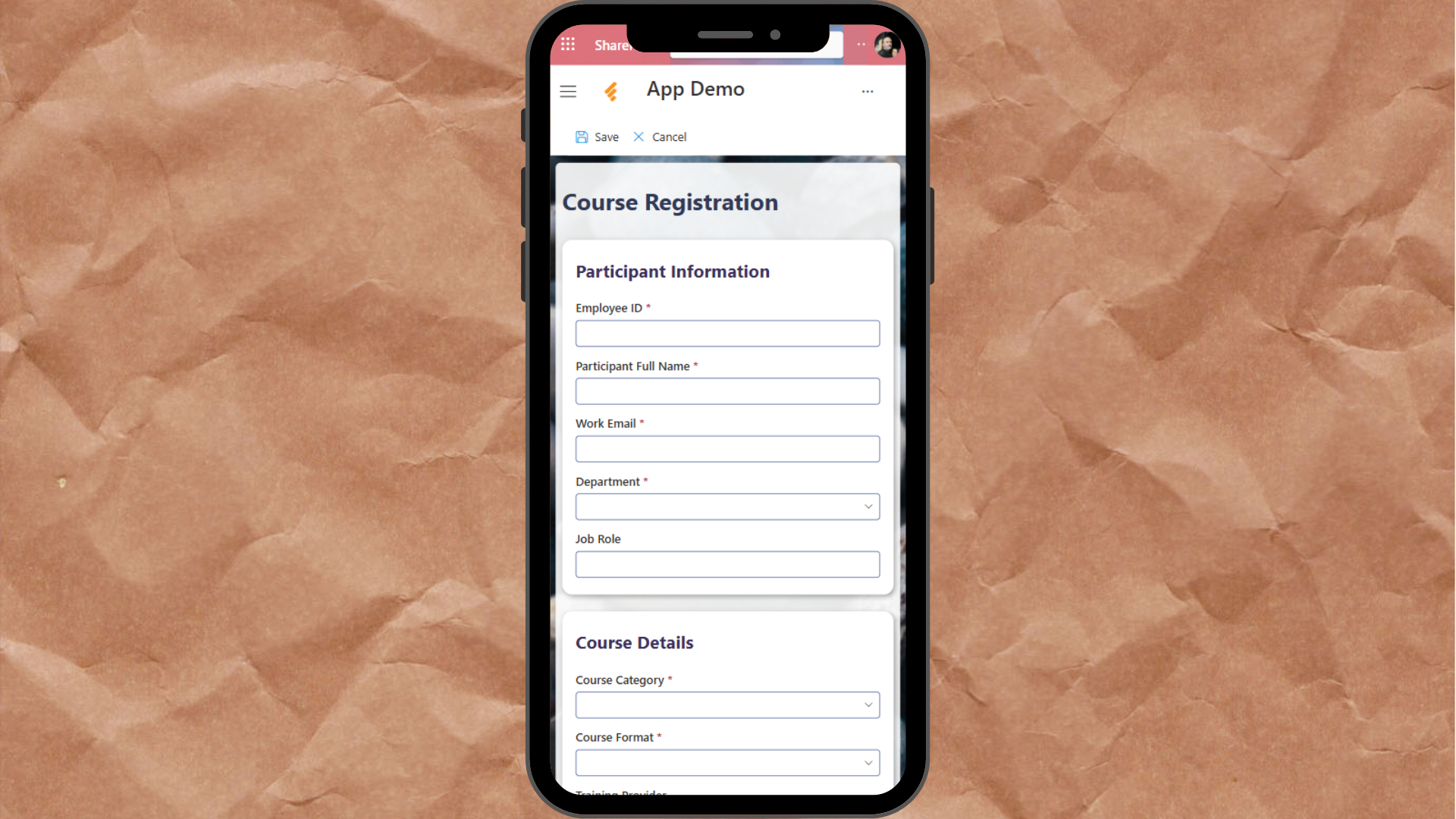
The responsive layout is built into every form by default, requiring no additional design work.
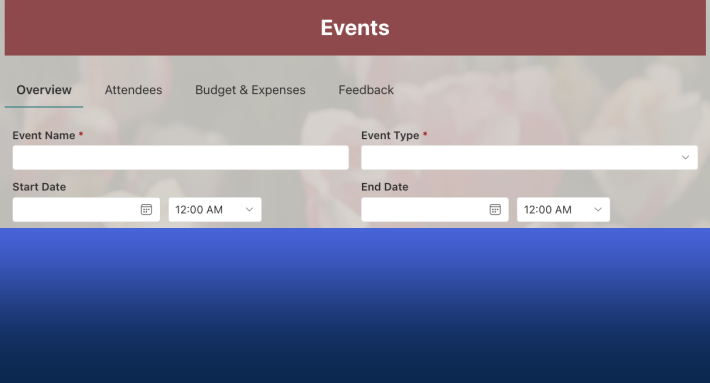
2. Cascading Permission Rules and Conditional Tabs
Native SharePoint permissions operate at the list, folder and item level. They cannot hide a specific column from a specific user, make a column read-only after an approval, or show a tab only to managers. Ultimate Forms adds column-level permissions that operate across tabs, sections, and individual columns — and the rules cascade.
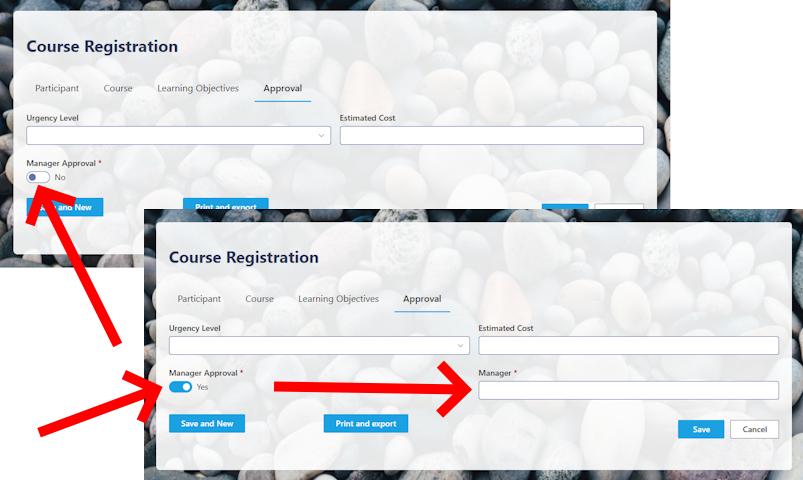
When you apply a permission rule to a tab — making it read-only, or hiding it entirely — every section and column nested inside it inherits that rule automatically. You do not need to configure each element individually. But if a specific column inside that tab needs different behavior, you override it at that level. A column inside a read-only tab can be made editable for a specific role. A column inside a visible tab can be hidden independently.
This cascading structure makes it fast to apply broad permission frameworks while retaining the flexibility to handle exceptions precisely where they are needed — giving administrators full control without configuring every element from scratch.
3. Repeating Sections and Automatic Summaries
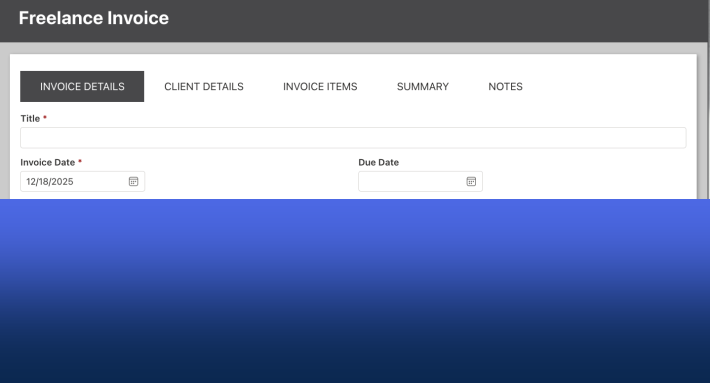
Expense reports, purchase orders, invoices, inventory checklists — any process that involves multiple line items needs a repeating section. Ultimate Forms supports unlimited line items within a single form submission, with calculations updating in real time as items are added.
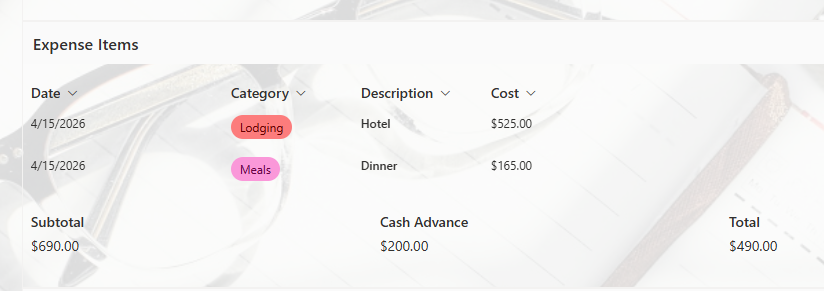
Totals, row counts, sums, and averages are calculated and displayed within the form itself, without any manual arithmetic or formula maintenance. The calculated results are stored as part of the record and are available for reporting, printing, and downstream automation.
4. The Approval Control
Rather than building approval workflows outside the form — in Power Automate, in a separate task list, in a tool that requires the approver to navigate away from the data they are reviewing — Ultimate Forms includes a native Approval control that lives directly inside the form.
The approver opens the same item that was submitted, sees all the relevant data in context, and takes their action right there. The form locks automatically when an approval is in progress, preventing changes to the record during review. Every action is logged with a timestamp and visible within the form itself — a complete, auditable history without any additional configuration.
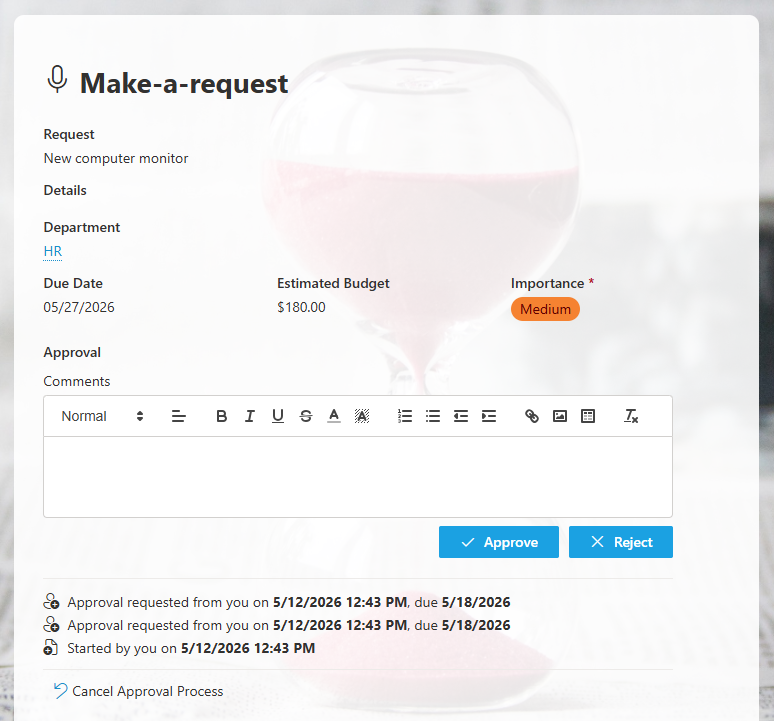
Approvers can optionally be assigned dynamically based on the properties of the item — a manager column, a department lookup, or any column value that identifies the correct person for that specific request. As organizational structures change, the routing adapts without requiring workflow maintenance. An integrated appeal mechanism allows rejected requests to be formally challenged within the same form, with the full history of the original decision maintained alongside it.
5. Electronic Signatures
Ultimate Forms includes a built-in electronic signature column that captures a signed acknowledgement directly within the form — timestamped and tied to the user's identity. No separate signing platform, no PDF attachment, no external service required.
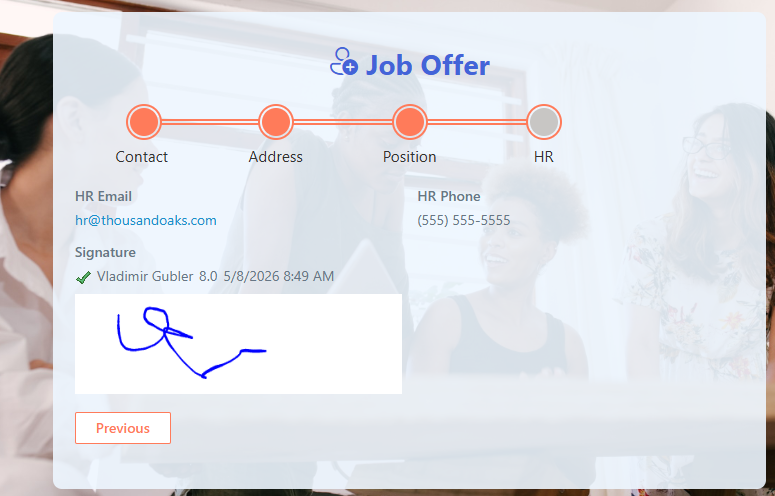
The signature is stored as part of the SharePoint record and is immediately available for compliance, audit, and reporting purposes. Both the submitter and a reviewer can sign within the same form, making the capture of two-party authorization straightforward — relevant for expense claims, travel authorizations, consent forms, and policy acknowledgements.
6. Configurable Action Buttons
Beyond the standard save control, Ultimate Forms adds configurable action buttons directly to the form interface. A Save and New button immediately opens a blank form after saving — useful for high-volume data entry. A Print button generates a formatted output document using a configurable template. Custom action buttons can trigger any action in the Ultimate Forms Actions framework — sending a notification, updating a related list, calling a REST API — without the user needing to navigate anywhere.
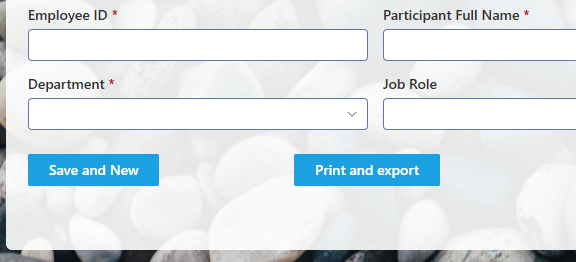
Buttons can be shown or hidden conditionally, ensuring the interface presents only the actions that are relevant at the current stage of the process.
7. Conditional Styling Within the Form
When a user selects a value that triggers a business rule — a high-risk category, an amount above a threshold, an urgent priority — the relevant section of the form highlights automatically with a background color, drawing the user's attention to exactly what requires their focus. The form responds visually to what is being entered, without instruction text or separate guidance.
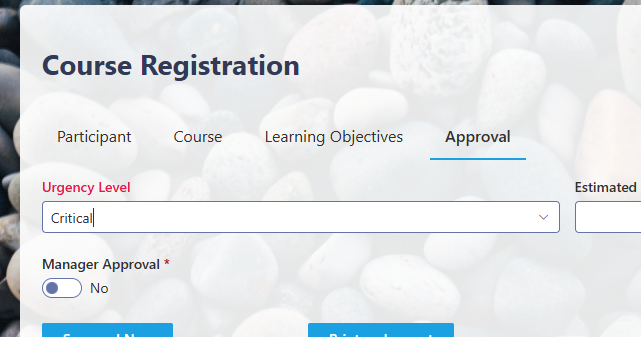
Ultimate Forms also can also highlight columns where the user has made changes to existing data since the form was opened. This gives the user immediate visibility of what has been modified in the current session — a particularly useful capability during review and approval workflows, where knowing what changed is as important as knowing what the current value is.
8. External Forms
Ultimate Forms can expose any SharePoint list form to users outside your organization through a secure public URL — without requiring a SharePoint account, a VPN, or any custom web development. External customers, contractors, vendors, job applicants, and event registrants complete the form directly, and the submission lands in the SharePoint list immediately.
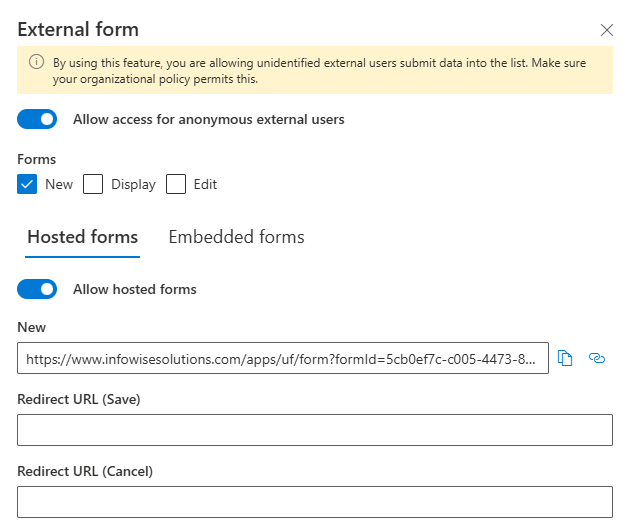
All external form submissions are anonymous. The form is responsive and works on any device, and it can be embedded directly on a public-facing website or shared as a standalone link. For organizations that currently collect external data through a separate form tool and then manually transfer it into SharePoint, this capability eliminates that step entirely.
9. Forms Built Directly on Third-Party Data Sources
This is a capability that goes beyond what most people expect from a SharePoint tool. Ultimate Forms can create forms that operate directly against an external data source — a SQL database, a REST API, an email system, or an SMS gateway — with no SharePoint list involved at all.
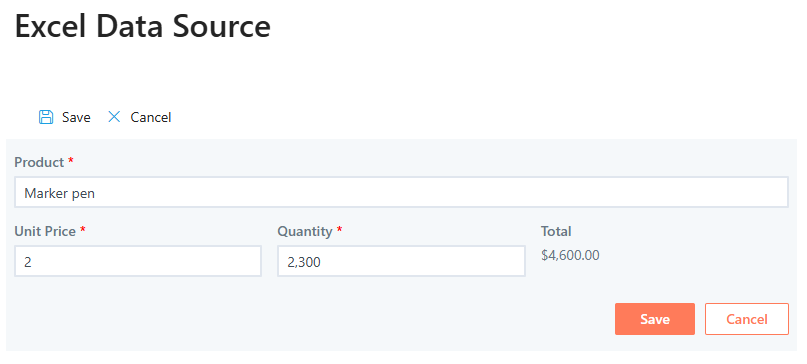
The form reads from and writes to the external source directly. Submissions go straight into the database or API endpoint. SharePoint is simply the platform the form runs on — not the destination for the data. For organizations that need to build interfaces on top of existing enterprise data without duplicating it into SharePoint, this provides a consistent, maintainable form-building experience across systems, using the same designer used for every other form in the environment.
10. Template Manager — Build Once, Deploy Anywhere
Every solution built with Ultimate Forms — the list structure, the form configuration, the permission rules, the alerts, the print templates, the views — can be packaged as a reusable template and deployed to any SharePoint site in a single click. Build a help desk, a leave request process, or an onboarding workflow once. Package it. Deploy it to every site that needs it, with consistent results and no rebuild from scratch.
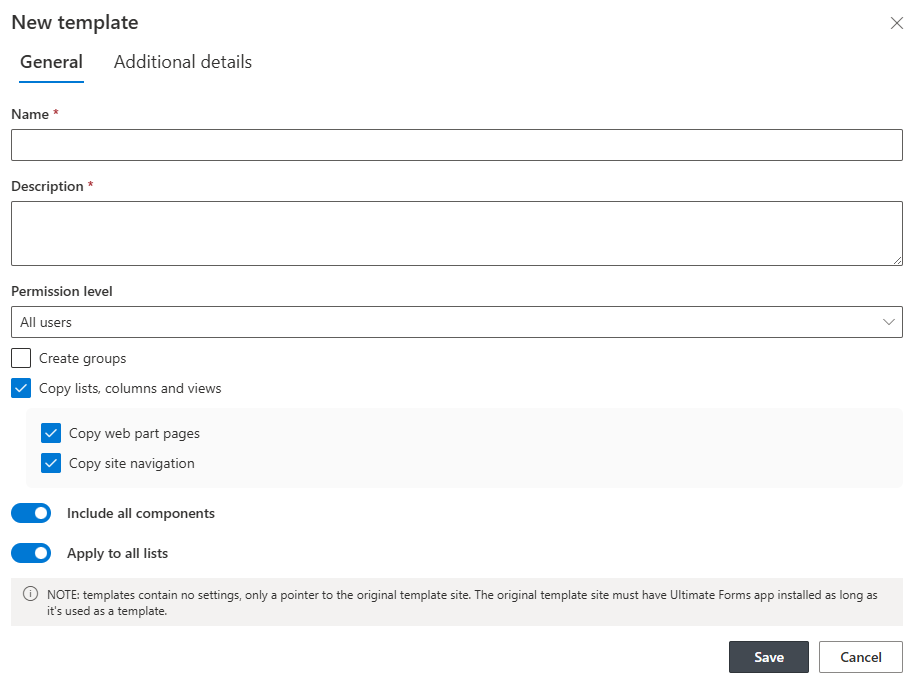
For organizations with multiple departments, locations, or tenants running the same processes, Template Manager eliminates the manual recreation that previously consumed days of administrative time. For SharePoint partners and managed service providers, it is the foundation for repeatable, scalable implementation delivery.
What This Means in Practice
These ten features are not independent add-ons. They work together inside the same Form Designer, configured by the same SharePoint administrator, maintained in the same interface where the rest of the form is built. A leave request form can be mobile-ready, conditionally structured by tabs, locked during approval, signed electronically, and deployable to ten sites as a reusable template — all without a developer and all without leaving SharePoint.
The organizations that get the most out of SharePoint are the ones that put the tools to extend it in the hands of the people who own the processes. Ultimate Forms is built precisely for that purpose.
Add your comment