What gets printed matters as much as how it looks, and two different filters control it. Item selection, which records enter a list printout, comes from the view's own filters plus an ad hoc filter section at the moment of printing: only approved expenses, only overdue tasks, only this month's inspections. Template selection, which print template applies to a given item, comes from conditions on the templates themselves, so the invoice template offers itself for invoices and the quote template for quotes, automatically. This guide covers both mechanisms, how they divide the work, and the selection patterns that make printed output audit-ready. For the template system the filters belong to, see the complete document generation guide.
The selection problem
A print template without filters prints what it is given, and "what it is given" is usually too much. The expense list holds drafts and rejections alongside the approved; the task list holds the finished alongside the overdue; the register holds the sensitive alongside the shareable. Printing everything and asking readers to ignore the irrelevant works exactly until the first audit question, the first leaked-to-the-wrong-audience row, or the first manager who stops reading the report because most of it never applies.
Filters move the selection into the output itself. The template carries conditions, column, operator, value, Status equals Approved, Due Date before today, Department equals Finance, and only matching records render. The design stays constant; the selection is policy, stated once, applied every time, which is what turns a printout into a report.
Two kinds of selection
The system answers two different questions, with two different mechanisms, and keeping them apart prevents both surprises and misconfiguration.
Which items print. List-based templates print from a view, and the view's filters apply as always: a view scoped to one department prints that department. On top of that, the print preview offers a filter section beside the template selector, where ad hoc conditions, column, operator, value, narrow this particular run: the date range for this month's version of the report, Status equals Approved for the official copy, the one customer this packet concerns:
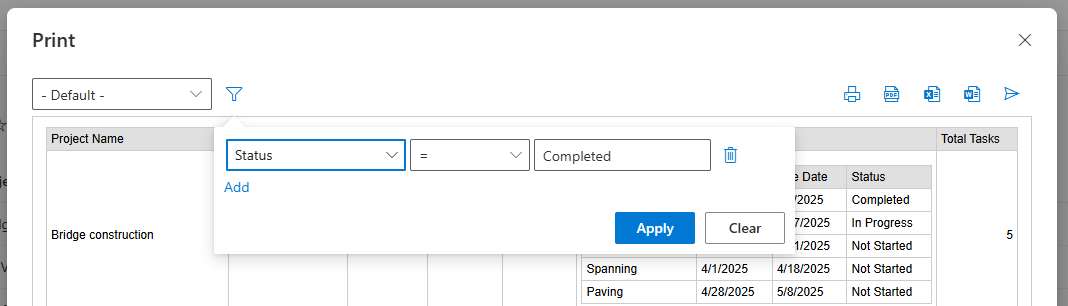
The division of labor is natural: the view carries the standing scope, the print-time filter carries the run's refinement, and together they decide the output's contents. For reports that generate themselves, the same selection logic lives in the scheduled print action's item settings, which is how the weekly overdue report guarantees its contents with nobody clicking anything.
Which template applies. Templates themselves carry conditions, and these do something different: they control which templates appear for a specific item. A condition of Type equals Invoice on the invoice template means that template offers itself only for invoices; the quote template, conditioned on Type equals Quote, appears only for quotes. One list can carry a shelf of templates, each scoped to its kind of item, and users printing an item see only the templates that fit it, with automatic selection picking the right one in automated flows. The conditions select the layout for the item, never the items for the layout.
The item-template note: single-record (item-based) templates have no item selection to configure, because their selection is the user's click: you print the items you picked. Their conditions, like every template's, decide where the template is offered.
Setting it up
The build is the ordinary template path with one extra habit. Create or open a list-based or calendar-based template under Design, Print and Export; choose the columns, or inherit the view's; add the header and footer that make the output official; set the template's conditions if it should offer itself only for certain items; and name the template for its purpose, "Approved Expenses, Month End," "Customer Quote," because a well-named template documents itself, and a library of such names reads as the organization's reporting policy.
Then, printing from the view: pick the template if the list carries several, open the filter section, add the run's conditions, column, operator (equals, greater than, less than, contains), value, and preview. The preview is the verification step: the intended records and only them, the layout intact, the dates right. Output goes wherever printing goes, printed, exported to PDF, Word, or Excel, or emailed directly, and the same filtered template behind a scheduled action becomes the report that produces and distributes itself.
The selection patterns
The clean financial report. Status equals Approved plus the previous month's date range, set in the print-time filter for the manual run and in the action's item settings for the scheduled one, and the expense report that reaches management contains no drafts, no rejections, and no stragglers from other periods, audit-ready because "what is in this report?" has a configuration for an answer.
The focus list. Due Date before today and Status not Completed: the weekly overdue printout that concentrates a meeting on exactly the items that need it. The filter is the agenda.
The exclusion guard. Sensitive equals No applied in the print-time filter, or standing in the view behind the externally shared report, keeps flagged rows out of the exported PDF. One note keeps this honest: print filtering is an output control, not a security boundary, data that specific users must never see belongs behind permission rules, with the filter as the second fence, not the only one.
The escalation packet. Priority equals High or Needs Escalation for the support meeting, long resolved-ticket lists left behind.
The calendar slice. Calendar-based templates filter the same way, Event Type equals Safety Inspection within the current month, producing focused calendar printouts instead of everything-on-the-wall.
One template, many reports
The economical consequence deserves its own paragraph, because it changes how many templates a list needs. Without run-time filtering, every report variant tempts a template of its own, the monthly version, the quarterly version, the per-department versions, and the library of near-identical layouts drifts apart with every design tweak applied to some and forgotten on others. With it, one well-designed template serves the family: the layout is built once, and the variants are print-time conditions or a handful of scheduled actions pointing at the same template with different item selections. The month-end report and the ad hoc mid-month check are the same template on different days, which means they can never disagree about formatting, and the inevitable rebrand touches one layout instead of nine. Template conditions then handle the orthogonal variety, different layouts for different kinds of items, so the shelf stays small in both directions: one template per document type, one selection per run.
Keeping filtered templates healthy
Three maintenance habits carry the system over years. Review filters when the list evolves: a renamed status value or retired column silently empties or inflates a filtered report, so template filters belong on the checklist of every schema change, and the quarterly read-through of template names against their conditions takes minutes. Keep the output lean beyond the rows: filters select records, column choice selects width, and the report that prints only the relevant columns of only the relevant records is the one people actually read. Document the intent where it lives: the template's name and its filter should agree so completely that no separate documentation is needed, which is the same self-documentation discipline that serves actions and alerts everywhere else in the platform.
The underlying principle is worth stating once: a report is a claim about what matters, and filters are how the claim becomes enforceable. Everything-printouts delegate the judgment to every reader on every reading; filtered templates make the judgment once, in configuration, where it can be named, checked, and trusted.
Frequently asked questions
Add your comment