There are two different ways to get Excel out of Ultimate Forms, and they solve two different problems. The first is export: the Print component renders list data, an item with its related records, or a whole list, as an Excel file, downloaded, emailed, or, through an action, attached to the item or uploaded to a document library. The second is Excel as the data store itself: a data connection points forms and views directly at an Excel file, so submissions write into the workbook with SharePoint storage bypassed entirely, and the file can live in SharePoint, OneDrive, FTP, Google Drive, Dropbox, or Box. This guide covers both, separately, because they are unrelated technologies that happen to share a file format, and closes with the decision between them. For the output family the first belongs to, see the complete document generation guide.
Path one: exporting SharePoint data as Excel
When the output should be a spreadsheet
Every generated document has an intended verb. Read it: PDF. Finish it: Word. Work it, sort, filter, chart, total, reconcile, is Excel's verb, and a surprising share of "reports" are really work requests in disguise. The supervisor who receives the day's tasks will group them; the finance reviewer will total the quarter's expenses her own way. Hand those recipients a PDF and they re-key it; hand them the spreadsheet and the work starts where the document ends. The same template system serves all three formats, so the choice is per delivery, not per build, and the plainer siblings, CSV and tab-delimited text, come from the same machinery when the consumer prefers them.
What the export does that native export does not
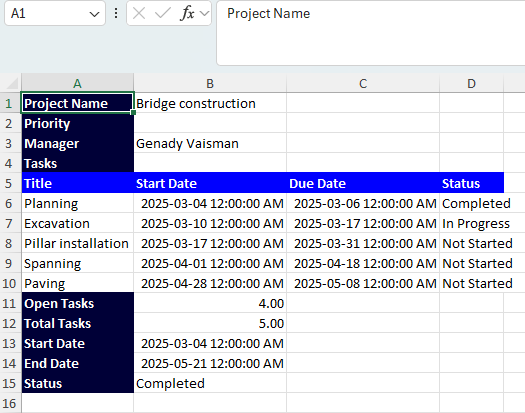
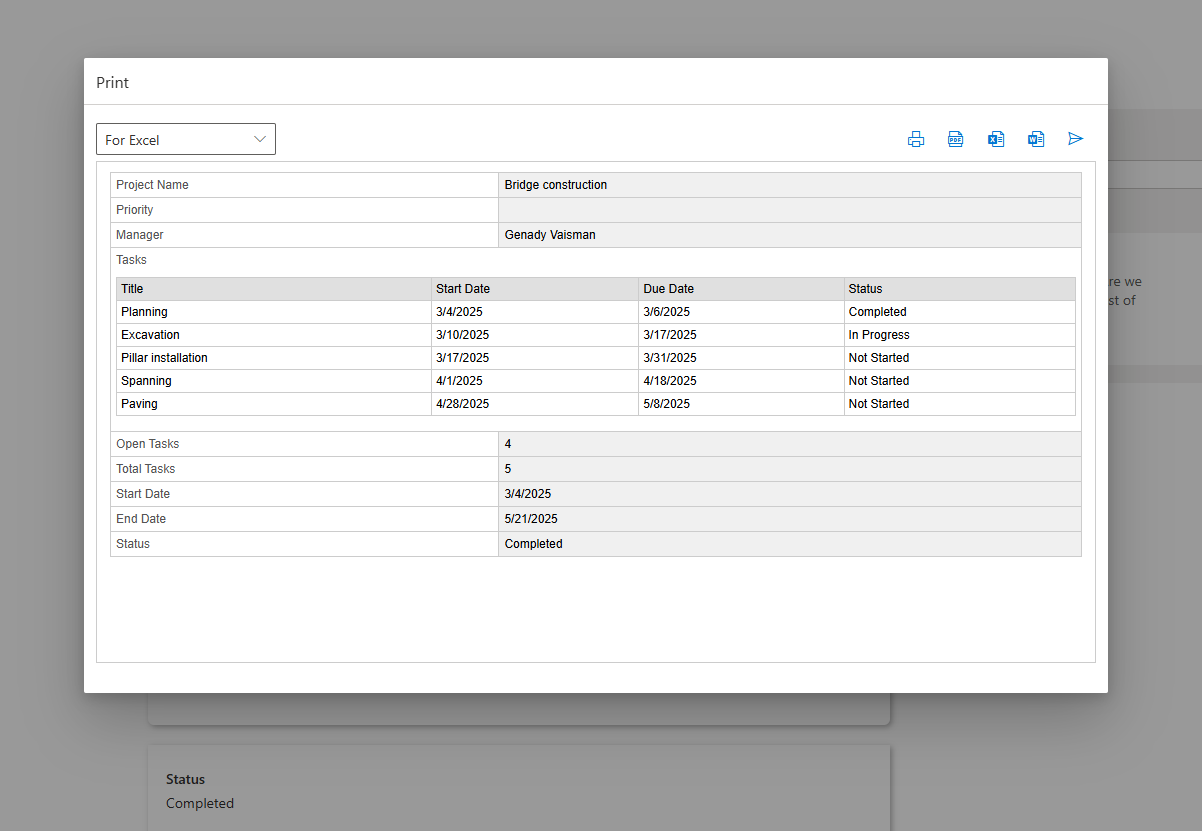
SharePoint's own export-to-Excel exists, and its limit arrives with the first relational solution: it exports a view, flat. The Print export carries the item together with its related records, the order with its line items from the Associated Items column, the parent's columns as the header and the children as the tabular section beneath, relationships intact, so nobody reassembles them by hand on the other side. Columns are chosen per template, and only the relevant ones; formatting is deliberately not the template's job, since Excel recipients apply their own.
Triggering and delivering the export
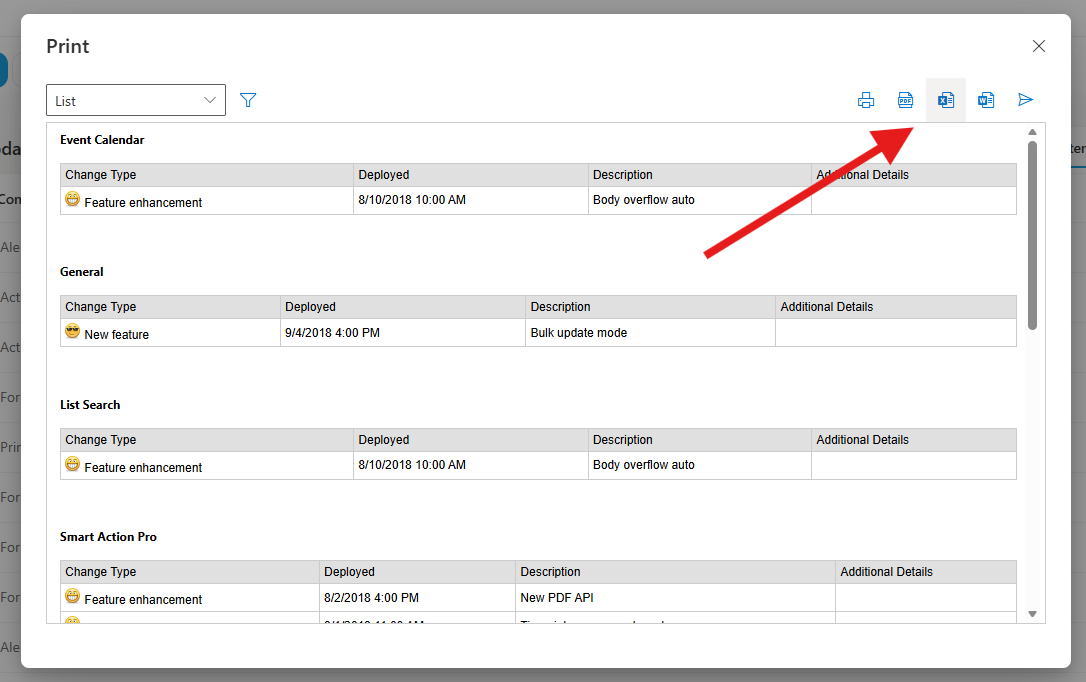
From the form, a button of type Print and export: select an Item template (single record with its family) or a List template (many records), choose Excel, publish. The Commit unsaved changes option saves pending edits before generating, closing the trap of exporting the record as it was rather than as it reads on screen, and permission rules scope the button to the roles and states where exporting makes sense. The user receives the file as a download, or the template's email settings send it.
Automatically, the Print List Items action generates the file on item events, schedules, or manual triggers, with conditions selecting the items, and delivers it where exports go: emailed to recipients resolved from the item, attached to the list item itself, or uploaded to a document library, with filename tokens, [Title], [ID], dates, keeping files unique and self-describing. Every run lands in Action History.
Three export scenarios carry most of the value. The order handoff: the Export button produces header-plus-lines in one workbook, and sales adjusts and forwards instead of re-keying. The daily worksheet: a timer action files and emails the day's pending items each evening, and supervisors plan in Excel because that is where planning happens. The audit package: on Completed, the record exports with its related entries into a structured workbook filed beside the evidence, reviewable offline with no SharePoint access.
Path two: Excel as the data store, through a data connection
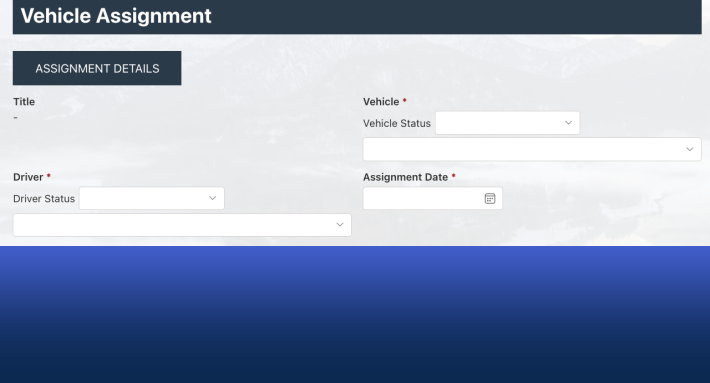
The second technology inverts the relationship. Instead of SharePoint holding the data and Excel receiving a snapshot, a data connection makes the Excel file itself the backend: the form writes rows into the workbook directly, SharePoint storage is bypassed, and the file is the system of record. The form and views still run on the full Ultimate Forms infrastructure, hosted in a web part inside SharePoint, or on hosted and embedded pages exactly like external forms, so even anonymous public submissions can land as rows in a workbook.
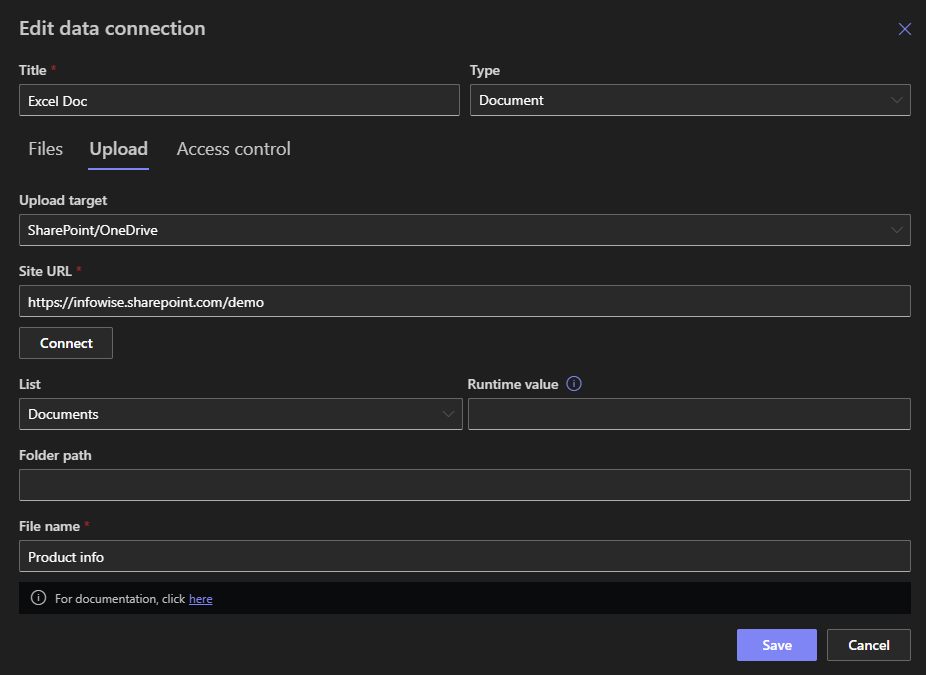
The file's home is the connection's choice: SharePoint or OneDrive, FTP, Google Drive, Dropbox, or Box. That breadth is the point, because the scenario this serves is the workbook that already lives somewhere and already matters: the partner's spreadsheet on the shared Dropbox, the legacy file on the FTP site that another system collects, the Google Drive sheet a small team runs on. The connection gives that file a real form, with validation, layout, and rules, and every submission appends to it where it lives, with no import step, no sync, and no copy of the data inside SharePoint at all, which also means the questions of retention and ownership stay with the file's home rather than multiplying across copies.
Excel connections sit within the broader data connections family, databases, web services, REST, each making a non-SharePoint source feel native, and the Excel member is the approachable one: the backend is a file anyone can open, which is both its charm and its discipline, since whoever can edit the file can edit the data. Treat the connected workbook accordingly: give it a stable home, govern who holds edit rights to the file itself, and let the form be the ordinary door, because the arrangement's integrity rests on the file's, and a workbook that gets reorganized by a well-meaning colleague takes its connection's assumptions with it.
Choosing between the two
The decision is about where the truth lives. When SharePoint is the system of record and Excel is how data leaves it, for a recipient, a review, an archive, use the export: snapshots, generated on demand or on schedule, delivered as downloads, emails, item attachments, or library files. When the Excel file is the system of record, existing elsewhere, owned by someone else, consumed by another process, use the data connection: the form writes to the workbook directly, and SharePoint provides the interface without claiming the data.
The two also answer the integration question differently. An exported workbook emailed or filed nightly is a push of copies; a connected workbook on FTP or Dropbox is the live store that the other side reads whenever it likes. Both are legitimate integration shapes, and naming which one a requirement actually wants, copies out, or a shared living file, usually settles the design in a sentence.
What the two paths share is only the absence of code and the respect for the recipient: columns chosen deliberately, names that explain themselves, and Action History or the connection's own configuration making the arrangement inspectable later. Everything else about them differs, which is exactly why they deserve to be understood as the two separate tools they are.
Frequently asked questions
Add your comment