Creating Fillable PDFs from SharePoint and Importing Data Back with Ultimate Forms
Many organizations operate in a hybrid reality. Internally, they rely on SharePoint to manage structured data and business processes. Externally, they still need to exchange documents with customers, vendors, inspectors, partners, or the public. Those external users often cannot access SharePoint directly.
This creates a gap.
How do you collect structured data from external recipients without giving them system access? How do you avoid manual re-entry of returned information? How do you maintain data accuracy and traceability?
Infowise Ultimate Forms provides a practical solution. You can generate fillable PDFs directly from SharePoint list data using a predefined template. These PDFs can be sent to external recipients, completed offline, and returned. Next the power and convenience of the Import component in Ultimate Forms comes into play. The submitted PDF data can be automatically imported back into SharePoint directly from the email, updating the original list item.
This creates a complete round-trip data process without custom development.
The Traditional Challenge
Organizations often face scenarios like:
-
Sending inspection reports to contractors
-
Distributing onboarding documents to new employees
-
Issuing compliance checklists to external auditors
-
Sending order forms to customers
-
Requesting address updates from vendors
In many cases, the workflow looks like this:
-
Export data from SharePoint.
-
Manually prepare a document.
-
Send via email.
-
Receive completed form.
-
Re-enter data into SharePoint.
This manual process introduces several problems:
-
Time-consuming data entry
-
Increased risk of errors
-
Version confusion
-
Lack of traceability
-
Duplicate data storage
Automating this exchange dramatically improves efficiency and reliability.
Step 1: Generating Fillable PDFs from SharePoint Data
Ultimate Forms allows you to create a PDF template that maps directly to your SharePoint list columns.
The template defines:
-
Static layout elements
-
Text, images and tables
-
SharePoint column placeholders
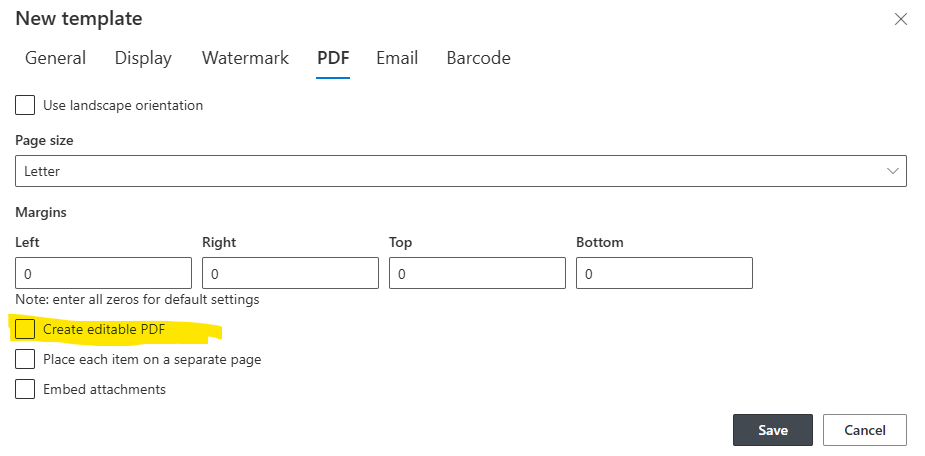
When a user triggers PDF generation, the system:
- Pulls data from the selected list item.
- Generates the PDF.
- Replaces column placeholders with data entry controls.
- Populates with existing data.
For example, if you have a Vendor Onboarding list with columns such as:
-
Company Name
-
Address
-
Contact Person
-
Tax ID
-
Service Category
The generated PDF will automatically pre-fill those values.
The document becomes a fillable form that the external recipient can complete.
Step 2: Sending the PDF to External Recipients
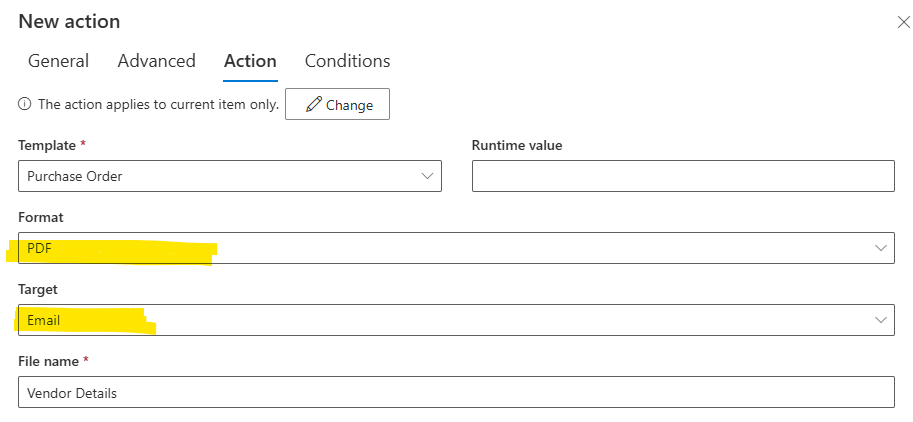
Once generated, the fillable PDF can be:
-
Attached to an email
-
Sent via automated notification
-
Downloaded and shared
-
Stored for recordkeeping
Because it is a standard PDF, the recipient does not need SharePoint access. They can open the document using any PDF reader, complete the form fields, and save the file.
This approach is ideal for scenarios where:
-
External users cannot access your SharePoint tenant
-
Security restrictions prevent direct collaboration
-
Regulatory processes require document-based interaction
-
Digital signatures are required
The system remains secure while external communication remains simple.
Step 3: Importing Completed PDF Data Back into SharePoint
When the completed PDF is returned, Ultimate Forms can extract the field values from the document and map them back to the corresponding SharePoint columns.
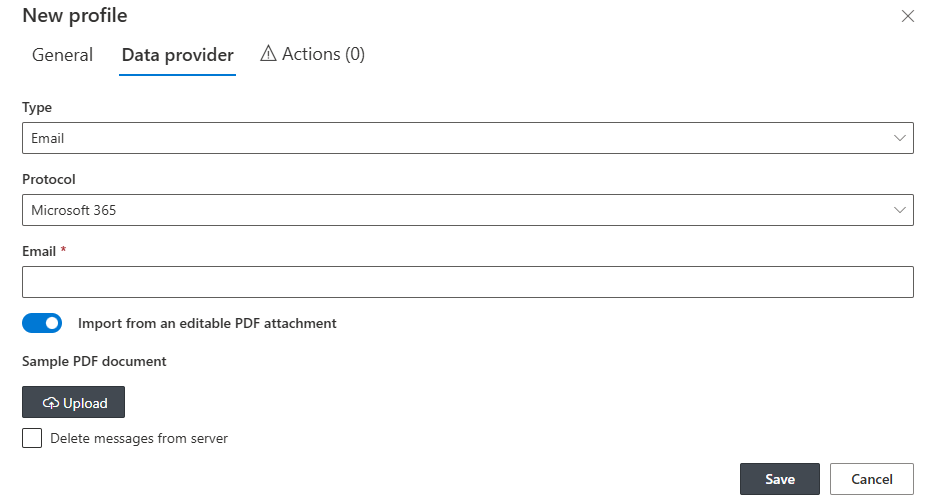
Instead of manually reviewing the document and copying values, the system updates the list item automatically.
This means:
-
Updated fields are written directly to SharePoint
-
Status can change automatically
-
Approval workflows can start
-
Notifications can trigger
-
Dashboards reflect updated information immediately
The round trip is complete.
Real-World Scenario: Vendor Onboarding
A procurement department maintains a Vendor Onboarding list in SharePoint. The internal team enters basic information about a new vendor, then generates a fillable onboarding PDF.
The PDF includes:
-
Legal name
-
Address
-
Tax information
-
Banking details
-
Compliance certifications
The vendor receives the PDF, fills in missing fields, and returns it.
Using the Import component, procurement uploads the completed PDF. The system automatically updates the SharePoint list with the vendor’s submitted data.
Benefits include:
-
No manual data entry
-
Reduced errors
-
Faster vendor activation
-
Clear audit trail
-
Structured data stored centrally
This process may save hours per vendor while improving accuracy.
Real-World Scenario: Safety Inspections with External Contractors
A manufacturing company works with third-party inspectors. The company generates inspection PDFs from SharePoint that include:
-
Facility details
-
Equipment lists
-
Inspection criteria
The inspector completes the form on site and sends it back.
The Import component updates the Inspection list with:
-
Inspection results
-
Observations
-
Compliance status
Management dashboards immediately reflect the updated compliance status.
This eliminates transcription errors and ensures faster reporting.
Real-World Scenario: Customer Order Confirmation
A sales team tracks orders in SharePoint. When an order is prepared, a PDF summary is generated and sent to the customer for confirmation.
The customer:
-
Verifies quantities
-
Adjusts requested delivery dates
-
Returns the document
Importing the PDF updates the original order item.
Sales teams avoid re-keying information and reduce turnaround time.
Real-World Scenario: HR Employee Acknowledgments
HR departments often need employees to:
-
Review policy updates
-
Complete training acknowledgments
-
Submit benefit enrollment changes
A fillable PDF generated from SharePoint can be sent to remote employees.
When returned, the Import component updates:
-
Acknowledgment status
-
Completion date
-
Selected options
HR dashboards remain accurate without manual updates.
Time Savings and Efficiency Gains
The combined generate-and-import workflow saves time in multiple ways:
-
Eliminates double data entry
-
Reduces correction cycles
-
Speeds up external collaboration
-
Maintains structured data integrity
-
Minimizes administrative workload
For organizations processing dozens or hundreds of documents monthly, the cumulative savings are substantial.
Improved Data Accuracy
Manual re-entry introduces errors.
Common mistakes include:
-
Typographical errors
-
Incorrect field mapping
-
Missing updates
-
Inconsistent formatting
Automated import ensures:
-
Field values match exactly
-
Dates are formatted consistently
-
Numeric values remain accurate
-
Required fields are enforced
This improves reporting reliability and decision-making quality.
Enhanced Process Control
Because the process is integrated with SharePoint:
-
Status changes can trigger workflows
-
Approvals can start automatically
-
Notifications can be sent
-
Dashboards update in real time
The PDF is not an isolated document. It becomes part of the structured workflow.
Security and Governance Benefits
Organizations often hesitate to grant external access to SharePoint.
Using fillable PDFs allows:
-
Controlled data exchange
-
No tenant access required
-
Reduced permission complexity
-
Clear document-based communication
Meanwhile, imported data remains securely stored in SharePoint with full version history.
Simplicity of Configuration
Despite the sophistication of the process, configuration remains straightforward.
Administrators define:
-
PDF template layout
-
Field mapping
-
Import mapping rules
Once configured, the process becomes repeatable.
Business users can:
-
Generate PDFs
-
Send them externally
-
Upload completed versions
Without IT involvement at every step.
Scalable Across Departments
The generate-and-import model applies across many departments:
-
Procurement
-
HR
-
Sales
-
Compliance
-
Facilities
-
Legal
Each department can design its own template while using the same underlying mechanism.
This standardizes external document exchange across the organization.
Supporting Hybrid Work Environments
As organizations continue to work with remote staff and external partners, document exchange remains essential.
The ability to:
-
Generate structured PDFs
-
Send them externally
-
Import responses automatically
Bridges the gap between digital systems and traditional document workflows.
It allows organizations to modernize without disrupting external stakeholders.
Conclusion
Creating fillable PDFs from SharePoint list data and importing completed forms back into the system provides a powerful, practical solution for external collaboration.
With Ultimate Forms, organizations can automate the full round-trip process. Generate structured documents, collect external input, and update SharePoint automatically. The result is faster processing, improved accuracy, and reduced administrative effort.
For businesses that rely on document exchange but want to maintain structured, reliable data inside SharePoint, this approach offers a flexible and scalable solution that saves time and improves operational efficiency.
Add your comment