Actions are the Power Automate alternative built into Ultimate Forms: autonomous automation units configured in minutes, with no flowcharts, no deployment, and no workflow expertise. They trigger on list events, timers, or manual buttons, and uniquely can run before the item saves, blocking double bookings and bad data at entry. This article compares the two approaches and shows where each one is the right tool.
Introduction
Once you see that just storing your data in SharePoint lists does not help, you know you need process automation and business process management. When a user saves an item, several things happen in the background. This includes updates, creating new items, calling external systems, and sending emails.
And as a SharePoint professional, you know that all you need is the good old workflow engine, right? Power Automate is the go-to tool when people discuss SharePoint automation, inside SharePoint itself and beyond. I have to remark that Power Automate currently only exists in Microsoft 365.
Which means that you need to start learning how to create workflows, how to understand flowcharts and how to build complex processes.
However, there is a way that might better match your existing knowledge and experience. Despite their deep-seated integration in the SharePoint experience, workflows are not always the right tool for the job.
Interested to know how Ultimate Forms compares to Power Apps? For the complete picture, see the Power Apps alternative for SharePoint forms.
Why Not Workflows?
I have a lot of experience with SharePoint workflows. I have built custom ones using Visual Studio, Power Automate, and SharePoint Designer. I always felt that things are too complicated with this approach. The automation tool you pick should offer simple and fast solutions for everyday users, not just for expert developers.
Workflows simply contain too many moving parts and steps. The approach mainly targets people who already know about workflows and have extensive experience with them.
Consider the following common scenario. When I create an item in a regular SharePoint Contacts list, I have a field for Last name, First name and Full name. Full name is basically a combination of First name and Last name. So the question is: would you create a workflow to fill in Full name automatically if left blank?
I would say that almost everyone I talked to said that the overhead of using a workflow was simply not worth the effort. They would prefer their users to work a bit harder than to develop, deploy and support a workflow. You can clearly see there is an unresolved issue here.
You could say, workflow engines are great for complex, multi-stage processes, that's their main purpose. I will not argue here, although not sure I would agree either.
Most automation needs are not complex processes. They are often small improvements, like the full name above. Those completely fall under the radar, because they are not worth the effort of the workflow developer.
Introducing Actions
This is why we needed to create our own automation platform. The requirement was to create something that is simple, easy, and non-technical, but still extremely powerful. And we developed the Actions component of Ultimate Forms, as a Power Automate alternative.
Actions are everything workflows are not. They are light-weight, autonomous, simple to configure and require no deployment.
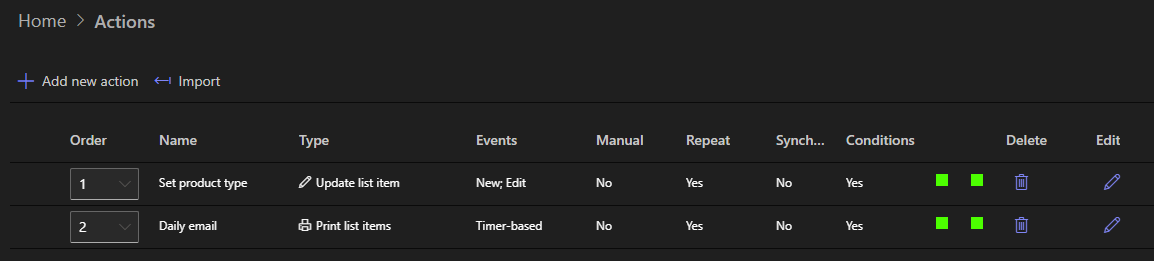
You can add, modify or remove Actions one-by-one, without disrupting the whole system, as the need occurs. And they do not require extensive workflow-specific knowledge. In fact, Actions completely disregard the whole concept of a flowchart! And creating a solution based on actions takes minutes, not hours or days.
Actions can help you in a lot of ways by replacing Power Automate, when the latter is just too complicated for the job.
Let me list just a few of the main differences between Actions and Power Automate flows and let you make up your own mind:
Triggering
Workflows are started automatically, when an item is created or updated or they can be started manually.
We offer a variety of ways you might want to trigger an Action (and you can trigger the same Action in several ways too):
- List item or document event - item is created, modified, attachment added, document checked in, etc.
- Timer - 2 days before the due date, or every Friday
- Manually - from list or document library toolbar, form toolbar or even a special button on the form itself. You can even show and hide Actions based on the user permissions. And the best of all, you can request and pass parameter values to ask the user for more information.
Another huge differences: actions can even run before you save the item. This way you can perform additional checks and even prevent the form from saving the item if needed. Quick example: room reservation system that will prevent you from double-booking resources!
Action Types
We tailored actions towards common scenarios that you would often need to implement in SharePoint. They are easier to configure and take a lot less time to deploy. For example, you can automate document generation and email-based delivery in just a couple of minutes!
We currently offer 24 different action types. We designed them to perform common tasks in SharePoint sites and in different integrated applications.
By not being a generalist tool, but targeting specifically SharePoint, Actions save a lot of time and effort. And the learning curve is so significantly easier.
Development Time
Workflow starts with a flowchart, even the simplest one. A not so surprising fact is that many people would stumble at this step already.
A visual flowchart only makes sense to people with a certain brain structure. Some people find complex symbolic representations confusing.
Actions don't use flowcharts as part of their implementation. You treat each action as an autonomous unit.
Pick the type of action you need, specify the trigger type and save. The action is ready to go, there is no deployment, multiple workflow versions and no specialized tools to learn. Many of our customer commonly develop and deploy whole solutions using actions in under 20 minutes!
Ultimate Forms Integration
Actions are a central, integral component of Ultimate Forms. They interact and integrate with other Ultimate Forms components to provide unique functionality. Some of the examples for such integration are:
- Generate Associated Items action to generate Associated Items
- Signature columns serve in conditions as Yes/no.
- Print action uses Print templates
Conclusion
The purpose of actions is not to replace Power Automate flows. In fact, there are plenty of scenarios when a flow is the right tool for the job.
Actions are there to provide you with an alternative. The choice of the most suitable tool depends on the task at hand and the knowledge and experience of your current personnel. Actions can help you to avoid unnecessary complexity and get things done faster with less effort.
For the complete picture comparing Ultimate Forms form, see the Power Apps alternative for SharePoint forms.
Frequently asked questions
Add your comment