The data your processes need rarely starts in SharePoint. It arrives as emails, spreadsheets, text messages, database rows, and filled-in PDF forms. Someone then reads, copies, and retypes it into list columns, slowly, repetitively, and with errors.
The Import component of Ultimate Forms removes that someone. It captures incoming information from external sources and writes it directly into SharePoint lists: new items created, existing items updated, values mapped to the right columns, attachments included. Configuration is visual, and no code is involved.
This guide is the map of the whole capability: how import profiles work, every source they read, the scheduling options up to within-seconds processing, and what happens after the data lands, with the detailed build for each branch linked along the way.
Why the inbox is not a system of record
SharePoint lists run the processes: service requests, compliance reports, vendor communications, incidents, inspections, orders. But the information that feeds them originates outside, with customers, partners, field workers, and other systems.
The manual bridge fails in familiar ways. Entry waits until someone has time, so the process starts late. Retyping introduces errors exactly where accuracy matters. And the inbox quietly becomes a second, unofficial system of record, the place where the real story lives, unfindable and unreportable.
Automated import closes the gap structurally. The data flows to the list the moment it arrives, SharePoint stays the single source of truth, and the inbox goes back to being a transport rather than a filing cabinet.
The import profile: one idea, every source
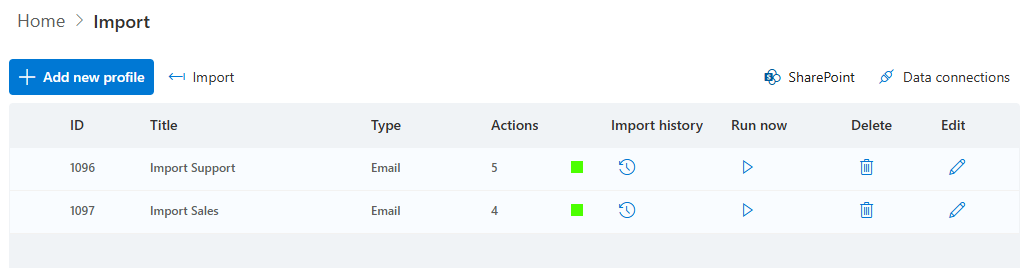
All importing runs on the same unit: the import profile. A profile defines three things. The source: which mailbox, file location, database, or service to read. The schedule: when and how often to check it. And the mapping: how the incoming content's parts become column values, which items to create or update, and what to do with attachments.
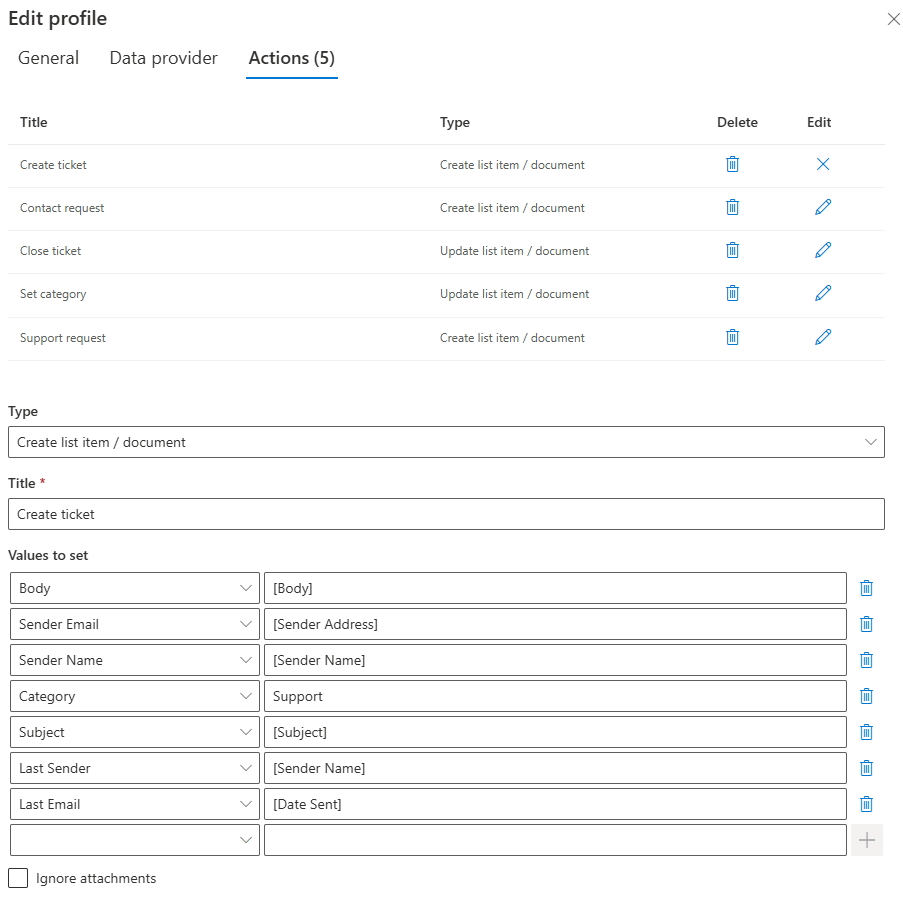
Profiles are configured in a visual interface, and different profiles can route different kinds of incoming data to different lists and processes. The sender becomes the requester column, the subject becomes the title, the body or its extracted values fill the details, and the attachment rides along, every time, identically.

The sources: six ways data arrives
Email is the workhorse. The profile monitors a mailbox and turns messages into items: sender, subject, body, extracted values, attachments. Importing emails into SharePoint lists is the foundational build, and the advanced Exchange Online options cover the deeper mailbox scenarios.
Excel brings in the spreadsheets your organization already trades in. Import data from Excel into a SharePoint list covers the mapping of worksheet columns to list columns.
CSV serves the automated exports other systems produce on schedule. Automate CSV file imports turns the nightly drop file into list data nobody touches.
SMS captures text messages, the channel field and frontline staff actually use. Import SMS text messages into SharePoint covers the setup.
Databases connect line-of-business systems. Email and database imports together show the combined pattern, and Azure SQL data imports cover the cloud database case.
Fillable PDF forms complete the round trip: a PDF generated from SharePoint, completed offline by someone with no access, and read back into columns on return. Offline PDF forms for automatic import is the dedicated guide, and the offline update pattern covers keeping data current when connectivity is the constraint.
Whatever the source, the destination behavior is the same: create or update items, map values, and land the data as ordinary SharePoint columns.
Scheduling: from nightly to within seconds
Profiles run on schedules, and the schedule should match the process's pulse. A nightly check suits the batch file. Hourly suits steady operational flows.
For processes that cannot wait, the Immediate polling schedule changes the model. Instead of checking the mailbox at intervals, Ultimate Forms subscribes to notifications from Exchange Online: when a message arrives in the monitored mailbox, Exchange notifies the system at once, and the import begins within seconds.

The difference matters wherever response time is the measure: support tickets, incident reports, equipment alerts, sales inquiries. With Immediate polling, the list item exists seconds after the email does, and everything downstream starts from there.
After the landing: the import is step one
Imported data arrives as ordinary items, which means the whole platform reacts to it like any other change.
Alerts notify the team the moment the item appears, with the details in the subject line. Actions route it: assign the category, set the owner, create the follow-up tasks, send the acknowledgment to the address the import captured. Dashboards count it, and approvals begin when the imported record needs a decision.
This is the real promise of importing: not saved typing, but a process that starts itself. The email becomes a ticket, the ticket notifies the technician, and the customer has an acknowledgment, all before anyone has read the message.
Four imports that run real processes
Support requests. The profile monitors the support mailbox, creates the ticket, extracts sender and subject, assigns the category, and routes to the right team. With Immediate polling, the ticket exists within seconds, and response time stops depending on who watches the inbox.
Field inspections. Inspectors email their results and photos from site. The import creates the inspection record with its attachments, and the compliance dashboard reflects the visit the same hour it happened.
Incident reports. A dedicated mailbox receives incident emails; each becomes a record within seconds, and the safety team's investigation workflow starts from the alert, not from a Monday inbox review.
Order intake. Order confirmations arrive by email, and the import extracts the customer, order number, products, and requested date from the body into the order list. Fulfillment begins without a single value retyped.
The shape repeats: pick the mailbox or source, define the mapping once, and the process owns its own intake forever.
Keeping imports trustworthy
A few habits separate the import that quietly works for years from the one that surprises.
Map to controlled columns where you can. Values landing in choice and lookup columns stay reportable; values landing in free text accumulate variants. The import is consistent by nature, so let the columns be too.
Decide the duplicate policy up front. Senders resend, systems retry, and the profile should know whether a repeat creates a second item or updates the first. The create-versus-update choice in the mapping is where that policy lives.
Keep a human path for the exceptions. A malformed message or an unexpected format should land somewhere visible, not vanish. A catch-all view of recently imported items, checked briefly at first, builds the confidence to stop checking.
And tell the senders nothing changed. The beauty of import-based intake is that the outside world keeps its habits, the same mailbox, the same spreadsheet, the same text message, while your side stops retyping. The process improves without anyone being retrained.
Choosing your first import
Start with the inbox someone currently monitors by hand; there is always one. Build its profile in a single session: source, schedule, mapping. Run it alongside the manual habit for a week, and compare the list to the inbox.
Then raise the ambition one notch at a time. Add the extraction rules that fill more columns. Switch the schedule to Immediate polling if minutes matter. Wire the alert and the routing action, so arrival becomes assignment. By the second profile the pattern is familiar, and by the third, "can you enter this into SharePoint" has quietly left the vocabulary, because nothing needs entering: it arrives.
Frequently asked questions
Add your comment