A text message is the one channel everyone answers. Field crews, drivers, customers, and vendors may ignore email for days, but the SMS gets read in minutes, which is why more and more business processes run on it.
The Import component of Ultimate Forms brings those messages into SharePoint automatically. Through a built-in Twilio connection, incoming and outgoing texts become list items: sender, recipient, body, and timestamp mapped to columns, on a schedule, with no code. Once a text is an item, the whole platform can act on it, up to and including approvals decided by text message.
This guide walks the complete build: the list, the Twilio side, the import profile, and the test. For every other source the Import component reads, see the complete import guide.
Why texts belong in a list
A message that lives only in a phone is invisible to the process. Nobody else sees it, nothing triggers from it, and the audit trail is someone's thumb-scrolling.
Imported into a list, the same message becomes operational. The driver's "delivered" text closes the delivery record. The technician's reply updates the job. The customer's YES advances the approval. Alerts notify the owner, actions route and respond, and the conversation history sits beside the record it belongs to.
SMS integration runs through Twilio, the leading SMS platform, which Ultimate Forms supports in both directions: sending messages through actions, and importing them through the profile this guide builds. A trial Twilio account is enough to follow along.
Step 1: the list
Create a list to hold the messages. The demo uses a simple structure:
- Body: the built-in Title column, renamed.
- From: single line of text, the sender's phone number.
- To: single line of text, the recipient's number.
- Date Sent: date and time.
- Direction: single line of text, incoming or outgoing.
- Status: single line of text, success or error.
Your structure can differ; the mapping step absorbs the difference.
Step 2: the Twilio credentials
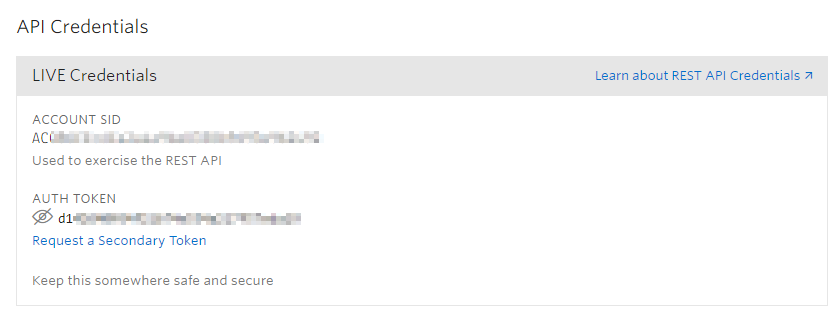
Sign in to your Twilio account, or create one; a trial account suffices. Under Settings, find the API Credentials section and copy two values: the Account SID and the Auth token. The profile uses them to connect.
Step 3: the import profile
- Open the list and click Design to enter Ultimate Forms, then open Import under Import and export and add a new profile.
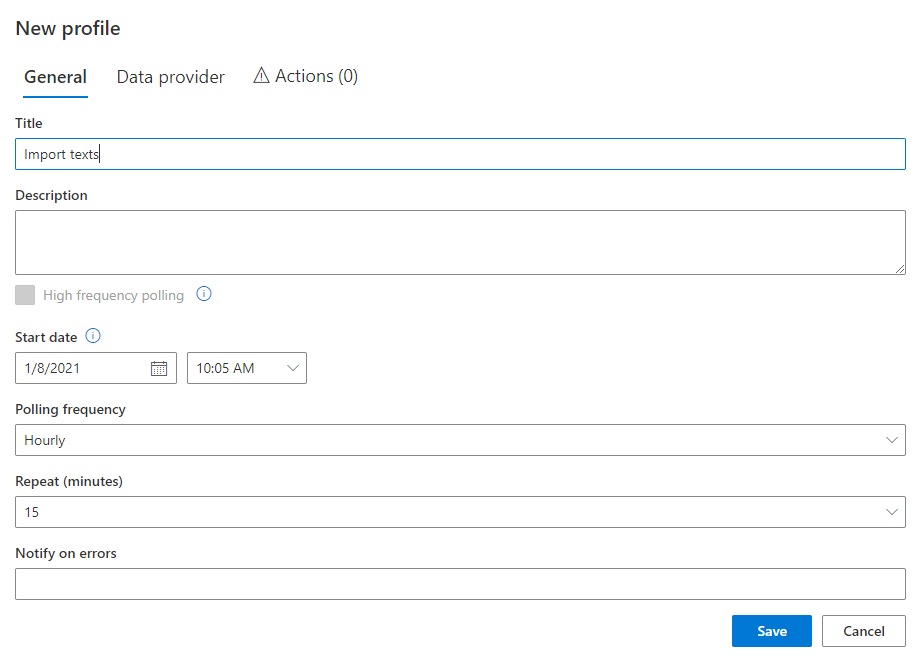
- Name the profile.
- Set the Start date. Only messages received after this date are imported, and it defaults to the moment the profile is created. To pull in history, move it earlier than the first message you want.
- Set the polling frequency: how often the profile checks Twilio for new messages. The default is 15 minutes, any interval works, and None makes the profile manual-only. A High frequency polling option that tightens the interval to 2 minutes is available on request.
- Switch to the Data provider tab. Change Type from Email to Application, and pick Twilio as the application type.
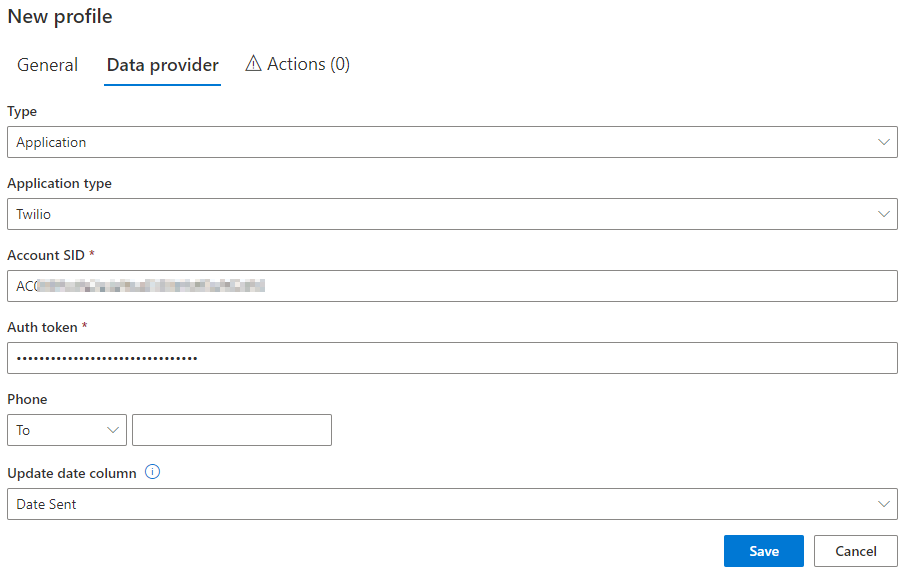
- Enter the Account SID and Auth token.
- Optionally limit the import to messages sent to or from one phone number. Left empty, the profile imports everything on the account.
- Leave Update date column at its default; it governs which messages count as new on each run.
Step 4: the mapping
Switch to the Actions tab. Actions decide what happens to each imported message, creating or updating items from its data.
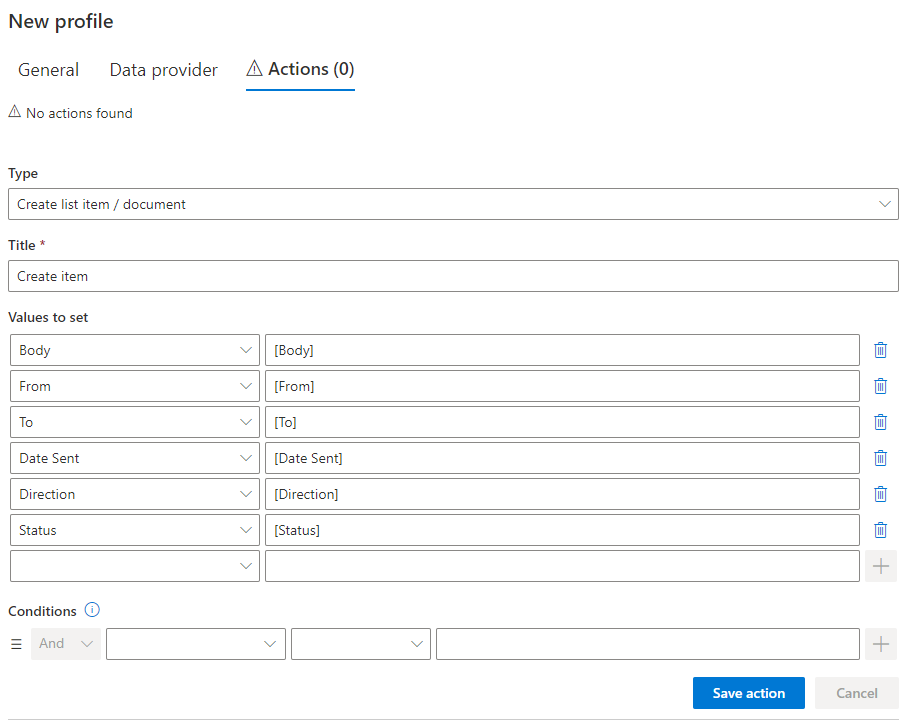
Create a Create list item / document action, name it, and map the message's properties to the list's columns: body to Body, sender to From, and so on. The demo maps one-to-one; the Value Builder is there when values need shaping, with expressions and functions transforming them on the way in, the same machinery the other import sources use.
Save the action, then the profile.
Step 5: test it
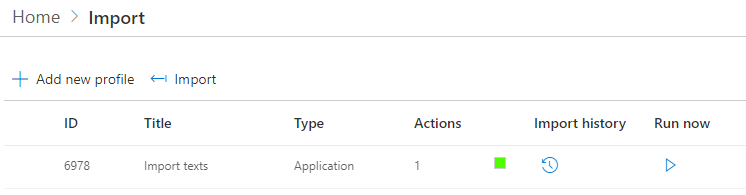
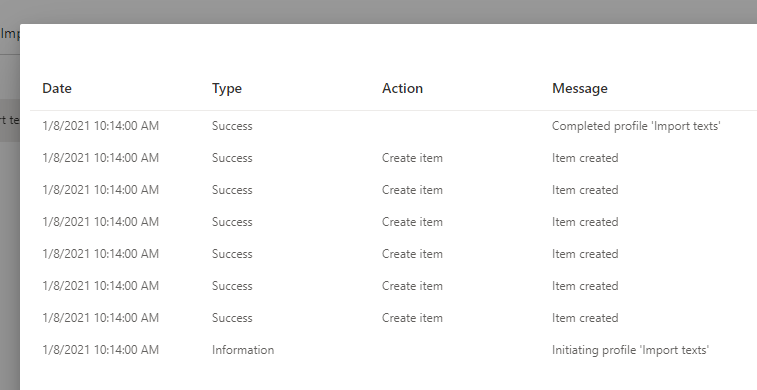
Send or receive a message in Twilio so there is something to import, then wait for the schedule or click Run now. Import history shows each run's execution steps, which is also where you will look months from now when someone asks whether a message arrived.
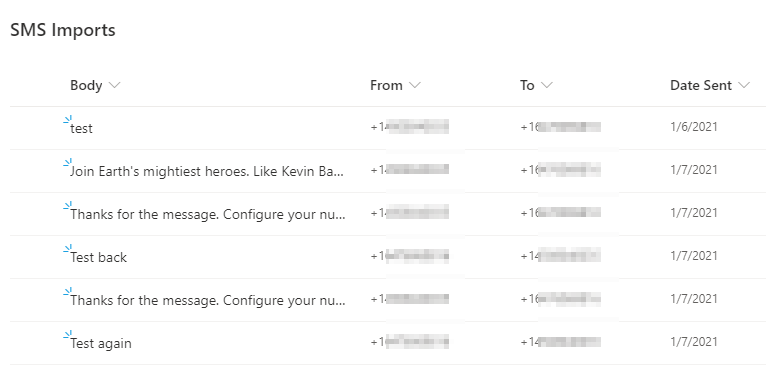
Back in the list, the messages sit as items, every column populated.
That is the whole build: one list, two credentials, one profile. From here, the sophistication is yours to add: conditions on which messages import, functions that parse structured replies, and separate profiles routing different numbers to different lists.
Three processes that run on imported texts
Text-message approvals. The approver receives the request by SMS and replies with a decision. The import captures the reply, an action reads it, and the record advances. The SMS approval build assembles this end to end, and it is the pattern's showcase: a full approval loop that never needs a login.
Field confirmations. Drivers and technicians text their status from the road: delivered, done, delayed. Each reply updates the job item it belongs to, and the dispatch board reflects the field in near real time.
Inbound customer requests. A published number receives customer texts, and each becomes a tracked request with the sender's number attached. The reply can go out by SMS action from the same record, closing the loop in the channel the customer chose.
The shape repeats across all three: the phone is the interface, the list is the record, and the import is the bridge between them.
It also pairs naturally with the outbound half. A process that texts its questions through the send action and imports the answers through this profile is a complete conversation loop, run entirely from the list, with every exchange on record.
Designing for the channel
SMS has habits of its own, and a few design choices respect them.
Keep the asked-for reply tiny. The channel's strength is friction so low that people answer from a parking lot, and every character you require spends that advantage. YES, DONE, a number: replies that fit a thumb keep the loop alive. The Value Builder can parse structure out of short replies, so the brevity costs the process nothing.
Plan for the unexpected message. People text greetings, typos, and questions to automated numbers. Give unmatched messages a home, a catch-all status or a triage view, so a human sees what the mapping could not place, and the odd message becomes a follow-up instead of a silent drop.
Mind the numbers as identifiers. The sender's phone number is often the key that links a text to a person or a job. Keep those numbers clean in the source lists, in one consistent format, and the matching conditions stay simple forever.
And treat the message log as a record. Texts imported into the list are part of the process history: who confirmed, when, in what words. That is a quiet upgrade over the phone-only version of the same conversation, and for regulated processes it is the difference between a claim and an audit trail.
Frequently asked questions
Add your comment