Excel files can flow into SharePoint lists automatically. The Import component of Ultimate Forms connects to an .xlsx file by URL, reads the worksheet you choose, and turns rows into list items on a schedule. It can create new items, update existing ones, or sync both ways in one pass. Mappings, filters, and incremental imports are all configuration. Nobody copies and pastes anything, ever again.
This guide covers the setup end to end: connecting the file, choosing full or incremental imports, picking the right action, and the mapping tricks that clean data on the way in.
The spreadsheet that keeps coming back
Every organization has these files. The ERP exports a nightly order list. A vendor emails a price sheet each Monday. Payroll sends a roster. Finance keeps a budget workbook that three processes depend on.
The data belongs in SharePoint, where lists, views, alerts, and dashboards can work with it. Instead, someone re-keys it. Or pastes it in. Or the file just sits in a library as a dead attachment while the list drifts out of date.
The Import component ends the ritual. It already automates intake from email messages, databases, web services, REST APIs, SMS messages, and delimited text files. Excel is one more source in the same framework: point a profile at the file, and the rows arrive as items on schedule.
Connecting to the file
Start by telling the profile where the file lives.
If the file sits in a SharePoint document library in your tenant, provide its URL and leave Authentication set to Anonymous. The app's own credentials fetch the file. Nothing more to configure.
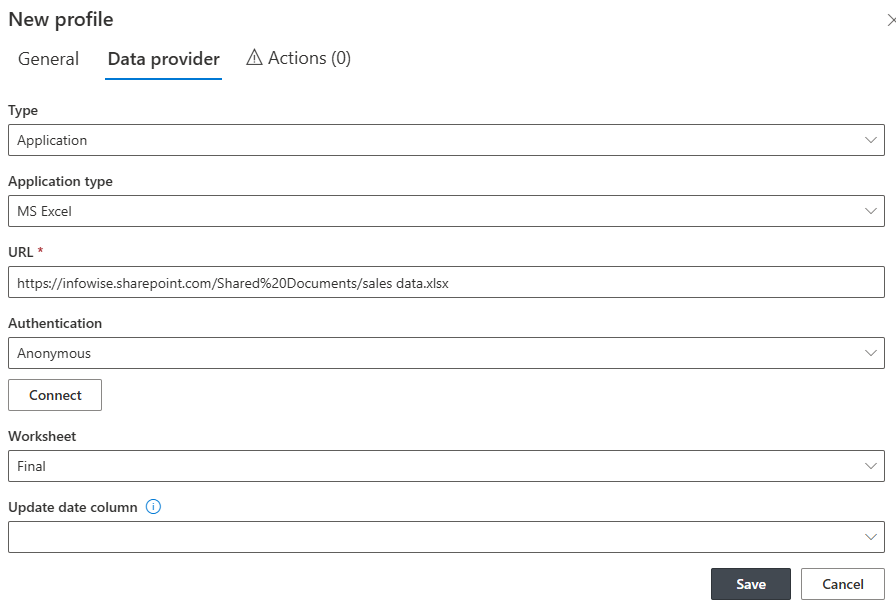
The file can also live at any URL-accessible location outside SharePoint. In that case, supply a user name and password if the location requires them.
Click Connect. The profile loads the file and lists its worksheets. Pick the one holding your data.
Two format rules keep things predictable. The import expects the most common layout: a table of data with a header row, starting at cell A1. Table boundaries are detected automatically, so you don't declare ranges. And the file must be .xlsx; legacy formats like .xls are not supported. If your source system still produces .xls, re-save it once as .xlsx and adjust the export going forward.
Full or incremental: the Update date column
One optional setting decides how much of the file each run processes.
Leave Update date column empty, and every run imports the complete file. That is right for reference data that arrives whole, like a full price list that replaces the last one.
Point it at a date column, and imports become incremental. Each run compares that column against the newest item from the previous run. Only newer rows are imported. That is right for growing files, like an export where each day appends new orders. The profile skips everything it has already seen, and runs stay fast no matter how large the file grows.
Three actions, three intents
With the connection established, you create one or more actions. Actions define what happens to the data once it is read. Three cover almost every scenario.
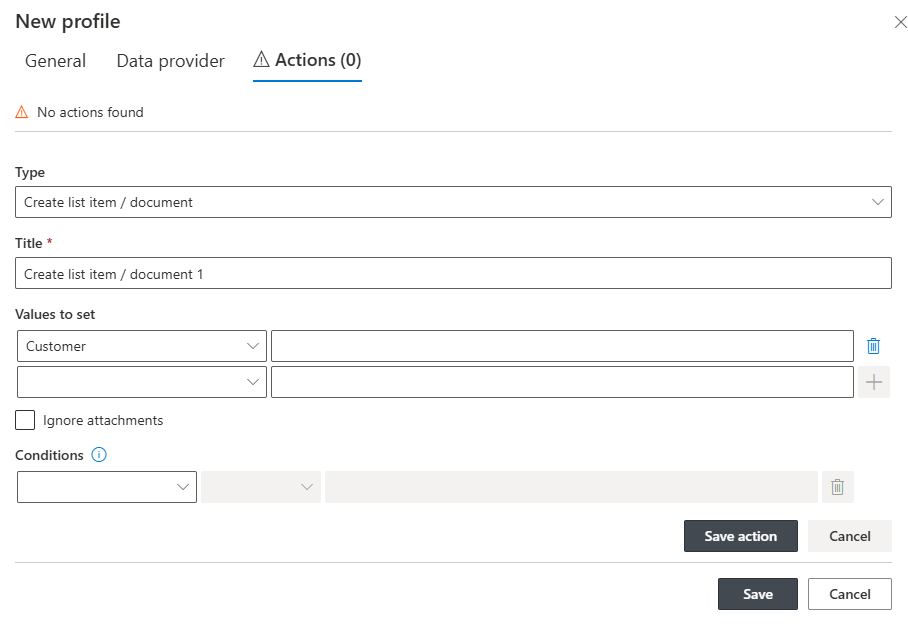
Create list item converts every data row into a SharePoint list item, following your column mappings. This is the intake pattern: new orders, new registrations, new records, appearing in the list as they appear in the file.
Update list item changes existing items instead. It matches rows to items through a unique identifier present in both the file and the list, then writes the mapped values. Think of a status column maintained in an external system: the nightly file updates each item's Status without touching anything else.
Sync combines the two. Found items get updated; missing ones get created. This is the pattern for mirrored data, like a vendor master or product catalog, where the list should always equal the file.
Choosing between them is a one-question decision. Is the file a stream of new records, a source of corrections, or the truth the list should mirror? Create, Update, or Sync, respectively.
Mappings that clean data on the way in
Mappings connect file columns to list columns, and they do more than copy.
Direct mappings handle the simple cases: Title in the file to Title in the list. Beyond that, functions and calculations transform raw values as they arrive. Extract the year from a date and store just that. Combine fields. Reformat values. The transformation happens during import, so the list receives finished data, not raw material needing cleanup.
Conditions add a filter. Map a condition, and only rows meeting it are imported; the rest are ignored. One file can feed several profiles this way, each taking its own slice: one list receives the open orders, another the completed ones, from the same nightly export.
Together, these three tools mean the file's format never dictates your list's design. The list stays shaped for your process. The mappings absorb the difference.
Two settings worth knowing
Polling schedule: None. A profile set to None never runs on the timer. You execute it manually when needed. Use this for one-time migrations, for testing a new profile before letting it loose, or to temporarily disable a profile without deleting its configuration.
Description. A free-text field for explaining the profile: what it imports, from where, and why. Fill it in. The colleague who inherits your profiles next year will read it before anything else, and profiles with descriptions survive personnel changes far better than profiles without.
The pattern beyond Excel
Once the first profile runs, the shape of the solution becomes familiar. Source, worksheet, schedule, action, mappings. The same shape covers CSV and delimited files, incoming email, and Azure SQL databases, and the full intake story is collected in Automate SharePoint Data Capture with the Import Feature.
And imported data is ordinary list data. Alerts fire on it. Actions route it. Dashboards count it. The Excel file that used to be a Monday chore becomes the quiet first step of an automated process, which is where spreadsheets belong.
Frequently asked questions
Add your comment