For many organizations, the operational truth already lives in Azure SQL: the product catalog, the customer master, the financials. The people who need that truth live in SharePoint, and the question is how to connect the two without rebuilding either.
The Import component of Ultimate Forms answers it with a profile: connect to the Azure SQL database, read a table or view on a schedule, and keep a SharePoint list in step, incrementally, so each run carries only what changed. The data then behaves like any list data, with forms, rules, dashboards, and actions layered on top, no code anywhere.
This guide covers the Azure-specific build: securing the connection, configuring the profile, tuning the incremental sync, and handling deletions. For databases in general, including the two-way bridge back, see the database import guide, and for the whole intake family, the complete import guide.
Why surface Azure data in SharePoint
The reasons repeat across projects. Users want one interface: the form, the view, and the approval should live where the rest of the process lives, not behind a database client. The platform's logic becomes available: rules and validation, summaries, dashboards, and actions all operate on list data, so imported rows inherit the whole toolbox. And the import acts as a gate: you surface the columns and rows SharePoint needs, through filters and views, instead of opening the database itself to anyone.
The list also enriches what the database holds. SharePoint-side columns, statuses, notes, attachments, workflows, attach to the imported records, blending the system of record with the system of work.
Step 1: open the door, narrowly
Azure SQL sits behind its firewall, and the firewall should stay in charge. In the database's network configuration, allow connections only from authorized addresses, and add the public IP of Ultimate Forms to that allowlist.
Pair the narrow network path with a narrow identity: a dedicated SQL account for the import, with read access to the specific tables or views being surfaced and nothing more. The DBA conversation goes faster when the request is already least-privilege.
Step 2: the import profile
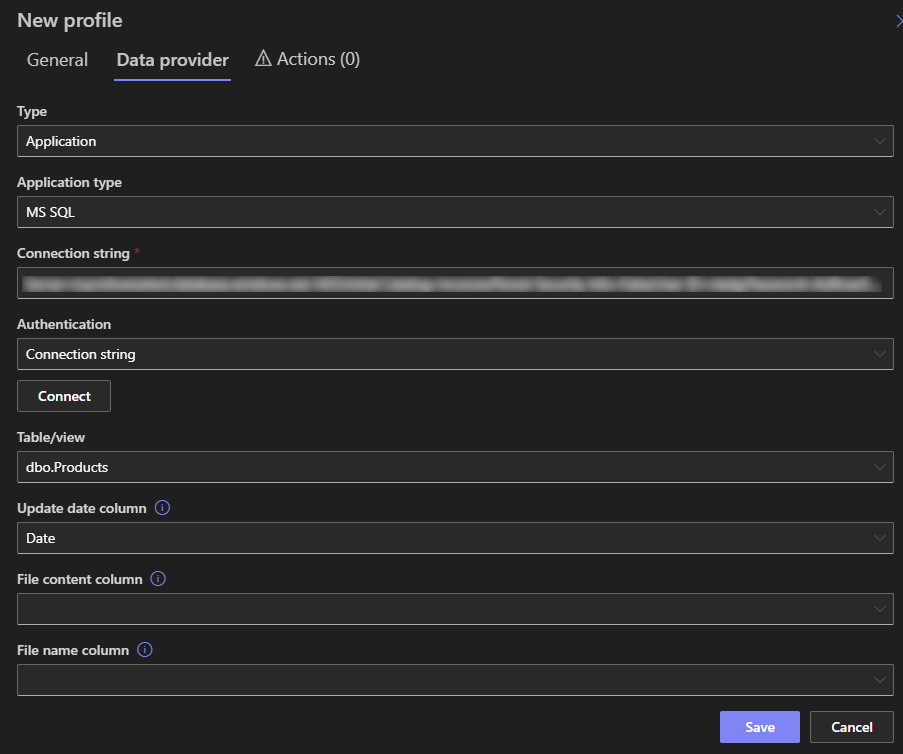
Inside Ultimate Forms, create a new import profile and configure it in sequence:
- Set the Start date. It controls how far back the first run reaches, so set it earlier than your oldest wanted row to import the backlog.
- Select Application as the connection type, then MS SQL as the provider.
- Provide the connection string and click Connect, then select the table or view to read.
- Select the Last Updated column, the setting that makes the sync incremental.
- Map the table's columns to the list's columns, with functions and calculations transforming values on the way in where the list needs a different shape.
Reading from a view rather than a raw table is worth the DBA's five minutes: the view becomes the contract, schema changes hide behind it, and the profile imports exactly the subset SharePoint should see.
Step 3: tune the incremental sync
The Last Updated column is what keeps the integration fast at any size. Each run imports only rows whose Last Updated is newer than the previous run's newest, so a million-row table with a hundred daily changes costs a hundred rows per run.
Three conditions keep that promise honest. The column must genuinely reflect each row's last change, enforced on the database side, usually by the application or a trigger. It should be indexed in SQL, so the newer-than query stays instant. And the schedule should match the data's pulse: hourly for operational tables, daily for reference data, with longer intervals for tables that rarely move, sparing both sides needless calls.
Match rows to items by a unique key, the ID column both sides share, so reruns update rather than duplicate. The general database guide covers the create, update, and sync actions this matching drives.
Step 4: decide what deletion means
Rows leave databases, and the list needs a policy for when they do. Three patterns cover it.
The cleanest: have the source expose a Deleted flag, imported like any column, with action logic marking or removing the SharePoint item accordingly. The safest: soft delete, marking items inactive instead of removing them, so history and references survive. And for drift, a periodic cleanup action retires SharePoint items whose source rows have been gone past a chosen age.
Soft delete is the right default where anything else links to the items; physical deletion suits pure reference mirrors where yesterday's rows have no claims on them.
Four places the sync runs the business
The product catalog. SKUs, pricing, and descriptions sync daily into a Products list, and every purchase and quote form selects from current data, with price rules and validations applied on top.
Customer and account data. CRM records surface for internal portals and forms, feeding lookups and autocomplete, with updates pushed back through the stored-procedure bridge where the flow is two-way.
Financial snapshots. Budget and performance numbers sync on schedule, and summary columns, conditions, and dashboard views surface them, with alerts firing when thresholds are crossed.
Inventory levels. Stock from the warehouse system syncs into the list behind the order form, so requests validate against availability instead of optimism.
A worked example: the catalog that stays current
The pieces assembled once, on the commonest case.
A company's product master lives in Azure SQL, maintained by the ERP. The DBA creates a view, ActiveProducts, exposing SKU, name, category, list price, and LastModified for products not discontinued, and allowlists the Ultimate Forms IP on the firewall.
The import profile connects with a read-only account, reads the view hourly, syncs by SKU, and uses LastModified as the Last Updated column. The first run, with its Start date set back a decade, seeds the full catalog; every run after carries only the day's price changes and new SKUs.
On the SharePoint side, the Products list feeds lookups in the quote and purchase forms, so every dropdown offers current products at current prices. A Color Choice column added in SharePoint flags promotional items for the sales dashboards, enrichment the database never has to know about. When a product is discontinued, it leaves the view, and the monthly cleanup action retires its item.
Total moving parts: one view, one firewall rule, one profile. The ERP team never hears about SharePoint again, which both teams consider the project's best feature.
Keeping it healthy
The habits are the database bridge's usual ones, with a cloud accent. Prefer incremental over full reloads, always. Keep mappings simple and documented, which SQL column feeds which SharePoint column, in the profile's description where the next administrator will look. Watch the run history for processed and failed counts, and alert on staleness, because a sync that silently stops looks exactly like a quiet day. And after import, check the permissions story: the list's own permissions and column visibility decide who sees the surfaced data, so confirm the audience matches the intent.
With those in place, the integration disappears into the furniture: the database keeps its truth, the list stays current, and the people in SharePoint never learn the word "connection string."
Frequently asked questions
Add your comment