Permission Rules control how users can interact with columns in a form. Depending on the assigned permission, a column can be editable, read-only, or completely hidden.
Three permission levels are available:
- Write – the column is visible and can be edited.
- Read – the column is visible but cannot be edited.
- Hidden – the column is not visible.
Permission Rules can be applied to specific users or groups, users specified in a Person column, and selected form types. You can also add conditions to determine when a rule should apply and apply rules dynamically as values in the form change.
In this tutorial, you'll use a Vacation Requests list to configure several Permission Rules and see how permissions can change based on the request status and the user working with the form.
Instructions
Step 1: Prepare the Vacation Requests List
For this tutorial, we'll use a Vacation Requests SharePoint list with the following columns:
- Employee Name - Single line of text
- Work Email - Single line of text
- Vacation Start Date - Date
- Vacation End Date - Date
- Reason - Single line of text
- Backup Employee - Person or Group (Allow multiple selections)
- Manager - Person or Group
- Status – Color Choice
- Manager Comments - Multiple lines of text
For the Status column, add the following choices:
- Draft
- Submitted
- Approved
- Rejected
If you already created the Vacation Requests list in the Validation Rules tutorial, add the Manager, Status, and Manager Comments columns.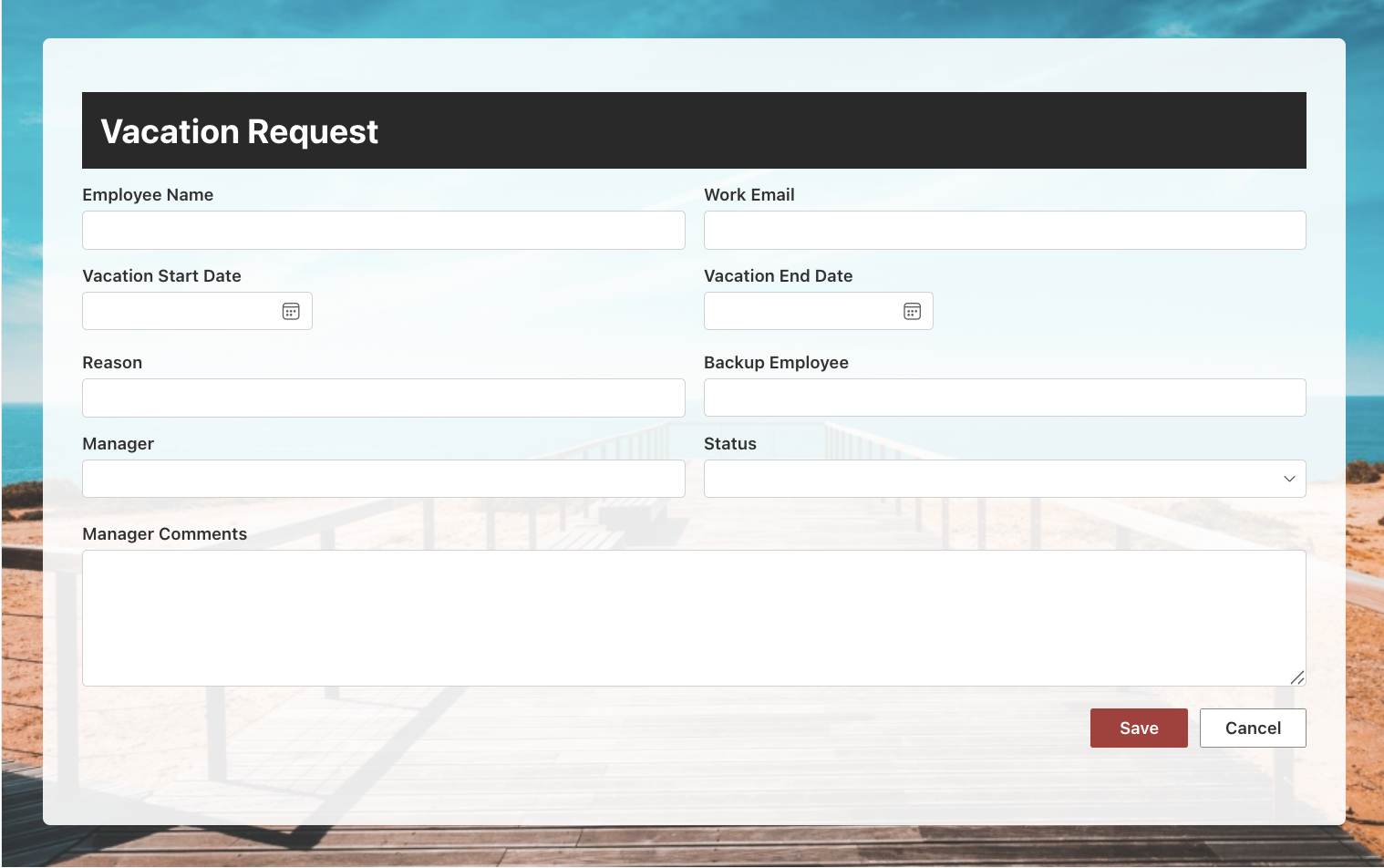
Step 2: Make Vacation Dates Read-Only Based on Status
Vacation dates should remain editable while a request is in Draft. Once the request has been submitted, the dates should remain visible but become read-only.
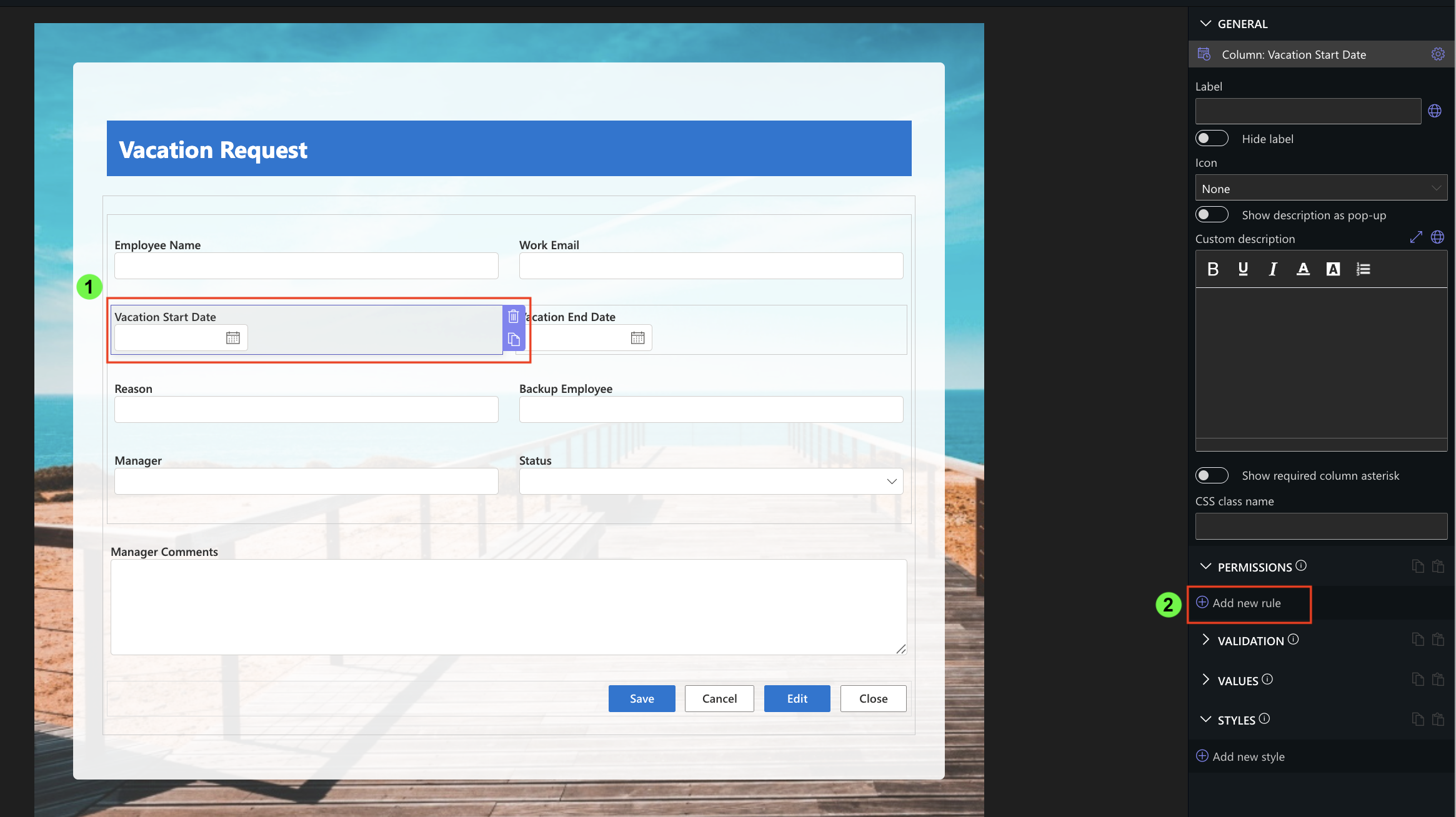
- Select the Vacation Start Date column and open the Permissions section
- Click Add new rule
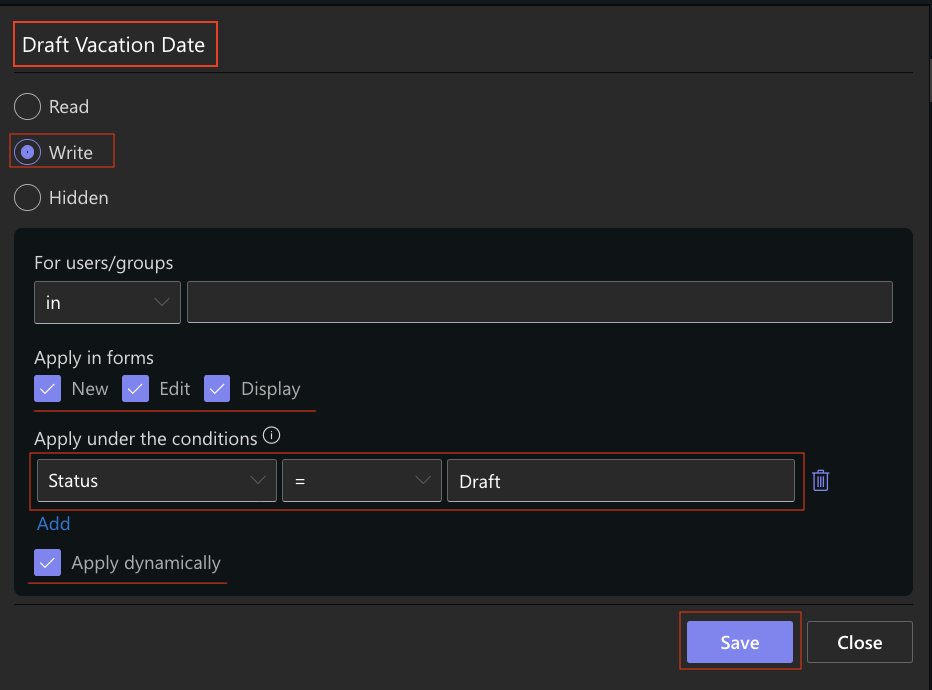
- Enter the rule name: Draft Vacation Date
- Select Write
- Leave New, Edit, and Display selected under Apply in forms
- Under Apply under the conditions, configure the rule to apply when Status = Draft.
- Enable Apply dynamically
- Save the rule.
Create another rule for requests that are no longer drafts:
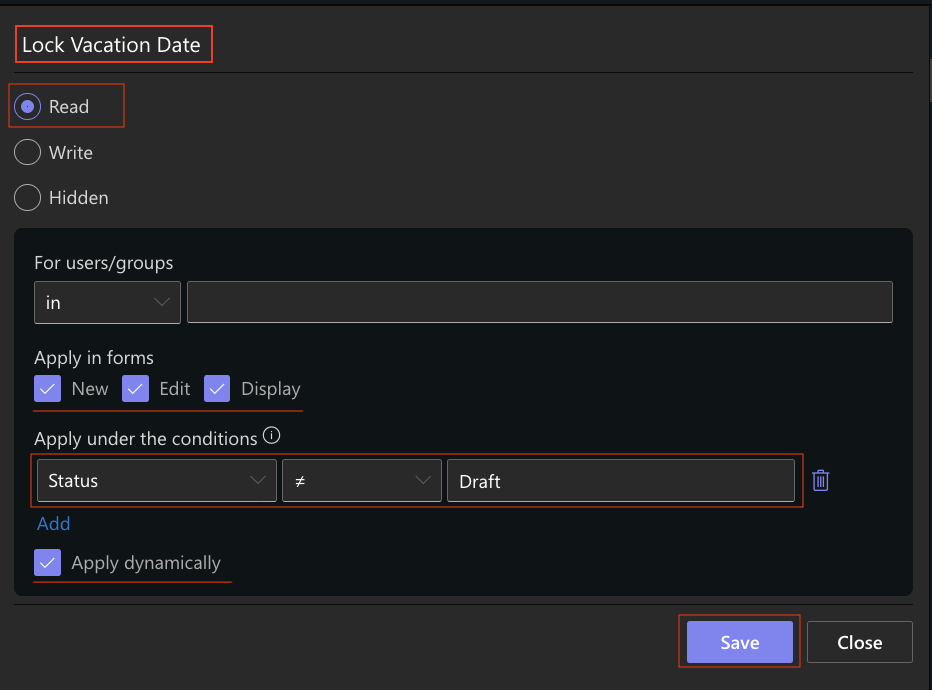
- Enter the rule name: Lock Vacation Date
- Select Read
- Under Apply under the conditions, configure the rule to apply when Status is not equal to Draft
- Enable Apply dynamically
- Save the rule.
Create the same rules for Vacation End Date.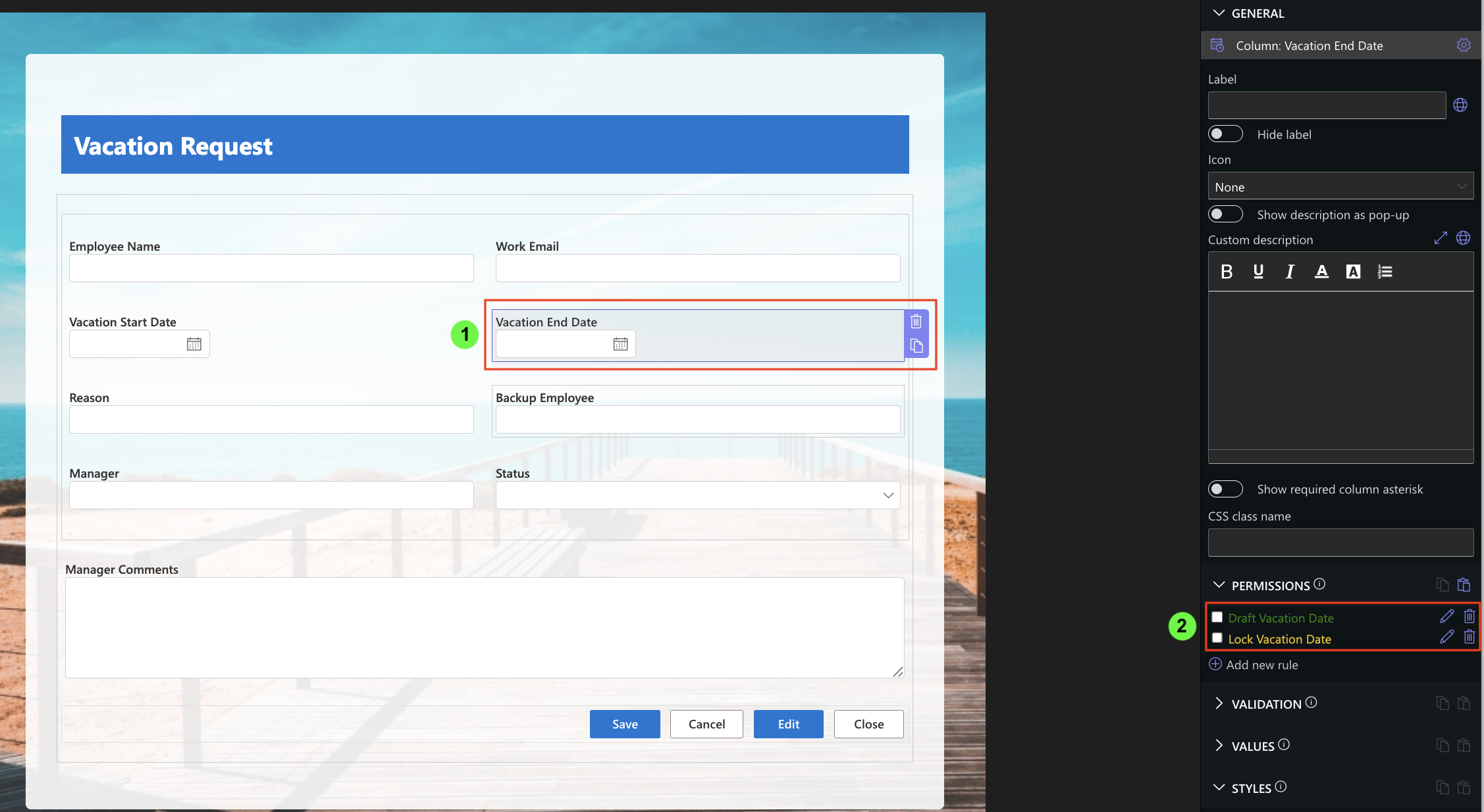
Open the form with Status = Draft. The vacation dates can be edited.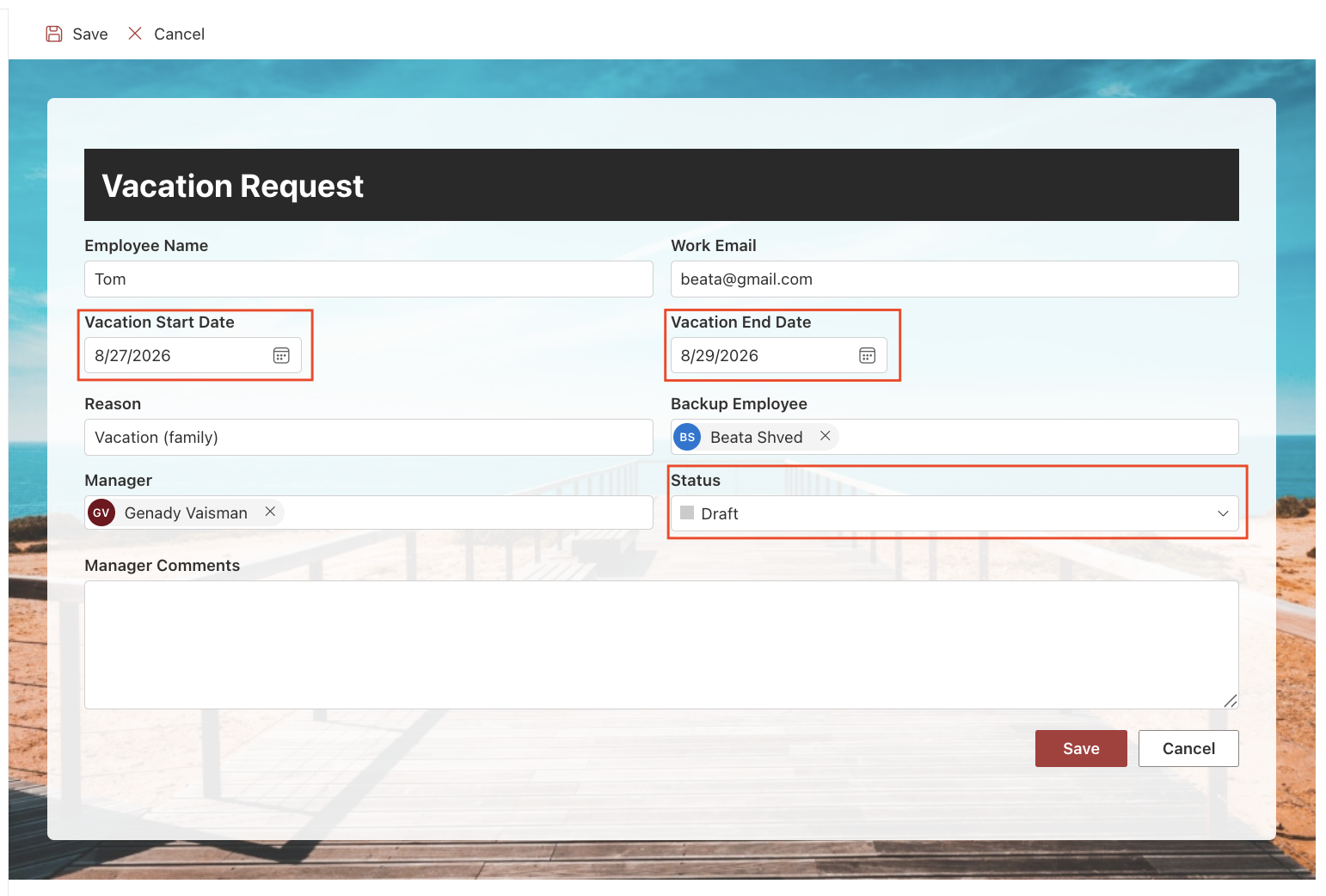
Change the Status to Submitted. Because the rules are applied dynamically, the vacation dates become read-only as soon as the applicable permission changes.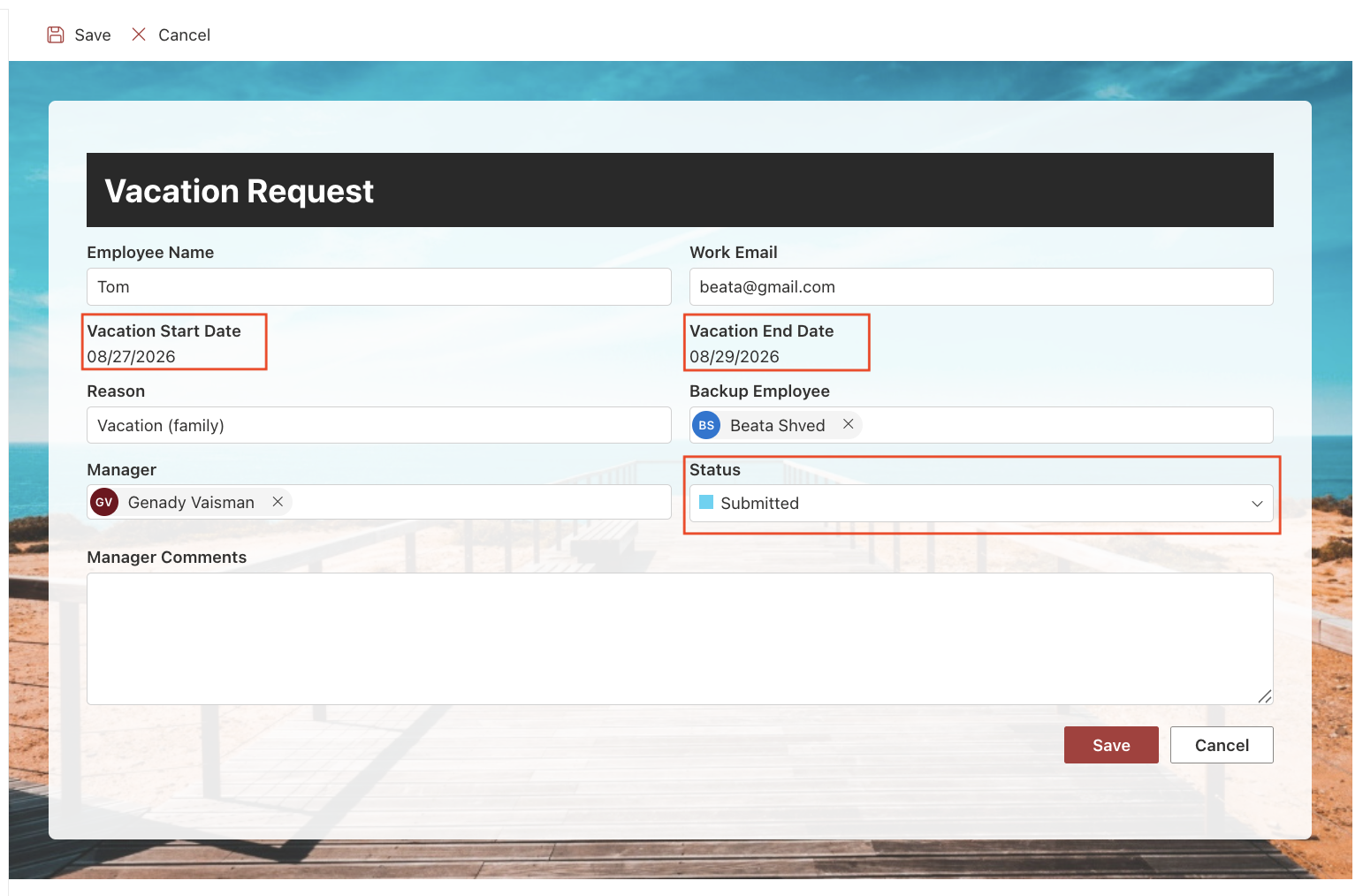
Step 3: Control Access to Manager Comments
The Manager Comments column should be visible to employees, but only the manager assigned to the request should be able to edit it.
Permission Rules can use a Person column to determine who receives a specific level of access. In this example, the Manager column identifies the person responsible for reviewing each Vacation Request.
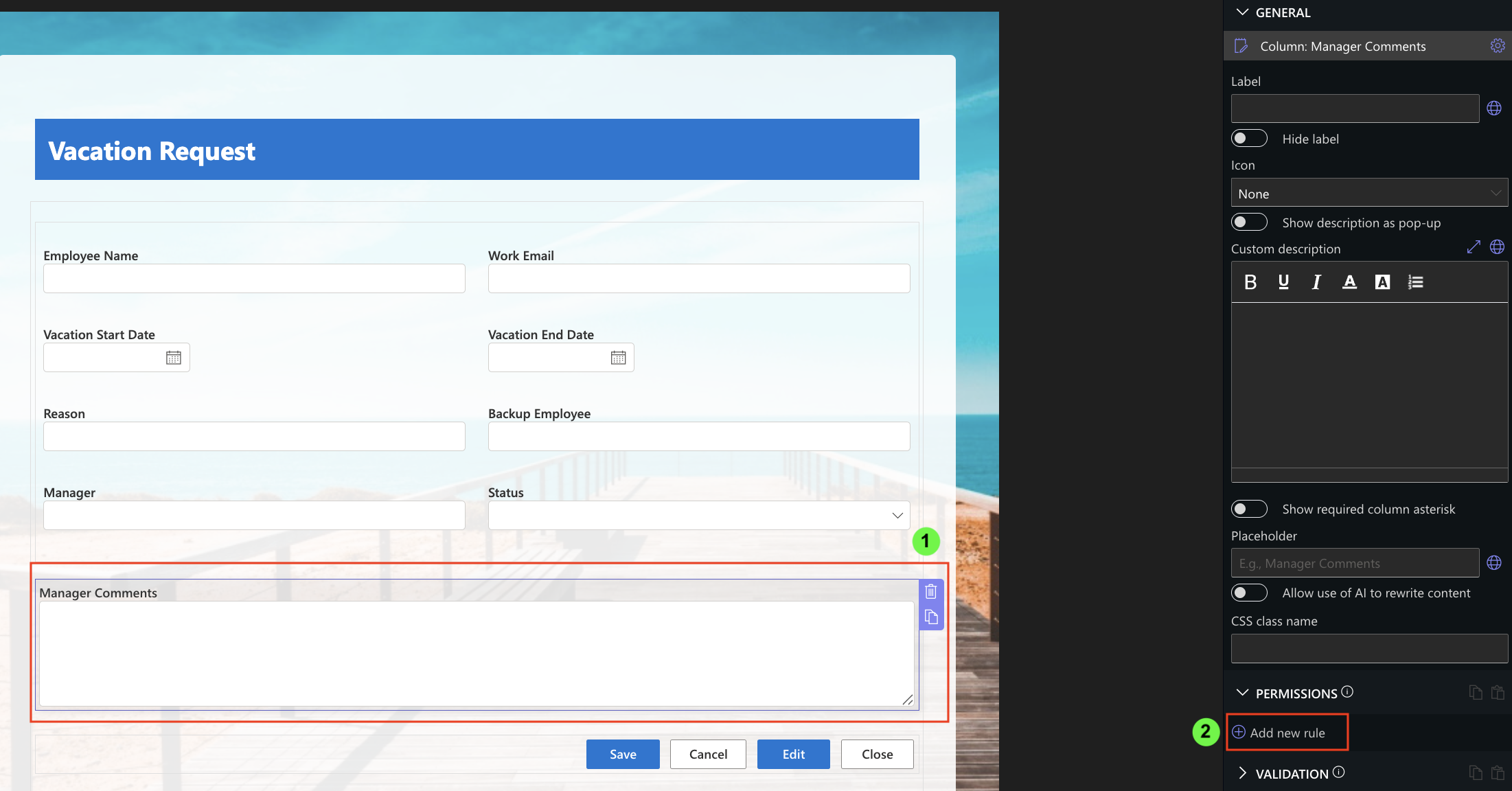
- Select the Manager Comments column and open the Permissions
- Click Add new rule
- Enter the rule name: Manager Comments - Manager.
- Select Write.
- Under For users/groups, select in column.
- Select the Manager
- Leave New, Edit, and Display selected under Apply in forms.
- Save the rule.
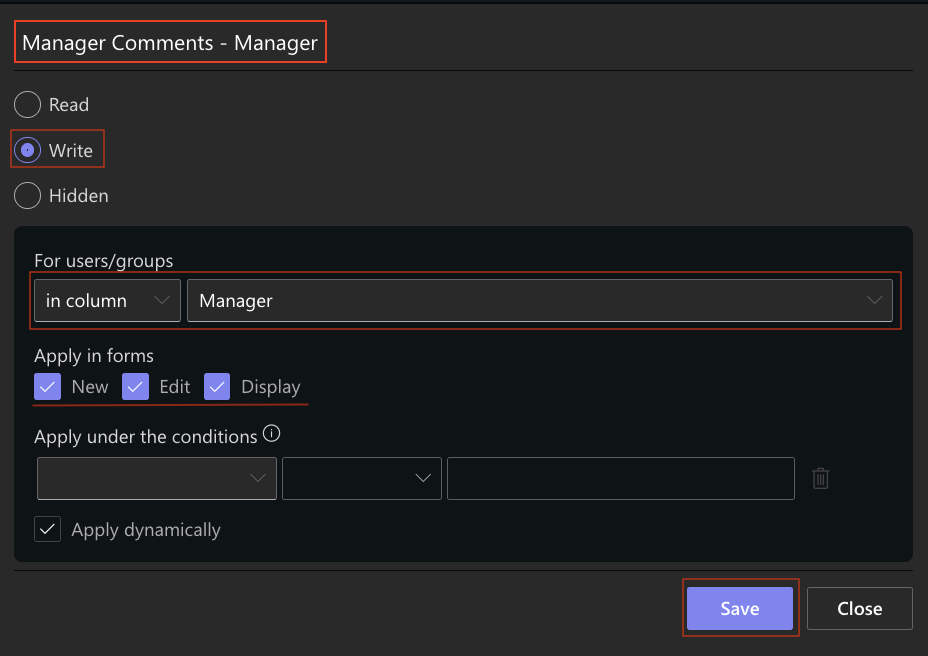
This rule allows the user selected in the Manager column to view and edit Manager Comments.
Next, create a second rule so other users can view the comments without editing them:
- Enter the rule name: Manager Comments - Read Only.
- Select Read.
- Under Apply in forms, select Edit and Display.
- Save the rule.
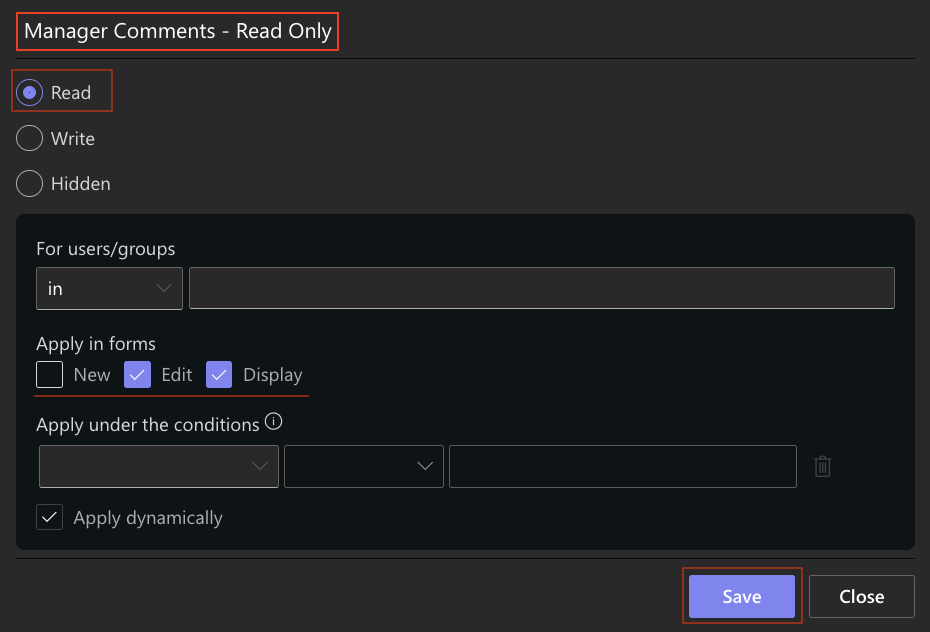
Open an existing Vacation Request as the user selected in the Manager column. The Manager Comments column is visible and editable.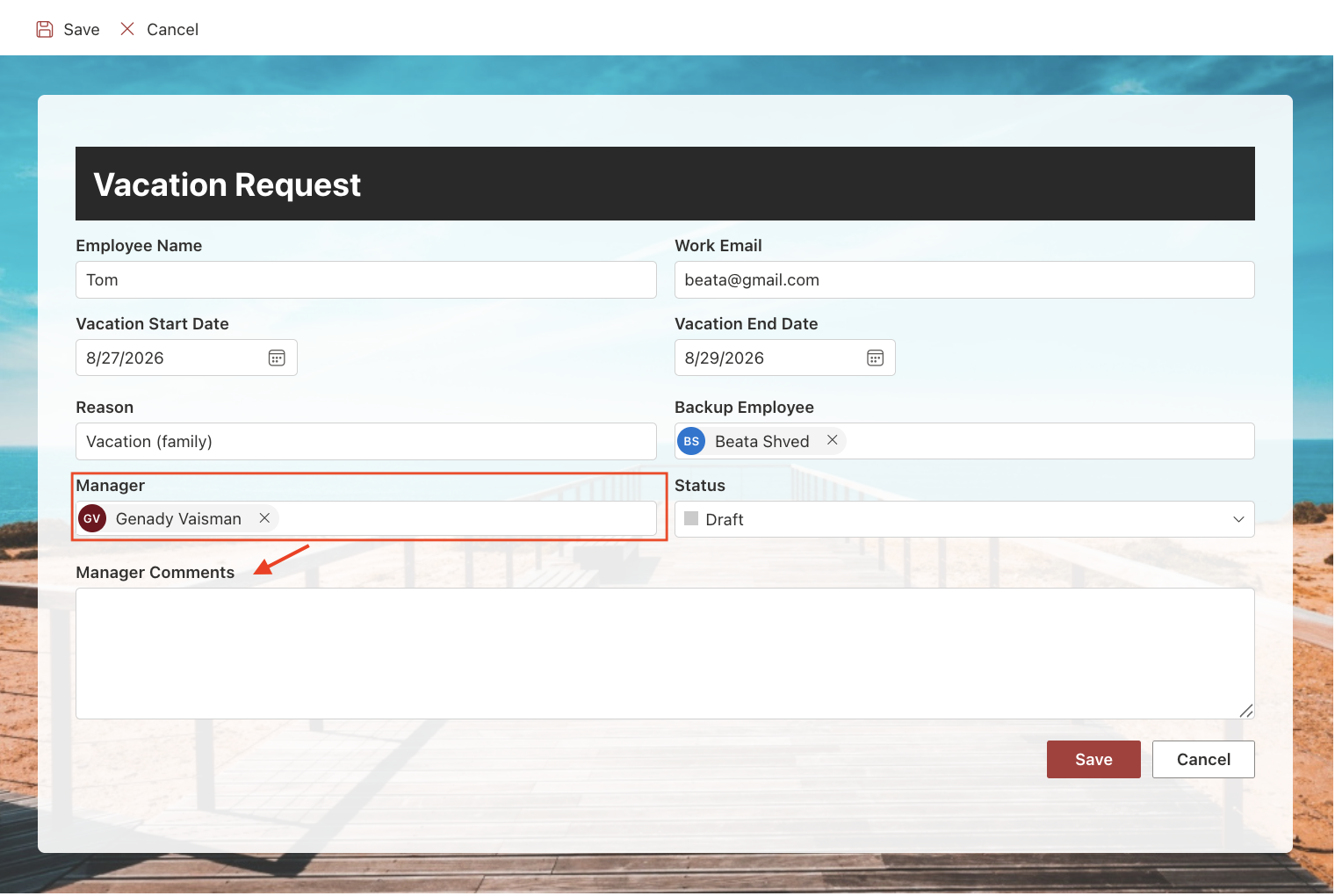
Open the same request as another user. The comments remain visible, but the column is read-only.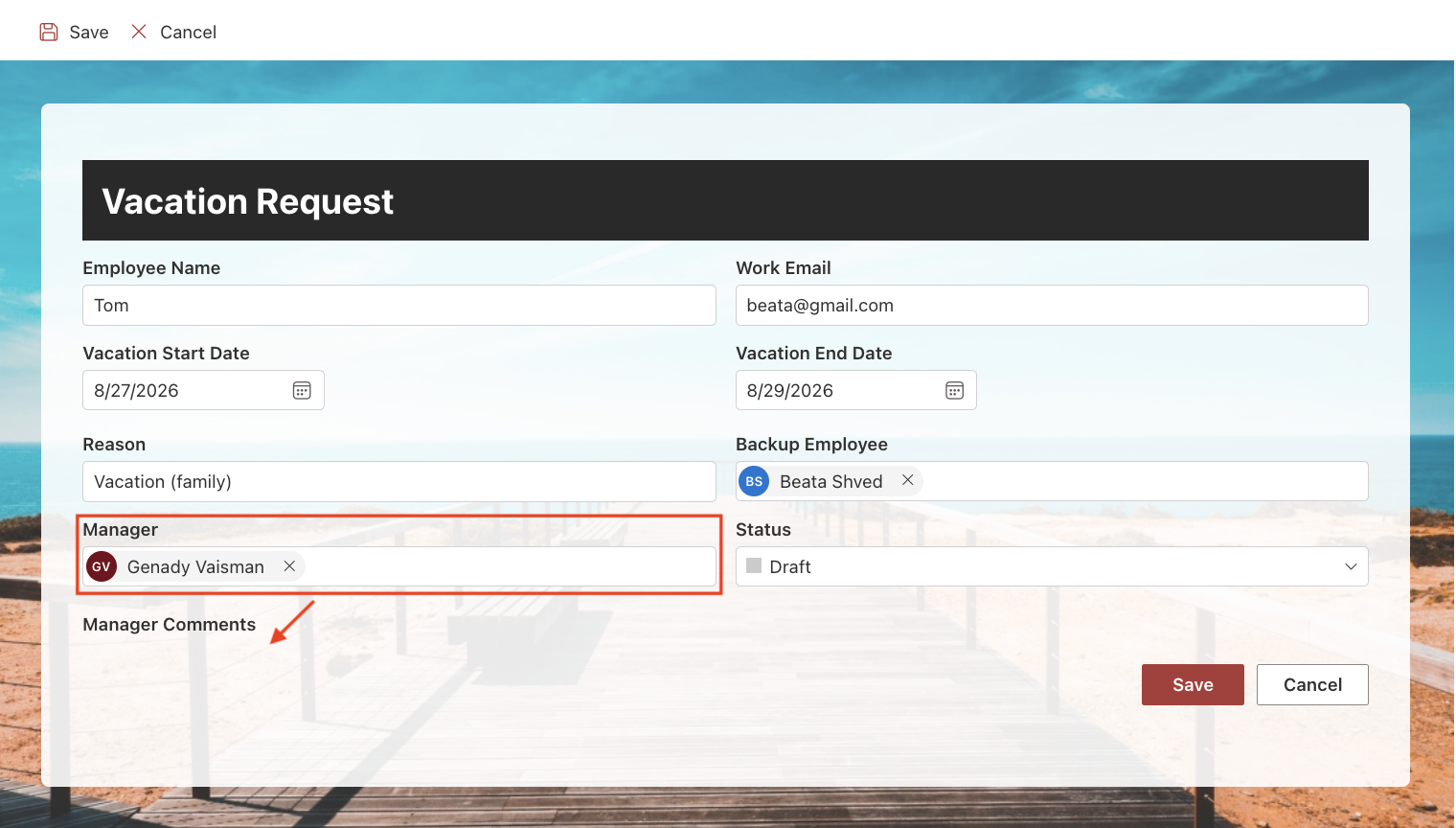
This allows employees to view the manager's comments while ensuring that only the manager assigned to the request can modify them.
Step 4: Control Status Access on Different Forms
Permission Rules can be applied to specific form types and users. This allows the same column to have different permissions depending on which form is being used and who is working with the item.
In our Vacation Request form, employees do not need to see the Status column when creating a new request. Once the request has been created, the assigned manager should be able to update the Status, while other users should only be able to view it.
- Select the Status column and open the Permissions
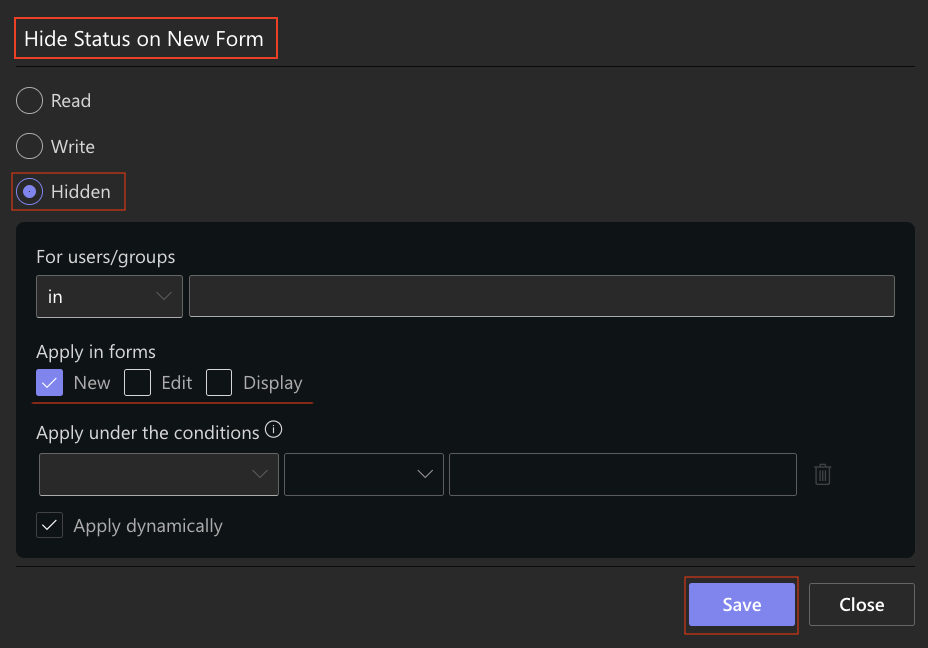
- Create the first rule to hide Status when a new request is being created
- Enter the rule name: Hide Status on New Form.
- Select Hidden.
- Under Apply in forms, select New
- Save the rule.
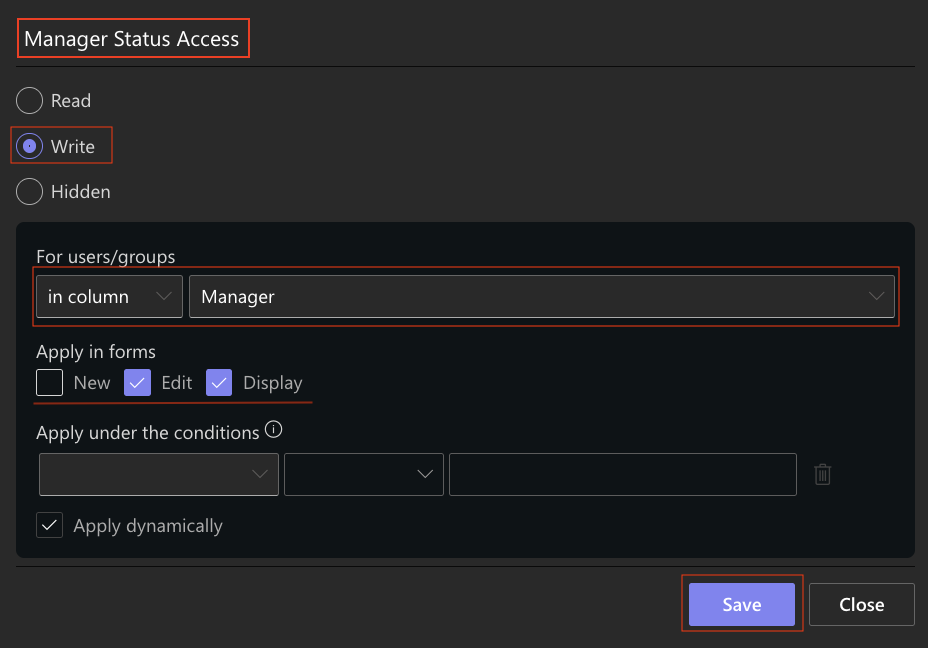
Next, create a rule that allows the assigned manager to update the Status:
- Enter the rule name: Manager Status Access.
- Select Write.
- Under For users/groups, select in column.
- Select the Manager column.
- Under Apply in forms, select Edit and Display.
- Save the rule.
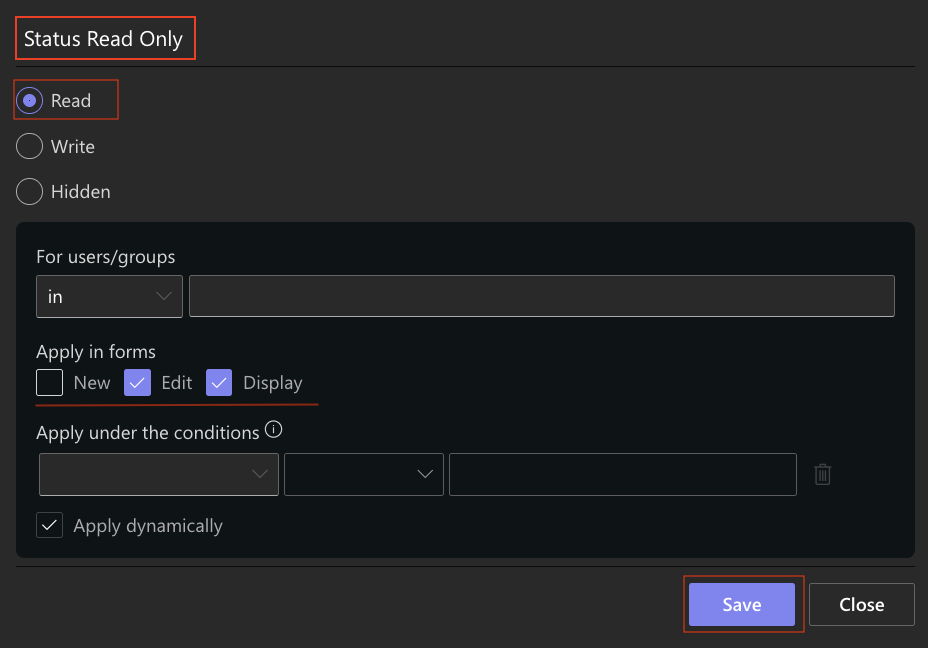
Finally, create a rule that allows other users to view the Status without changing it:
- Enter the rule name: Status Read Only.
- Select Read.
- Under Apply in forms, select Edit and Display.
- Save the rule.
Open the New Vacation Request form. The Status column is hidden.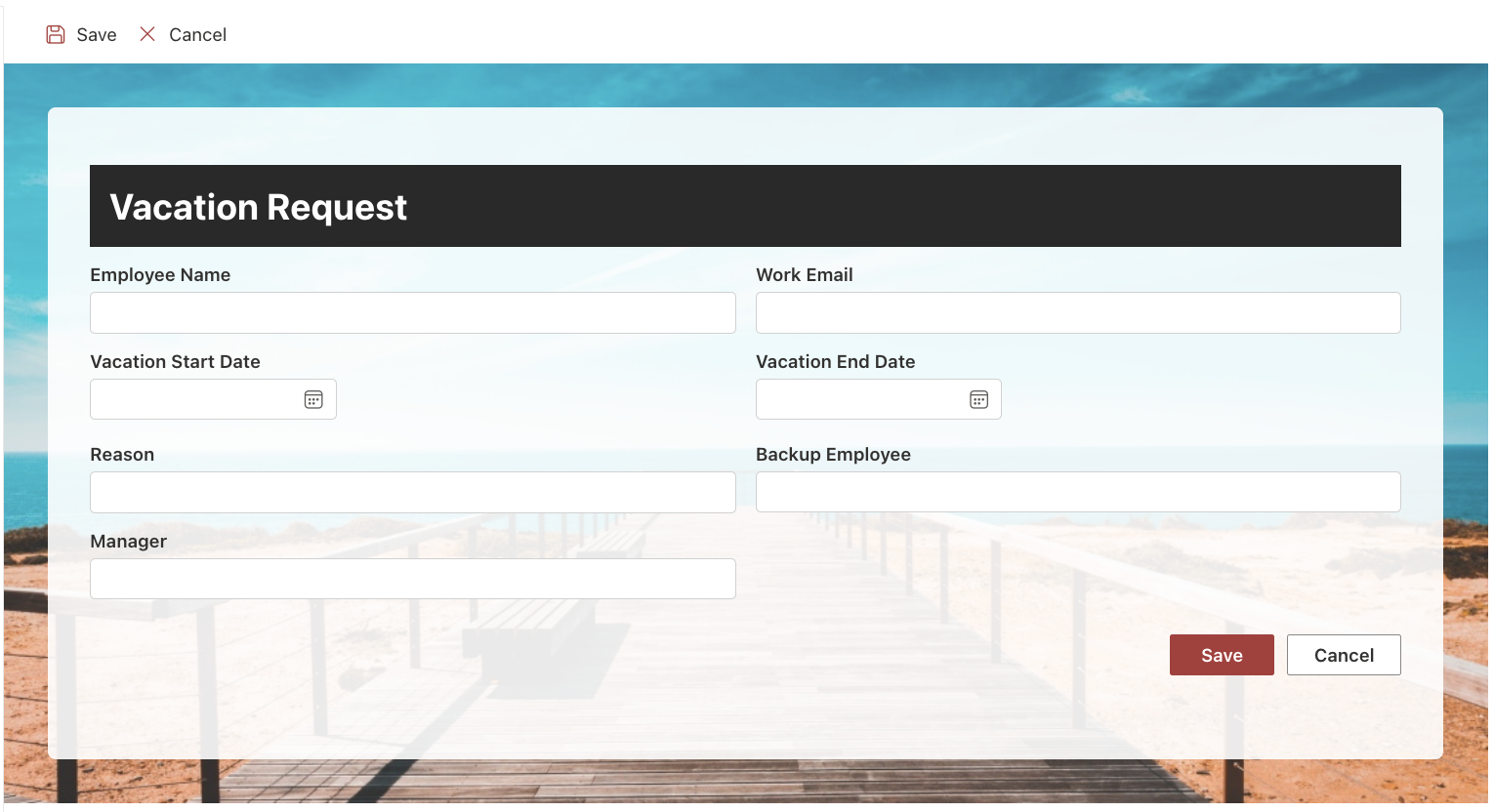
Open an existing request as the user selected in the Manager column. The Status column is visible and can be updated.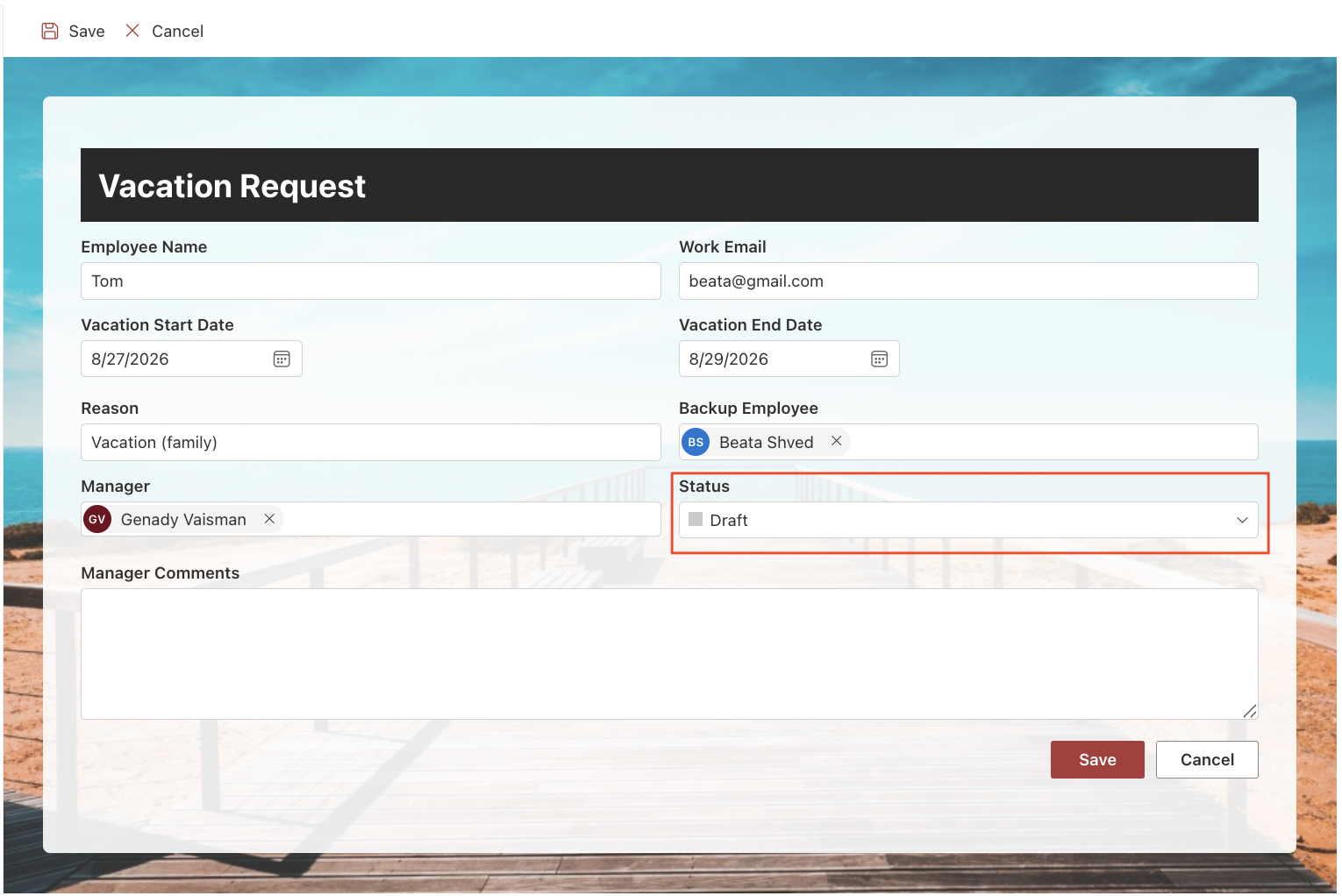
Open the same request as another user. The Status remains visible, but it is read-only.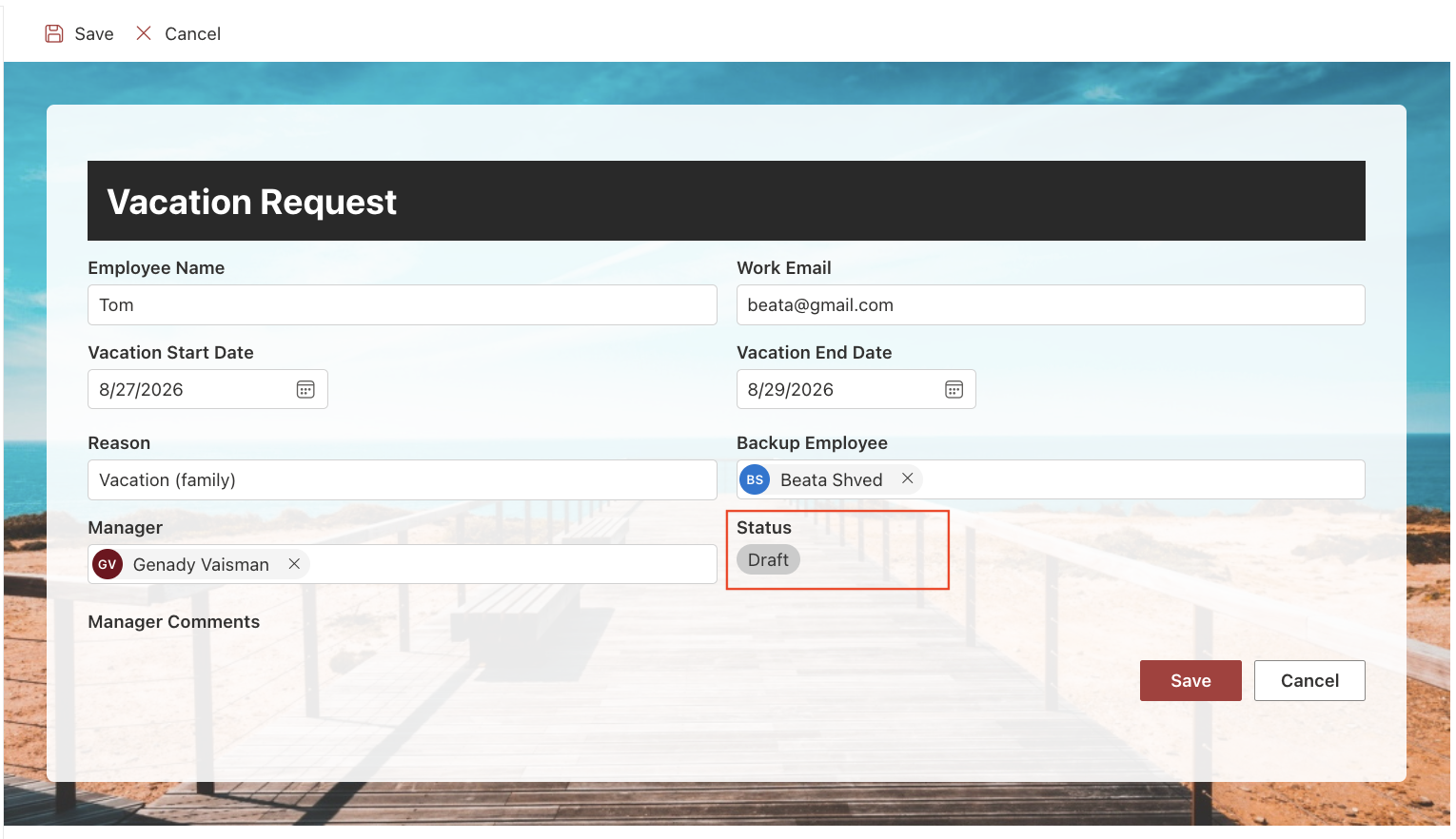
This configuration keeps Status out of the initial request form while allowing the assigned manager to manage it after the request has been created. Other users can follow the current status without being able to change it.
Results
After configuring the Permission Rules, the Vacation Request form provides different levels of access depending on the request status, form type, and user:
- Vacation dates are editable while the request is in Draft and become read-only after it is submitted.
- Manager Comments can be edited by the user selected in the Manager column, while other users can view the comments without modifying them.
- Status is hidden when a new request is created. On existing requests, the assigned manager can update the Status, while other users can only view it.
Together, these rules ensure that users can access and modify only the information appropriate to their role and the current state of the request.
Summary
You now know how to use Permission Rules to control who can view or edit columns and when those permissions apply. By combining permission levels with users, form types, and conditions, you can provide the appropriate level of access in different business scenarios.



