Many business processes require more than one approval before a request can be completed. Instead of sending a request directly to a single approver, you can divide the approval into multiple stages, ensuring that each stage is completed before the next one begins.
In this tutorial, you will extend the Purchase Requests workflow created in the previous tutorial by adding a second approval stage. Each stage will use a different Person column to determine the appropriate approver, creating a flexible multi-stage approval process
Instructions
Prerequisites
Before you begin, complete the previous tutorial:
Step 1: Add a Finance Approver Column
In the previous tutorial, you created the Approver Person column, which is used to assign the first approver.
To support a multi-stage approval process, create another Person column named Finance Approver. This column will store the user responsible for the second approval stage.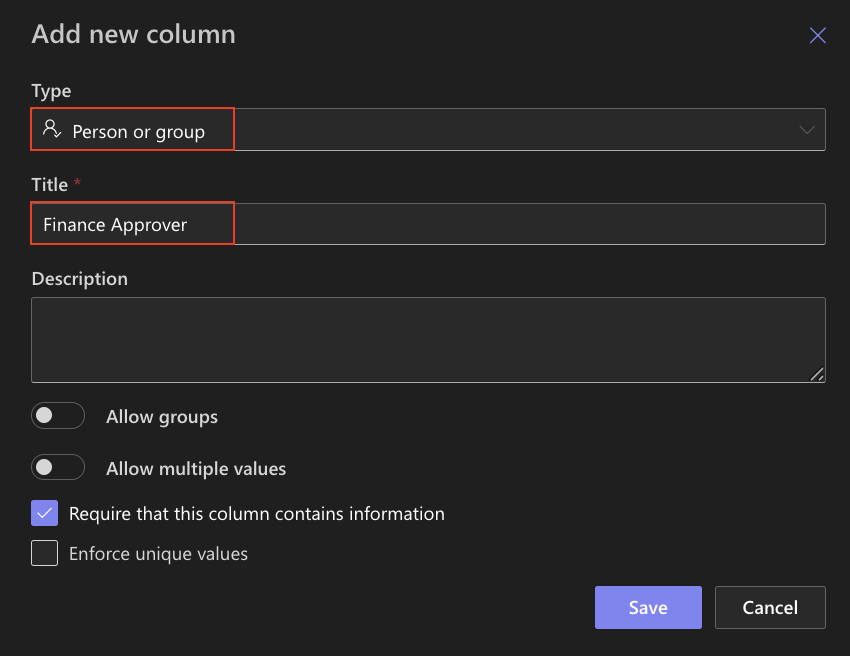
Using separate Person columns for each approval stage makes the workflow more flexible and allows different requests to be routed to different users without modifying the Approval configuration.
Step 2: Open the Approval Configuration
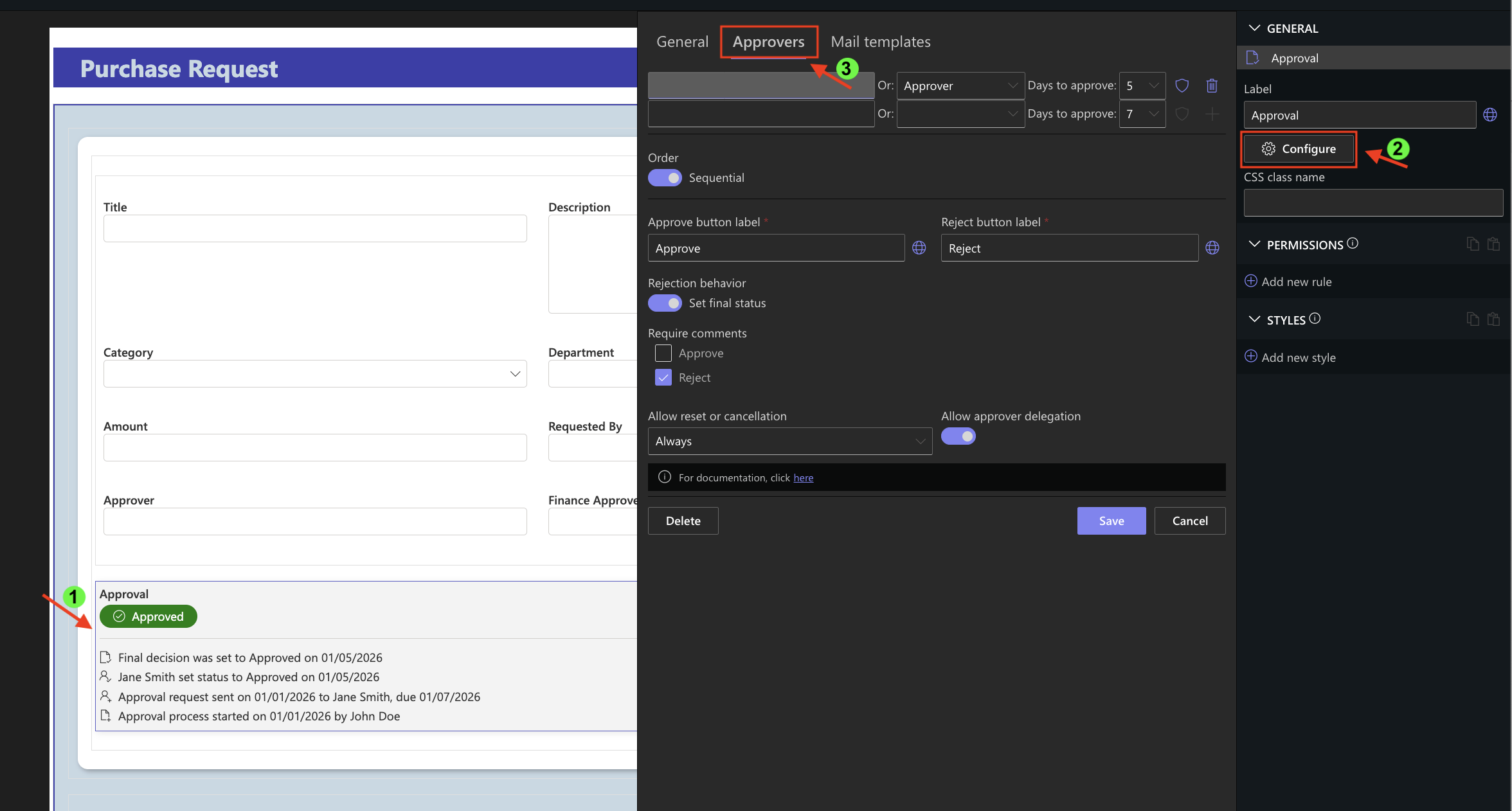
- Open the Purchase Requests list.
- Click Design.
- Open the Form Designer.
- Select the Approval control.
- Click Configure.
- Open the Approvers tab.
Step 3: Configure the Second Approval Stage
The approval workflow already contains the first approval stage configured in the previous tutorial.
To extend the workflow, configure the second row in the Approvers table using the Finance Approver Person column.
Use the following settings:
- Approver: Finance Approver
- Days to Approve: 3
- Leave Sequential
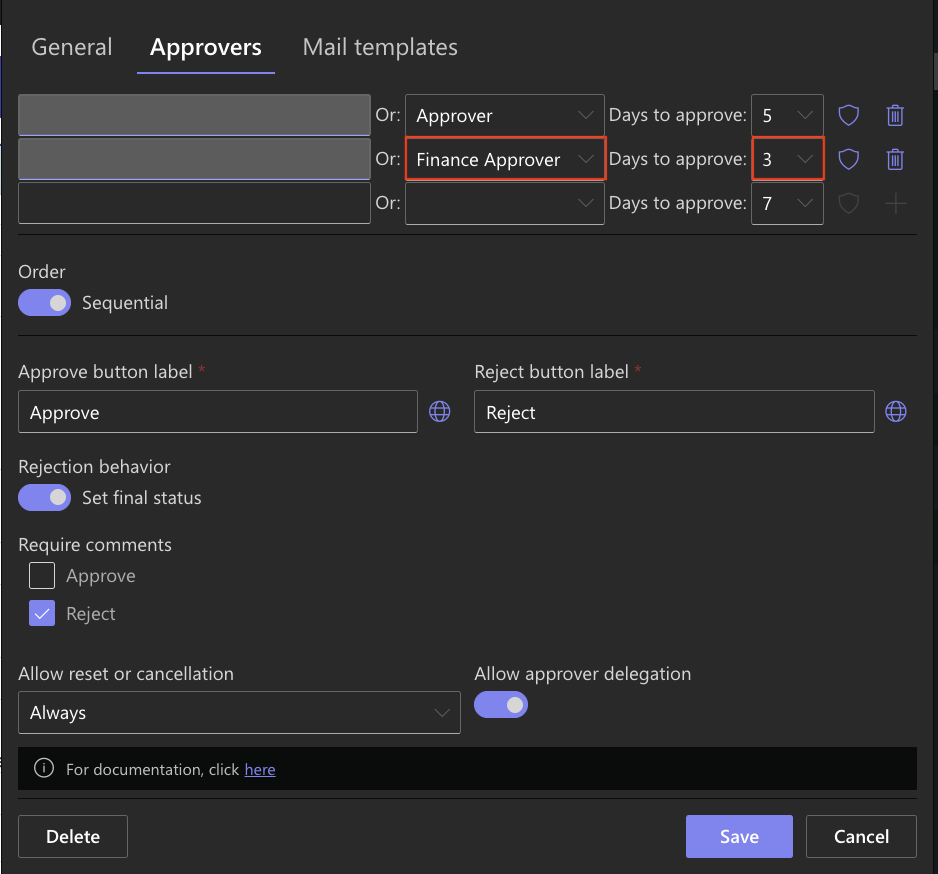
The second approval stage uses the Finance Approver Person column and begins automatically after the first approval stage has been completed successfully.
Step 4: Save the Workflow
- Click Save
- Publish the form
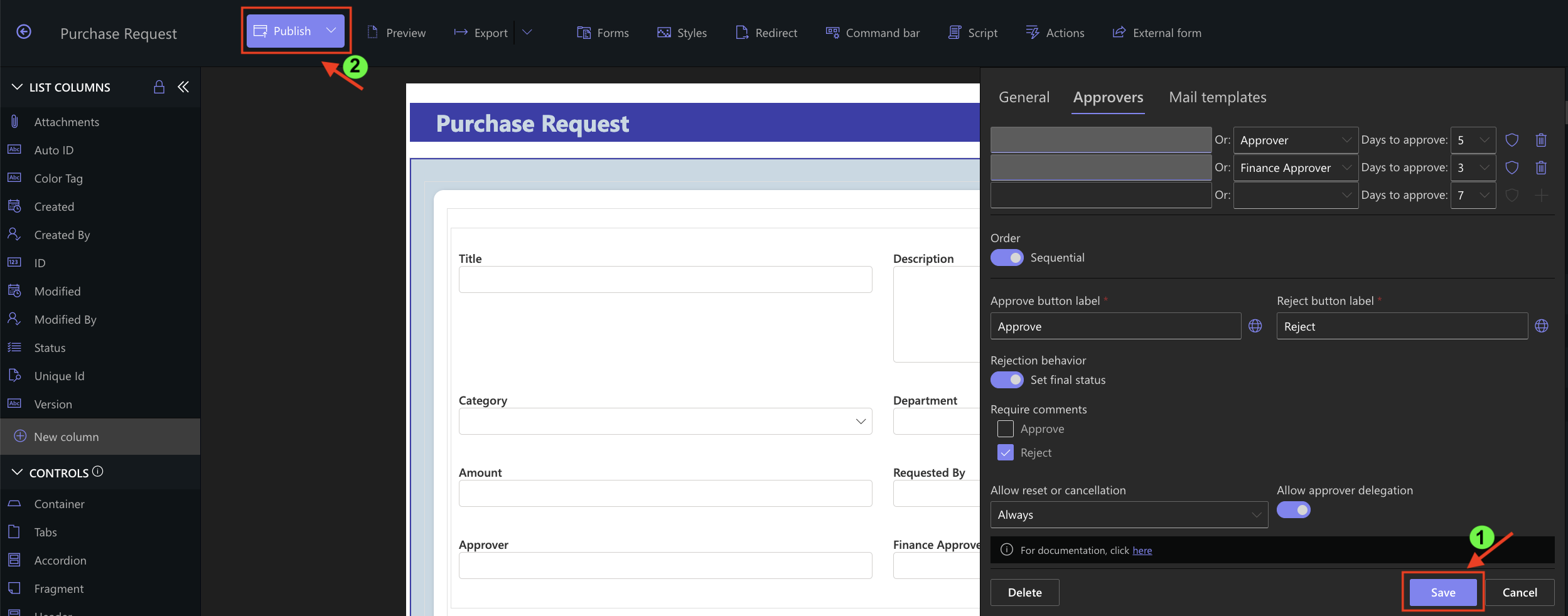
Your approval workflow now contains two sequential approval stages.
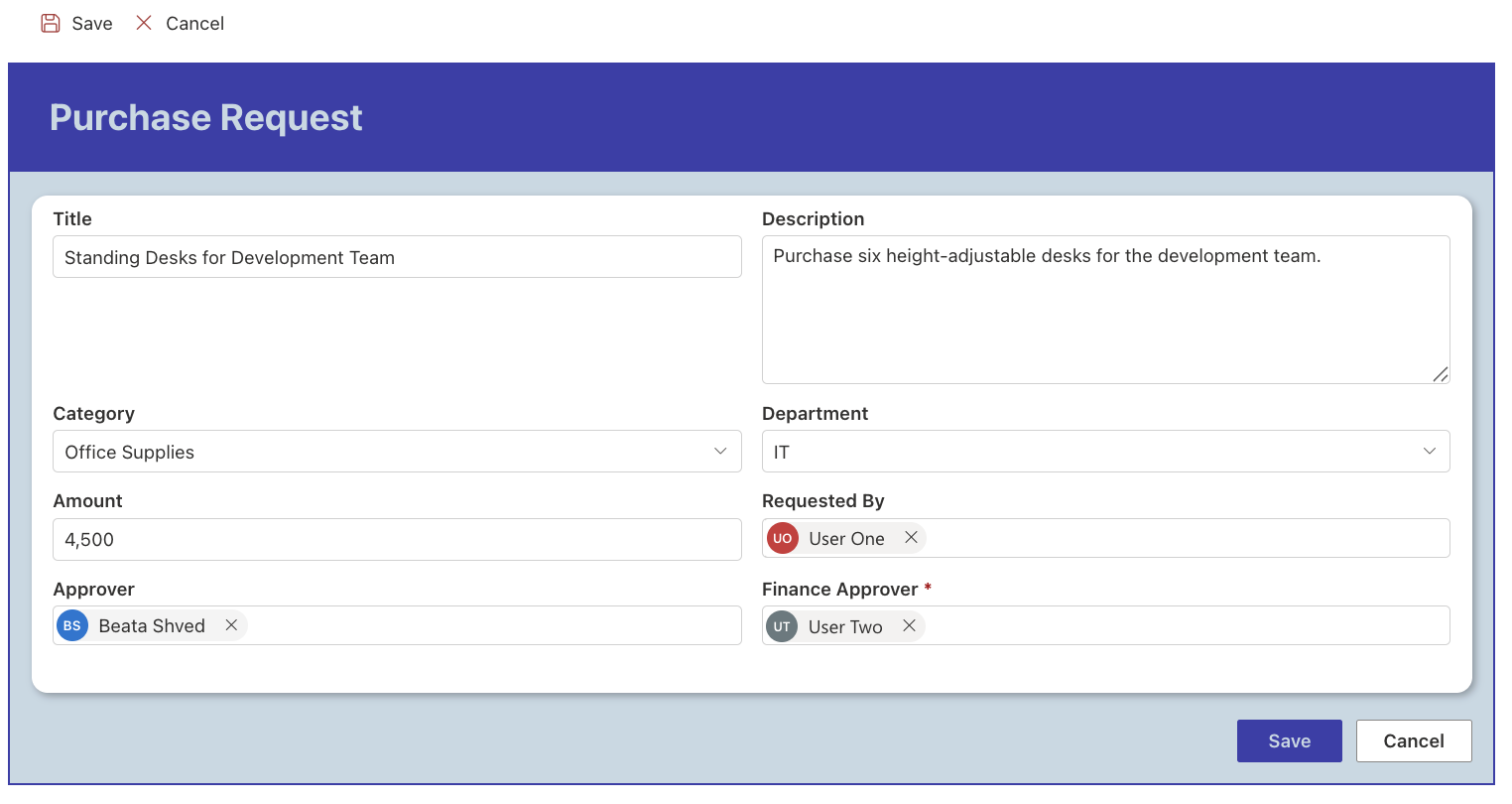
Step 5: Create a Purchase Request
- Create a new purchase request using the following sample data.
- Click Save.
Step 6: Complete the First Approval Stage
After the request is submitted:
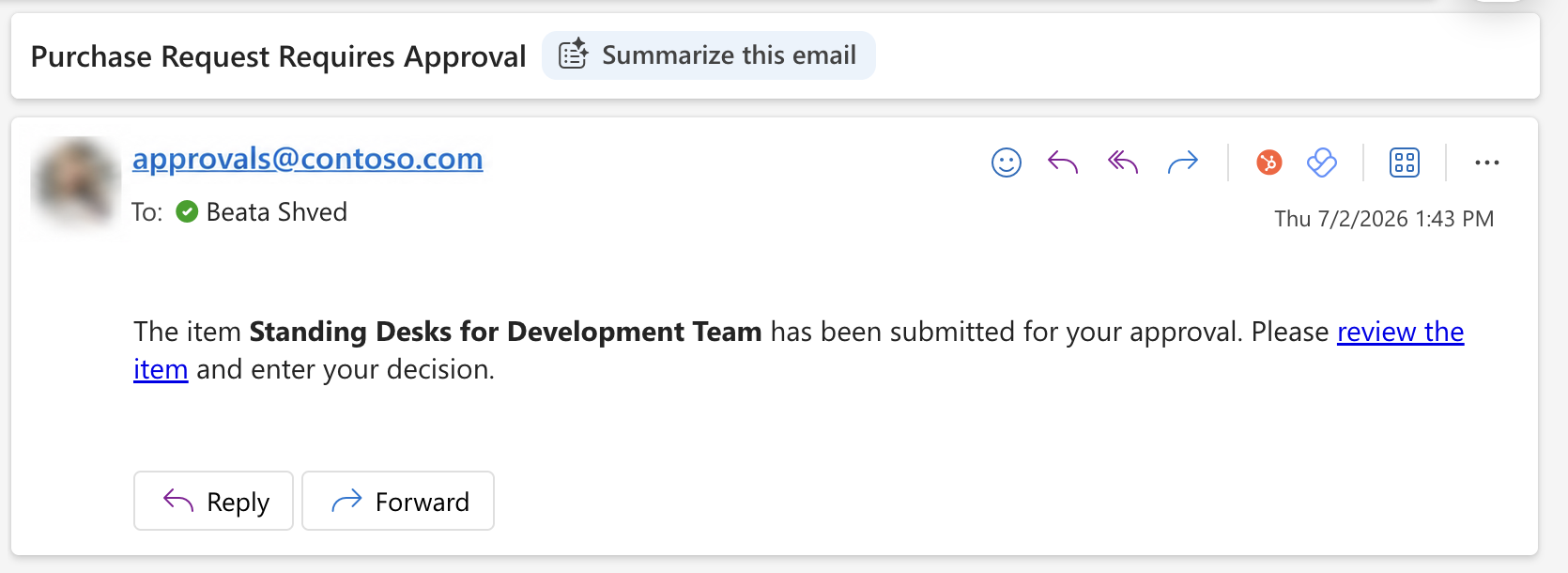
- the approval workflow starts automatically;
- the user specified in the Approver column receives an approval request;
- the request status changes to In Progress.

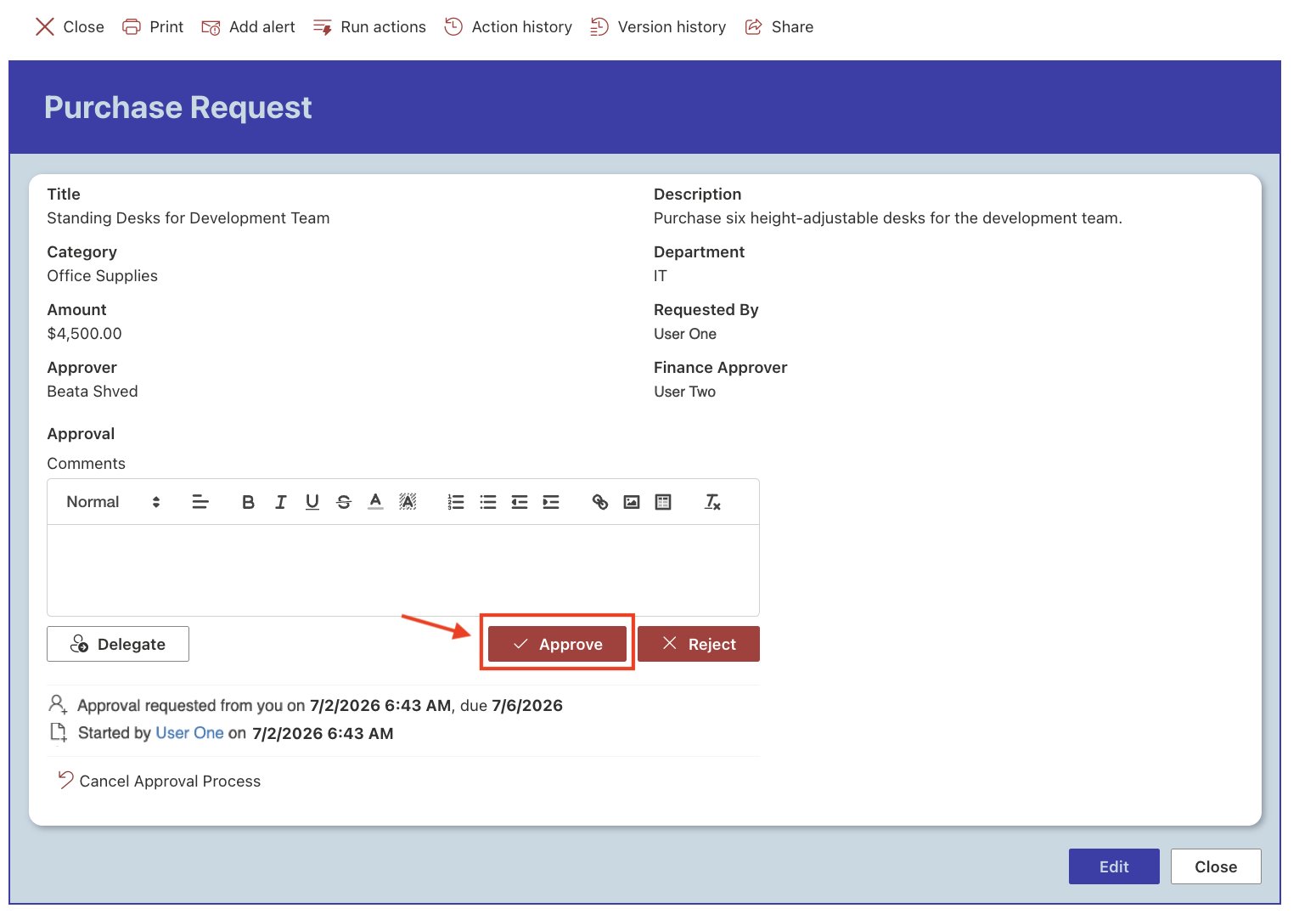
- Approve the request using the account assigned in the Approver
Once the first approval stage is completed:
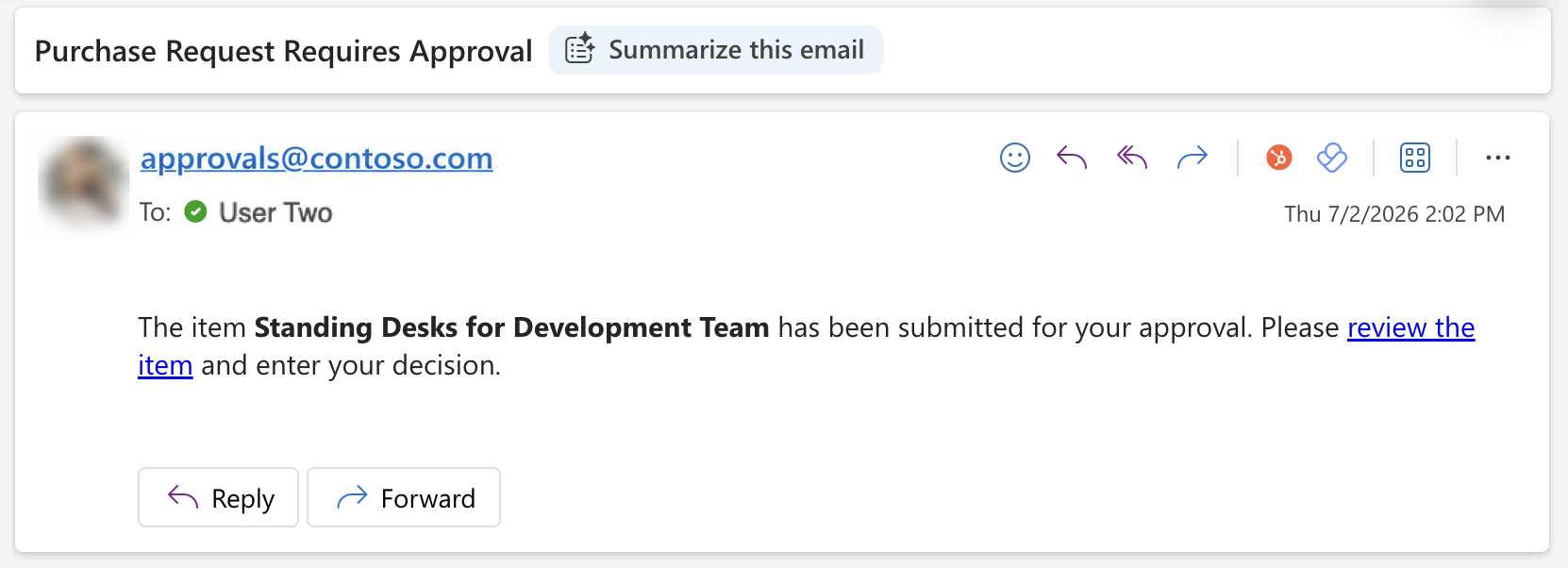
- the second approval stage starts automatically;

- the user specified in the Finance Approver column receives a new approval request.
Step 7: Complete the Second Approval Stage
Open the request using the account assigned in the Finance Approver column and click Approve.
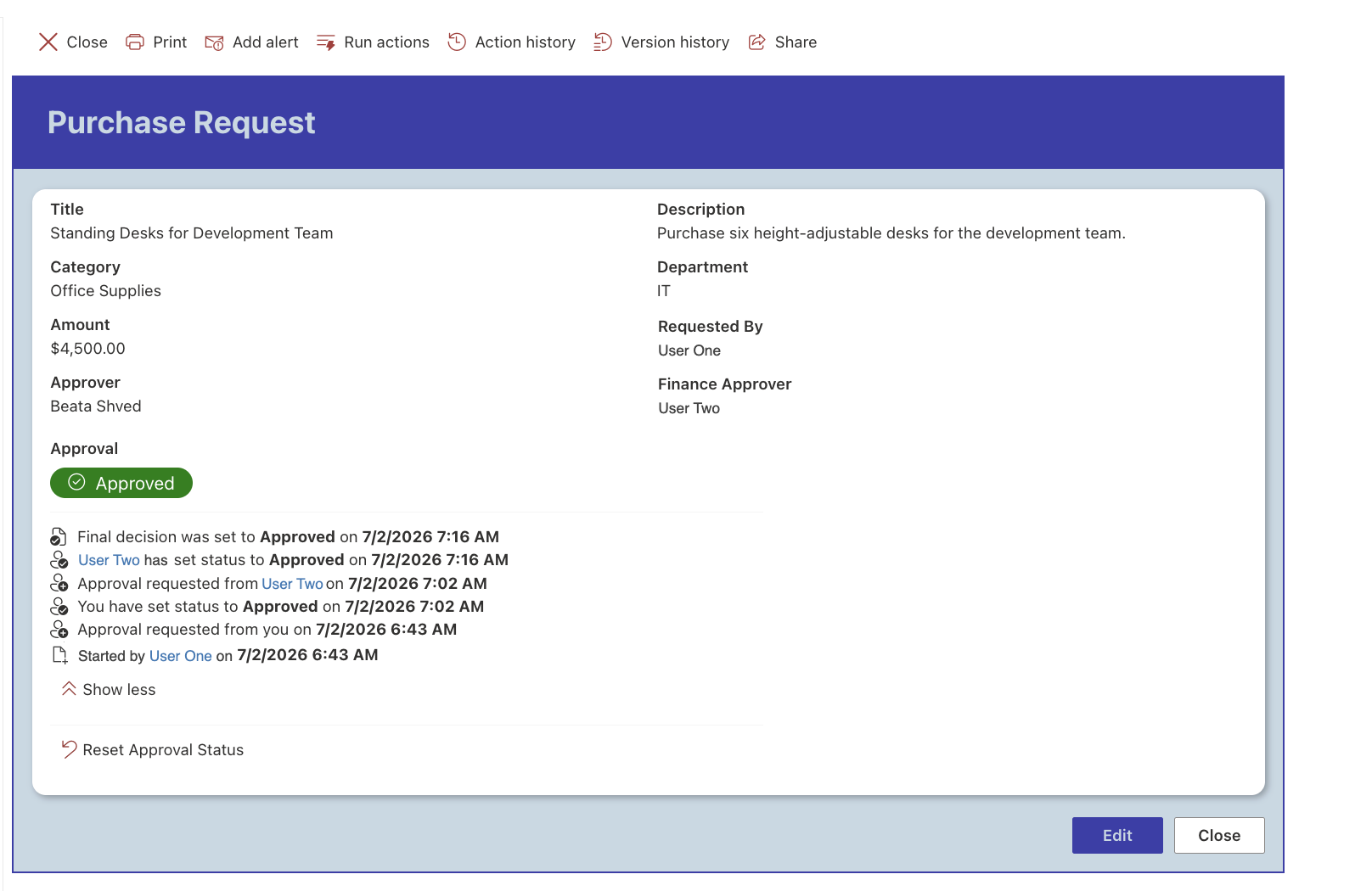
After the second approval stage is completed:
- the approval workflow finishes;
- the request status changes to Approved;
- both approval stages are recorded in the approval history.
How Multi-Stage Approval Works
With Sequential approval enabled, each approval stage begins only after the previous stage has been completed successfully.
In this tutorial, the workflow contains two approval stages, but Approval workflows are not limited to two stages. You can configure as many approval stages as required by your business process by continuing to add approvers to the Approvers table. Each stage is processed in sequence, ensuring that requests are reviewed in the correct order before the workflow is completed.
The workflow created in this tutorial follows this approval path:
Purchase Request
│
▼
Approver
(Person column)
│
▼
Finance Approver
(Person column)
│
▼
Approved
If any approver rejects the request, the approval process follows the configured rejection behavior and the remaining approval stages are not started.
Result
Your approval workflow now contains two sequential approval stages. The first stage uses the Approver Person column, while the second stage uses the Finance Approver Person column, allowing each request to be routed automatically to the appropriate users.
Summary
You have successfully expanded your approval workflow from a single-stage process to a multi-stage workflow. By combining multiple approval stages with different approvers, you can create scalable approval processes for a wide variety of business scenarios. The next tutorial introduces approval conditions for even greater flexibility.



