In the previous tutorial, you created a multi-stage approval workflow where every purchase request passed through both approval stages.
In many business scenarios, however, additional approvals are only required under certain conditions. For example, high-value purchases may require Finance approval, while smaller purchases only need approval from a department manager.
In this tutorial, you'll configure a Conditional Approver so that the second approval stage is only included when specific conditions are met.
Instructions
Prerequisites
Before you begin, complete the previous tutorial:
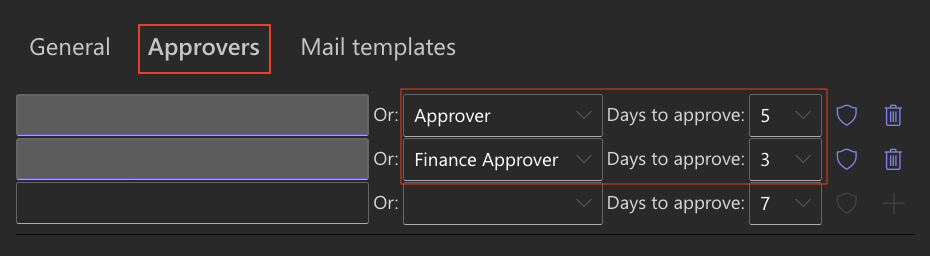
Your Purchase Requests workflow should already contain two approval stages:
- Approver
- Finance Approver
Step 1: Open the Approval Configuration
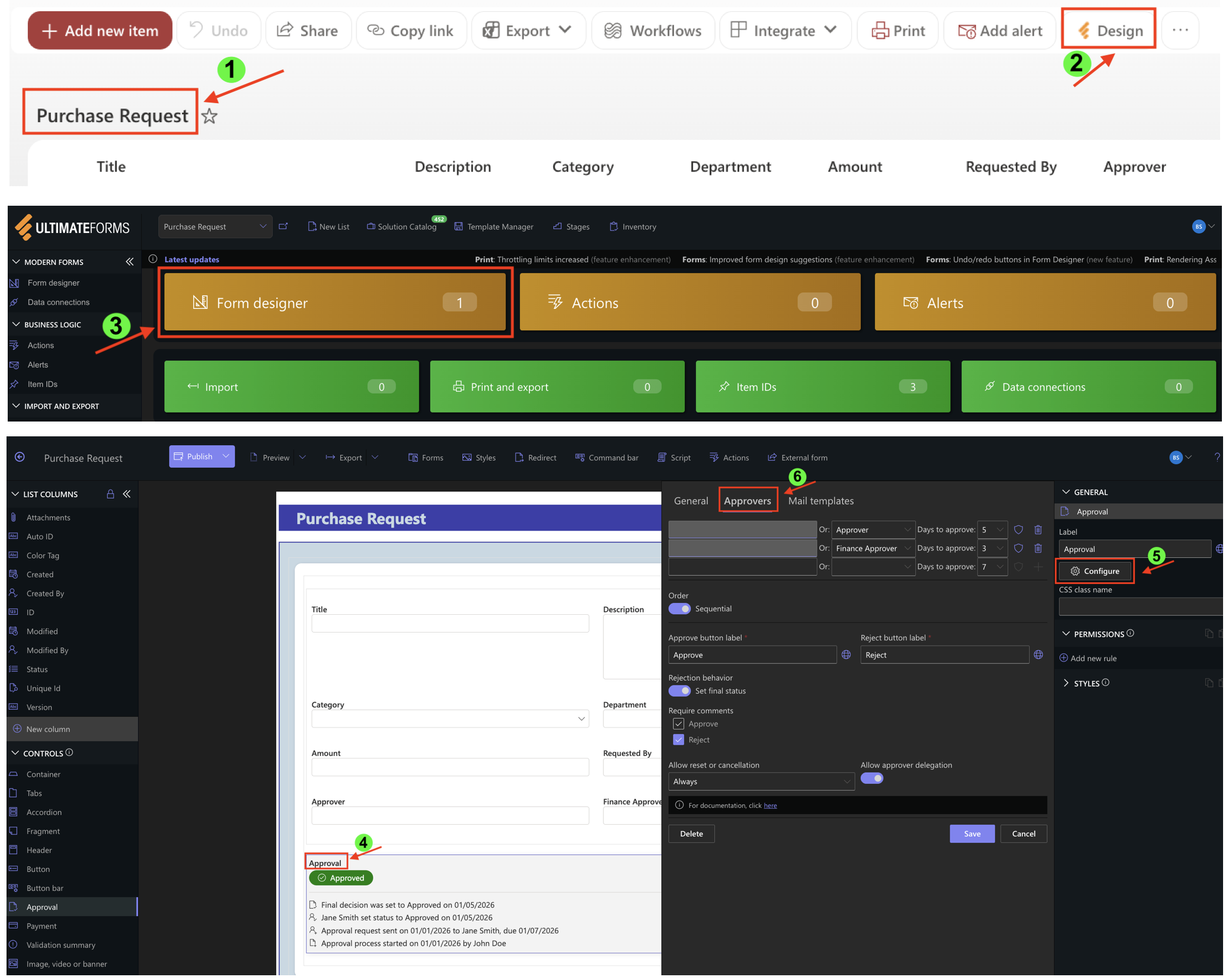
- Open the Purchase Requests list.
- Click Design.
- Open the Form Designer.
- Select the Approval control.
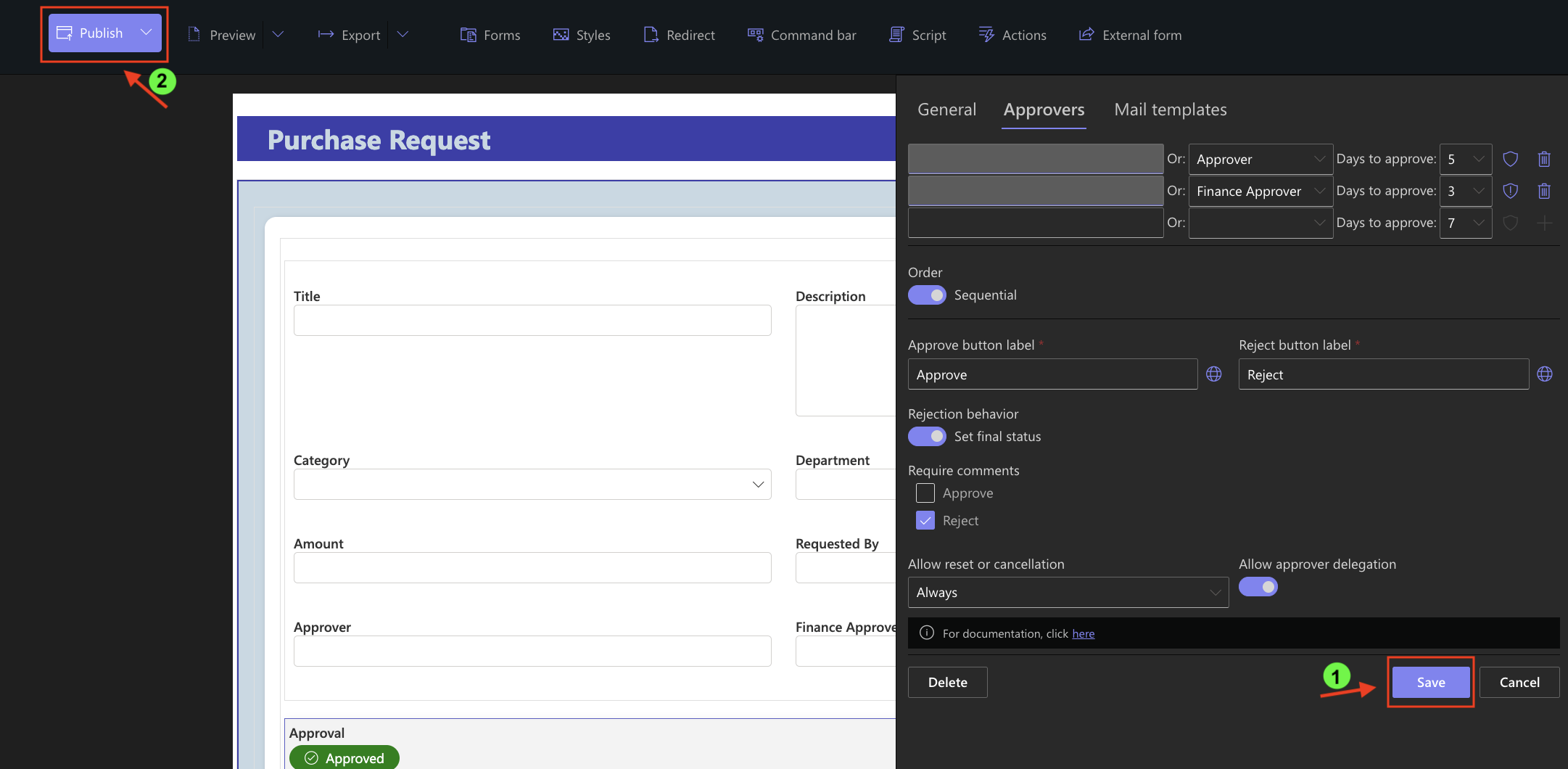
- Click Configure.
- Open the Approvers tab.
Step 2: Configure a Conditional Approver
In the previous tutorial, every purchase request passed through both approval stages:
- Approver
- Finance Approver
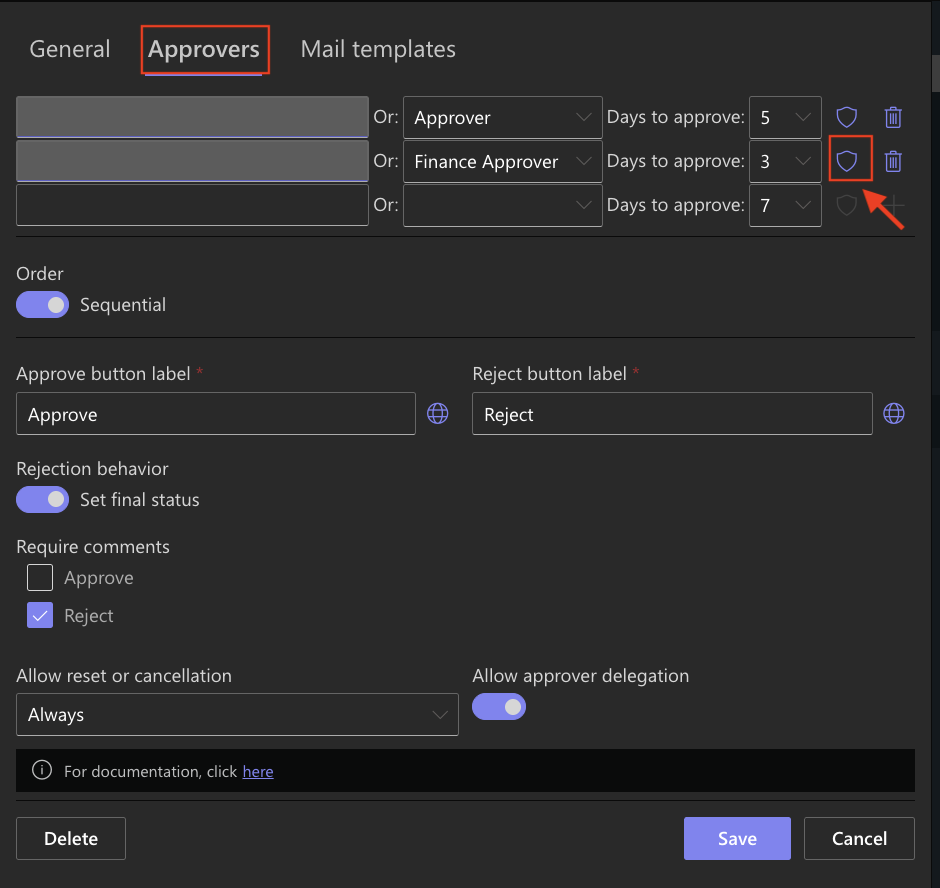
In this tutorial, you'll configure the Finance Approver stage so that it is only included for purchases of $3,000 or more.
- Open the Conditions editor for the Finance Approver stage.
Step 3: Configure the Condition
- Configure the following condition: Amount ≥ 3000
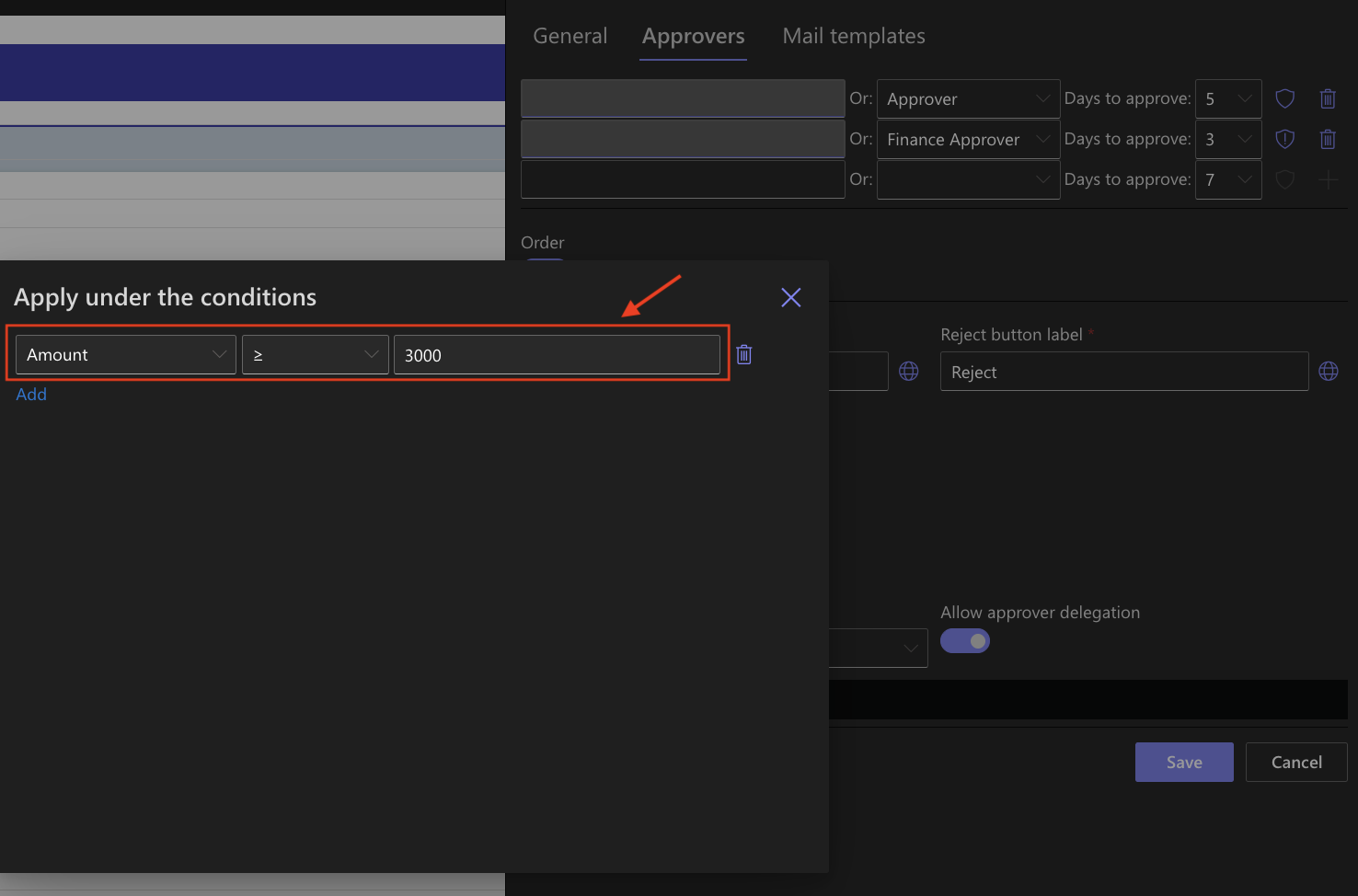
The Approver stage has no conditions and always participates in the approval workflow. The Finance Approver stage is only included when the purchase amount is $3,000 or higher.
Step 4: Save the Workflow
- Click Save, and publish your changes.
Step 5: Test a Purchase Request Below the Threshold
- Create a new purchase request using the following sample data:
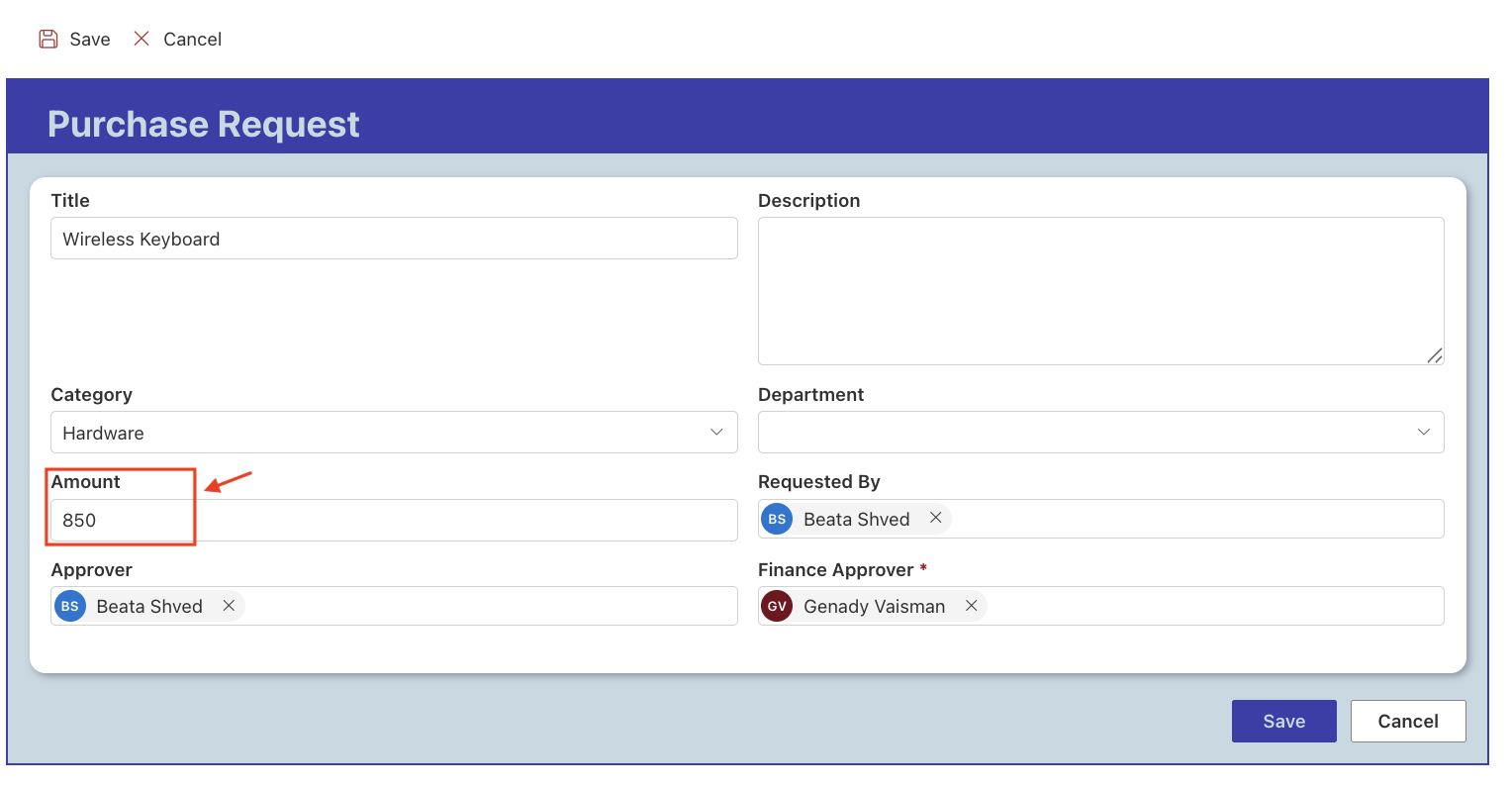
- Submit the request and complete the first approval stage.
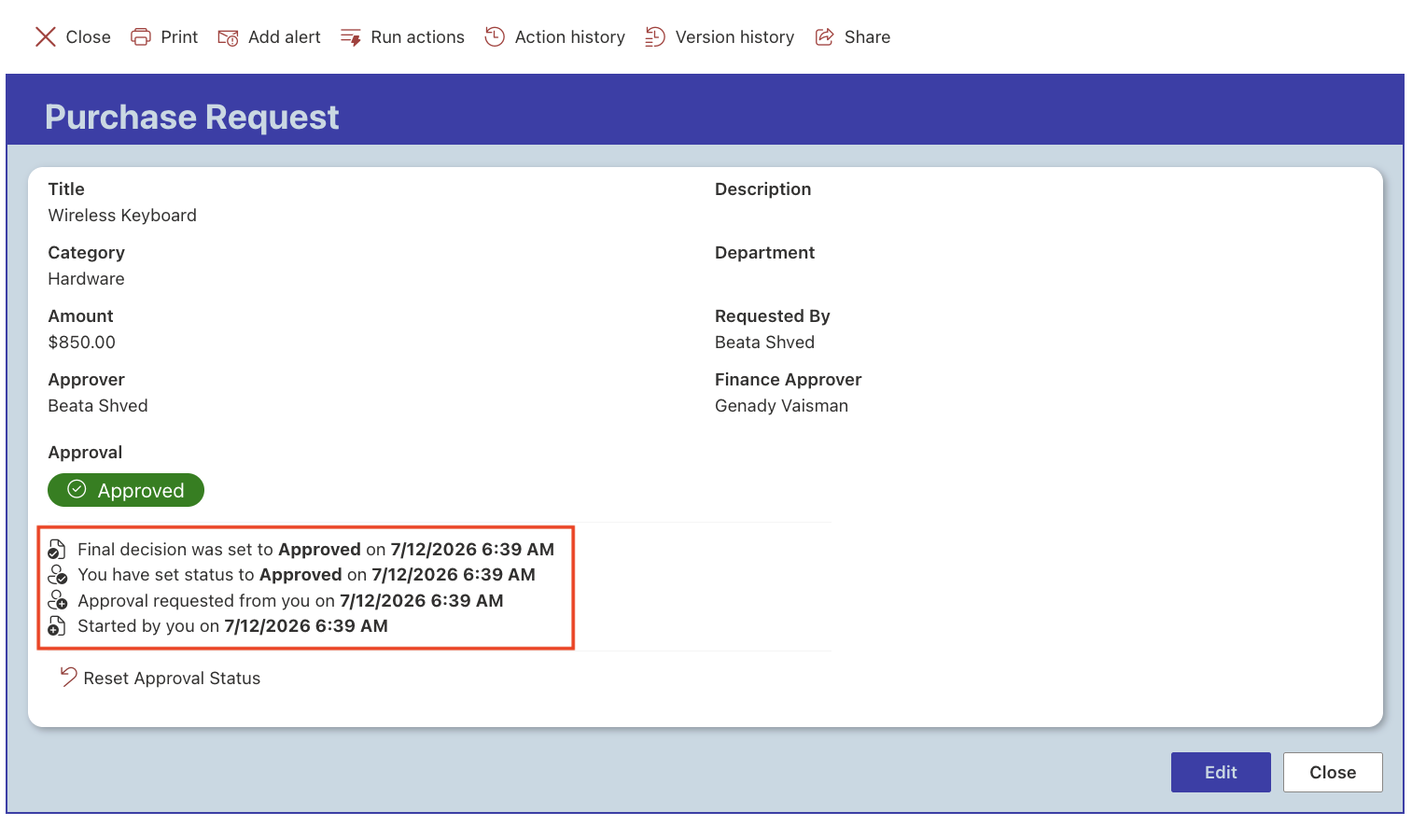
Because the purchase amount does not meet the configured condition, the Finance Approver stage is skipped and the approval workflow is completed.
Step 6: Test a Purchase Request Above the Threshold
- Create another purchase request using the following sample data:
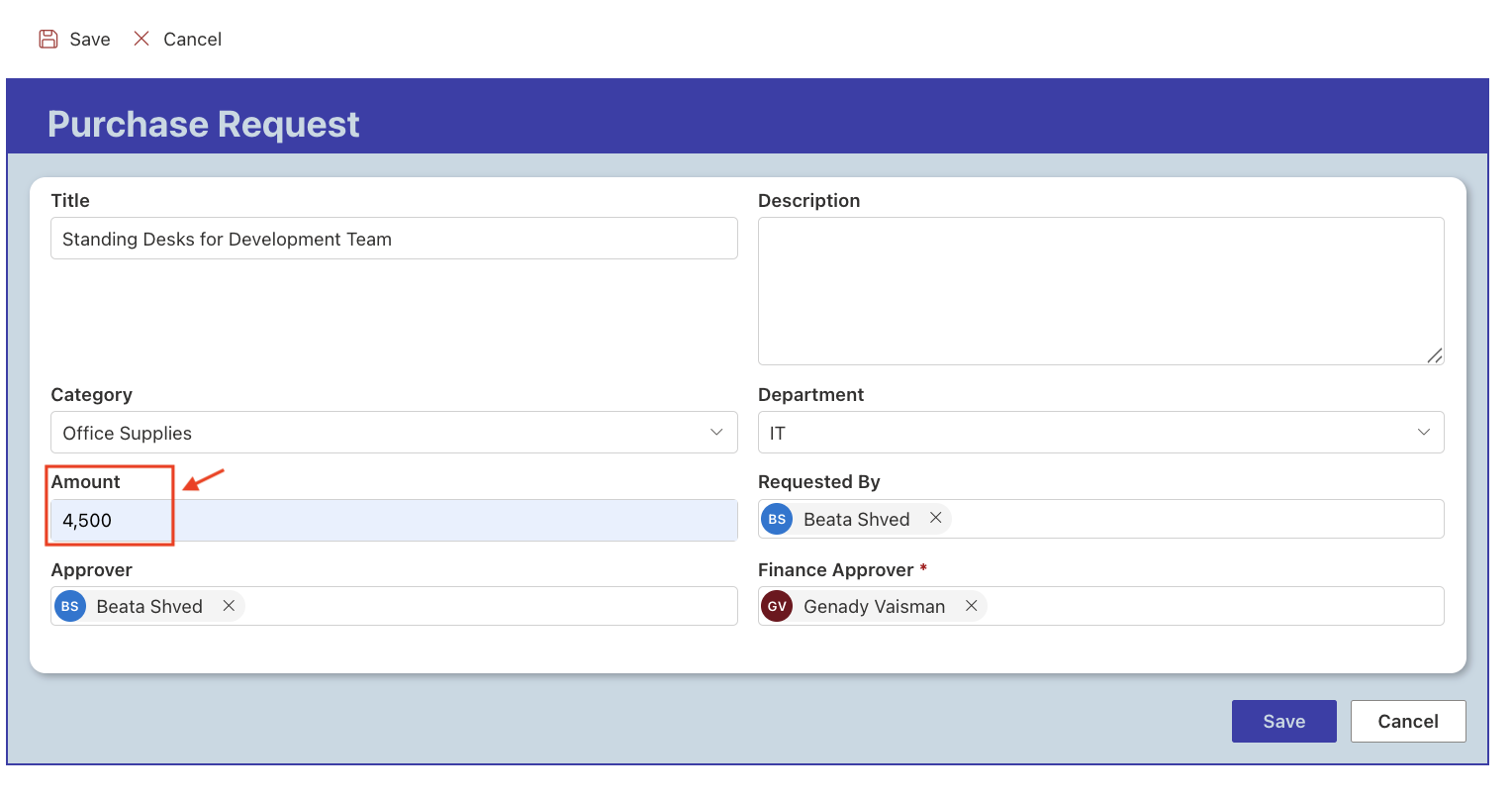
- Submit the request.
- After the first approval stage is completed, the workflow evaluates the configured condition.
- Since the purchase amount is $3,000 or greater, the Finance Approver stage is automatically included in the approval process.
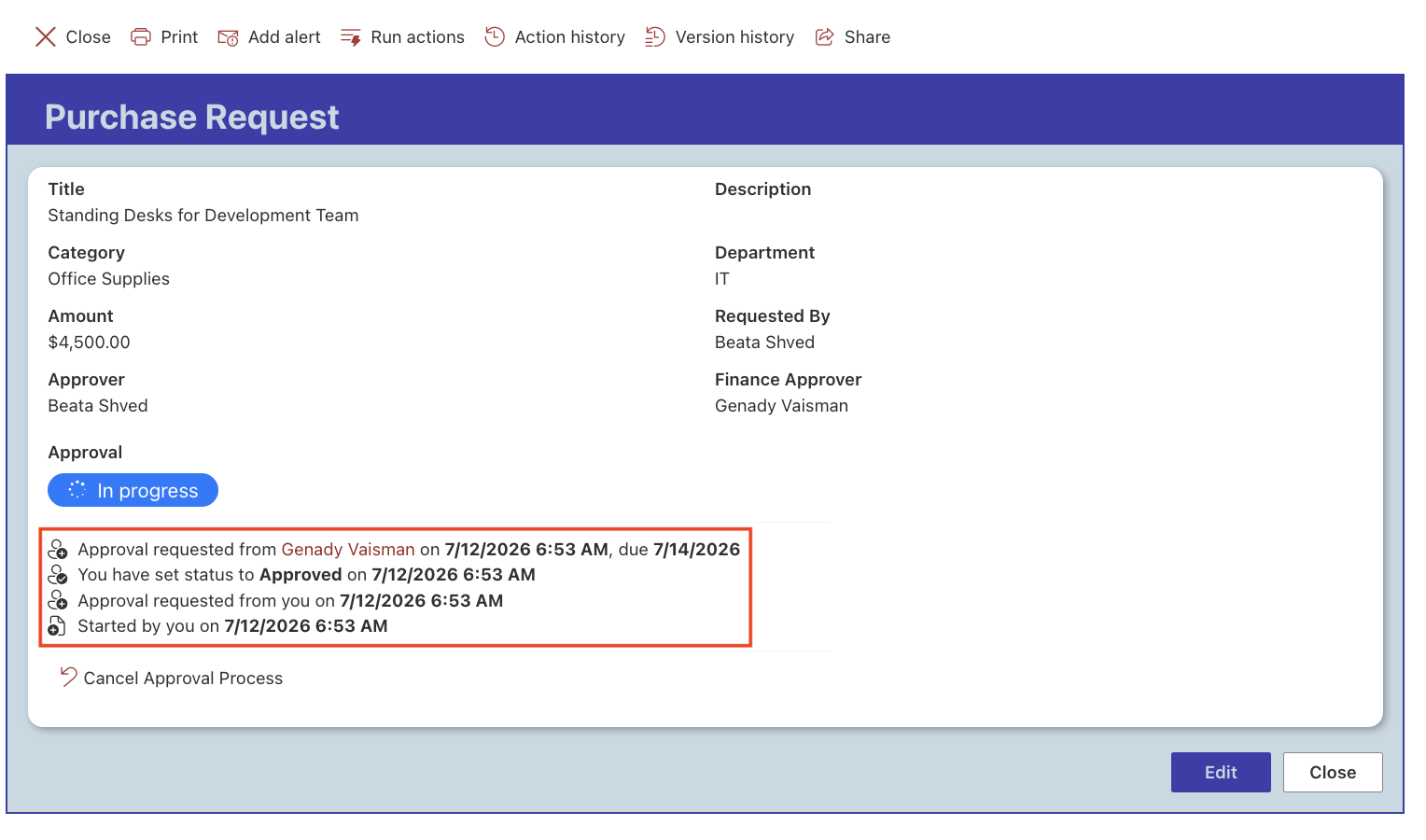
- Complete the second approval stage.
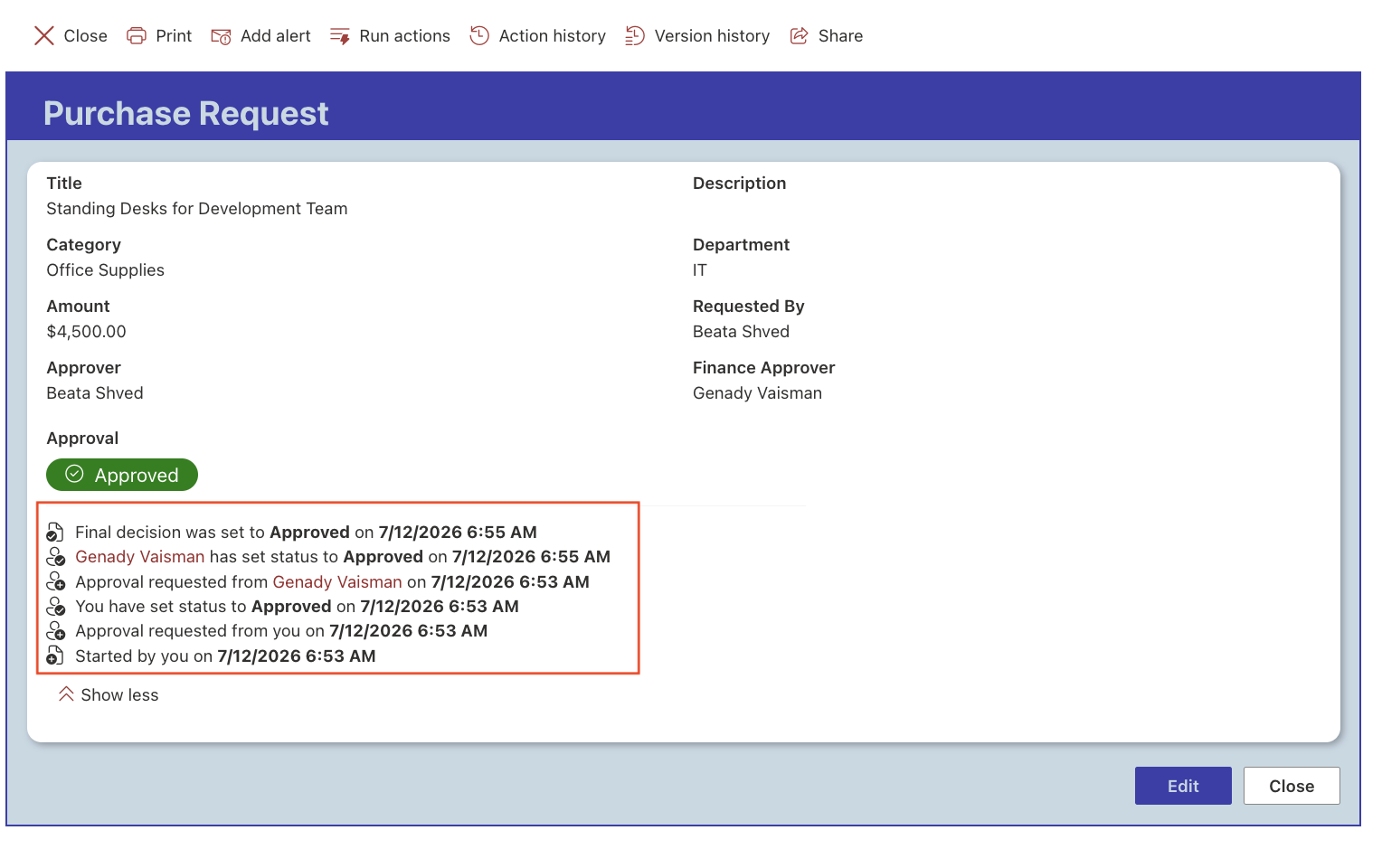
Result
Your approval workflow now automatically evaluates the configured conditions before starting each approval stage. As a result, only the approvers whose conditions are satisfied participate in the approval process.
Summary
In this tutorial, you learned how to configure Conditional Approvers for individual approval stages. By applying conditions to approvers instead of creating separate workflows, you can build flexible approval processes that are easier to configure and maintain.



