Ultimate Forms: Filters allows you to add powerful filtering capabilities to SharePoint pages and dashboards. It enables users to quickly refine data and focus on relevant information without reloading the page.
Filters can be used to control data displayed in connected web parts, allowing multiple components on the page to respond dynamically to user input.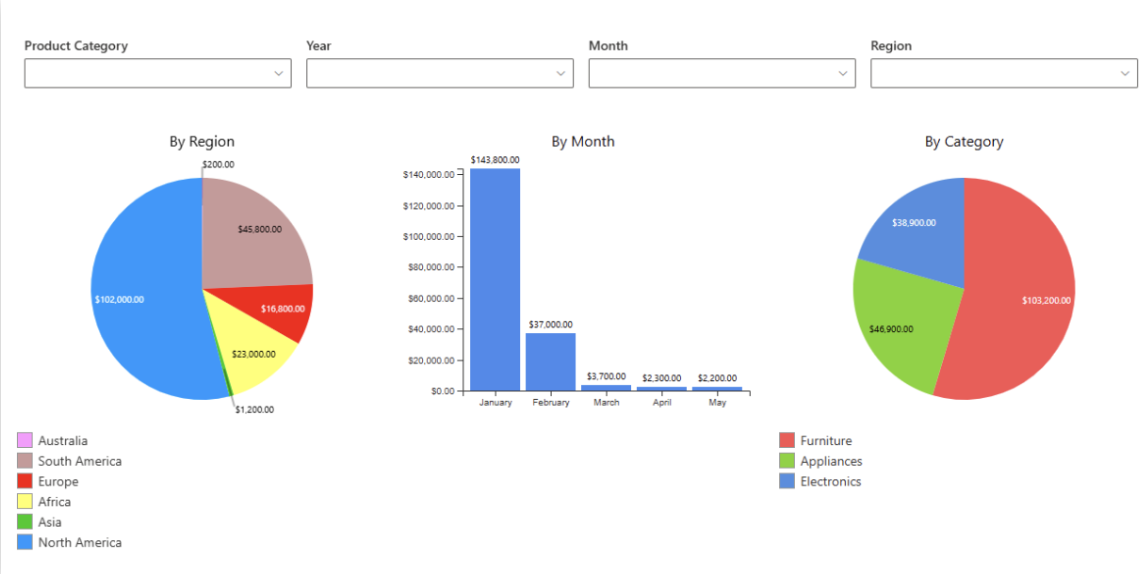
Instructions
What you can do with Filters
Using Ultimate Forms: Filters, you can:
- filter data using multiple conditions
- combine several filters in a single panel
- create interactive dashboards
- dynamically update connected web parts
- control data visibility based on user input
How Filters work
Filters are created in two steps:
- Create a Filter profile
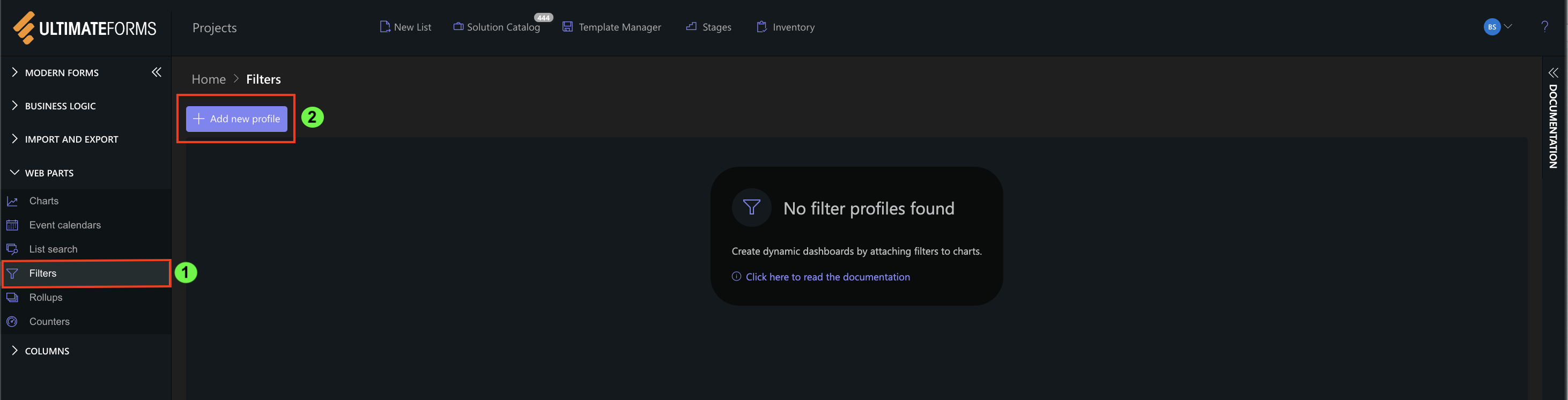
The profile defines:
- filter types and behavior
- which columns are used for filtering
- layout and display settings
- default values and logic
- Add Filters to a page
After the profile is created, you add the Ultimate Forms to a SharePoint page, select the Filter, and then choose the profile to display filters.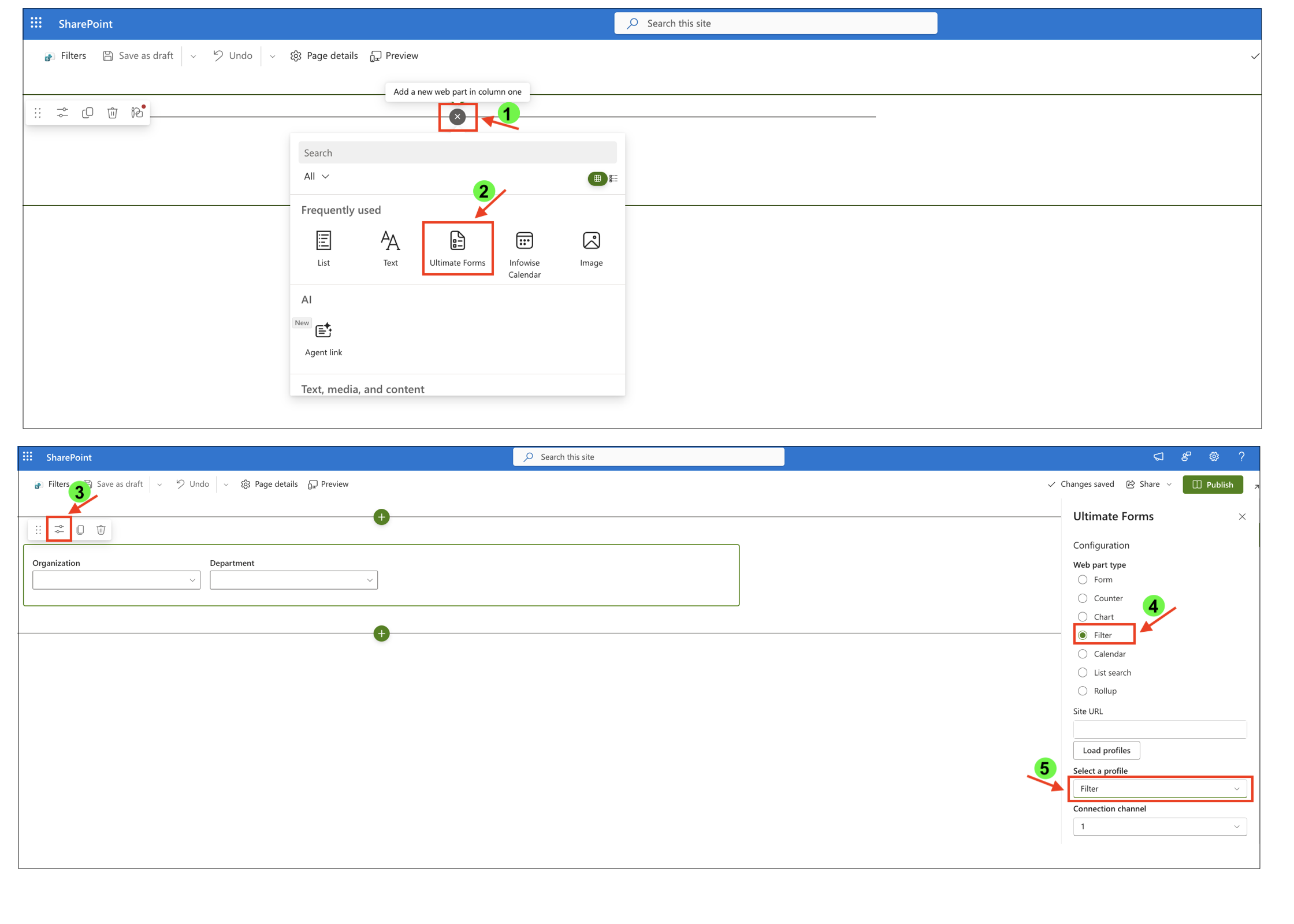
The filters can then be connected to other web parts on the page, allowing them to dynamically respond to user input.
Available filter types
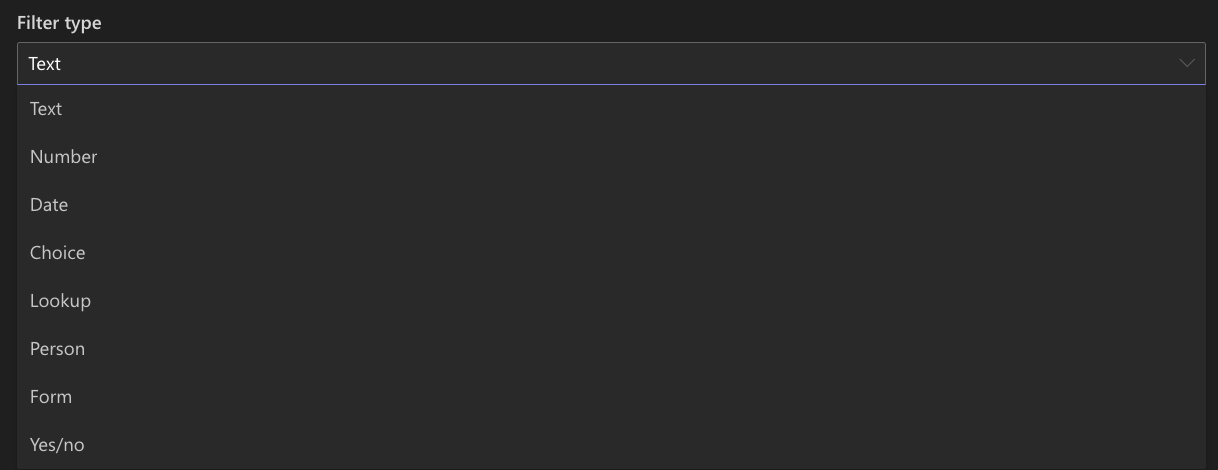
Ultimate Forms: Filters provides several filter types, including:
- Text — free text input
- Number — numeric values and ranges
- Date — date picker
- Choice — single or multiple selection
- Lookup — values from another list (supports cascading filters)
- Person — select users
- Form — values passed via URL or form
- Yes/No — boolean values (true/false)
Key features
- multiple filters in a single web part
- cascading filters
- default values for filters
- horizontal and vertical layouts
- support for building dynamic dashboards
Example use cases
Filters are commonly used in:
- dashboards
- reporting pages
- tracking systems
For example, you can:
- filter sales data by region and date
- display tasks assigned to a specific user
- show only active or high-priority items
- filter charts and rollups dynamically
Watch this quick video walkthrough from Infowise:
Summary
You now understand how Ultimate Forms: Filters works and how to use it to filter and interact with data in SharePoint. In the following tutorials, you will learn how to configure filters and connect them to other components.



