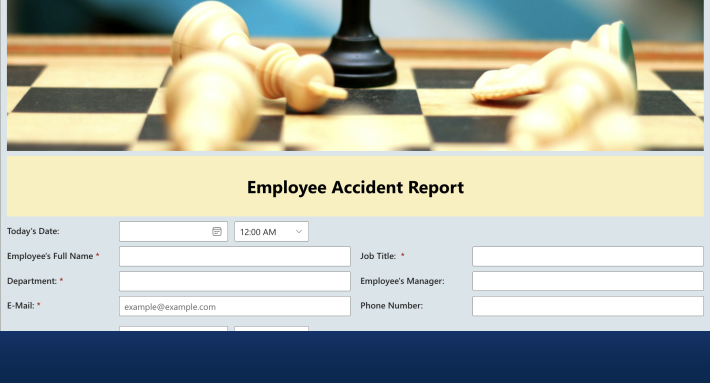
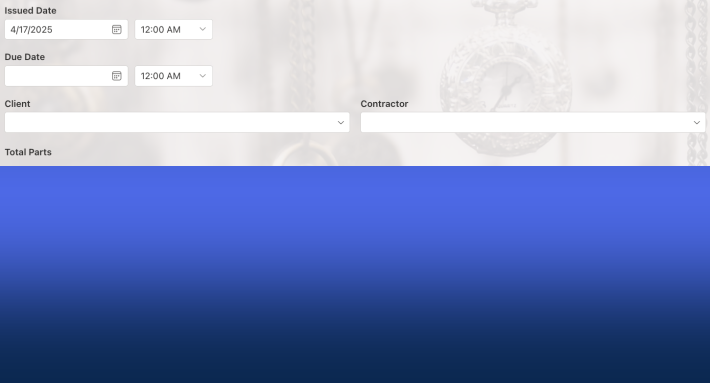
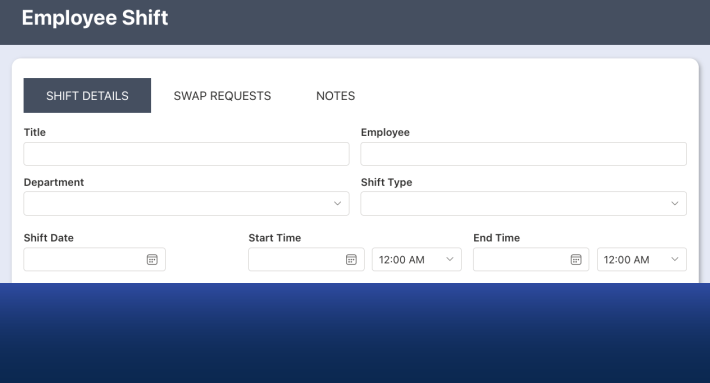
Everything Power Automate is usually asked to do for SharePoint can be done without it: notifications, item updates, approvals, scheduled jobs, document generation, and external integrations all run as configuration inside Ultimate Forms, a third-party platform that lives in SharePoint itself. No flows to design, no premium connectors to license, no run quotas to watch, and no cloud-only limitation, the same automation works on premises. This guide maps each kind of automation to its no-flow implementation, with the detailed build linked for every one, and closes with the honest list of cases where Power Automate still earns its place.
Why teams look for the no-flow path
The search behind this article has three usual motives. The first is skills: flows are flowchart development, and the person who owns the process often cannot build or maintain one, so every automation request joins an IT queue. The second is cost trajectory: premium connectors and per-user plans appear exactly when solutions start mattering, and consumption-style pricing means successful automation bills more each year. The third is estate: Power Automate is cloud-only, and organizations running SharePoint on premises, or hybrid, need automation that works on both sides of the line.
None of these is an argument that Power Automate is bad at being Power Automate. They are arguments that ordinary SharePoint automation, the reminder, the status update, the approval, the Monday report, is paying a general-purpose platform's costs for special-purpose work. The alternative below is special-purpose on purpose: actions, alerts, and process controls configured on the list itself, by the process owner, with the full comparison covered separately and the platform-wide view alongside it.
Notifications without flows
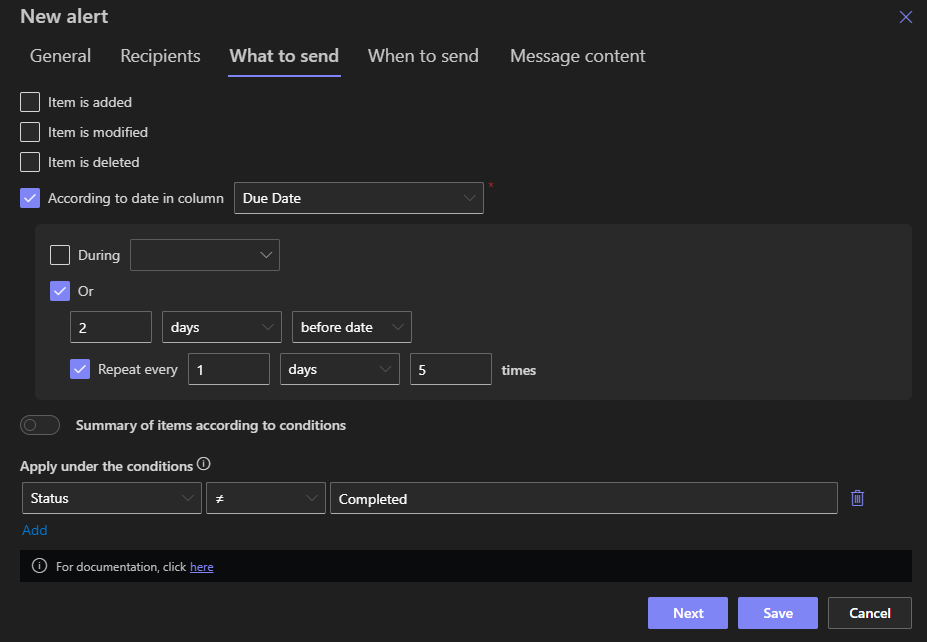
The commonest flow in existence is "when an item changes, send an email," and it is the first thing to stop building as a flow. The alert engine handles notifications as first-class configuration: conditional recipients resolved from columns, custom templates per event, schedules and digests, delivery logging, and buttons inside the email that act on the item, so the approver approves from the inbox. Teams delivery covers the channel crowd, and for the rare notification where seconds matter, a synchronous Send Email action delivers in two to five seconds instead of the queue's half minute.
Updates, creation, and whole chains without flows
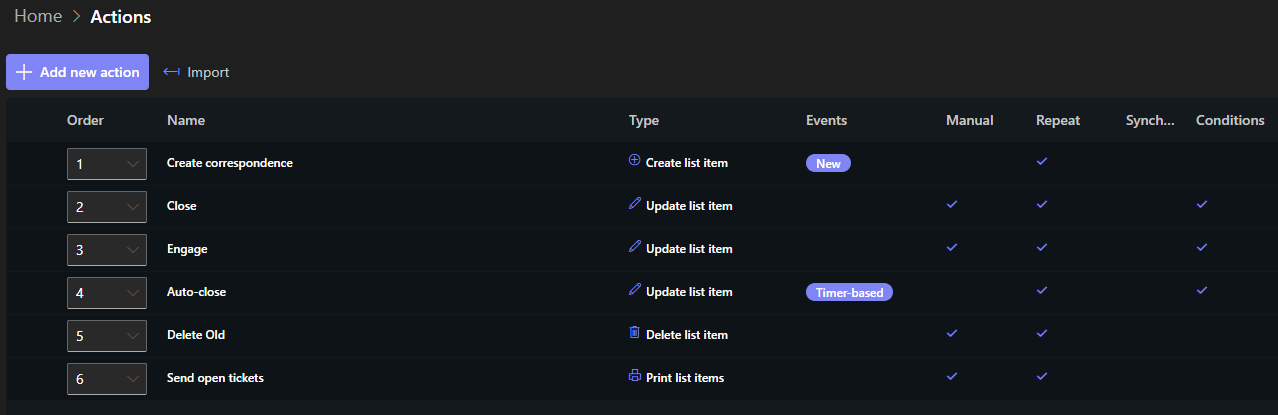
The workhorse automations, set the status, stamp the date, create the related records, provision the project, are actions: independent, configured units running on events, with no flowchart anywhere. One project entry can generate its task plan, create a site, register in a database, and report back, each step one action. Action groups run multi-step operations as one ordered unit with halt-on-failure, loops repeat work across date and number ranges, and after-change conditions fire logic on transitions, Status becoming Approved, without the previous-value gymnastics the same check costs in a flow.
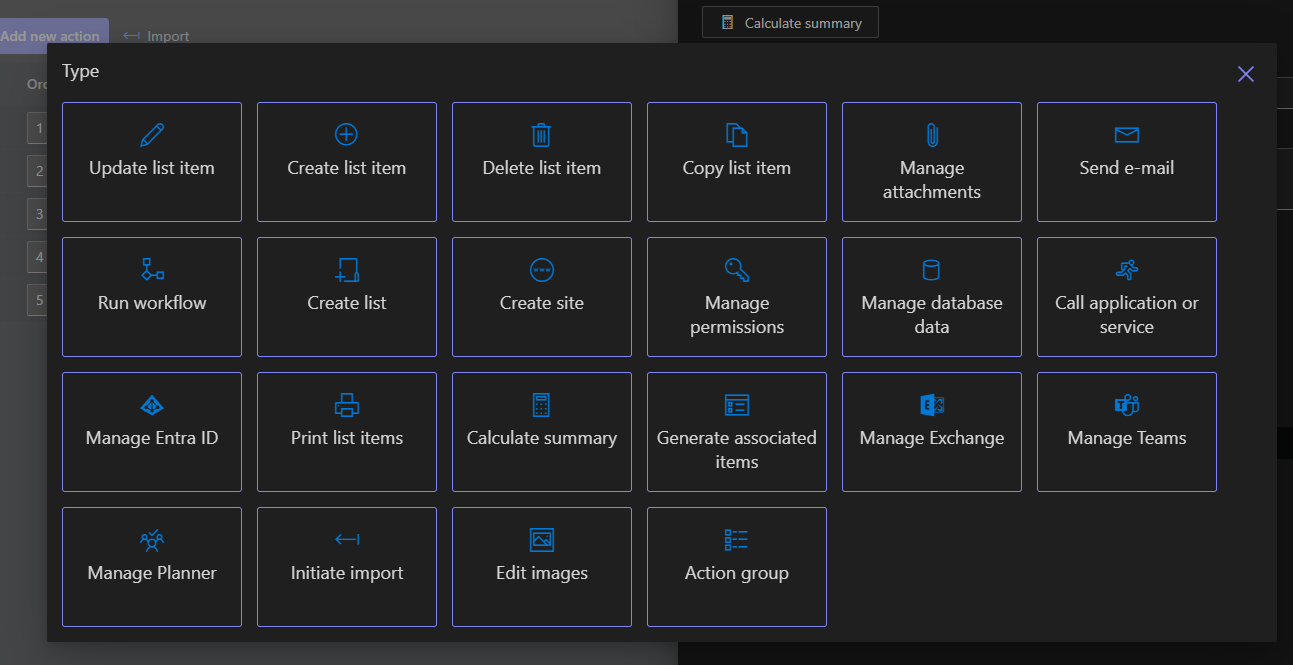
Two abilities here have no flow equivalent at all. Synchronous actions run inside the save and can cancel it, which is how double bookings are blocked before they exist, and manual actions put operations behind command bar buttons, with parameters collecting input and visibility rules deciding who sees each button and when.
Approvals without flows
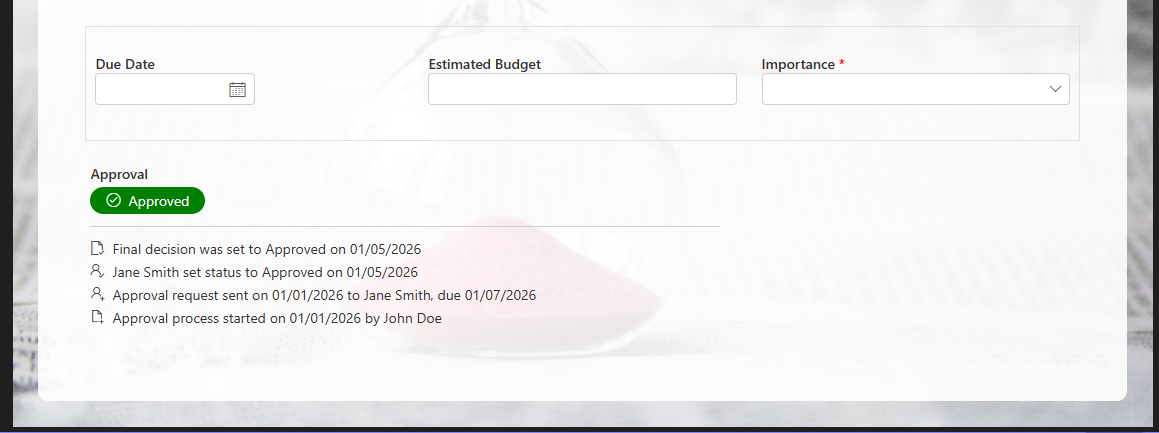
The approval is where flow building costs the most and the alternative saves the most. Instead of a flowchart with approval steps, reminder branches, and escalation timers, the Approval control is a form control carrying the whole machinery: stages, sequential and parallel approvers, decisions with comments, locking, reminders, delegation, escalation, and the decision log, configured, not drawn. The complete approvals guide covers every variant, and for processes whose stages are not approvals, the form itself carries the process, tabs as stages, permission rules as transitions.
Scheduled work and documents without flows
Recurring automation runs on timer triggers: hourly through monthly schedules, or date-column timers like two days before each due date, with the per-item sweep and once-per-list report shapes both supported. The flagship combination is scheduled document generation: print templates rendering list data to branded PDF, Word, or Excel and emailing it, the Monday report that sends itself. Event-driven documents, the invoice PDF generated and mailed when the record is approved, use the same pieces on an item trigger.
Data in and out without flows
Integration flows have in-platform counterparts too. Import brings emails, Excel, and external sources into lists on profiles rather than flows, with the Manage Attachments action splitting multi-attachment emails into proper documents. Outbound, actions call web services and REST APIs, execute stored procedures in databases, manage Entra ID, Teams, and Planner, and external data connections wire lookups and synchronization to the systems around SharePoint, with all connectors included rather than tiered. Even content-level automation is covered, from automatic translation during copying to image processing on upload.
A worked translation: one flow, rebuilt
The shape of a conversion is easiest to see on the classic flow: when a purchase request is modified and its status becomes Approved, notify the requester, create a task for procurement, and generate the order PDF. As a flow, that is a trigger, a condition branch checking the status against its previous value, three action steps with their connections, and an owner who must exist forever. As configuration, it is three independent pieces on the list: an alert on the status change with the requester resolved from Created By, a Create List Item action making the procurement task, and a Print action producing and emailing the PDF, each guarded by the same after-change condition, Status after change equals Approved. Three named units, each testable alone, each visible in the list's own design surface, no diagram relating them because no diagram is needed: the shared condition is the relationship. The rebuild takes well under an hour, and the pattern repeats for nearly every list-centric flow in an estate.
What the no-flow path costs and saves
The structural differences compress to three. Who builds: configuration in dropdowns versus flowchart development, which decides whether automation belongs to process owners or to a queue. What it costs over time: platform licensing with everything included versus connectors, plans, and run volumes that scale with success. Where it runs: the same product online and on premises versus cloud-only. Reliability tooling comes with the territory rather than as a build task: every action run lands in Action History, every alert in the delivery log, so "did it happen" is always a lookup.
And the honest list: Power Automate remains the right tool when the center of gravity is outside SharePoint, orchestration across many non-Microsoft systems through its connector catalog, when the deliverable is a standalone app's backend, and in organizations whose Power Platform investment makes consistency worth its price. The two coexist without friction, an action can even trigger a flow for the rare cross-system step, so the realistic end state is not zero flows; it is flows reserved for the work that genuinely needs them, while the daily automation of lists, forms, and processes runs as configuration where the lists live.
The migration path mirrors that logic. Change the default first: new automation gets built as actions and alerts. Rebuild existing flows opportunistically, whenever a change request would cost more in the flow designer than the rebuild costs in configuration, which, for list-centric flows, is most of the time. The notification flows convert in minutes, the approval flows convert to the control, and the scheduled reports convert to timer-and-print, and each conversion retires a flow that no longer needs an owner, a connection, or a quota.
Frequently asked questions
Add your comment