Every alert in Ultimate Forms leaves a record. The Detailed Log captures the whole lifecycle of each notification, the trigger, the condition checks, the message generation, the delivery attempt, and any error, so "did the system notify them" is a lookup rather than an investigation. Classic SharePoint alerts never offered this, and it is the difference between notifications you hope about and notifications you can prove. This guide covers what the log records, how to read it, and the troubleshooting and compliance work it replaces. For the alerting engine it watches over, see the complete guide to replacing SharePoint alerts.
The blind spot alerts always had
Alerts are taken for granted until they fail, and they fail silently: the approval email that never arrived, the reminder that skipped a week, the critical update that reached the wrong person. Classic SharePoint alerts gave administrators nothing to look at, no record of when an alert triggered, who received it, or why it did not fire, so every "it didn't send" ticket began a manual reconstruction: re-create the conditions, test the flow, watch the mail queue, guess.
At the scale real organizations run, hundreds of alerts daily across site collections, that blindness has three costs. IT burns hours per incident on archaeology. Users lose confidence in the notifications, which is fatal to the notifications. And audit requirements that demand verifiable communication records simply cannot be met. The Detailed Log removes the blindness at the source: nothing in the notification lifecycle happens off the record.
What the log actually records
Each alert instance produces a narrative, not a status flag. The stages captured:
- The trigger: the exact item and event or date condition that initiated the alert.
- Preparation: how the rule was evaluated, column values substituted, and recipients resolved.
- Condition checks: each condition's outcome, true or false, so a skipped alert shows precisely which filter stopped it.
- Message generation: when and how the email or Teams message was built from its template.
- The delivery attempt: the moment of sending, and its outcome.
- Errors and exceptions: throttling, permission failures, missing recipients, template problems, named rather than implied.
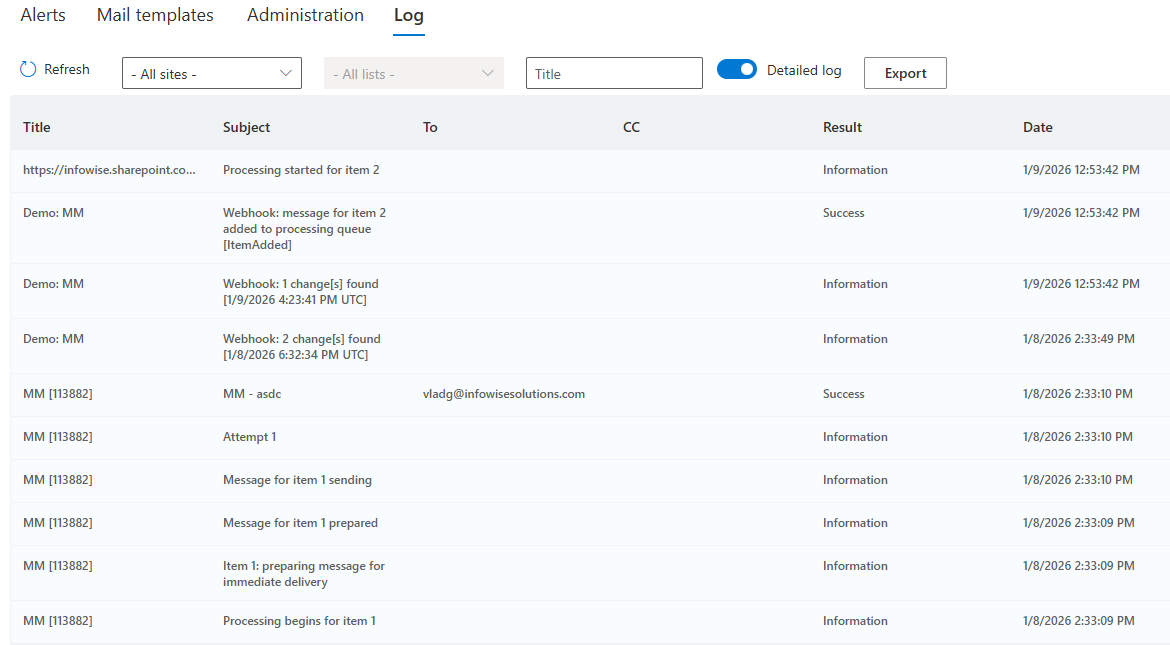
The questions that used to take an afternoon now take the time to read one entry: why did this user not get the email, did the condition evaluate the way we think, did throttling delay the batch, did the right message go at the right time.
Two views, two audiences
The log serves different readers at different altitudes, so it offers two views with a toggle.
Concise view shows the facts per entry: alert name, item, recipients, timestamp, delivery status. This is the daily-monitoring view, and the one business users and process owners live in, a scan down the status column answers "is everything flowing."
Detailed view expands each entry into its stages: the logic path, condition outcomes, preparation details. This is the troubleshooting and audit view, where one entry explains itself completely.
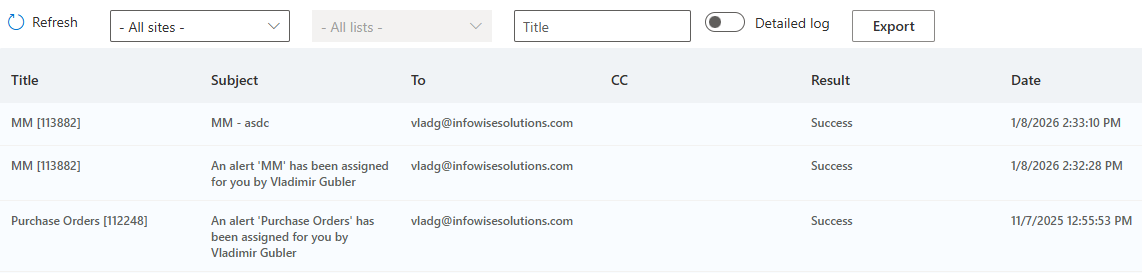
The toggle matters more than it looks: it means the same log serves the administrator diagnosing a miss and the manager confirming the week ran clean, without either needing the other's lens.
The reasons alerts don't send, and how the log names them
Nearly every "missing alert" resolves to one of five causes, and the log states which:
- Condition not met: the rule logic held the alert back, and the entry shows which condition evaluated false, usually revealing a data issue (the status nobody updated) rather than an alert issue.
- Recipient problem: the address was missing, the column empty, or the user restricted, including the built-in security check that withholds alerts from users without read access to the item.
- Throttling: Microsoft 365 was being throttled during alert handling. If the throttling is short-lived, subsequent attempts will succeed.
Each maps to a different fix owned by a different person, which is the log's quiet efficiency: the ticket arrives pre-triaged. The data issue goes to the process owner, the throttling note to patience or scheduling, the template error to whoever designed the template.
Three scenarios where the log earns its place
The conditional approval that "didn't arrive." Managers receive alerts only for items marked Ready for Review. When one reports a missing email, the log shows in seconds whether the alert fired at all, and if not, that the condition failed because the item never reached the status, accountability restored to the right link in the chain, which in approval processes is exactly where disputes live.
The digest that "skipped a week." For scheduled summaries, the log records each run: when it started, how many items matched, who received the result. The usual finding is that the run executed and matched zero items, which is an answer, not a failure, and the log is what distinguishes the two.
The audit. For environments under ISO, HIPAA, or public-sector frameworks, the log is the verifiable record that required notifications happened: filterable by site and list, sortable, exportable for compliance documentation. Paired with date-driven reminders on regulatory deadlines, it closes the loop regulators actually check: not "was a reminder configured" but "was it sent, when, to whom."
Retention, performance, and the operational picture
The log manages its own size: older entries are cleared automatically to protect performance, while recent activity stays fully detailed, a balance that keeps the log fast on tenants generating heavy volume while preserving the history that troubleshooting and periodic audits need. Export what compliance must keep long-term before it ages out.
Operationally, the log is one half of delivery confidence; the other is the sending infrastructure itself, covered in ensuring seamless alert delivery, with the email delivery changes every tenant admin should have read. Log, delivery, and a disciplined alert portfolio are the three legs of a notification system that stays trusted.
A weekly habit worth adopting
The log rewards one small routine: a five-minute weekly scan in concise view, filtered to the busiest lists. You are looking for two patterns. Alerts that fire constantly, candidates for tighter conditions or a digest, because volume in the log predicts fatigue in the inbox. And alerts that never fire at all, which are either obsolete, delete them, or silently broken, which the detailed view will explain. The log is usually read reactively, after a complaint; read proactively, it is the cheapest health check a notification system has, and it catches the drift before any user notices it.
Visibility is what makes automation adult
A notification system without a log is a promise; with one, it is a record. That distinction decides how much weight a process can put on its alerts: the approval chain that escalates on silence, the compliance deadline that reminds on schedule, the SLA that warns before breach, all of them assume the notifications fire, and the log is what converts the assumption into evidence. Instead of wondering what happened, you read what happened, when, and why, and that is the foundation the rest of the notification toolkit stands on.
Frequently asked questions
Add your comment