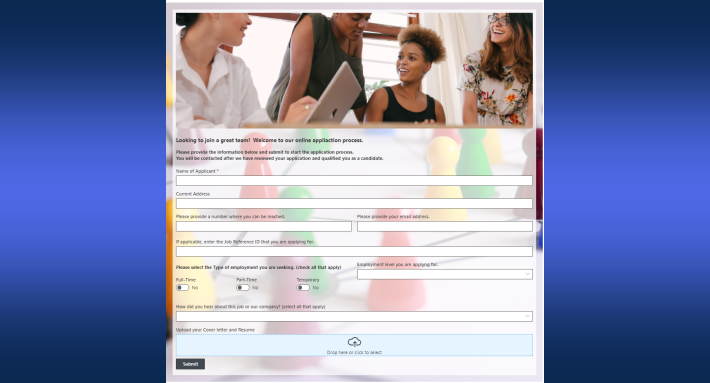
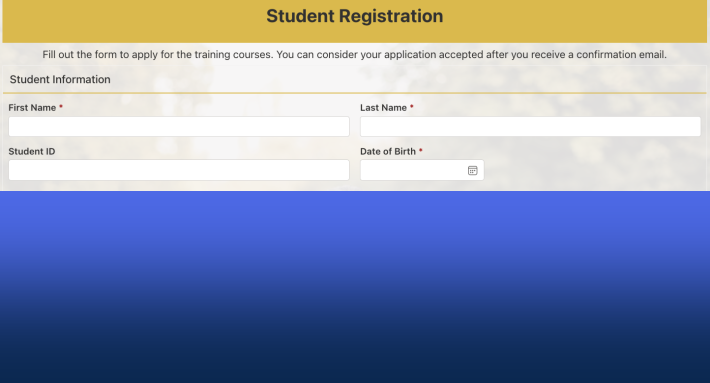
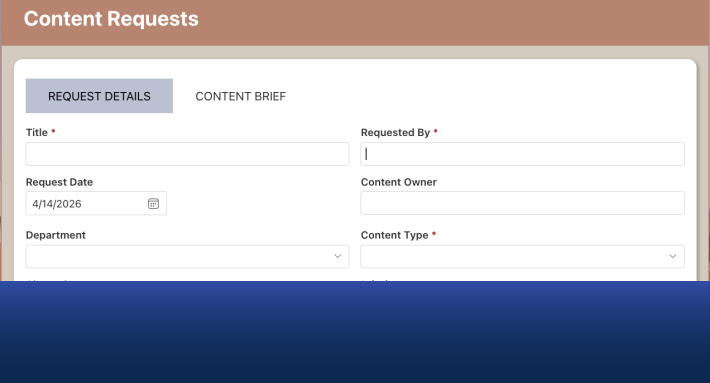
You can fully design the emails your SharePoint alerts send. Ultimate Forms Alerts lets you define the email format in two ways: directly inside the alert itself, with no separate template to manage, or as reusable templates that administrators share across the organization for consistent branding. Either way, you control the layout, styling, and content, and you insert live column values from the item so every message carries the details the recipient actually needs. No code, no HTML editing required.
The difference between an alert that gets acted on and one that gets deleted is almost never the trigger. It's the email.
Why the email design matters more than the alert
Native SharePoint notifications all look the same: a generic system message with a link, indistinguishable from the dozens of others in the inbox. When every notification looks identical, recipients stop reading them, and the process the alert was supposed to accelerate quietly stalls. We wrote about this problem at length in Nobody's Reading Your Stupid Automated Emails, and the conclusion holds here: a notification is a piece of communication, and communication has to earn attention.
A well-designed alert email does three things a generic one cannot. It identifies itself instantly, through your branding and a subject line built from real item data. It delivers the relevant details in the body, so the recipient doesn't have to click through to know what happened. And it looks like it was written for the recipient, not generated at them. Alerts in Ultimate Forms are built around this idea, which is why many of our customers use them not just internally but for communicating with partners and customers as well. It's something we do extensively at Infowise ourselves.
Two ways to define the email format
Ultimate Forms gives you two approaches to email design, selected with a switch on the Mail Templates tab of the alert.
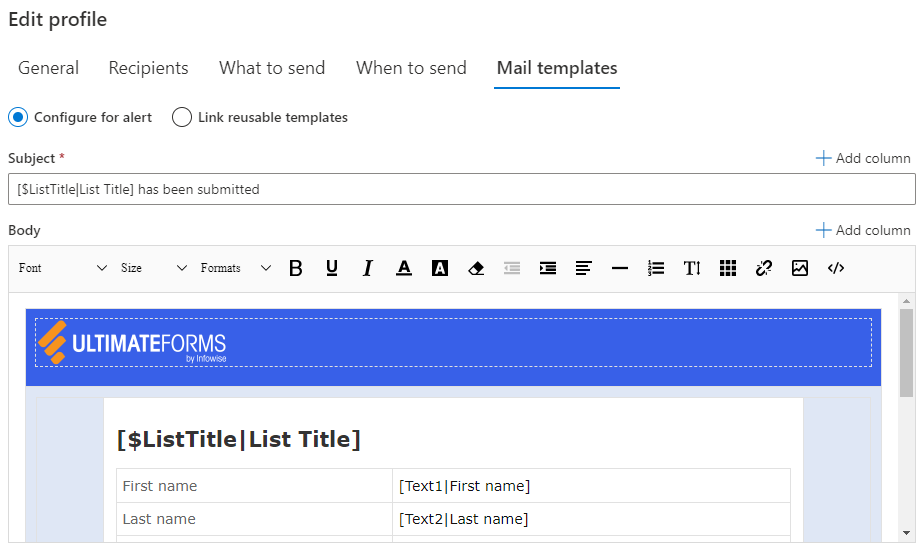
Configure for alert: the format lives inside the alert
The default option defines the email format directly within the alert itself. No separate template is created, nothing needs to be linked, and the whole configuration happens in one place with fewer steps. This is the right choice for the common case: a single alert that needs its own look, built quickly, without leaving behind template clutter.
One thing to know: a built-in format is a single format. If you want item creation and item modification to send differently designed messages, either use reusable templates or simply create two alerts, one per event.
Link reusable templates: design once, use everywhere
The second option connects the alert to predefined templates, created by you or by an administrator. Reusable templates shine when you have many similar alerts across multiple lists and sites, or when branding consistency matters. Design the corporate notification look once, share it, and every alert that links to it sends on-brand email forever. Change the template, and every linked alert updates with it.
Reusable templates also unlock a refinement built-in formats don't offer: multiple templates on the same alert, chosen by event. New items can announce themselves with one design while modifications report changes with another, all from a single alert configuration.
Both approaches support exactly the same design features. The only difference is reuse and sharing.
What goes into a good alert template
The design surface is the same whichever mode you choose, and it goes well beyond static text.
Dynamic column values. Insert any column from the item directly into the subject or body, so the email reads "Purchase request #1174 from Dana Cohen is awaiting your approval, amount $4,820" instead of "An item was modified." The subject line alone, built from real data, is often what separates an opened email from an ignored one.
Your branding and layout. Logos, colors, structured sections, and formatted text turn a system notification into something that looks like it came from your organization. For external recipients, partners and customers, this is not cosmetic; it is the difference between a message that looks legitimate and one that looks like noise.
Action buttons. Templates can include buttons that let recipients act straight from the inbox, approving, updating, or triggering the next step without opening SharePoint at all. We covered the pattern in detail in Adding Action Buttons in SharePoint Alerts.
The right send conditions. Design determines whether the email gets read; conditions determine whether it should have been sent at all. Alerts fire on creation, modification, deletion, or on a schedule relative to any date column, with conditions on any column value, so the beautifully designed email also arrives only when it's relevant. For date-driven scenarios, see Timer-Based Alerts in SharePoint.
Choosing between built-in and reusable
The practical rule is simple. If the alert needs its own look and stands alone, define the format inside the alert; it's the default for a reason and takes a fraction of the time. If you have a family of similar alerts, or an organization that cares about consistent notification branding (and most should), have an administrator create a shared set of reusable templates once. Every solution builder after that inherits professional email design for free, and nobody reinvents the wheel on their fourth help desk alert.
Existing alerts never need to be touched when your approach evolves; alerts configured either way keep working exactly as they are.
Where designed alerts earn their keep
Approval notifications where the approver decides from the subject line, as in the Purchase Requests solution. Help desk updates that quote the ticket details instead of linking to them, like the Help Desk template. Customer-facing status updates that carry your brand. Contract and deadline reminders where the date, the owner, and the required action sit in the first line. Digest summaries that consolidate a day of changes into one readable message instead of forty identical pings.
Frequently asked questions
Add your comment