A SharePoint list item becomes a PDF three different ways in Ultimate Forms, and choosing the right one is most of the work. A print template renders the item through a designed layout, the branded invoice, the formal report, on a click from the view or form. A template-free form print captures the form exactly as it appears on screen, conditional sections and all, with nothing to design. And a print action generates the PDF automatically, on approval, on schedule, at any volume, and delivers it by email or into a library. All three are configuration, not code, and this guide walks each path, when it wins, and how they combine. For the full output system around them, see the complete document generation guide.
Why the PDF is usually the point
Lists are where data lives; PDF is how it faces the world. The format's virtues are exactly the ones processes need at their edges: it opens identically everywhere, it is fixed rather than editable, it carries branding and layout faithfully, and regulated contexts frequently require precisely that non-editability. The expense claim becomes the reimbursement record, the service visit becomes the client report, the completed intake becomes the compliance file, and in each case the transformation from item to document is the step that used to be manual: someone copying values into a layout, formatting, exporting, filing. Each of the three ways below deletes that step for a different kind of document.
Way one: the designed template
The template path produces the documents that represent you. Build the layout once, the fastest route is a Word document with column tokens like [[Title]] and [[Amount]], with table layouts carrying the precision, logos, headers, and your formatting throughout, and every item renders through it identically forever. Simple and advanced template modes exist alongside the Word path for lighter and stricter cases respectively.
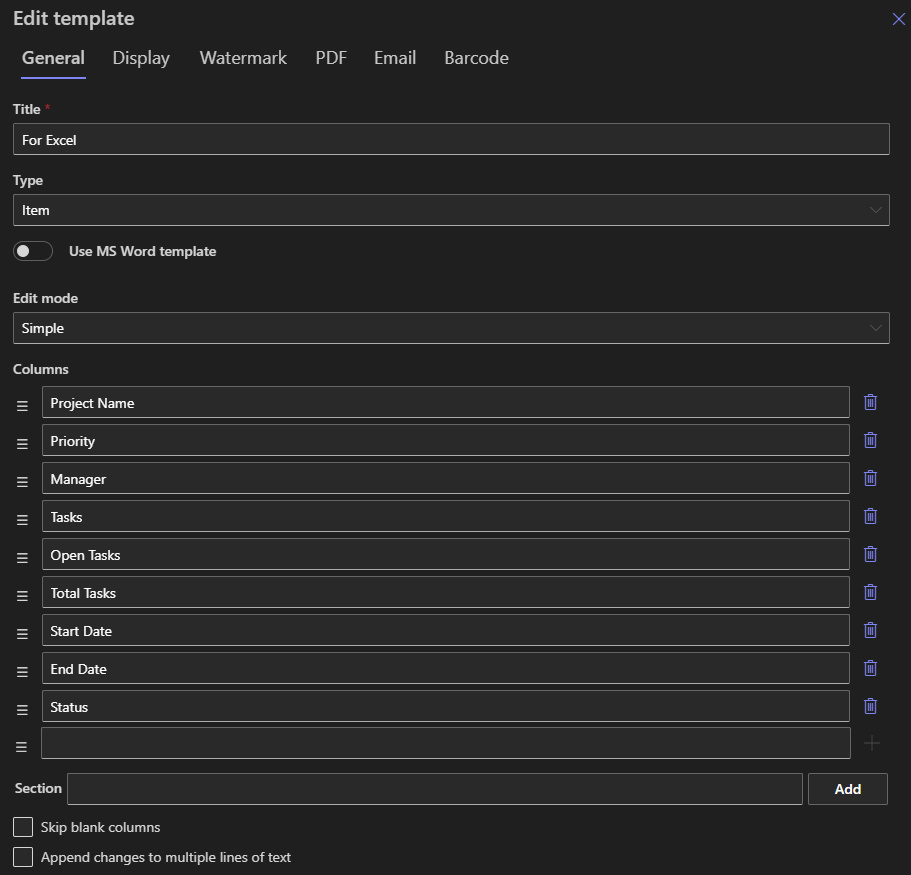
Users generate from the Print button on views and forms: pick the template if the list has several (with template conditions offering each item only the layouts that fit it), choose PDF, and the document is ready to download, print, or email. Related records come along, parent and children consolidated into one file, attachments embedded or delivered alongside, and where authenticity matters, a certificate on the template digitally signs every export.
Choose this way for quotes, invoices, certificates, contracts, and reports: any document whose appearance is part of its job, produced repeatedly from the same layout.
Way two: the form itself, no template
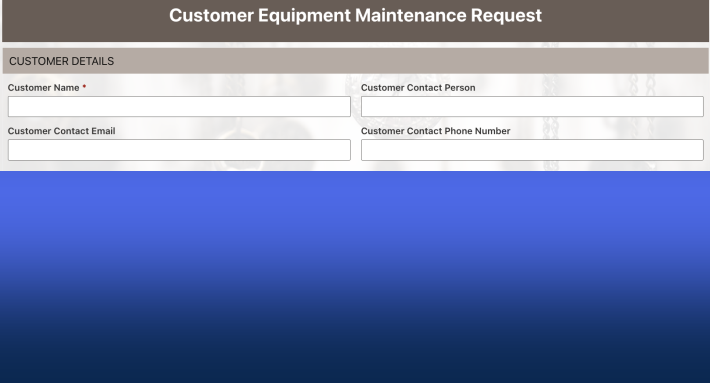
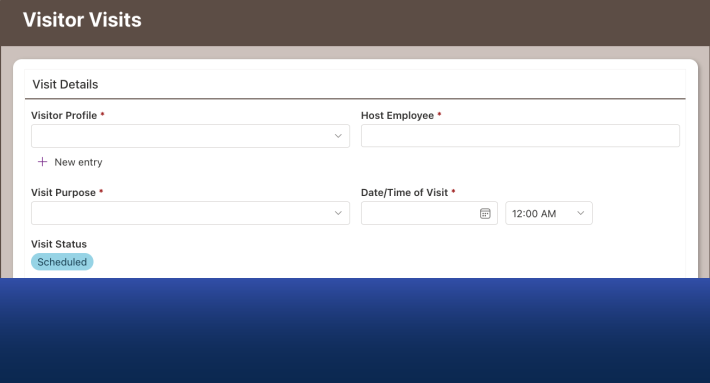
The second path skips design entirely: print the display form as it appears, with a navigation button, brief on-form instructions, and one reusable CSS rule hiding the interface chrome from the output. The user prints to PDF from the browser, and what they see is what the file holds.
The decisive advantage is conditional logic. A well-built form shows and hides sections by rules, and the display form has already applied every rule by the time it renders, so the printout genuinely lacks the sections that did not apply, something a template can only imitate by multiplying variants. The trade-offs are equally clear: tabs do not print (everything must be visible at once), the user participates in the print step, and nothing about it automates.
Choose this way for highly customized forms where rebuilding the layout in a template means double maintenance, and for the "I need this form as a PDF today" cases where a five-minute setup beats a perfect template that never ships.
Way three: the automatic PDF
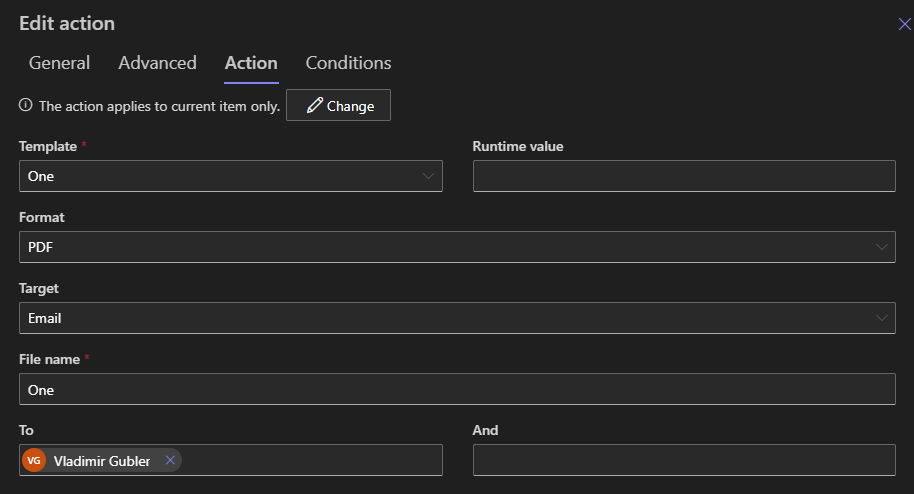
The third path removes the person. A Print List Items action renders the template and delivers the PDF on whatever trigger the process defines: the status reaching Approved, with an after-change condition firing it exactly once; a schedule, for the recurring report; or a manual command-bar run for on-demand batches. Delivery is part of the action: email the PDF to recipients resolved from the item's own columns, file it into a document library under a tokenized name, attach it to the item, or several of these at once, and every run is recorded in Action History.
This is the way for documents that are process steps rather than requests: the invoice that must exist the moment the record is approved, the confirmation that follows every submission, the monthly statement run across hundreds of items. Automation also compounds the other ways' strengths, the same designed template serves the clerk's button and the midnight batch, signed and branded identically, which is the arrangement where document generation stops being anyone's task.
Choosing, in one pass
The decision tree is short. Does the document represent the organization externally, or recur from a stable layout? Template. Is the form itself the document, conditional sections and custom layout included, and is a person present to print it? Template-free. Should the PDF exist without anyone asking? Action, over a template. And the combinations are normal rather than exceptional: a list commonly carries a designed template behind both a button and an action, with the template-free path serving the one intricate form beside them. The five scenarios that cover most organizations map directly: HR onboarding files the standardized packet per hire (template plus action), expense reimbursement generates the approved claim's record with its line items (template, consolidated, on approval), service reports leave the technician's completed form as the branded client PDF (template via button, or the form print where the form is the report), compliance declarations become fixed files the moment they finalize (action, with the digital signature where required), and sales quotes go from list to client-ready PDF in the time the conversation takes (template via button, emailed from the preview).
The first PDF to build
The adoption path is concrete: find the document your team currently produces by copy-paste, there is always one, and ask which way it belongs to. If it is assembled into a layout, build the template, and the first afternoon pays for itself by Friday. If it is literally the form being screenshotted, the template-free setup takes minutes and retires the screenshots today. If it is produced after an event that the system already knows about, an approval, a completion, skip the button entirely and wire the action, because a document generated on the trigger was never really a printing task at all, only a process step wearing one. The second document goes faster than the first on every path, and by the third, the question has quietly changed from "can we make a PDF of this?" to "which way should this one use?", which is the question this page exists to answer.
Keeping the PDFs trustworthy
Whichever way produces the file, three habits keep the output worth its fixed format. Let the data arrive finished, validation upstream beats corrections downstream, because a PDF of wrong data is wrong data with better typography. Name generated files from the item's values, the reference number, the date, so libraries of output sort and search themselves. And route documents that assert anything, approvals, compliance, issuance, through the trust machinery: the rendered electronic signatures of the people who decided, and the organization's digital signature sealing the file, so the PDF that leaves is not only formatted but defensible.
The summary is the cluster's refrain with the format attached: data should live in lists and leave as documents, and for most of the world those documents are PDFs, produced the designed way, the faithful way, or the automatic way, and ideally by whichever one nobody has to remember.
Frequently asked questions
Add your comment