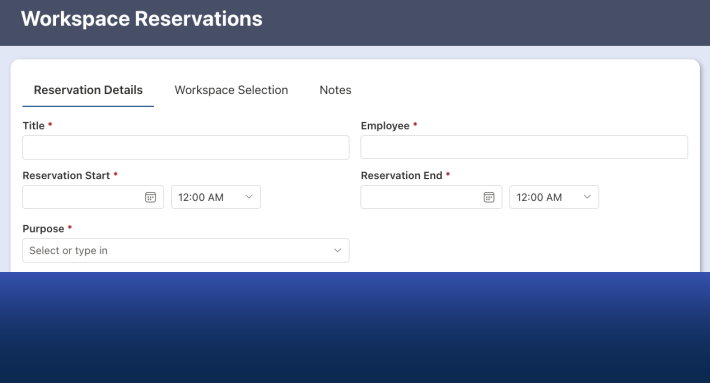
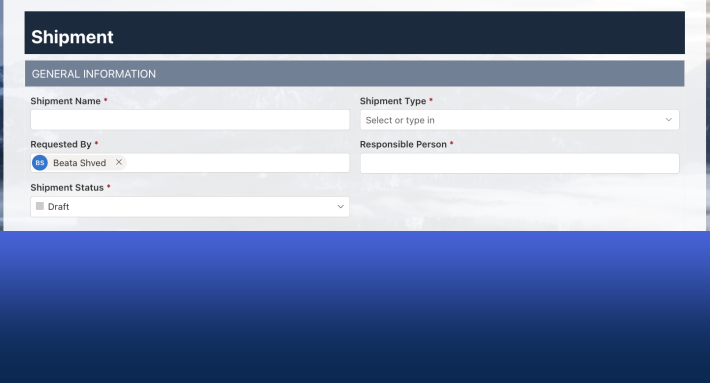
Rules are what make a SharePoint form smart. And in Ultimate Forms Form Designer there are four kinds: permission rules decide who sees and edits what, validation rules decide what data is acceptable, value rules fill columns in automatically, and style rules change how elements look based on the data. All four share the same visual condition builder, so a rule reads like the business sentence it came from: when Status equals Approved, make the tab read-only. No formula language sits between you and the behavior you want, which is exactly the point. This guide walks through each rule type with real examples, and shows where the optional functions fit for the rare cases that need them.
One condition builder, four jobs
Every rule in Form Designer is built the same way. You pick a column, an operator, and a value: Status, equals, Approved. Amount, greater than, 5000. Department, is not empty. Conditions can be combined, compared against other columns rather than fixed values, and tested against the current user or their groups.
That shared grammar is the design decision that makes rules accessible. Learn to express one condition and you have learned all four rule types, because the only thing that changes is what happens when the condition is true: hide something, block something, fill something, or color something. A department admin who configures a validation rule on Monday configures a permission rule on Tuesday without opening a manual.
It is worth pausing on what is absent. There is no expression language to learn before you start, no syntax errors to debug, and no scattering of logic across control properties. The rules live in named lists on dedicated screens, so six months later anyone can open the form and read the process off the configuration like a policy document.
Permission rules: who sees and edits what
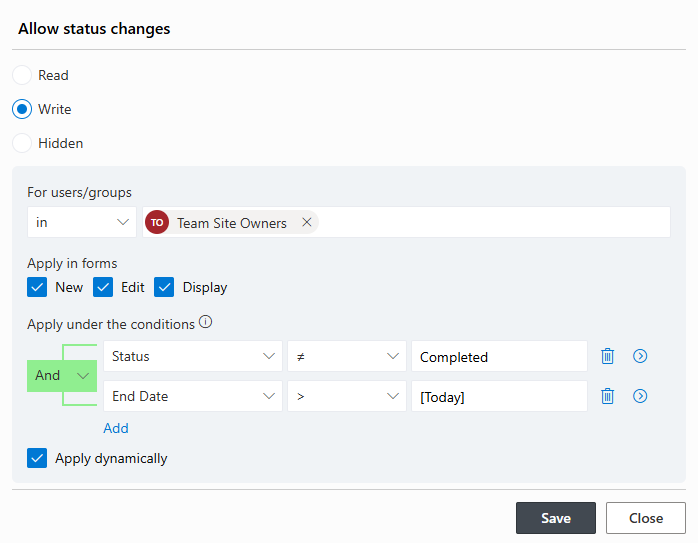
Permission rules control access to tabs, sections, buttons, and individual columns, per form type. A rule grants Write, Read, or Deny, optionally under conditions, optionally to specific users or groups.
The classic pattern is the staged process. On a purchase request, the Finance tab is writable only by the Finance group, and only while Status equals Submitted. Requesters see their own columns but never the internal notes. Once the final approval lands, every tab drops to read-only and the record seals itself. The form behaves differently for every audience and every stage, and the whole arrangement is a handful of rules anyone can read.
Real-world examples are everywhere. HR forms where the salary column exists only for HR eyes. Help desk forms where customers see the request but not the technician's diagnosis. Review forms where the reviewer's scoring section stays hidden until the submission is complete. In each case the alternative (separate lists, duplicated forms, or item-level permission sprawl) is more work and less clear.
Validation rules: what data is acceptable
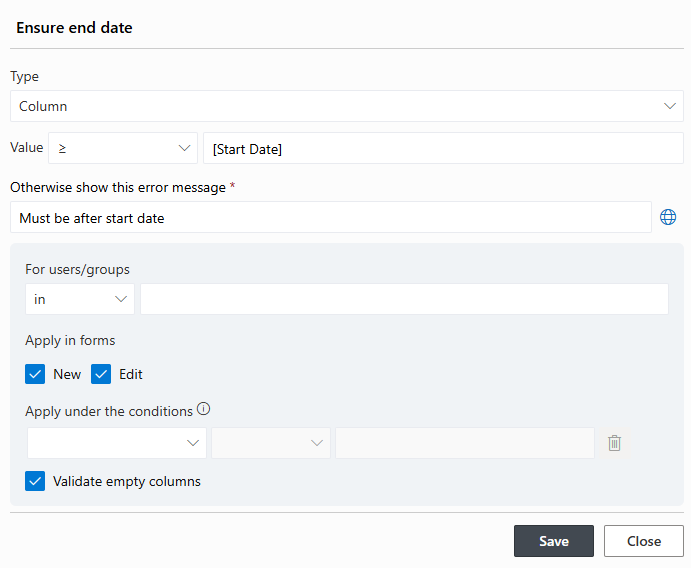
Validation rules stop bad data while the user can still fix it. A rule combines conditions with an error message you write, and the form refuses to save while the condition fails.
Because conditions can compare columns to each other, validation speaks real business logic. The end date cannot precede the start date. A rejection requires a comment: if Decision equals Rejected, then Comments cannot be empty. An expense above the threshold demands a receipt attachment. A discount over 20 percent requires a manager in the Approver column. None of these are exotic, yet every one of them is a coding task in most form tools. Here each is one rule, written in the vocabulary of the process.
The error message matters as much as the check, and it is fully yours: "Please add a comment explaining the rejection" teaches the user what the process expects, at the exact moment they care. Messages can be localized, so a multilingual form corrects its users politely in their own language. And validation runs as the data changes, which is the only cheap moment to catch an error; the same mistake found downstream costs a phone call, or an audit finding.
Value rules: columns that fill themselves
Value rules populate columns automatically: defaults when the form opens, and dynamic values that respond to what the user enters.
The simplest version saves the most keystrokes. The request date defaults to today. The requester defaults to the current user. Number of days is calculated based on Start and End dates. Nobody types what the system already knows, and the data arrives consistent instead of creatively formatted.
The conditional version carries real routing logic. When City equals Pittsburgh, the Site Approver defaults to the Pittsburgh approver. When Category changes to Urgent, the Due Date sets itself to two days out. When the total crosses the threshold, the Approval Level column flips to Senior, and the permission rules and actions downstream respond to it. Values set by rules become ordinary column values, so everything else in the platform, alerts, views, dashboards, automation, can act on them.
A quiet but valuable pattern: use value rules to timestamp decisions. The moment QA Approval changes from n/a, a rule stamps QA Approval Date. The one value users most reliably forget to enter is the one the form never forgets.
Style rules: forms that signal
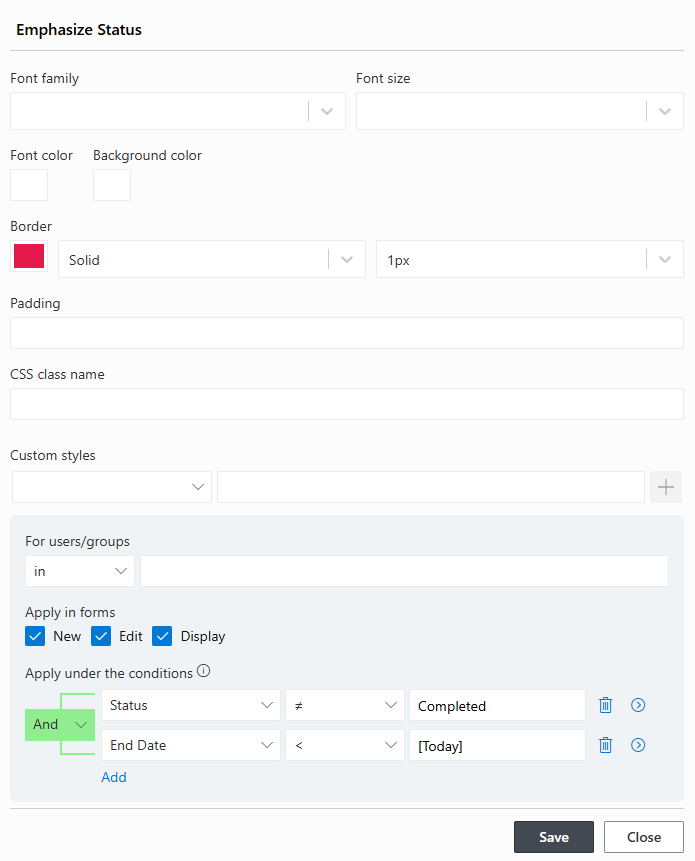
Style rules change the appearance of columns, sections, and tabs based on conditions: colors, emphasis, visibility of visual states. They are the difference between a form users read and a form users scan.
Overdue items show their due date in red. High-priority requests carry an amber header. The section that still needs attention is highlighted; the completed one fades back. On a quality form, a failed inspection turns the result column red before anyone reads the words. None of this changes the data, but all of it changes how fast a human processes the form, which on a busy queue is worth real minutes per item.
Style rules also pair naturally with the other three types. The same condition that locks a tab can gray its header. The same threshold that triggers stricter validation can turn the amount bold. The form's look stays synchronized with the form's logic because both are driven by the same conditions.
Functions and expressions: optional, by design
Most rules never need more than columns, operators, and values. For the cases that do, the Value Picker offers functions: date arithmetic for "due date plus seven days," text operations, calculations, even AI-powered answers for summarizing or classifying text.
The important word is optional. Functions are seasoning, not the meal. In platforms built around a formula language, every behavior starts with an expression, and the person who owns the process either learns to program or hands the form to someone who has. That is the low-code trap in a sentence. Ultimate Forms inverts the proportion: the common ninety percent of behaviors are pure point-and-click configuration, and the uncommon ten percent reach for a function without changing how everything else works.
The practical consequence is ownership. The HR manager, the operations lead, and the department admin build and maintain their own rules, because the rules speak their language. When the process changes, the person who knows the change makes it, in minutes, without a ticket.
Building your first rule set
Start with the form you already have and the complaint you hear most. If it is "people keep leaving X empty," that is a validation rule. If it is "people can see things they shouldn't," a permission rule. If it is "people keep typing the same thing," a value rule. If it is "nobody notices the urgent ones," a style rule.
Add rules one at a time and test as you go; each rule is independent, so the set grows safely. A well-ruled form typically ends up with a dozen or so, and together they do something subtle: they move the process knowledge out of people's heads and into the form itself. New employees stop needing to be told how to fill it in correctly, because the form no longer accepts anything else.
Frequently asked questions
Add your comment