If you have explored SharePoint Online, you have almost certainly run into the term "communication site" and wondered what exactly separates it from a team site -- or whether it even matters. It does. Picking the wrong site type sends you down the wrong configuration path, and fixing it later means rebuilding from scratch.
This guide covers what a SharePoint communication site is, when to use one, how it compares to a team site, and how to build one step by step. If you manage processes, approvals, or department information in Microsoft 365, this is the page to bookmark.
What Is a SharePoint Communication Site?
A SharePoint communication site is a site type designed for broadcasting information to a broad audience. Think of it as a one-to-many channel: a small group of people (a department, a team, a project lead) publishes content, and a large group reads it.
Common examples include:
- A company intranet or HR portal
- A department homepage (IT, Finance, Legal, Operations)
- A policies and procedures site
- An employee onboarding hub
- A project or program status page visible across the organization
The key characteristic is directionality. Communication sites are optimized for publishing, not for collaboration. They look polished out of the box, support large hero images and news webparts, and are built to surface information clearly to anyone with access -- whether that is 10 people or 10,000.
Communication Site vs. Team Site: Which Do You Need?
This is the most common question, and the answer comes down to one distinction: who is creating content, and who is consuming it?
| Communication Site | Team Site | |
|---|---|---|
| Purpose | Broadcast information broadly | Collaborate within a group |
| Audience | Large, mostly read-only | Small, mostly contributors |
| Microsoft 365 Group | No (created separately if needed) | Yes (auto-created with the site) |
| Default permissions | Visitors can read; few editors | Members can edit by default |
| Connected to Teams? | No (by default) | Yes (optional, but common) |
| Best for | Intranet, portals, department pages | Project work, team documents, working files |
| Navigation style | Hub-focused, broad audience | Specific to team members |
The practical rule: if most of the people visiting the site should not be editing it, use a communication site. If everyone on the site is expected to contribute files and content, use a team site.
A single department often uses both: a communication site for published policies and announcements (the "front door"), and a team site behind it for internal working documents and collaboration.
When to Use a SharePoint Communication Site
Here are the most common scenarios where a communication site is the right choice:
1. Department or division homepage
HR, IT, Finance, Legal, and Operations teams frequently need a place to publish policies, announcements, org charts, and contact information to the rest of the company. A communication site gives them a branded, structured homepage without granting the whole organization editing rights.
2. Company intranet
Organizations replacing a legacy intranet (often SharePoint on-premises or a third-party tool) commonly build their new hub on SharePoint communication sites. The hub site feature lets you link multiple communication sites under a single navigation structure.
3. Employee onboarding portal
New hire portals benefit from the communication site layout: clean visual design, prominent links, news webparts for announcements, and no risk of a new employee accidentally editing a policy page.
4. Project or program status pages
When a project needs to communicate status, milestones, and updates to a broad stakeholder group -- without that audience editing anything -- a communication site keeps the information clean and accessible.
5. Compliance and policy libraries
Regulated organizations (government agencies, healthcare systems, financial services firms) often use communication sites to publish policies that employees must read but should not modify. Combined with version-controlled document libraries and proper permissions, this creates an auditable policy distribution channel.
How to Create a SharePoint Communication Site
Creating a communication site in SharePoint Online takes a few minutes. Here is the process:
Step 1: Go to SharePoint Home
Sign in to Microsoft 365 and navigate to SharePoint from the app launcher. On the SharePoint home page, click + Create site in the top left corner.
Step 2: Choose "Communication site"
You will see two options: Team site and Communication site. Select Communication site.
Step 3: Choose a template (or start blank)
SharePoint offers several starting templates:
- Topic -- general purpose; good for department pages and informational hubs
- Showcase -- visual and image-heavy; good for product or project spotlight pages
- Blank -- no prebuilt layout; full flexibility
For most department and intranet use cases, Topic is the right starting point. You can customize the layout afterward.
Step 4: Name your site and configure settings
Enter a site name. SharePoint will auto-generate a URL -- review it and adjust if needed, since URLs cannot be changed later without redirects.
Add a site description (this helps with search within Microsoft 365). Select your language and time zone, then click Finish.
Step 5: Configure permissions
By default, the site is set to private. After creation, go to Settings > Site permissions to:
- Add site owners (the small group who will publish and maintain the site)
- Add members if you have contributors beyond the owner group
- Set visitors -- typically, you will add "Everyone except external users" so the whole organization can read it
Step 6: Customize your homepage
Use the SharePoint page editor to add or rearrange webparts. The most useful webparts for communication sites:
- Hero -- visual banner with links to key pages
- News -- pulls in published news posts from the site
- Quick links -- clean link grid for important resources
- Text and Image -- for structured content sections
- Highlighted content -- dynamically surfaces documents or pages by tag or type
Step 7: Connect to a hub site (optional but recommended)
If your organization uses multiple SharePoint sites, connect this site to a hub site. Hub site connection adds shared navigation, search scope, and branding across all connected sites. Go to Settings > Hub site association and select the appropriate hub.
Adding Interactivity: Request Forms on a Communication Site
A common limitation of communication sites is that they are built for outbound publishing, not inbound requests. But many department portals need both: visitors should be able to read policies and submit a request, ask a question, or kick off a process.
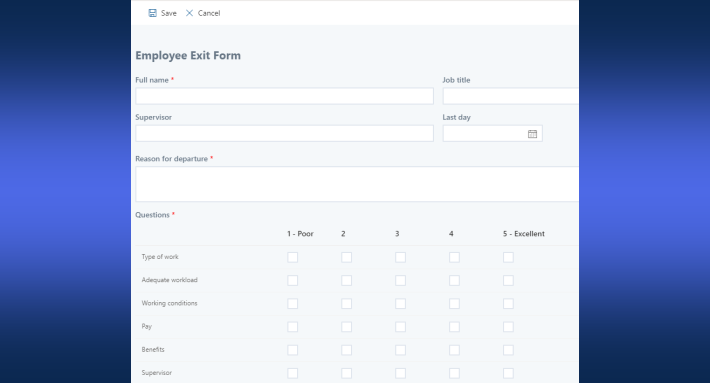
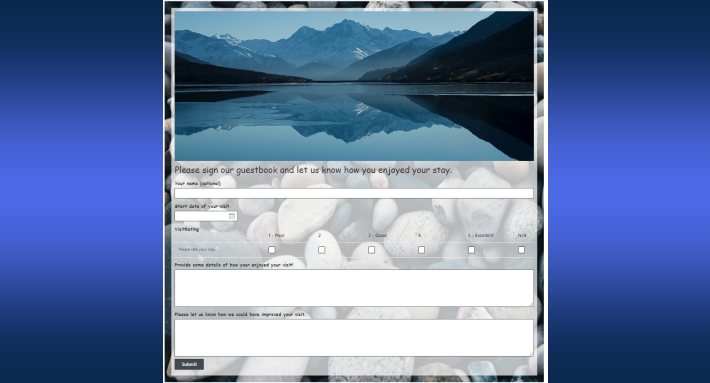
The standard approach is to embed or link a form into the communication site. With Ultimate Forms by Infowise, you can build fully functional intake forms directly on SharePoint lists in your tenant -- no external tools, no data leaving Microsoft 365 -- and link or embed them on your communication site pages.
Practical examples:
- An IT department communication site with a linked IT help desk request form
- An HR portal with an onboarding request or PTO form
- A facilities page with a maintenance request intake
- A compliance site with an incident reporting form that triggers an approval workflow
Because Ultimate Forms runs entirely inside your SharePoint environment, the form data stays in a standard SharePoint list. The process owner -- not a developer -- can update the form fields, change routing rules, or add an approval step without opening a ticket.
Common Mistakes to Avoid
Using a team site when you need a communication site.
If you create a team site for a company-wide intranet, every member gets edit permissions by default, a Microsoft 365 Group is created behind it, and the site gets a /sites/TeamName URL tied to a group inbox. That is the wrong structure for a broad-audience portal.
Skipping the hub site connection.
Standalone communication sites with no hub connection create navigation dead ends. Connect sites to a hub early so that search and navigation work across the whole intranet.
Publishing directly to the homepage without drafts.
Owners sometimes edit the homepage live, which means in-progress changes are visible to all visitors. Use the Save as draft option in the page editor to stage changes before publishing.
Setting permissions too broadly.
Adding everyone as a site member instead of a visitor gives the whole organization editing rights. Restrict members to the small group who publish content; keep visitors as the broad audience.
Neglecting mobile layout.
Communication sites are frequently accessed on mobile, especially for intranet use. Preview your pages in mobile view (use the SharePoint page editor's device preview) before publishing.
Quick Reference: Communication Site Checklist
- [ ] Site created as a communication site (not a team site)
- [ ] Site name and URL reviewed (URL cannot be changed later)
- [ ] Permissions set: owners, members, and visitors configured correctly
- [ ] Hub site connection established
- [ ] Homepage customized with relevant webparts
- [ ] News posts created so the News webpart has content
- [ ] Mobile layout reviewed
- [ ] Request forms linked or embedded for inbound processes (if needed)
- [ ] Site shared with intended audience
Summary
A SharePoint communication site is the right choice when you need to publish information to a broad audience and keep editing rights with a small group. It is the foundation of most Microsoft 365 intranets, department portals, and policy hubs.
The setup takes minutes; the lasting impact is a clean, structured channel that your organization actually uses instead of hunting through email threads and shared drives.
If your communication site needs to do more than display information -- if visitors need to submit requests, trigger approvals, or fill in structured forms -- Ultimate Forms adds that capability without leaving your SharePoint environment. You can explore the full feature set and start with a free trial.
Related reading:
- What Is a SharePoint Team Site and When Should You Use One?
- How to Build a Service Ticketing System in SharePoint
- Build Dynamic SharePoint Dashboards with Ultimate Forms
Frequently asked questions
Add your comment