If your team stores files in multiple places, you already know the problem. Someone saves a document to the wrong folder. Someone else emails a copy. Three versions exist by Friday and nobody is sure which one is current.
A SharePoint team site solves that. It gives your group one shared space to store, edit, and track everything together.
This guide explains what a SharePoint team site is, how it works, and when it is the right choice for your situation.
What Is a SharePoint Team Site?
A SharePoint team site is a shared workspace for a specific group of people.
Everyone on the team can read, create, and edit content. That could be documents, lists, task boards, or announcements. The idea is that the whole team contributes, not just one person publishing to the rest.
When you create a team site in Microsoft 365, SharePoint automatically creates a Microsoft 365 Group behind it. That group connects the site to other tools your team may already use: Outlook for shared email, Planner for tasks, and Microsoft Teams for chat.
Everything stays in one place. Everyone on the team has access.
What Can You Do with a SharePoint Team Site?
A team site is flexible. Here are the most common ways teams use one.
Store and co-edit documents. The document library is the heart of a team site. Team members upload files, work on them together in real time, and always see the latest version. No more emailing attachments back and forth.
Track work with lists. SharePoint lists let you track anything with rows and columns. Project tasks, inventory, contacts, action items. You can add columns, filter views, and set up alerts when something changes.
Share news and announcements. The News webpart lets site owners post updates that show up on the team site homepage. Team members see the latest news when they visit.
Connect to Microsoft Teams. If your team uses Teams for chat, you can connect a team site directly to a Teams channel. Files shared in the channel appear in the site's document library automatically.
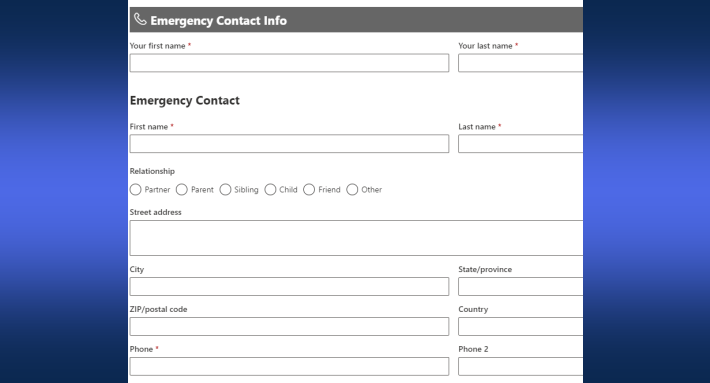
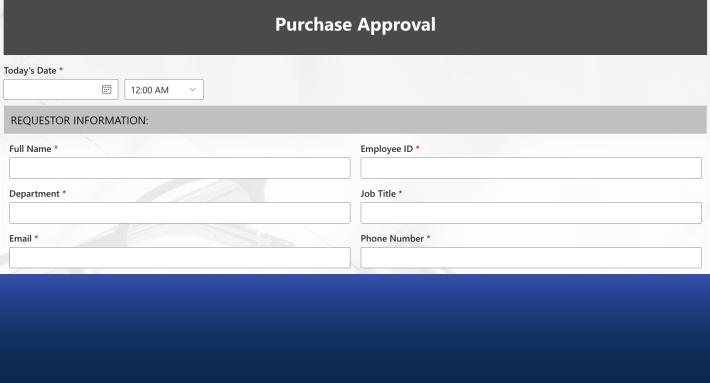
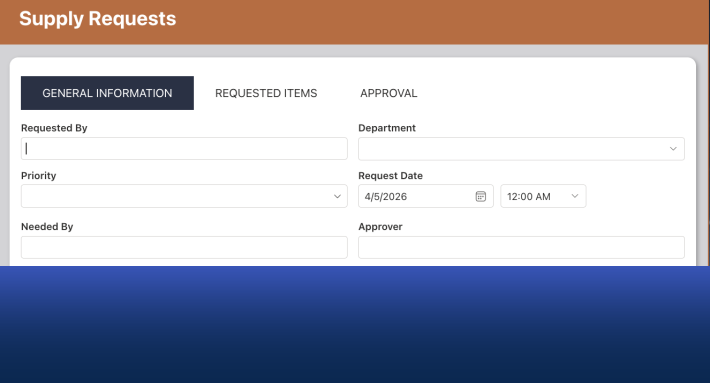
Run structured processes. Many teams use SharePoint lists to run approval workflows, intake requests, and status tracking. Tools like Ultimate Forms by Infowise let you build those processes directly on your team site, without code and without leaving Microsoft 365.
SharePoint Team Site vs. Communication Site
This is the most common question people have when setting up SharePoint for the first time.
The short answer: a team site is for collaboration within a group. A communication site is for publishing information to a broad audience.
Here is a quick comparison.
| Team Site | Communication Site | |
|---|---|---|
| Who creates content? | Everyone on the team | A small group of owners |
| Who reads content? | The same team | A large audience |
| Microsoft 365 Group? | Yes, created automatically | No |
| Connected to Teams? | Yes (optional) | No (by default) |
| Best for | Project work, shared files, collaboration | Intranets, portals, policy pages |
A good way to think about it: a team site is where your group does the work. A communication site is where you publish the results.
Many departments use both. The team collaborates on a team site. When they are ready to share something with the rest of the company, they post it on a communication site.
When Should You Use a SharePoint Team Site?
Use a team site when the people visiting the site are also the people contributing to it.
Here are the most common scenarios.
Project teams. A project site gives everyone involved one place for files, tasks, and updates. When the project ends, you can archive the site or delete it.
Department workspaces. HR, Finance, IT, Legal, and Operations teams all benefit from a shared space to store internal documents, track requests, and manage processes.
Committee or working groups. Short-term groups working toward a shared output benefit from a team site. It keeps work organized and accessible to everyone involved.
Process management. If your team runs repeating processes, such as approvals, onboarding steps, or change requests, a team site gives you the foundation. You can build forms and workflows directly on SharePoint lists to handle the structured parts.
How to Create a SharePoint Team Site
Creating a team site takes just a few minutes.
Step 1: Go to SharePoint home. Sign in to Microsoft 365. Open SharePoint from the app launcher. On the SharePoint home page, click "Create site" in the top left.
Step 2: Choose "Team site." You will see two options: Team site and Communication site. Select Team site.
Step 3: Choose a template. Microsoft offers a few starting templates, such as Team collaboration and Project management. You can also start from a blank site. For most teams, the default Team collaboration template is a good starting point.
Step 4: Name your site. Enter a name. SharePoint generates a URL and an email address for the Microsoft 365 Group. Review both before continuing. URLs cannot be changed later.
Step 5: Set privacy. Choose Private (only invited members can access) or Public (anyone in your organization can join). Most team sites should be Private.
Step 6: Add members. Add the people who will be part of this team. You can set them as Members (can edit) or Owners (can manage the site). You can always add more people later.
Step 7: Customize your site. Once the site is created, you can add document libraries, lists, pages, and webparts to match how your team works. You do not need to do this all at once.
Tips for Getting the Most Out of Your Team Site
Set clear ownership. Every team site should have at least two owners. This avoids a situation where access is lost when someone leaves.
Organize your document library early. A folder structure that makes sense on day one saves a lot of confusion later. Agree on it with your team before everyone starts uploading files.
Use lists for structured data. If your team tracks anything in a spreadsheet, a SharePoint list is almost always a better choice. It is accessible to everyone, stays in one place, and can be connected to alerts and workflows.
Connect to Teams if your team uses it. If your team already uses Microsoft Teams for daily communication, connecting the team site keeps files and conversations in sync.
Build intake forms for recurring requests. If people outside your team regularly need to submit something to you, a form on your team site is cleaner than email. Ultimate Forms lets you build those forms directly on a SharePoint list, with routing rules, approvals, and notifications included.
Quick Reference: Team Site Checklist
- [ ] Site created as a team site (not a communication site)
- [ ] Privacy set to Private (unless open access is intentional)
- [ ] At least two owners assigned
- [ ] Team members added with correct permission levels
- [ ] Document library folder structure agreed on
- [ ] Lists created for any structured data the team tracks
- [ ] Microsoft Teams connected (if the team uses Teams)
- [ ] Intake forms built for any recurring external requests
Summary
A SharePoint team site is a shared workspace where everyone contributes. It is the right choice when your group needs one place to store files, track work, and manage processes together.
It works best when you think of it as your team's home base inside Microsoft 365. Everything your team touches can live there: documents, lists, tasks, forms, and workflows.
If you want to add structured processes to your team site, like approval workflows, onboarding checklists, or request intake forms, Ultimate Forms by Infowise makes that possible without code. Your team owns the process, and anyone with the right permissions can update it. You can explore it at infowisesolutions.com.
Related reading:
- SharePoint Communication Site: What It Is, When to Use It, and How to Build One
- How to Build a Service Ticketing System in SharePoint
- Build Dynamic SharePoint Dashboards with Ultimate Forms
Frequently asked questions
Add your comment