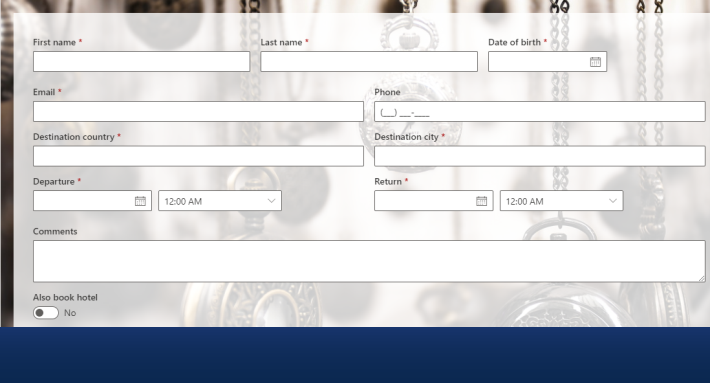
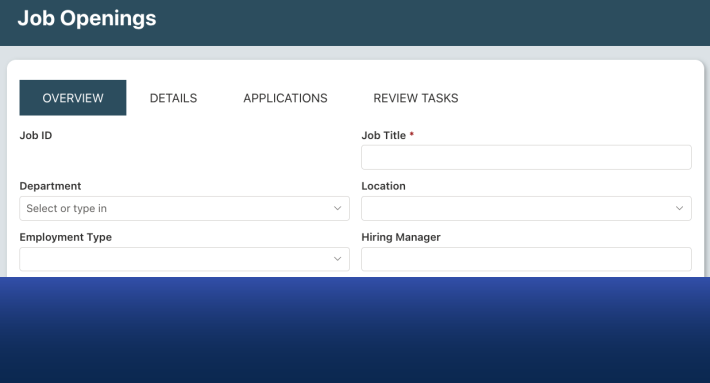
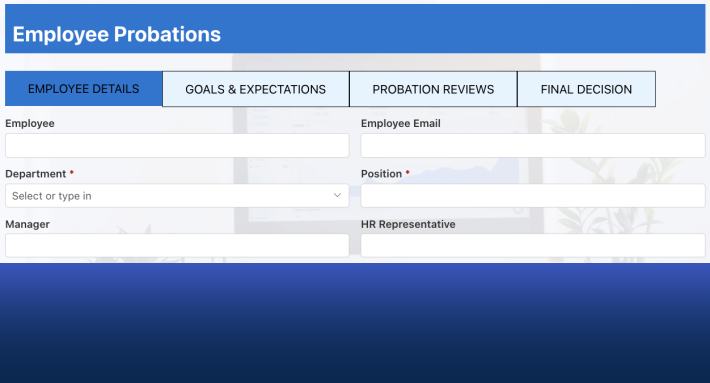
You can build a complete service ticketing system in SharePoint: intake forms, automatic assignment, SLA due dates with escalation, a knowledge base, and dashboards, using Ultimate Forms and no code.
Most organizations already have the infrastructure to run a proper service ticketing system. They just don't know it yet.
SharePoint is included in almost every Microsoft 365 subscription. Ultimate Forms extends it with the forms, automation, and reporting that a ticketing system requires. The combination covers everything a service desk needs:
- Structured intake
- Automatic assignment
- Status tracking
- SLA notifications
- Escalation rules,
- Live dashboard
And it can be implemented without a separate platform, without a developer, and with minimal costs.
Why SharePoint Is a Reasonable Starting Point
Before discussing the implementation, it is worth addressing the obvious question. Why SharePoint rather than a dedicated help desk platform?
For organizations that are already in Microsoft 365, the answer is straightforward. A dedicated help desk tool adds cost, adds another system to manage, and requires data to leave the Microsoft environment. SharePoint, combined with Ultimate Forms, keeps everything inside the tenant. It's all under the same governance, permissions, and data policies that apply to everything else.
The entry barrier is also significantly lower. A SharePoint administrator who already manages the organization's intranet can implement a fully functional ticketing system in a matter of hours. There is no vendor onboarding, no new interface to learn, and no migration required when requirements change.
For smaller organizations, growing teams, or departments that need a quick, maintainable solution without a procurement process, this combination is genuinely the fastest path to something that works.
The Core Components of a Ticketing System
A service ticketing system has a small number of essential components. Understanding how each one maps to Ultimate Forms makes the implementation straightforward.
Structured Ticket Submission
Every ticketing system starts with a form. The form needs to capture the right information (category, priority, description, affected user, and any relevant attachments) in a structured way that makes the ticket immediately actionable when it arrives.
Ultimate Forms replaces the static default SharePoint form with a fully customizable dynamic one. Tabs organize the form logically: requester details on one tab, ticket details on another, supporting files on a third. Conditional visibility ensures the form adapts to the category selected: a hardware request shows different fields than a software issue, without the user seeing every possible field at once.
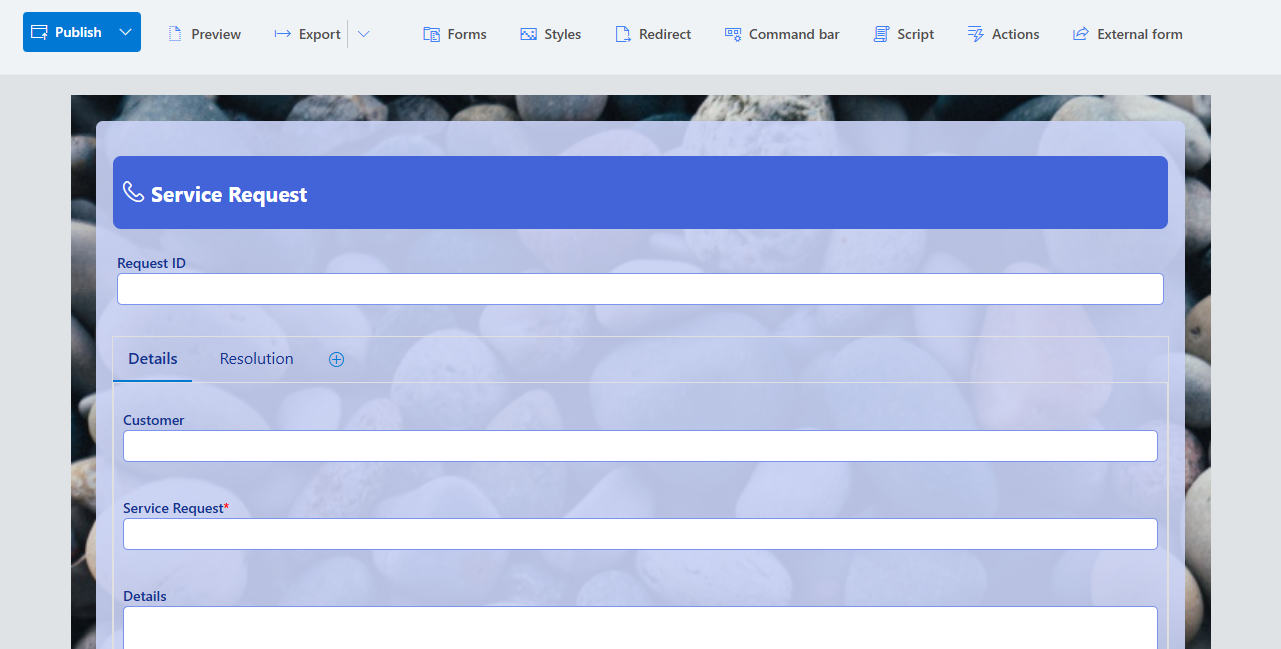
Dropdown columns for category, subcategory, and priority use managed lists, ensuring every ticket arrives with consistent, filterable values. Validation rules prevent submission of incomplete tickets: a priority must be selected, a description must contain more than a few words, an affected system must be identified.
For external submissions (from contractors, clients, or users without a SharePoint account) the External Form feature publishes the intake form to a public URL. Submissions land directly in the SharePoint list with no manual transfer required.
Automatic Ticket Assignment
Once a ticket is submitted, it needs to reach the right person. Manual assignment by a dispatcher is a single point of failure and a bottleneck. Ultimate Forms Actions automate the routing.
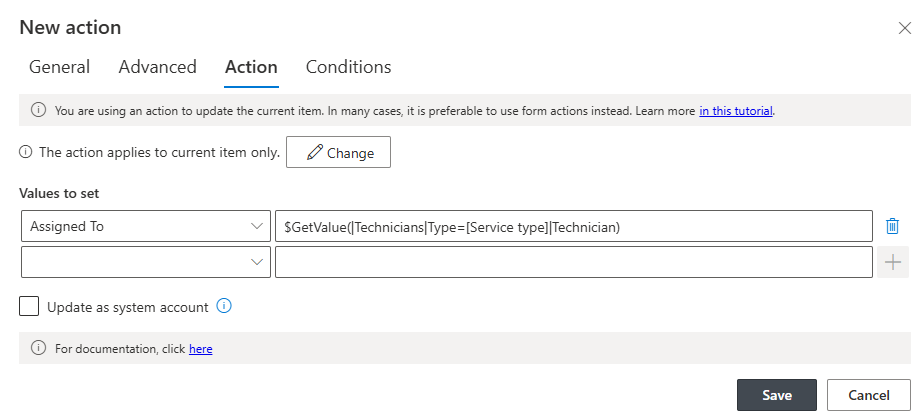
An action configured to fire on item creation evaluates the ticket's category or team and writes the appropriate assignee to the Assigned To column. A software issue goes to the software team lead. A network problem goes to infrastructure. A general query goes to the first-line queue. The assignment logic is a simple condition in the action configuration — no workflow builder, no branching diagram.
Status Tracking and Lifecycle Management
A ticket has a lifecycle: New, In Progress, Pending User Response, Resolved, Closed. Each status represents a different state of the ticket and triggers different behavior.
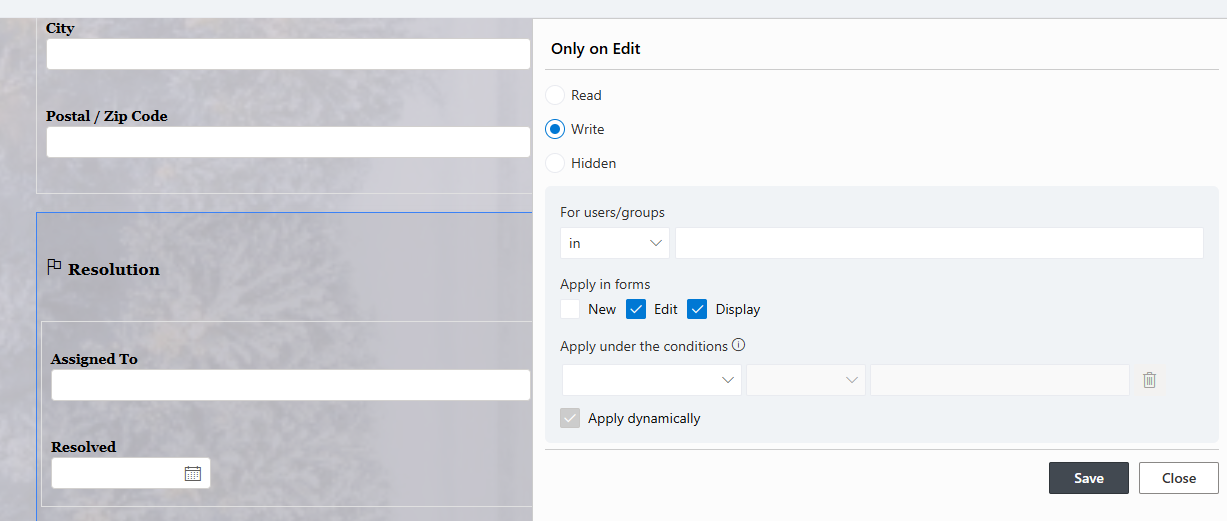
In the Ultimate Forms Form Designer, the Status column uses a managed dropdown. Column-level permissions control who can update the status at each stage — the assigned technician can move a ticket to In Progress, but only the original requester can confirm resolution. This prevents accidental or unauthorized status changes and ensures the lifecycle is respected.
Color-coded list views make the current state of the queue immediately visible. Open tickets are one color, pending tickets another, resolved tickets a third. The technician scanning the queue sees the state of every ticket without opening a single record.
SLA Notifications and Escalation Alerts
An unanswered ticket is a service failure waiting to happen. Ultimate Forms Alerts automate the notification layer so no ticket sits unactioned without someone knowing about it.
An alert configured to fire a defined number of hours after ticket creation — if the status is still New — sends a reminder to the assigned technician. If the ticket remains unactioned after a further period, a second alert notifies the team lead. A third alert, if configured, can reach the service manager.
Each alert includes a customizable email template that carries the relevant ticket data — the ticket title, category, priority, creation date, and a direct link to the record. The recipient sees everything they need in the notification and can act immediately without searching for the ticket.
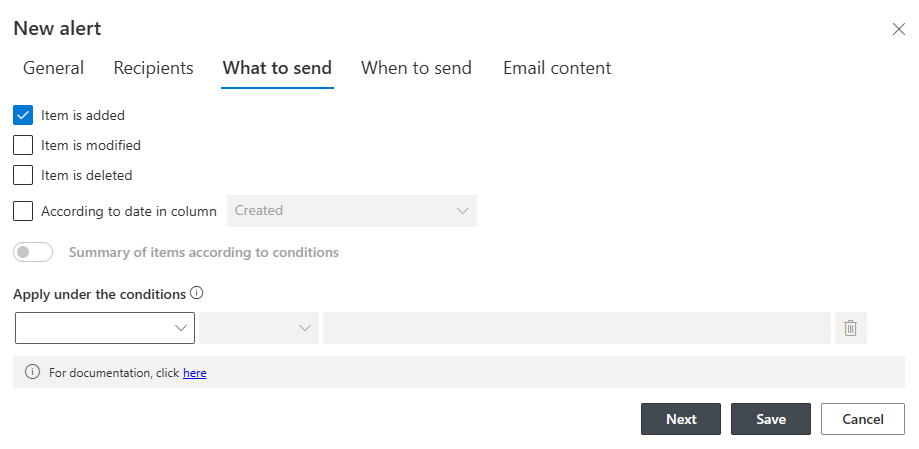
For tickets approaching or breaching an SLA, a scheduled alert can fire based on a calculated due date column — providing advance warning before a breach occurs rather than a notification after the fact.
Requester Communication
Keeping the requester informed throughout the lifecycle is a standard expectation of any service desk. In Ultimate Forms, this is handled by alerts triggered on status changes.
When a ticket moves from New to In Progress, an alert notifies the requester that their ticket has been picked up. When the technician adds a resolution comment and moves the ticket to Resolved, an alert sends the resolution summary to the requester and asks them to confirm. If the requester does not respond within a defined window, a scheduled reminder fires automatically.
All of this runs without manual communication from the technician. The process handles the notification; the technician handles the work.
Knowledge Base and Ticket History
A ticketing system that does not capture resolution knowledge is one that solves the same problems repeatedly. The Ultimate Forms Form Designer supports a Resolution tab on the ticket form, separate from the submission tab, where technicians document the root cause, the steps taken, and the resolution applied.
Column-level permissions keep the Resolution tab read-only for requesters and editable only for technicians, ensuring the resolution record is maintained by the people with the relevant knowledge. The completed resolution record is searchable in the SharePoint list and can be filtered by category and resolution type — making it straightforward to find how a similar issue was resolved previously.
Live Service Desk Dashboard
Managers and team leads need a current view of queue health without asking anyone to send them a report. Ultimate Forms Counter web parts placed on a SharePoint page deliver this.
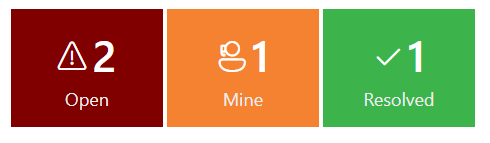
A counter for open tickets, a counter for tickets assigned to each technician, a counter for tickets breaching SLA, and a counter for tickets resolved this week — all configured to read from the ticket list with the appropriate filter applied, all updating in real time as tickets are created, assigned, and resolved. No Power BI. No Excel export. No manual refresh.
A bar chart of tickets by category, a trend line of ticket volume by day, and a recent items list showing the five most recently updated tickets round out the dashboard. The entire setup is configured on a SharePoint page in the browser by the administrator who manages the list.
What a Basic Implementation Looks Like
A functional ticketing system can be deployed from the Ultimate Forms Solution Catalog in a single click. The template ships with the list structure, form configuration, and views already in place. From there, the administrator customize to their unique needs: add assignment actions, SLA alerts, status change notifications — in Ultimate Forms' simple visual interface.
A basic implementation covering structured intake, automatic assignment, status tracking, and requester notifications can be completed in a few hours by a SharePoint administrator with no prior Ultimate Forms experience. The template provides the starting point; the platform provides the tools to extend it.
The Case for Starting Here
A SharePoint-based ticketing system built with Ultimate Forms is not a compromise. For most internal service desks — IT, HR, facilities, operations — it covers every requirement that a specialized tool covers, at a fraction of the cost and with a maintenance overhead that stays entirely within the team that owns the process.
When requirements grow — multi-tenancy, SLA reporting across departments, integration with external monitoring systems — Ultimate Forms data connections extend the platform to cover them. The system grows with the organization without requiring a migration to a different tool.
The best time to build it is before the next IT support request arrives in someone's inbox and gets lost there.
The IT Service Request template is available in the Ultimate Forms Solution Catalog at infowisesolutions.com/solutions. A free 30-day trial is available for all supported SharePoint deployments at infowisesolutions.com/installer/uf.
Add your comment