A SharePoint list full of valuable data looks exactly like a SharePoint list full of noise. Rows and columns do not show trends, outliers, or progress. Charts do.
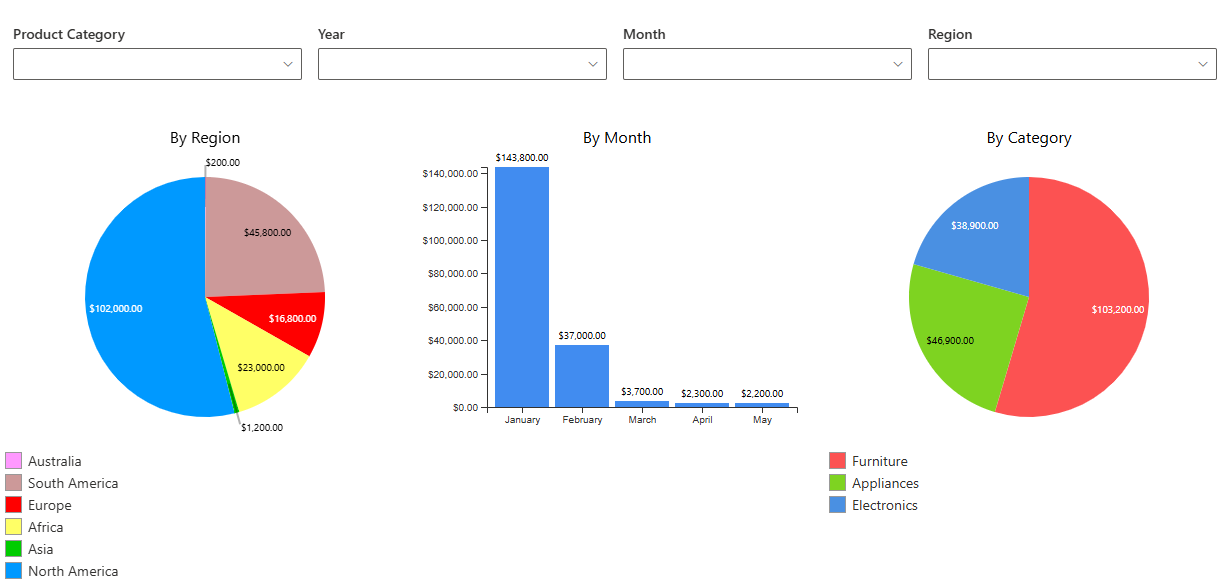
The Charts component of Ultimate Forms turns list and library data into live visualizations: bar, column, line, pie, donut, and area charts, configured in the browser and rendered right inside SharePoint. No export to Excel, no BI platform, no code.
This guide covers what the component does, where charts can live, three dashboards worth copying, and the practices that keep charts honest. For the full dashboard kit around them, see the ten dashboards guide.
Why the chart belongs next to the data
Raw tables force users to scan hundreds of rows to find meaning. A chart summarizes the same rows in seconds, and that speed changes behavior. Managers spot the bottleneck without waiting for a report. Teams see their own trend without asking anyone. The discussion starts from the picture instead of from competing recollections.
The location matters as much as the chart. When the visualization lives inside SharePoint, on the page beside the list, insight becomes part of the ordinary workflow rather than a separate reporting ritual. Nobody exports, nobody re-imports, and nobody wonders whether the numbers are current, because the chart reads the list live. Every change to the data is in the picture the next time anyone looks.
That is also what keeps the metrics trusted. A chart generated from last Tuesday's export invites the question "is this still true." A chart reading the list directly never has to answer it.
Visible metrics do one more quiet job: they make performance a shared fact instead of a private impression. When the dashboard is on the team page, the discussion about priorities starts from the same numbers for everyone, which is most of what "data-driven culture" turns out to mean in practice.
What the component does
The essentials in one place.
Chart types. Bar and column for comparisons, line for change over time, pie and donut for proportions, area for cumulative trends. Choosing well is a craft of its own, covered in chart types and when to use them.
Live data. Charts query the list directly and refresh as data changes. There is no dataset, no refresh schedule, and no stale copy to reconcile.
Three homes. Charts display on SharePoint pages, assemble into dashboards alongside counters, and can even render inside the forms themselves, so the record and its context appear together.
Simple configuration. Pick the list, the chart type, and the columns to group and measure. The setup is dropdowns, not scripting, which puts chart ownership with the people who own the data.
Interactive filtering. Paired with the Filter web part, charts recalculate as viewers pick a department, a date range, or a status. One page serves every team, and the dynamic filters guide covers the wiring.
Three dashboards worth copying
Sales performance. The deals list carries amount, stage, and rep. A bar chart shows total sales per salesperson. A line chart tracks sales over time. A pie chart shows the pipeline's distribution by stage. Together they answer the three questions every sales meeting opens with: who, how much, and where is it stuck.
Service desk metrics. Incidents log into a list with category, timestamps, and SLA status. A column chart breaks open tickets down by category, a line chart follows resolution-time trends, and a donut shows SLA compliance. The workload, the trajectory, and the promise, on one page the whole team sees.
Project management. The PMO's lists track status, budgets, and milestones. Charts show active projects by department, budget consumed against planned, and task completion progress. Stakeholders get a live view of execution, and the Friday status deck quietly retires.
The pattern across all three: each chart answers one question the team actually asks. The dashboard is the set of questions, not the set of available columns.
The same recipe transfers anywhere a list holds a process. HR charts headcount by department and open positions by stage. Facilities charts maintenance requests by building and completion trends by month. Compliance charts certifications expiring by quarter. If the team runs on a list, the list can show the team how it is running.
Building your first chart
The build itself is a short sequence, and walking it once removes the mystery.
Create a chart profile in Ultimate Forms and pick the list. Choose the chart type for the question you are answering. Select the column to group by, the status, the department, the month, and the value to measure, a count of items or the sum of an amount. Apply any filters, so the chart covers the slice that matters: this year, this team, open items only.
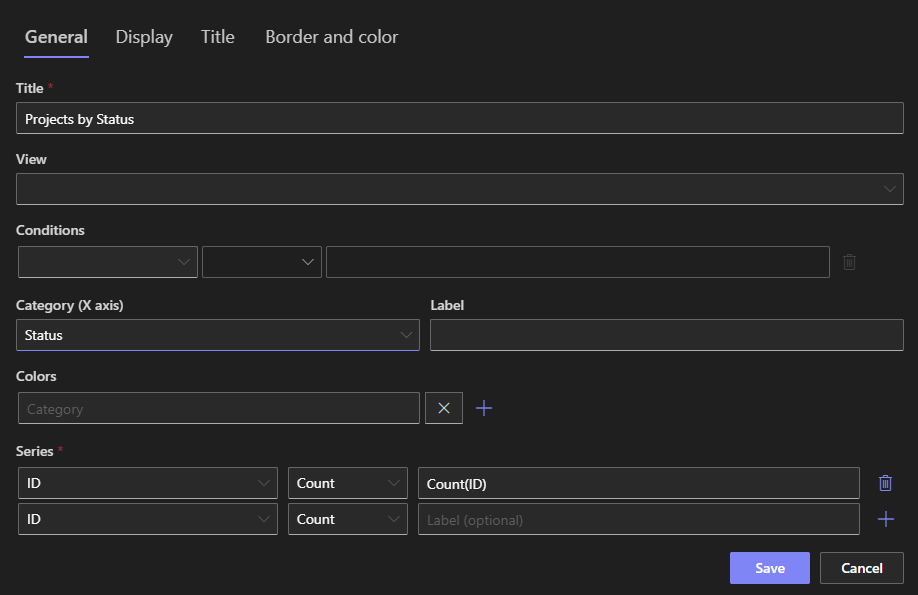
Then place it. Add the web part to the page, select the profile, and the chart renders with live data. Total time for a first chart is usually under fifteen minutes, most of it spent deciding the question.
Two early choices save rework later. Group by columns whose values are controlled, choice columns rather than free text, because a chart faithfully displays every typo as its own category. And prefer filtered charts over busy ones: three clean charts of three slices beat one chart trying to say everything.
Practices that keep charts honest
Start with a question, not a column. "Are we resolving tickets faster than last quarter" produces a useful line chart; "let's chart the Status column" produces decoration. The question decides the type, the grouping, and whether the chart deserves the space.
Keep the picture plain. Clutter, 3D effects, and gratuitous color slow reading without adding meaning. A chart earns attention by being the fastest way to the answer.
Label what matters. Clear titles, legends, and units keep the chart self-explanatory, because the person who needs it most is the one seeing it for the first time.
Put the chart in context. Beside the list it summarizes, on the page the team already opens, next to the form it explains. A chart on a page nobody visits is a report by another name.
Stay consistent across dashboards. Shared colors, fonts, and naming make a family of dashboards feel like one system, and let a viewer carry their reading habits from page to page.
And revisit the set each quarter. Questions change as processes mature, and a chart that answered last year's worry can hold space a current one needs. A dashboard stays alive exactly as long as its charts keep matching what the team wants to know.
Charts inside bigger solutions
A chart rarely works alone, and the platform around it completes the loop.
The same thresholds a chart visualizes can trigger alerts, so the metric that turned red also sends the email. The data behind the dashboard can leave as generated documents, the printable version of the same truth. Counters above, chart below, filtered list beneath: the standard dashboard sandwich gives viewers the number, the trend, and the records in one scroll.
That assembly, visibility built by the process owner, on the data where it lives, with no external reporting layer, is the point of the whole cluster. Start with the one chart that answers your team's loudest question, place it where they already look, and let the ten dashboards supply the next one.
Frequently asked questions
Add your comment