Every organization has a system that cannot speak REST. The old ERP, the lab instrument, the point-of-sale terminal, the billing platform from two owners ago. What they can all do is export a CSV file, because everything can export a CSV file.
That makes the humble flat file the most reliable integration format in existence, and the Import component of Ultimate Forms turns it into a real pipeline. Point an import profile at a CSV or TSV file, and its rows become SharePoint list items on a schedule: created, updated, or synced, with no scripts, no middleware, and no one pasting anything.
This guide covers the flat-file specifics: where the file can live, how columns and types are recognized, the reprocessing model, and the transformations that clean data on the way in. For the full intake system this belongs to, see the complete import guide.
The bridge legacy systems actually have
Modern integration assumes APIs, connectors, and webhooks. Many line-of-business systems predate all three, and replacing them is not on anyone's roadmap. The usual alternatives are bad: manual imports that depend on someone's Tuesday, custom scripts that break when their author leaves, or middleware priced like a second ERP.
The flat file sidesteps the whole problem. The legacy system exports what it already knows how to export, on its own schedule, to a location it can reach. The import profile picks the file up from there. Neither system had to learn anything new, and the integration is two configurations: their export, your import.
Both CSV and TSV are supported, so whichever delimiter the source system prefers, the profile reads it.
Where the file lives
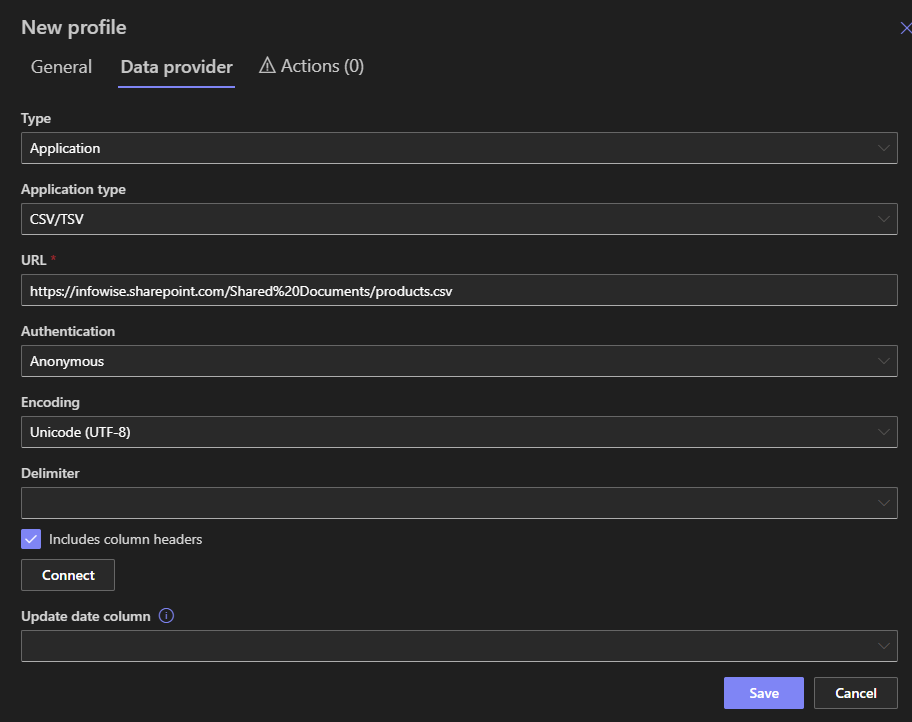
The profile fetches the file by URL. A SharePoint document library works, and so does a standard web server or a file hosted on a third-party platform. Protected locations are covered too: supply credentials, and the profile authenticates on each run.
The practical pattern: the legacy system drops its nightly export to an agreed location, overwriting yesterday's file. The profile polls on its schedule, finds the fresh file, and processes it. A healthcare organization exporting discharge summaries each night, a retailer dropping the day's orders, a school syncing its student roster, all the same shape.
How the file is read
Flat files carry less structure than spreadsheets, and the profile compensates with inference.
Columns are detected from the file, and each column's data type, text, number, or date, is inferred from the first row of actual data. You choose whether the file's first row holds column names; if not, the profile assigns temporary names like col1 and col2, and your mappings take it from there.
The update model is the other flat-file difference. Where a source offers a reliable last-updated column, imports can run incrementally. Flat files often have no such column, and the profile is built for that case: it reprocesses the entire file each run. That fits exactly how these exports behave, where each new file replaces the last one wholesale. The file is the current truth, and after every run, so is the list.
From rows to items: the actions
Once the file is read, actions decide what happens, and they are the same three as every other import source.
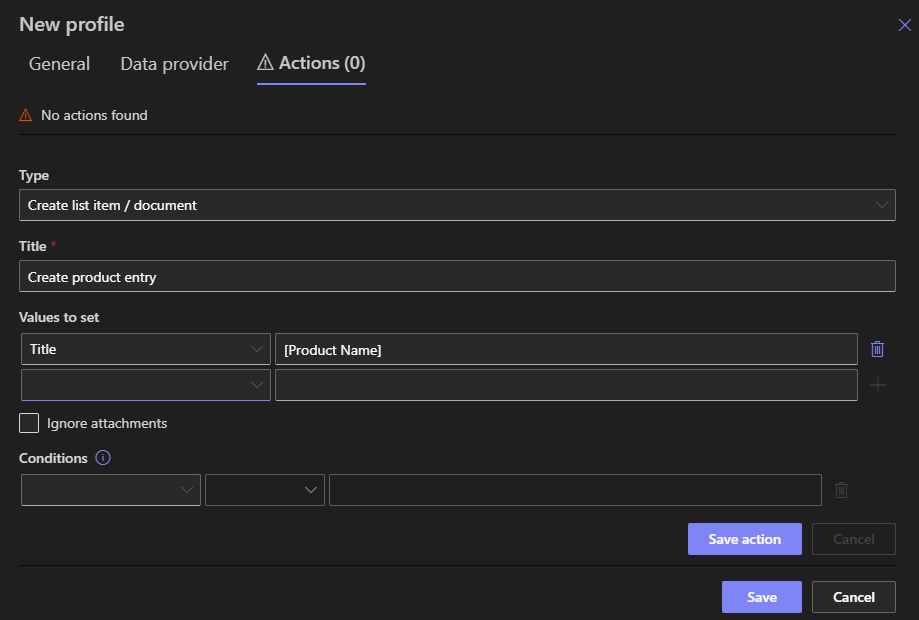
Create turns each row into a new list item: the intake pattern, right for files that carry new records. Update matches rows to existing items through a shared identifier and writes the mapped values: the corrections pattern, right for status files from the external system. Sync does both, updating matches and creating the rest: the mirror pattern, right when the list should always equal the file.
The mappings between file columns and list columns carry the finishing work. Combine several file columns into one list column. Calculate values on the way in. Reformat dates and strings, and apply conditional logic, so the list receives finished data rather than raw export. The file's format never dictates the list's design; the mapping absorbs the difference.
A build in eight steps
- Open the destination list and click Design to enter Ultimate Forms.
- Open Import and create a new profile.
- Set the source: the file's URL, with credentials if the location needs them.
- Confirm the column detection, naming the header row or accepting the temporary names.
- Map the file columns to list columns, adding transformations where the data needs shaping.
- Choose the action: create, update, or sync.
- Set the polling schedule to match the export's rhythm.
- Run it once manually, and check the list against the file.
The first profile is the slowest, because it includes the conversation with whoever owns the source system about where the file lands and what its columns mean. The second profile takes minutes.
Where flat-file imports run the business
Manufacturing. Machine logs export nightly; the profile feeds them into the maintenance list, and preventive-maintenance workflows trigger from the imported readings.
Education. The student information system predates the web, but its roster export syncs the SharePoint lists every term, and enrollment processes run on current data.
Healthcare. Intake and discharge data from multiple clinics consolidates into one tracked list, each clinic exporting what its own system can produce.
Retail. Point-of-sale exports update inventory and order lists through the night, and the morning dashboard reads yesterday's reality.
The shared trait: in every case the source system was never going to get an API, and never needed one. The CSV it always produced became the integration.
Keeping the pipeline honest
Flat-file integrations fail quietly when nobody designs for the failure, and three habits prevent it.
Agree the contract in writing. The file's columns, delimiter, encoding, and drop location are a contract between two systems, and the one-page note describing it is the cheapest insurance in integration. When the source system's export changes, the note is where the conversation starts.
Watch the first runs. Run the profile manually against a real file before scheduling it, and check the awkward values: dates near month boundaries, numbers with thousand separators, text with embedded commas. The transformations handle them; they just need to be configured against reality rather than the sample.
And make absence visible. A file that stops arriving looks exactly like a quiet day. A simple alert on "no new items since yesterday," or a scheduled report of import counts, turns the silent failure into a Tuesday-morning question instead of a month-end surprise.
With those three in place, the pipeline becomes what integrations rarely are: boring. The file arrives, the rows land, and nobody thinks about it, which is the goal.
After the import
Imported rows are ordinary items, and the platform treats them that way. Alerts announce the exceptional ones, the failed reading, the out-of-stock item. Actions route and respond. Dashboards count and trend. The flat file that used to be a filing chore becomes the first step of a process that runs itself.
And when the source can do better than a file, the same profile model reaches further: Excel workbooks, incoming email, and Azure SQL databases all import through the same source-schedule-mapping shape. Start with the file the legacy system gives you today; upgrade the source whenever the source upgrades.
Frequently asked questions
Add your comment