Stop Searching, Start Finding: The Value of Filter-Based Search in SharePoint
Your SharePoint lists contain valuable information, but finding it can be frustrating. As lists grow, employees spend more time browsing records and less time using them. They might scroll through hundreds of items, switch between views, or export everything to Excel. Good filtering turns a collection of records into information people can actually use.
Consider a manager searching for overdue tasks assigned to a particular team. An HR coordinator might need applicants with specific qualifications, while a support manager wants unresolved high-priority tickets. Each person needs a different subset of information. With Infowise Ultimate Forms, organizations can build more intuitive filtering experiences directly in SharePoint. They can do so without writing custom code. Teams can tailor the experience.
Why Keyword Search Is Not Enough
Business users often need records that meet conditions, not records containing particular words. Imagine a support list with thousands of requests. A manager wants tickets marked High Priority, assigned to Technical Support, and submitted this month. Searching for "high priority" could return descriptions mentioning those words even when the priority field says something else. The manager needs a search that understands the fields behind the records.
SharePoint's built-in column filters are useful, but combining conditions can become cumbersome. Employees may need to open several menus or navigate between specialized views. This becomes particularly awkward when the same question comes up repeatedly. The Infowise article Get the SharePoint Info You Need with Filters explores a more convenient approach. Instead of asking users to work around the interface, filtering should match the way they think.
What Filter-Based Search Actually Does
Filter-based search narrows records using structured criteria, including status, department, owner, location, amount, and date. Employees choose the characteristics they care about rather than guessing which keywords might appear in a record. Because the criteria correspond to SharePoint columns, results are easier to understand. Users can also change one condition without rebuilding their entire search.
For example, a purchasing manager could find requests from Operations that are awaiting approval. The manager could then narrow the results to amounts above $5,000. A date condition could identify requests submitted this month. Those three selections answer a meaningful business question. The manager can move directly to the requests that deserve attention.
Ultimate Forms offers two complementary components. Filters controls information displayed by compatible SharePoint page components. List Search helps users locate individual records through simple or advanced search conditions. The distinction matters because searching a list and exploring a dashboard are related but different activities.
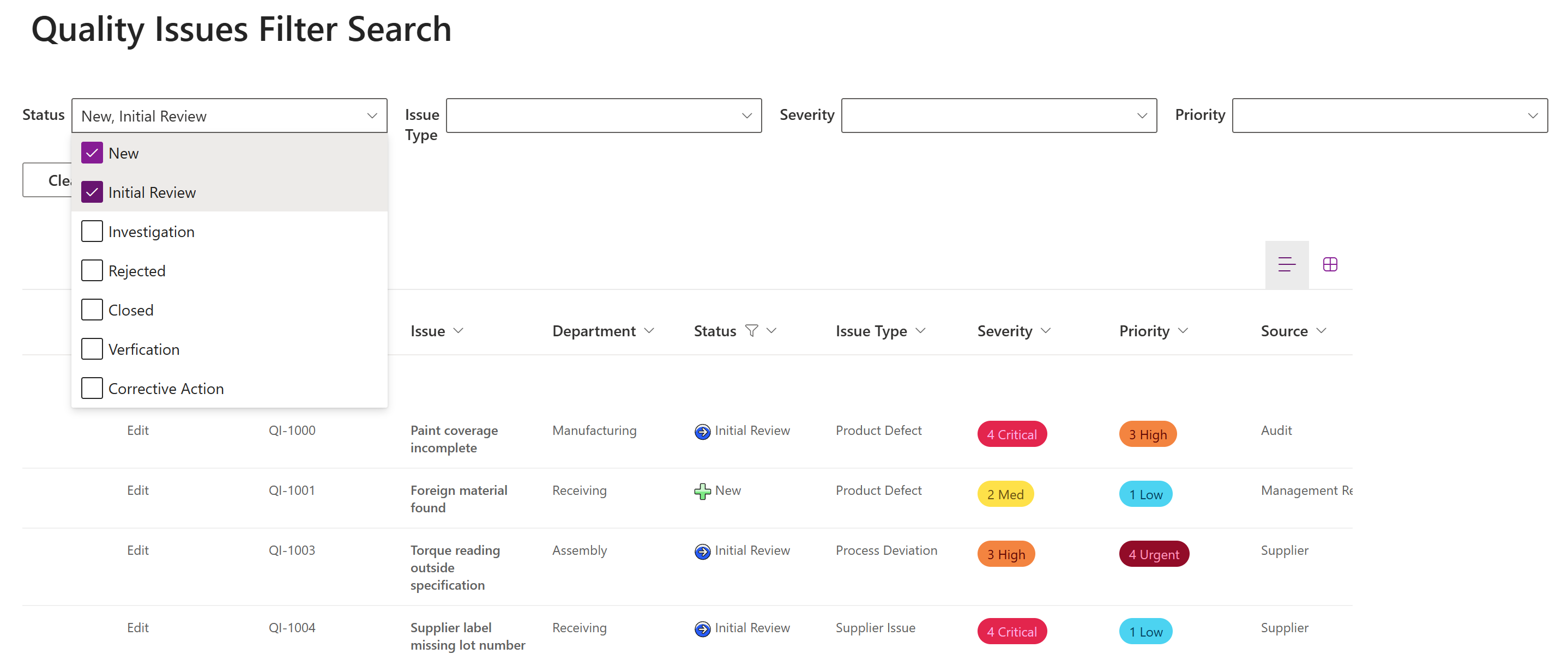
Multiple search conditions narrow a large list to the records that matter.
1. Save Time on Everyday Questions
The immediate benefit of filtering is less time spent hunting for information. An employee who previously searched for several minutes may locate a record much faster with the right controls. That improvement adds up when dozens of people perform similar searches each day. Faster searching means more time available for actual work. The value comes from repeated small improvements, not one dramatic shortcut.
Consider an HR coordinator responsible for employee training. A filter for department, training type, and completion status can reveal outstanding requirements. The coordinator no longer needs to inspect every employee record. The search produces a practical follow-up list instead of another administrative chore.
2. Combine Conditions for Better Precision
A single filter narrows a list, while several filters can answer a detailed question. Ultimate Forms List Search supports up to five advanced conditions with AND and OR logic. Employees can build targeted searches without learning a query language. A contract manager, for example, might locate active agreements worth more than $10,000 that expire before a selected date. The results identify a manageable set of contracts for review.
This flexibility is useful when business questions change. The interface allows the criteria to change without requiring a new SharePoint view. For a practical example, see Advanced Search Functionality with Infowise Ultimate Forms. The Simple and Advanced Search tutorial also explains how these searches work.
3. Avoid an Explosion of SharePoint Views
Separate views for every possible question are difficult to maintain. A help desk may already have views for open tickets, overdue tickets, high-priority requests, and assignments by technician. Then someone requests a view showing overdue high-priority tickets assigned to one technician. Flexible filtering lets employees choose the combination they need without creating another permanent view.
List Search also supports saved search conditions. Employees can reuse common combinations while retaining the freedom to explore different ones. Administrators spend less time maintaining overlapping views. The system becomes simpler to manage and more flexible to use.
4. Turn Dashboards into Interactive Tools
A dashboard becomes more useful when viewers can choose what it shows. A regional manager might need information for one location, while an executive wants organization-wide totals. Static dashboards often require separate pages for these perspectives. Interactive filters let a shared page serve multiple audiences. Users can change the context without leaving the dashboard.
Ultimate Forms Filters can control compatible Charts, Rollups, Calendar, and Counter components. Selecting a department can update several displays at once. This makes dashboards useful for exploring questions, not merely displaying numbers.
For examples, read Add Dynamic Filters to SharePoint Charts. The article 10 SharePoint Dashboards You Can Build Without Power BI offers broader dashboard ideas. Together, these resources show how useful SharePoint reporting can be without building a separate reporting application.
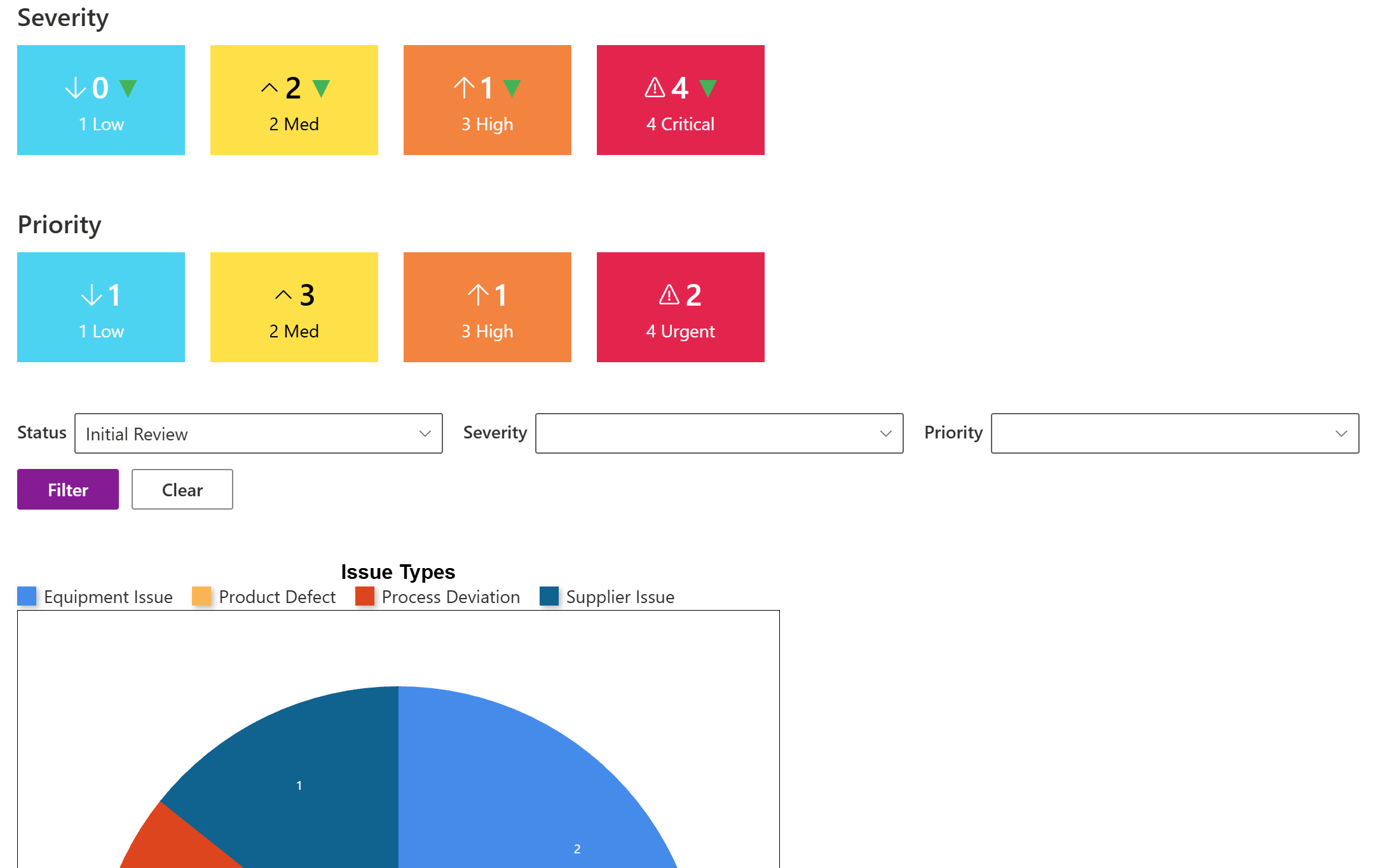
One filtering panel updates multiple connected dashboard components.
5. Make Complex Choices Easier
Too many options can make a filter almost as frustrating as having no filter. Imagine choosing a city from a dropdown containing hundreds of locations. A cascading filter provides a more sensible sequence. The user first selects a country, then a state, and finally a city. Each choice narrows the options in the next control. The same pattern works for divisions, departments, and teams.
Cascading selections help prevent irrelevant choices from cluttering the interface. For technical details, consult the Filters documentation. The objective is to make sophisticated filtering feel straightforward.
6. Help Nontechnical Employees Succeed
Employees should not need technical expertise to answer routine questions. Dropdowns, date selectors, and people fields are familiar ways to express search criteria. These controls can be configured around existing SharePoint columns. Users concentrate on what they want to find rather than how SharePoint stores the data. The Filters introduction tutorial explains the underlying approach.
Well-designed filters can also start with relevant values already selected. Ultimate Forms supports defaults, hidden conditions, and URL parameters for filtering. A shared dashboard could open with a department selected through its link. A project page could display information associated with that project. Filtering changes the displayed results, but it does not replace SharePoint permissions or security.
7. Connect Search Results to Action
Finding a record is usually the first step in getting something done. A technician searches for a ticket to update it. A manager identifies overdue tasks so someone can address them. A useful search experience should make those follow-up actions easy.
List Search presents matching records in a results grid. Depending on permissions and configuration, employees can open or edit items from the results. Export and printing options support additional business needs. The point is not simply to retrieve data, but to keep work moving.
Choosing Between Filters and List Search
The right component depends on the question. Use List Search when employees need to locate particular records through multiple conditions. Use Filters when they need to control charts, rollups, counters, or other compatible dashboard components. Many solutions benefit from both approaches.
| Business need | Recommended component |
|---|---|
| Find records using multiple conditions | List Search |
| Save frequently used searches | List Search |
| Display matching records | List Search |
| Control connected dashboard components | Filters |
| Use cascading selections | Filters |
| Apply predefined dashboard criteria | Filters |
For example, a management dashboard might show departmental statistics through Filters. An employee investigating an unusual total could then use List Search to find individual records. The Filters configuration tutorial shows how to begin. Together, the components make both overview and detail easier to access.
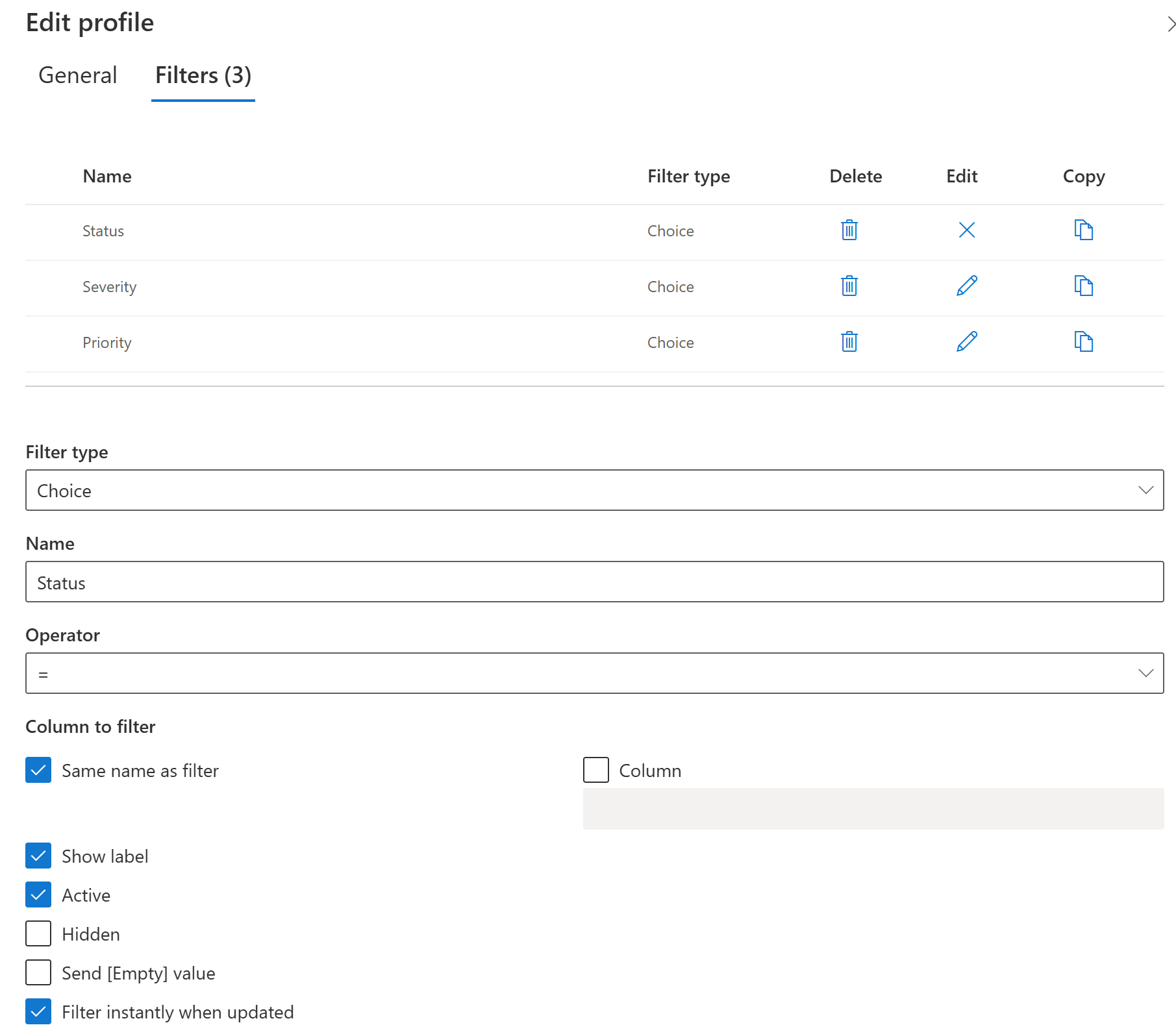
Business-focused filtering helps users identify records requiring attention.
Better Search Means Better SharePoint
Organizations invest heavily in collecting business information, but that investment pays off only when people can use it. Filter-based search helps employees find relevant records faster and with greater confidence. The best results come from designing filters around the decisions employees make every day. That makes search an essential part of the solution.
Ultimate Forms makes these capabilities available through configurable SharePoint components. Organizations can improve their existing solutions without developing a custom search application. Explore Ultimate Forms Filters and List Search to help employees spend less time searching and more time getting things done.
Frequently asked questions
Add your comment