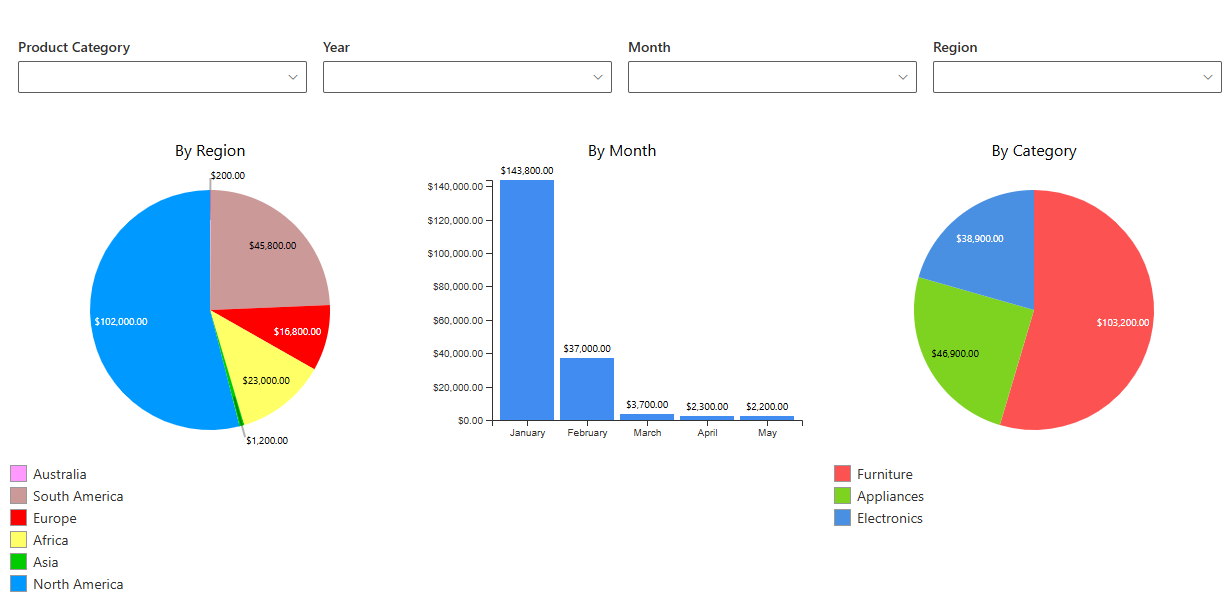
A chart without filters tells one story to everyone. Add filters, and the same chart answers each viewer's own question: their department, their quarter, their product line.
In Ultimate Forms, the Filter web part supplies the controls and the Chart web part responds to them, live, with no code. This guide covers the filtering options, the step-by-step wiring, and the practices that keep filtered dashboards fast and friendly. For the charts themselves, see the charts overview; for the whole dashboard kit, the ten dashboards guide.
Why one filtered chart beats five static ones
The case for filters is mostly arithmetic. Without them, the sales dashboard needs a chart per region, the support dashboard a chart per team, and every new slice means another chart to build and maintain. With filters, one chart covers them all: the viewer picks the slice, and the chart recalculates.
The other gains follow from that. The page stays uncluttered, because one interactive chart replaces a wall of static ones. The data stays focused, because viewers see their slice instead of scanning for it. And performance improves, because filtering happens upstream: the chart queries, aggregates, and renders only the filtered data, server-side, not as an after-the-fact visual trick.
The five kinds of filtering
Static filters are set at design time in the profile and always apply: Status equals Active, or Date within the last 30 days. Viewers never see them; they define what the chart is about.
User filters are the interactive ones: dropdowns, date pickers, text and number inputs that viewers adjust at runtime. Pick a department, set a range, and the chart follows.
Contextual filters read the page's context instead of a control. A query string parameter, DeptID in the URL, say, scopes the chart automatically, so a department page shows that department's chart with nobody selecting anything.
Cascading filters depend on each other. Choose a region, and the country dropdown narrows to that region's countries, which then filter the chart. The dependencies keep large option lists manageable.
Custom expressions carry the advanced logic: AND and OR combinations, comparisons, date ranges, contains, numeric ranges. Category equals A and either the date or the value crosses a threshold: expressible without code.
Most dashboards use two or three of these together: a static filter defining the scope, a user filter or two for the slicing, and context where the page already knows the answer.
Wiring it up, step by step
The build is two profiles and two web parts.
1. Create the chart profile. On the list, click Design to enter Ultimate Forms, switch to Charts, and add a profile with a unique title. Pick the category column, the series, and the aggregation: count, sum, or average. The chart-types guide helps with the shape.
2. Create the filter profile. Still inside Ultimate Forms, switch to Filters and add a profile, also with a unique title.
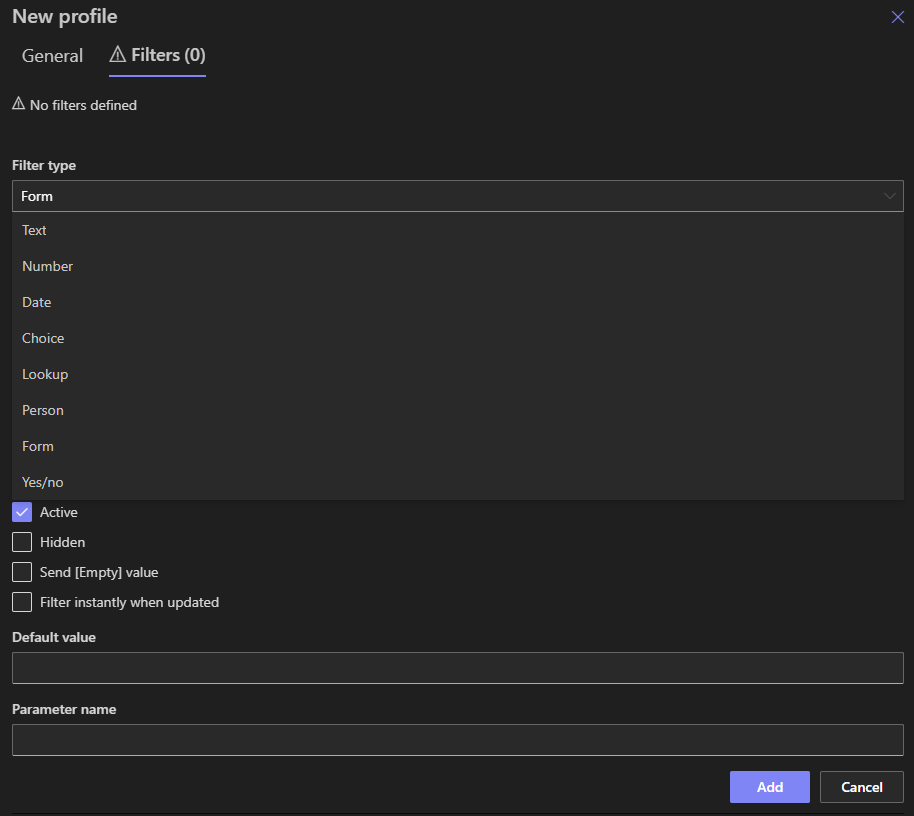
3. Add the filter controls. On the Filters tab, choose each control's type: text, number, date, lookup. Name the filter after the column it targets, or specify the column explicitly. Lookup filters take a source list and display column. Defaults are optional but worth setting, a default date range, a default threshold, so the page loads showing something meaningful.
4. Link cascading filters. With multiple lookup filters, configure the dependencies so each one's options narrow by the previous selection: region first, then its countries.
5. Bind page context if useful. Where the page carries a query string parameter, bind the filter to it, and the chart scopes itself on arrival.
6. Place the web parts. On the page, add the Chart and Filter web parts and select the profiles in each one's properties. The connection channel joins them: both default to channel 1, and they connect when the channels match. Separate channels allow several independent filter-and-chart pairs on one page, and one Filter web part drives any number of charts sharing its channel.
7. Test like a viewer. Try the combinations, check that the chart updates, and look at the details: axis scaling, gaps, labels, tooltips. Five minutes of clicking finds what a viewer would find in week one.
Where filtered charts earn their keep
The department dashboard. Revenue over time, with region and product-category filters. Each team opens the same page and sees itself.
Time-based trends. Monthly incidents with a date-range filter: last quarter, last year, or a custom window, from one chart instead of three.
Comparisons. A multi-select filter puts Product A and Product B on the same chart, and the meeting argument becomes a picture.
Embedded context. The project page's chart filters by the project's ID from the URL. The viewer never touches a control; the page already knew.
Drill-downs. The summary chart up top, a granularity filter beside it: total sales, then by region, then by salesperson, each one click deeper.
A worked example: the support dashboard that serves three audiences
Here is the pattern assembled once, concretely.
A support list holds tickets with Status, Category, Team, and Created date. The chart profile is a stacked column: tickets per month, split by category. A static filter scopes it to the last twelve months, so no viewer ever waits on five years of history.
The filter profile adds three controls. A Team lookup, so each team lead opens the page and picks their own queue. A Category dropdown, for the days when one category misbehaves. A date range, defaulting to the last quarter.
Both web parts sit on the support site's home page, on channel 1. The same Filter web part also drives a second chart beside the first, average resolution time as a line, on the same channel, so one selection updates both pictures together.
The result: the support manager sees the whole operation, each team lead sees their team, and the quality lead slices by category, all from one page that took under an hour to wire. Nobody asks for "a version of that chart for us" again, because the version for them is the filter they set.
Keeping it fast and friendly
A few practices separate dashboards people use from dashboards people abandon.
Limit the controls. Two or three essential filters, time period and category first, beat a sidebar of ten. Every control is a question the viewer must answer before seeing anything.
Set friendly defaults, and offer a way back. "Last 30 days" on load means the first paint is already meaningful, and a clear-filters option means experimentation is safe.
Mind the list size. Over large lists, let static filters and indexed columns carry the heavy narrowing, so the interactive filters work on a dataset that responds instantly. Index the columns you filter on; SharePoint query performance depends on it.
Keep values clean. Filters match values exactly, so inconsistent entries, trailing spaces, free-text variants, become invisible items. Choice and lookup columns filter better than text for exactly this reason.
And document the wiring. Channels, dependencies, defaults, and context bindings are obvious to whoever built them and to nobody else. A few lines of notes keep the next maintainer from rediscovering the design by experiment.
The finished page is the dashboard pattern this cluster keeps arriving at: counters for the headline numbers, filtered charts for the trends, and the list beneath for the records, every layer answering to the same filters. One page, every team, always current, and no BI platform anywhere in sight.
Frequently asked questions
Add your comment