Setting up an alert that fires when a list item changes takes about five minutes in Ultimate Forms: pick the recipients, including people resolved from the item's own columns, choose the events and the exact changes that matter, write the message with the item's values in it, and save. The result goes far beyond what native SharePoint alerts offer, conditions, custom templates, digests, logging, Teams delivery, which is why the engine exists as a full replacement for them. This guide is the complete first build, every setting explained in order, with the specialized scenarios linked at each step.
Before the build: what an alert is here
An alert in Ultimate Forms is a configured notification rule on a list or library: who to tell, when to tell them, and what the message says. Everything is settings, created from the list's Design button under Alerts, and a list can carry as many alerts as its processes need, each one independent, each one editable without touching the others. Native SharePoint alerts, by contrast, offer subscribers a take-it-or-leave-it notification with no conditions, no custom content, and no way for a process owner to notify anyone but the subscriber, the gap that makes this engine the standard path.
One orientation decision saves confusion later: alerts notify, actions do. When the requirement is "email someone about the change," it is an alert; when it is "change something else because of the change," it is an action, and the two share their condition grammar, so nothing learned here is single-use.
Step 1: who receives it
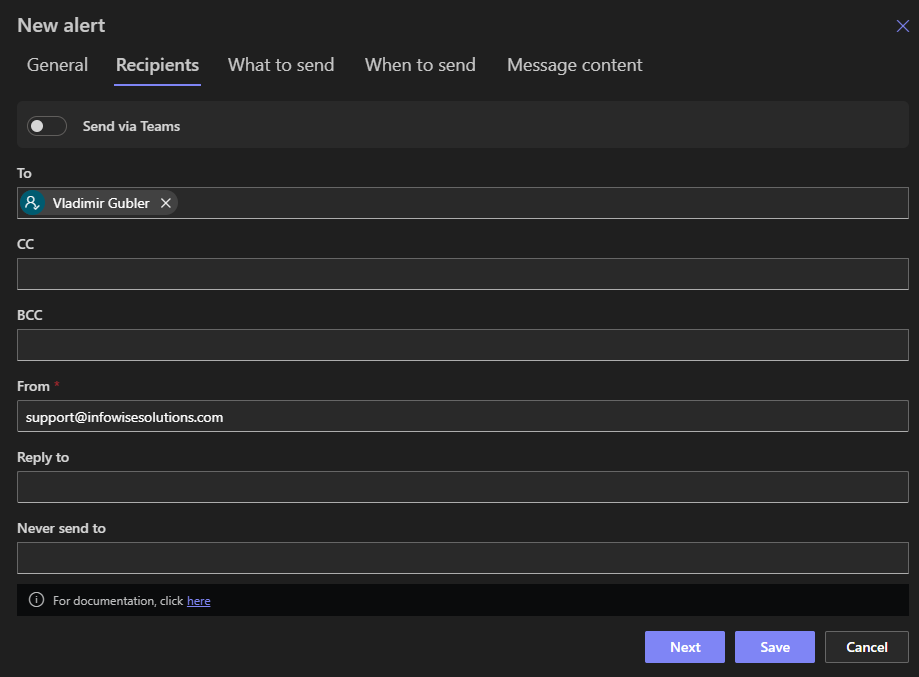
Open the list, click Design, choose Alerts, and add a new alert. Recipients come first, and this is where the engine immediately outgrows the native model. Recipients can be fixed users and groups, but the interesting option is columns: the Assigned To of the changed item, the Manager person column, the Email a visitor typed into an external form. Column-resolved recipients make one alert serve every item correctly, each change notifying the people connected to that item, which no per-person subscription model can express. External email addresses work too, so customers and vendors can be first-class recipients.
Step 2: when it fires
Under What to send, pick the events: item added, modified, or deleted, with attachment and check-in events available for the document cases. For a change alert, Item is modified is the trigger, and then comes the setting that separates a useful alert from a noisy one: conditions.
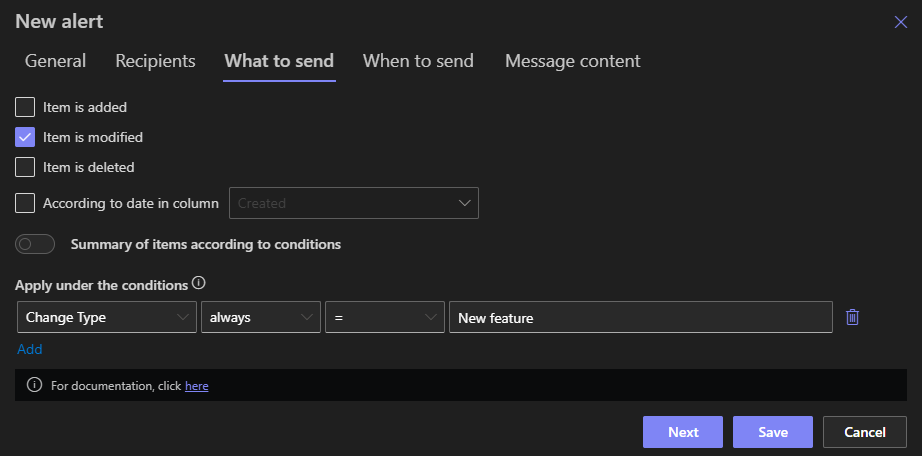
Conditions narrow the alert to the changes that matter. A plain modified-trigger fires on every edit, the fixed typo, the recalculated column, and trains recipients to ignore the alert within a week. Conditions like Status equals Approved restrict it to the states that matter, and after-change conditions restrict it to the transition: Status after change equals Approved fires once, at the moment of approval, and never again for later edits of an approved item. The after-change setting is the single most important option on a change alert, and its full treatment is worth reading before building anything subtle. Alerts can also fire on schedules rather than events, the reminder two days before a due date, which is the date-based family, and recipients who prefer bundles can receive digests instead of singles.
Step 3: what it says
The Message content tab is where the alert earns its open rate. The subject and body are fully yours, with the item's column values insertable anywhere, so the subject can read "Purchase request 2041 approved, $4,820" instead of "An item was modified." The craft rules are their own article, and the two that matter most on day one: put the decisive fact in the subject, because recipients triage from the notification bar, and give the body exactly what the reader needs to act, the key values and one link to the item.
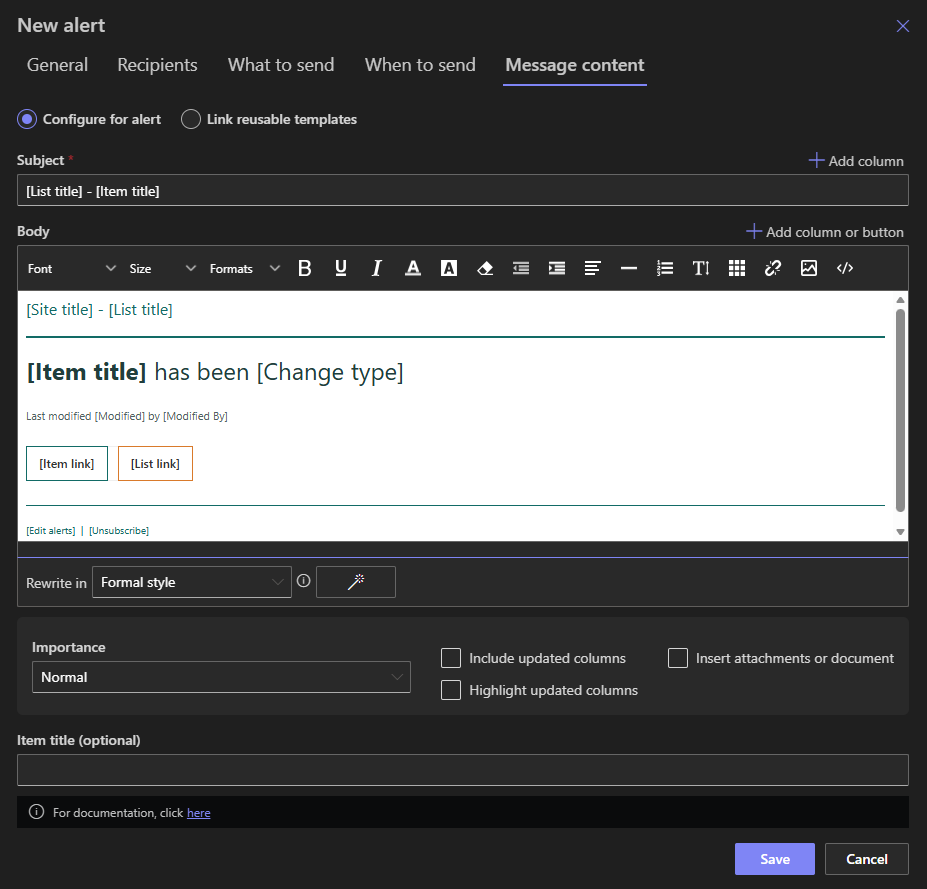
Two upgrades turn the message from information into interface. A styled link to the item, formatted as a button, makes the next step obvious. And action buttons make the next step unnecessary: Approve and Reject inside the email, each click running the operation from the inbox, with parameters collected when the decision needs a reason.
Step 4: save and verify
Save the alert, change an item so the conditions pass, and the email arrives within the engine's normal processing interval, typically under a minute. Verify both halves: the message reads as designed, values filled, link working, and the delivery is recorded, because every send is logged. The alert log is the operational difference between "I think it sent" and "it sent at 14:32 to these recipients," and checking it once during setup teaches the habit that answers every future "did they get it?"
For the rare notification where the processing interval itself is too slow, the front-desk check-in, the emergency report, a synchronous Send Email action delivers in two to five seconds, and pairing both gives speed with the log's safety net.
The worked example, end to end
The classic change alert, assembled from the steps: a purchase request list where approvals must reach the requester the moment they happen. Recipients: the Created By column. What to send: Item is modified, with the condition Status after change equals Approved. Template subject: "Your purchase request [Title] was approved." Body: the amount, the approver, the date, and a button-styled link to the item. Saved, tested, verified in the log, five minutes, and the requester now learns of every approval within a minute of it happening, without anyone remembering to tell them, which is the whole promise of notification machinery in one sentence.
Variants of the same build cover most of a solution's notification needs. Swap the condition to Status after change equals Rejected, the recipient stays, the message changes tone. Point the recipient at a Manager column and the condition at Submitted, and it is the reviewer notification. Add Teams delivery for the channel-dwelling team. Let users subscribe themselves from the form when the audience is self-selecting. Each is the same four steps with different answers.
The habits that keep alerts respected
Alert systems die of noise, so the disciplines are worth stating as rules. Fire on transitions, not states, after-change, almost always. One decision per alert: the approval notice and the rejection notice are two alerts with two tones, not one alert with a vague message. Name the alert for its business meaning in the configuration, "Notify requester on approval," so the list of alerts reads as the notification policy it is. Prefer digests for high-volume informational streams and reserve singles for things a person must act on. And once a quarter, read the list's alerts and delete the ones whose reason has left the building, an inherited alert nobody can explain is noise with a pedigree.
Built this way, alerts become what notifications are supposed to be: the process announcing its own progress, to exactly the right people, in words they act on.
Frequently asked questions
Add your comment