Introduction
Alert email buttons are one of the most powerful features in Infowise Ultimate Forms, enabling users to take immediate action directly from their inbox. While simple action buttons such as Approve or Reject already remove friction from common workflows, the real strength of this capability becomes evident when parameters are introduced.
By allowing actions to accept parameters, Ultimate Forms transforms alert emails from static notifications into fully interactive entry points for business processes. Users can provide additional input at the moment they act, without navigating to SharePoint, opening a list item, or launching a separate form. This combination of flexibility and simplicity significantly enhances both administrator configuration and end-user experience.
Let's examine how parameterized alert buttons work, how users interact with them, and how they can be applied to real-world business scenarios.
Understanding Alert Buttons with Parameters
At a basic level, an alert email button is linked to an action defined in Ultimate Forms. When the recipient clicks the button directly from an email, the action is executed. In many cases, the action simply updates a column or runs a predefined process.
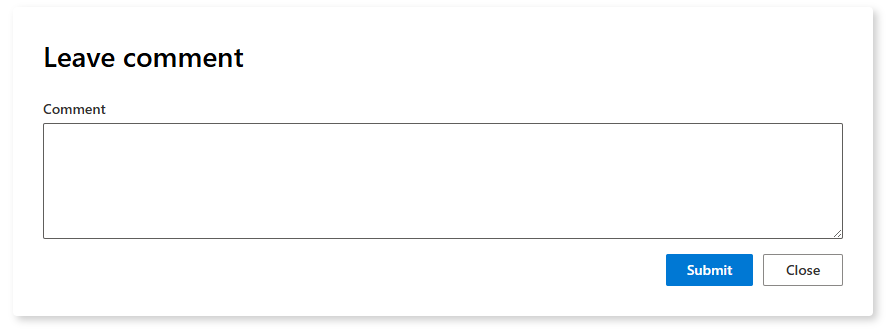
When an action includes parameters, the behavior changes in a powerful and intuitive way. Instead of executing immediately, the system prompts the user to supply the required parameter values. This is done through a clean, automatically generated form that appears after the button is clicked.
The flow works as follows:
-
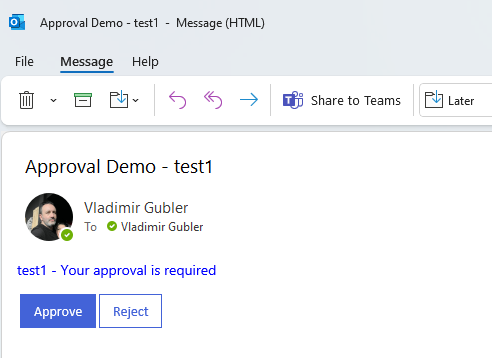
The user receives an alert email containing one or more action buttons.
-
The user clicks a button associated with an action that has parameters.
-
A browser window opens, displaying a form with input columns corresponding to the action parameters.
-
The user enters the required values and submits the form.
-
The action executes using the values provided by the user.

This approach preserves simplicity while allowing highly dynamic behavior.
What Are Parameters in Ultimate Forms Actions?
Parameters are variables defined within an action. They allow the same action to behave differently depending on the values passed at runtime.
Parameters can be used to:
-
Capture user input
-
Control logic inside the action
-
Populate list columns
-
Pass values to external systems
-
Influence conditional rules and branching
From a configuration perspective, parameters are defined once within the action. From an end-user perspective, parameters appear as intuitive input columns that require no training or explanation.
The End-User Experience
One of the most important aspects of parameterized alert buttons is how natural they feel to end users.
From the user’s point of view, the experience is straightforward:
-
They click a button in an email.
-
They see a short form asking for additional information.
-
They submit the form and receive confirmation that the action was completed.
There is no need to:
-
Open SharePoint
-
Locate the correct list or item
-
Understand the underlying workflow
-
Navigate complex forms
The parameter form is automatically generated based on the action definition, ensuring consistency and reducing the risk of user error.
Configuration Simplicity for Administrators
From an administrator’s perspective, parameterized alert buttons are just as easy to configure.
The process typically involves:
-
Creating an action in Ultimate Forms.
-
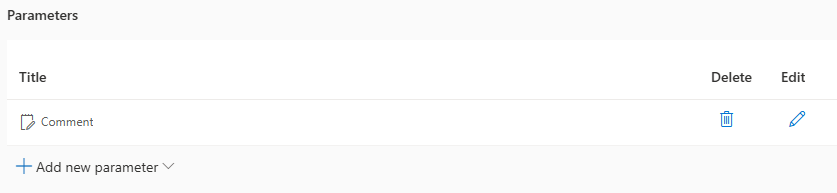
Defining one or more parameters for that action.
-
Using those parameters within the action logic.

-
Linking the action to an alert email button.
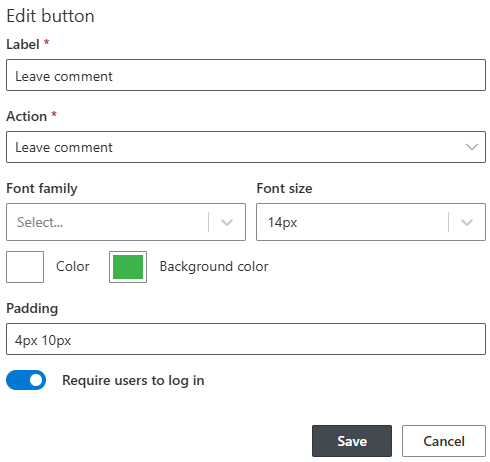
There is no need to design a separate form, publish a new page, or build custom interfaces. Ultimate Forms handles the presentation and validation automatically.
This approach dramatically reduces configuration time while increasing solution flexibility.
Real-World Example: Conditional Approval with Comments
Consider a standard approval process that requires an approver to provide a comment when rejecting a request.
Without parameters, the approver might need to:
-
Open the item in SharePoint
-
Edit the form
-
Enter a rejection comment
-
Save the item
With parameterized alert buttons, the process becomes much simpler.
How It Works
-
The alert email contains Approve and Reject buttons.
-
The Reject button is linked to an action with a parameter called “Rejection Comment”.
-
When the approver clicks Reject, they are prompted to enter the comment.
-
Upon submission, the action updates the status to Rejected and saves the comment.
This ensures that rejection reasons are always captured while keeping the workflow fast and user-friendly.
Real-World Example: Scheduling and Rescheduling
In scheduling scenarios, a single action can support multiple outcomes using parameters.
For example, consider an appointment confirmation email sent to an external recipient.
Scenario
-
The email contains a Confirm button and a Request Change button.
-
The Request Change action includes parameters such as:
-
Preferred new date
-
Preferred new time
-
Optional message
-
When the recipient clicks Request Change, they are presented with a form to enter the new details. Once submitted, the action updates the appointment request accordingly and can trigger follow-up notifications.
This approach eliminates email back-and-forth and ensures structured data is captured every time.
Real-World Example: Financial Adjustments
In financial or procurement workflows, decisions often require numeric input.
For instance, a manager may approve a request but adjust the approved amount.
Scenario
-
The alert email includes an Approve with Changes button.
-
The action includes parameters such as:
-
Approved Amount
-
Approval Notes
-
The manager clicks the button, enters the adjusted amount, and submits the form. The action updates the item with the new values and continues the workflow.
This allows for nuanced decisions without forcing users to access the full form or list item.
Supporting External Users
One of the key advantages of parameterized alert buttons is their suitability for external users.
When authentication is not required, external recipients can:
-
Click buttons in emails
-
Enter parameter values
-
Trigger actions securely
This makes it possible to involve customers, vendors, or partners in workflows without granting them SharePoint access.
Examples include:
-
Vendor confirmations
-
Customer feedback collection
-
External approvals
-
Event RSVPs with additional details
The parameter form provides a controlled, secure way to collect input while maintaining a seamless experience.
Flexibility Across Use Cases
Because parameters are defined at the action level, they can be reused and combined in many ways.
A single action can:
-
Accept different types of parameters
-
Use default values
-
Apply validation rules
-
Drive conditional logic
This means administrators can design solutions that adapt to changing requirements without rebuilding workflows or forms.
The same alert button concept can support:
-
Simple approvals
-
Multi-step decisions
-
Data collection
-
Exception handling
-
External integrations
All using the same underlying mechanism.
Improved Data Quality and Consistency
By capturing user input through parameter forms, organizations benefit from improved data quality.
Unlike free-form email replies, parameter input:
-
Is structured
-
Can be validated
-
Is stored directly in SharePoint columns
-
Can be reused in downstream processes
This ensures consistency across records and reduces manual cleanup or follow-up.
A Better Way to Act from Email
Parameterized alert buttons represent a natural evolution of email-driven workflows. Instead of limiting users to binary choices or forcing them back into SharePoint, Ultimate Forms enables meaningful interaction directly from notifications.
The result is:
-
Faster decision-making
-
Fewer clicks
-
Better data
-
Happier users
Administrators benefit from a flexible configuration model, while end users enjoy a clean, intuitive experience that feels purpose-built for their task.
Conclusion
Alert email buttons with parameters are a clear example of how Ultimate Forms balances power and simplicity. By allowing actions to prompt for input at runtime, organizations can design workflows that are both sophisticated and easy to use.
Whether capturing approval comments, adjusting values, scheduling changes, or collecting external input, parameterized alert buttons eliminate unnecessary steps and keep processes moving forward.
For teams looking to streamline SharePoint workflows without introducing complexity or additional tools, this capability delivers immediate and lasting value.
Add your comment