The data your teams need often lives in a database they will never query. The ERP's SQL Server, the legacy Oracle system, the MySQL backend of an internal tool: full of operational truth, visible only to the few with credentials and a query editor.
The Import component of Ultimate Forms opens that data to SharePoint. An import profile connects to the database, reads on a schedule, and keeps a list in step: creating, updating, or syncing items from the rows. With an action running stored procedures in the other direction, the bridge carries traffic both ways, and none of it requires integration code.
This guide covers the supported databases, the sync build, the two-way pattern, and the habits that keep database bridges healthy. For every other source the Import component reads, see the complete import guide.
Why surface database data in SharePoint at all
The database is usually the system of record, and it should stay that way. The problem is everything around the record: the people who need to see it, discuss it, attach things to it, and act on it, none of whom live in the database.
Surfaced as a SharePoint list, the same data joins the collaboration layer. Views slice it, dashboards chart it, alerts watch it, and processes attach to it: the approval that references the customer record, the task generated from the order, the document filed against the account. The database keeps the truth; SharePoint gives the truth a workplace.
The alternative most organizations run is exports: someone queries, saves a file, and mails it around. The import profile replaces that with a schedule, and the list stops being a snapshot of whenever somebody last had time.
What connects
The Import component speaks to the major engines directly: SQL Server, Oracle, and MySQL, with ODBC and OLE DB covering the rest of the field. Cloud databases follow the same path, with Azure SQL covered in its own walkthrough.
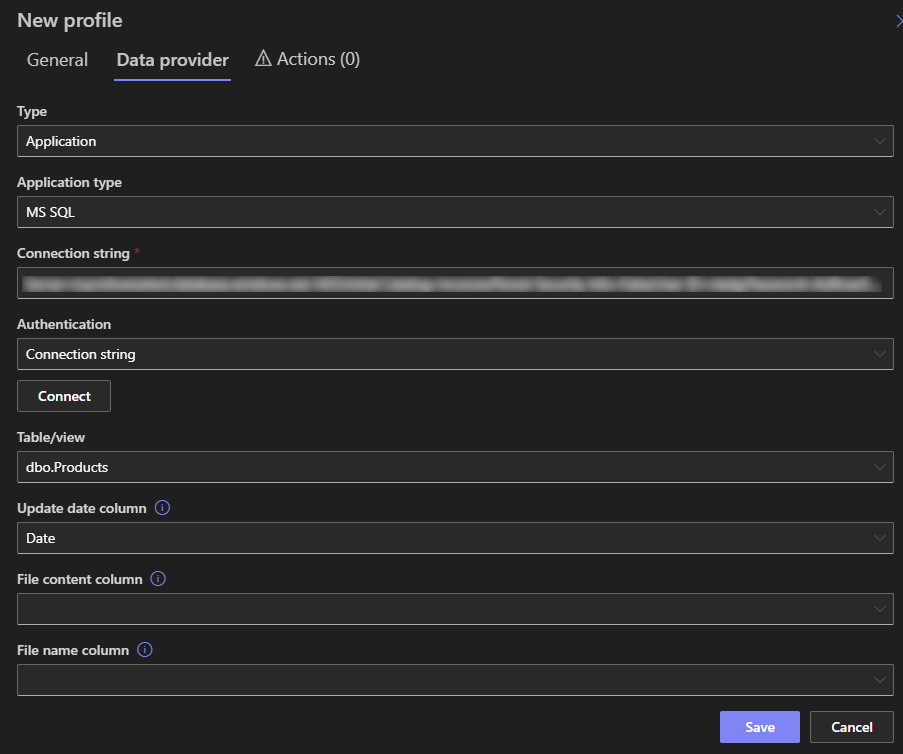
The profile takes a connection string or credentials, a query or table to read, and a schedule. Everything is configured in the browser, with no farm access and no middleware, which matters most in SharePoint Online, where server-side integration options do not exist at all.
The sync build
Four steps stand between the database and a living list.
1. Create the target list. Columns aligned with the data you are surfacing: the identifier, the name, the values the processes need. The list does not have to mirror the schema; the mapping absorbs differences, so surface what SharePoint needs and leave the rest in the database.
2. Configure the source. Database type, connection details, and the polling schedule. Every 15 minutes suits operational data; nightly suits reference tables. The profile's start date controls how far back the first run reaches.
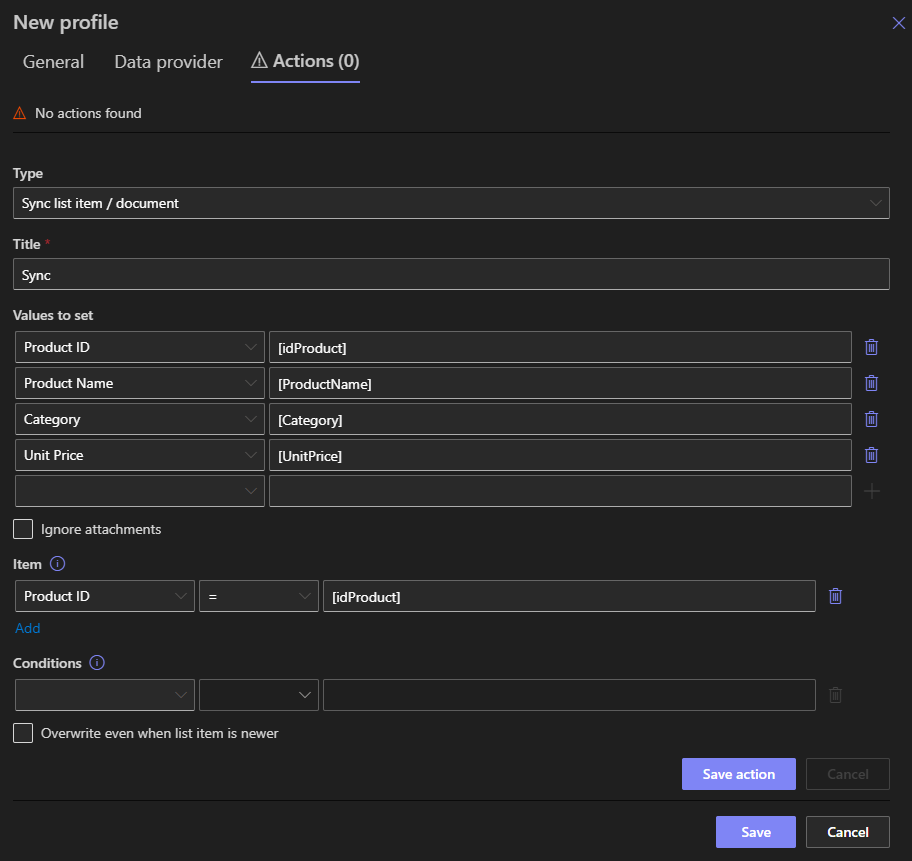
3. Choose the action and map columns. The same three intents as every import source: Create for a stream of new records, Update for corrections to existing items, and Sync, the usual choice here, matching rows to items by unique identifier, updating the found and creating the missing. After each run, the list equals the query.
4. Test against reality. Run the profile manually, compare the list to the database, and check the types: dates, decimals, and nulls are where database imports earn their testing. Import history records every run, with item counts, errors, and runtime, which is also the answer to "did it run last night."
Two-way: writing back to the database
Reading is half the bridge. The other half is an action of type Manage database data, which executes SQL statements and stored procedures using list item values.
The pattern: the import keeps the list current from the database, and the action pushes decisions back. The record surfaces in SharePoint, the team works it, and when the item changes, the action updates the source, the LastSale column, the status, the assignment. The database remains the system of record, now recording what happened in the collaboration layer too.
Two-way bridges deserve one design rule: give each direction its own columns. Let the database own the facts it masters, and SharePoint own the facts it creates (statuses, notes, decisions), so the two systems never fight over the same value. With that split, the synchronization is boring, which is the highest compliment an integration gets.
Where the bridge runs the business
Customer and account surfacing. The CRM-less sales team works accounts from a list synced off the billing database, with activity, notes, and tasks attached in SharePoint, and closures written back.
Operational reporting. Financial and production data imports into the lists behind the dashboards, so the Monday numbers come from Friday's database, not from whoever exported last.
Reference data for forms. Product catalogs, price lists, and employee rosters sync into lists that feed form lookups, so every dropdown in every form reflects the master data without anyone maintaining copies.
Legacy system workbench. The old system's records surface into a list where modern approvals and alerts run against them, buying the organization years of workflow modernization without touching the legacy code.
A worked example: the orders bridge
The pattern assembled once. An order-fulfillment team lives in SharePoint; the orders live in the ERP's SQL Server.
The target list carries Order Number, Customer, Amount, Due Date, and ERP Status from the database, plus two columns that belong to SharePoint alone: Fulfillment Stage and Notes. The profile reads a dedicated view the DBA created, polls every 15 minutes, and syncs by Order Number.
The team works the list. Views group by due date, an alert flags orders above a threshold, and the fulfillment stages advance as the work moves. When an order ships, an action runs the stored procedure that stamps the shipment in the ERP.
Nobody exports anything, nobody re-keys anything, and the two systems never argue, because each owns its own columns. The ERP knows what was ordered; SharePoint knows what the team did about it; and both can see the whole story.
Keeping the bridge healthy
Treat the query as the contract. Import from a dedicated view or a stable query rather than raw tables, and schema changes on the database side stop being surprises on the SharePoint side.
Use a least-privilege account. The profile needs to read what it imports and execute what it writes back, and nothing else. The DBA will ask; have the answer ready.
Match the schedule to the data's pulse, not to enthusiasm. A reference table polled every five minutes is load without information. Fifteen minutes for operational data and nightly for reference covers most needs.
And watch absence, not just errors. A bridge that stops is quieter than a bridge that fails. An alert on stale data, no changes since yesterday on a table that changes daily, turns silence into a question someone asks on Tuesday morning rather than at month end.
For intake that arrives as messages rather than rows, the email import applies the same profile model to mailboxes, and the two sources frequently feed the same solution: the database supplies the records, the inbox supplies the requests, and the list holds the process that joins them.
Frequently asked questions
Add your comment