The Simplest Way to get Pictures to SharePoint
Almost every worker in your organization already carries a powerful camera with them everywhere they go. Their cell phone is available on the manufacturing floor, in the warehouse, at a customer site, in a company vehicle, or almost anywhere else work is taking place. As long as they have a data connection, they have everything they need to document an incident or issue the moment they see it. The problem has never been taking the picture. The problem has been getting that picture into SharePoint.
With ordinary SharePoint processes, something that should be incredibly simple can quickly become a hassle. A worker takes a picture with a phone, transfers it to a computer, potentially adjusts the picture, logs into SharePoint, navigates to the appropriate location, and finally uploads the image. When reporting an issue requires that many steps, it should not be surprising that pictures often never make it into SharePoint at all. The worker may intend to deal with it later, but other priorities intervene and valuable visual information is lost.

Remove the barriers to capturing pictures
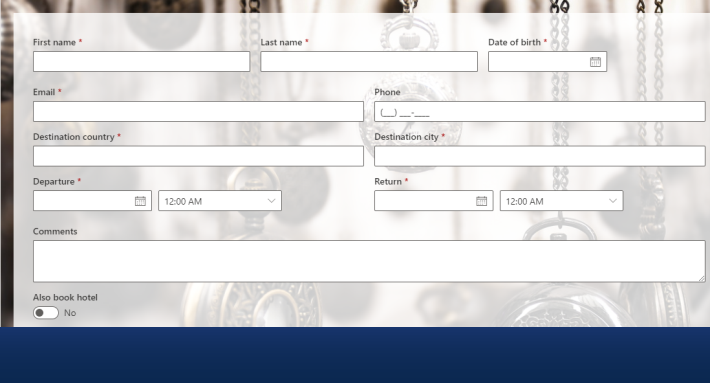
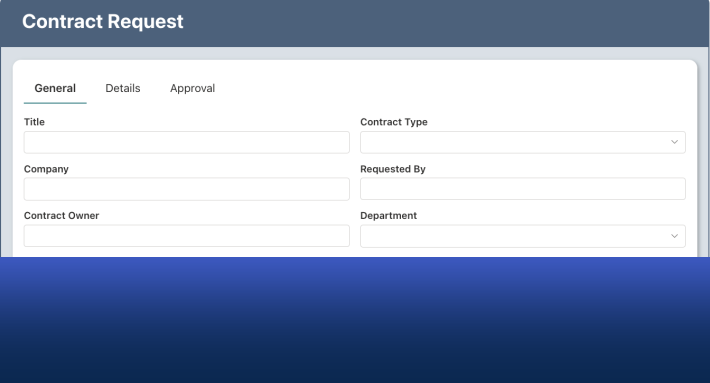
Ultimate Forms changes this process completely. Using Forms and User Interface, an organization can create an easy-to-use form that works directly with its SharePoint data. Ultimate Forms uses responsive design, so forms automatically adapt to cell phone screens and remain easy to use on mobile devices.
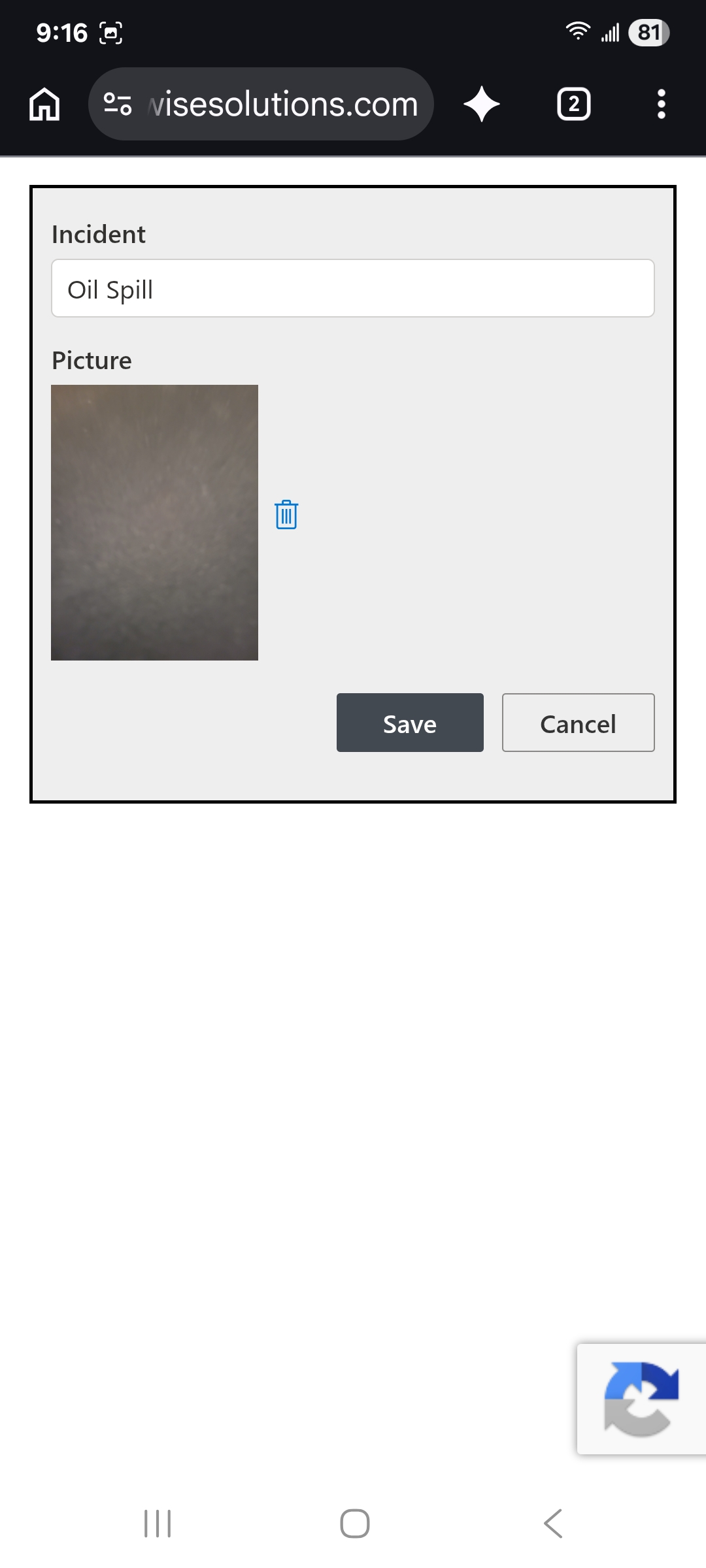
The process for the worker can be reduced to a few simple actions. Open the form, tap the picture field, take a picture, and submit. When the user taps the picture field from a phone, the phone's camera is opened so the picture can be taken right then. The image is immediately added to the form, along with any other information the organization wants the worker to provide.
There is no need to create a complicated custom image solution to accomplish this. The form uses the normal out-of-the-box SharePoint Image field. The difference is the experience Ultimate Forms creates around it. Instead of requiring the user to work through a series of disconnected steps, taking the picture becomes part of filling out the form.
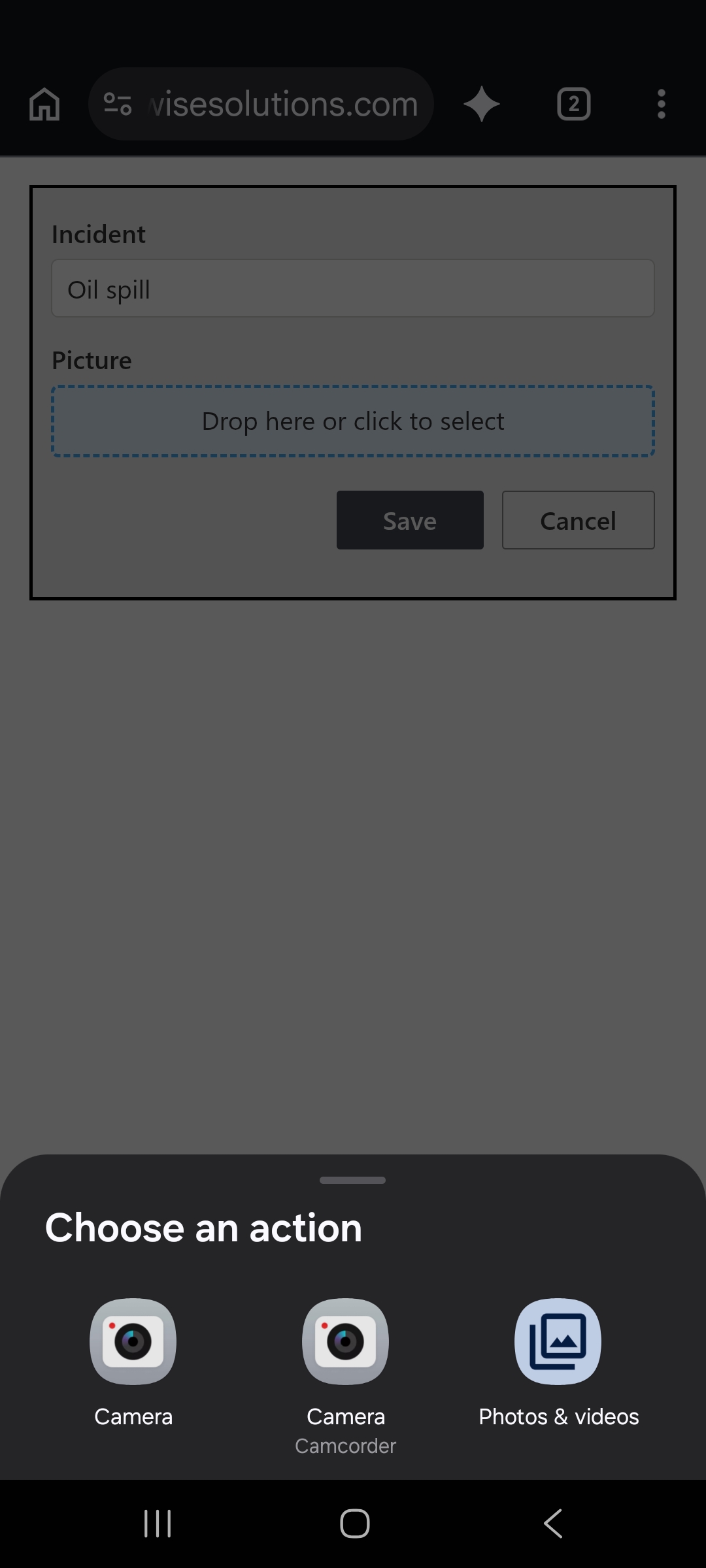
Once the picture has been taken, the user can see it directly in the form. There is no separate file-transfer process and no need to move the image from the phone to a computer. The picture is already part of the information that is about to be submitted.
No SharePoint login required
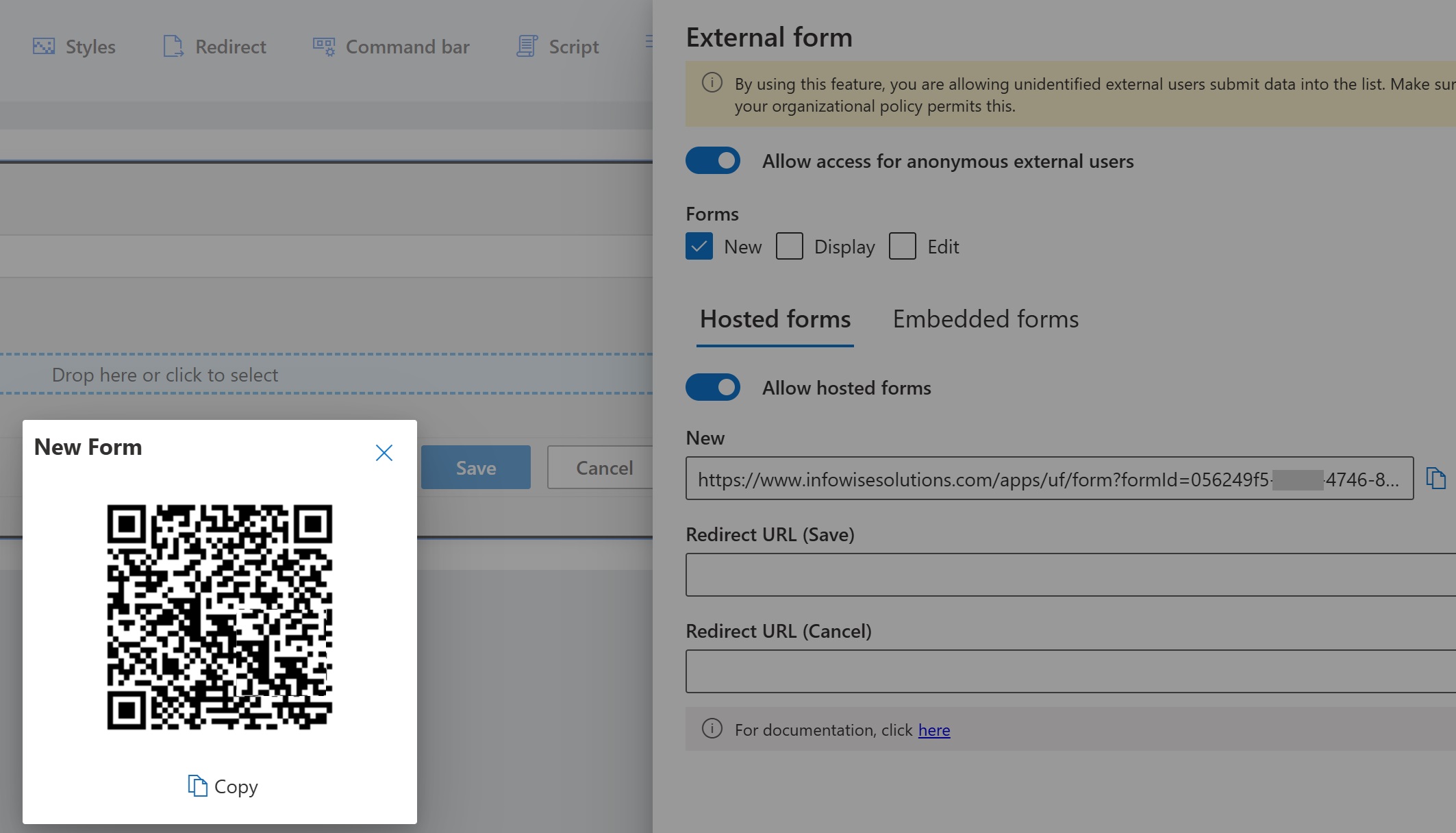
The process becomes even easier when the form is published using Ultimate Forms public-facing form functionality. The worker does not need to be logged into SharePoint to use a public-facing form. Ultimate Forms public forms provide a secure way for users outside the normal SharePoint authentication experience to submit information that ultimately enters the organization's internal SharePoint list.
This is important when you want photo collection to be available to a large population. You do not want workers worrying about SharePoint URLs, authentication, navigation, permissions, or how to find a particular list. They simply need access to the form.
Ultimate Forms makes access even easier by automatically providing a QR code for the public-facing form. That QR code can be printed and displayed throughout a facility. It could be placed near production lines, equipment, loading areas, entrances, break rooms, maintenance stations, vehicles, or anywhere else employees might need to report something.
A worker sees something worth documenting, pulls out a phone, scans the QR code, and opens the form. No SharePoint login is necessary. There is no special application for the worker to learn. There is no picture to transfer later. The worker can document what is happening while standing directly in front of it.
From the worker's phone directly into SharePoint
After the user completes the form and taps Submit, the information is loaded into SharePoint. The public-facing form provides the simple submission experience, while the resulting information is kept inside the organization's SharePoint environment rather than being exposed as publicly browsable SharePoint data. Ultimate Forms provides external forms for sending submitted information directly into the internal SharePoint list through a secure process.

This creates an extremely short path between seeing something and recording it. Take the picture. Submit. By removing the hassles associated with reporting an incident or issue, organizations remove many of the practical reasons workers fail to submit pictures in the first place.
The process can also scale broadly. Public-facing forms are generally not licensed according to the number of people submitting them, so an organization does not need to purchase a separate Ultimate Forms license for every worker who uses the form. Whether the solution is intended for 200 workers or 2,000, the same basic approach can be made widely available. There is also no practical need to treat photo reporting as a limited resource. Workers can continue submitting pictures whenever they have something worth documenting.
What could your organization capture?
The possibilities extend far beyond a traditional incident report. A worker could photograph a safety incident, a dangerous work environment, improper use of equipment, a spill, an obstruction, damaged machinery that requires repair, or another risky condition. Fleet and field workers could document damage to vehicles or equipment. Maintenance personnel could photograph a problem before beginning work and then submit another picture showing the completed repair.
Pictures can also document what is going right. Employees could capture examples of workers correctly following an important process, a successfully completed project, improvements made to a facility, or simply positive pictures of employees and teams that can be shared throughout the company.
Once these submissions accumulate, Ultimate Forms provides additional ways to work with the information. Associated Items can help connect related tasks, documents, or follow-up records to the original item, while Rollups can combine information from multiple SharePoint sources into unified views. Organizations can also use Charts to visualize and summarize SharePoint list information.
A picture can start an entire process
Getting the picture into SharePoint can be just the beginning. Ultimate Forms includes extensive automation capabilities that can turn a simple photo submission into the first step of a complete business process.
For example, Alerts and Notifications can notify the appropriate supervisor when a new item is submitted. Alerts support configurable recipients, conditions, customized messages, attachments, and embedded image column values, making it possible to get relevant information in front of the right people quickly.
The organization can then use Actions and Automation to continue the process. Additional information can be required during follow-up steps, tasks can be created, records can be updated, permissions can be managed, and other automated actions can occur as the item progresses. Ultimate Forms Actions can run automatically when SharePoint items are added or modified, as well as manually or according to timers.
The result is much more than a convenient way to upload an image. A picture captured in seconds can become the starting point for investigation, notification, assignment, corrective action, verification, reporting, and ultimately resolution.
Put a camera in the hands of every worker
In reality, the cameras are already there. Your employees carry them every day. What organizations have been missing is an equally convenient way to connect those cameras to their SharePoint business processes.
Ultimate Forms closes that gap. A QR code can be displayed where workers need it. The public form can be opened without logging into SharePoint. Responsive design makes the form easy to use on a phone. The worker taps a standard SharePoint Image field, takes a picture, provides any required information, and submits. The information reaches SharePoint, where it can remain secure and become part of a much larger automated process.
Most importantly, the process is simple enough that people will actually use it. When taking and reporting a picture takes only moments, documenting a broken machine, unsafe condition, damaged vehicle, correctly completed procedure, or successful project no longer needs to become a task someone plans to handle later.
Everything described here can be tried by prospective customers with the complete Ultimate Forms trial. All Ultimate Forms features are included rather than divided into separate feature tiers, and Infowise provides both installation and online trial options.
If you are new to Ultimate forms, you can Try Ultimate Forms Free
Add your comment