Microsoft 365 gives you four no-code and low-code paths to a working business process: Microsoft Forms for simple data capture, SharePoint lists and libraries for structured records, Power Apps for complex custom interfaces, and Power Automate for workflow. Each covers one slice of a process, which is why real solutions usually end up stitched together from three of them. The alternative is a platform approach: Ultimate Forms builds the entire process, intake, logic, automation, notifications, documents, and dashboards, in one no-code tool inside SharePoint itself. This guide walks the Microsoft toolbox honestly, tool by tool with specific selection criteria, and shows at each stage what the platform approach changes.
Start with the process, not the tool
Once the initial enthusiasm of a Microsoft 365 rollout subsides, every organization reaches the same question: which of our processes should move into it, and with what? Not everything moves overnight, and it shouldn't. The right first candidates share a profile: they run on email and spreadsheets today, they have a clear trigger and a clear finish, they involve an approval or a handoff, and someone regularly asks "where does this stand?" Purchase requests, leave approvals, onboarding checklists, support intake, contract reviews, all fit.
Before touching any tool, sketch the flow: who submits what, who approves, how many approval stages exist, what happens on completion, and what data must land where. A process map on one page saves weeks of rework, because the tool choice below depends on answers the map forces out of you.
The Microsoft toolbox, tool by tool
Microsoft Forms is the right tool when the process is truly simple: collect responses, no complications, the kind of thing that would otherwise be a shared Excel sheet. It requires no technical expertise and nothing to maintain. Its limits arrive fast, though: minimal field types, no editing of submitted items, no display forms, no process states. Forms is a survey tool that can feed a list; it is not a process tool, a distinction we detail in Ultimate Forms vs Microsoft Forms. Choose it for feedback and polls; outgrow it the day the process needs a second step.
SharePoint lists and libraries are the natural home for structured process data: a wide array of field types, built-in views and validation, versioning, and permissions. If a document upload initiates the process, a contract arriving for review, choose a library; otherwise a list. Lists are also the foundation everything else builds on, including Power Apps and Ultimate Forms alike, so data that starts in a list never needs migrating when the process grows. The limits are in the experience layer: native forms are plain, logic is thin, and automation is absent, the platform stores your process but does not run it.
Power Apps is Microsoft's answer when form logic outgrows what SharePoint handles natively: repeating tables, cascading dropdowns, connections to data outside the current list, and custom mobile experiences. It can build nearly anything, and that generality is its cost: what business users experience as "hide this section from non-managers" becomes formula writing, and solutions tend to migrate from process owners to developers. Budget for a learning curve, or for the technical expert with the necessary skillset. Two specific cautions: external users are a licensing problem, if your audience includes unlicensed outsiders, Power Apps is effectively off the table, and if your starting point is a complicated InfoPath form, know that the transition is a rebuild, not a conversion (see InfoPath Alternatives for SharePoint Forms). The full effort comparison, the same solution measured at 35 hours in Power Apps against 10 in Ultimate Forms, is in our development comparison.
Power Automate carries the workflow side: the successor to SharePoint Designer, with a large template library, when Forms feeds a list, when an approval routes, when data transfers on completion. It is genuinely capable, and genuinely a discipline of its own: flows are built per scenario, licensing gates the premium connectors, and every flow is one more artifact somebody owns, troubleshoots, and maintains, a trade we examine in Ultimate Forms Actions vs Power Automate. Former Designer users should expect relearning; newcomers will find it more approachable than its ancestor, with logging that helps when loops misbehave.
The visibility layer comes last in every build: modern SharePoint pages as dashboards, links to forms, views of the lists, and, for analytics, Power BI, powerful, license-gated, and frequently more than an operational process needs, as we argue in When Power BI Is Overkill for SharePoint Reports.
The honest summary, and the assembly problem
Follow the standard advice and a modest approval process ends up as: a SharePoint list (data), a customized form or Power App (interface), two or three Power Automate flows (routing, notifications), and a dashboard page (visibility). Four tools, four skill sets, four places to look when something breaks, and four things to touch when the process changes, which it will. Each tool is fine; the seams between them are where solutions get expensive.
The platform alternative: one tool, whole process
This is where Ultimate Forms plays differently: not a fifth tool for the pile, but the whole process in one no-code platform, tightly integrated into the familiar SharePoint interface, built by the person who owns the process. Walk the same stages again:
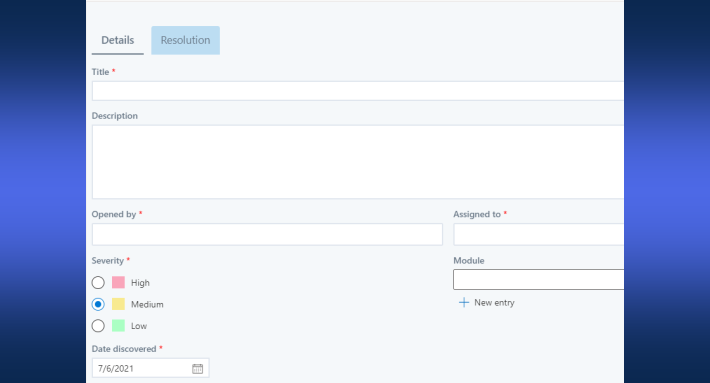
Intake becomes a smart dynamic form on the SharePoint list itself: tabs, conditional sections, per-role permissions, cascading lookups, and validation, the Power Apps capabilities, as configuration instead of formulas. External audiences are a setting, not a licensing puzzle: public forms let customers and vendors submit with no account at all.
Logic and routing become actions: when status changes to Submitted, notify the approver; when Approved, update the record, create the follow-up items, write to another list or an external system; on a schedule, escalate whatever stalls. The flows you would have built in Power Automate are conditions and mappings on the list they belong to, and most processes need forms plus actions rather than a workflow engine at all.
Communication becomes alerts: branded, condition-driven notifications with the item's data in the subject line, digests for managers, reminders that chase overdue work automatically.
Documents become print templates: the approved request renders as a PDF on your letterhead the moment it is approved, filed or emailed automatically. Data entry at scale becomes import profiles, pulling records from email or external sources into the process without retyping. And visibility becomes charts and counters on the same SharePoint pages, live KPIs with no additional license, per the dashboards-without-Power-BI pattern.
The concrete difference shows in the purchase-request example. Toolbox version: list + Power App + three flows + dashboard, built across four designers. Platform version: one list, one form with an approval section that only approvers see, three actions, two alerts, one print template, one page with two counters, configured in an afternoon, in one designer, by someone who has never written code. And the fastest start skips even that: the template library holds 450+ pre-built processes, purchase orders, help desks, leave requests, onboarding, that install in minutes and adjust to fit.
The decision rule
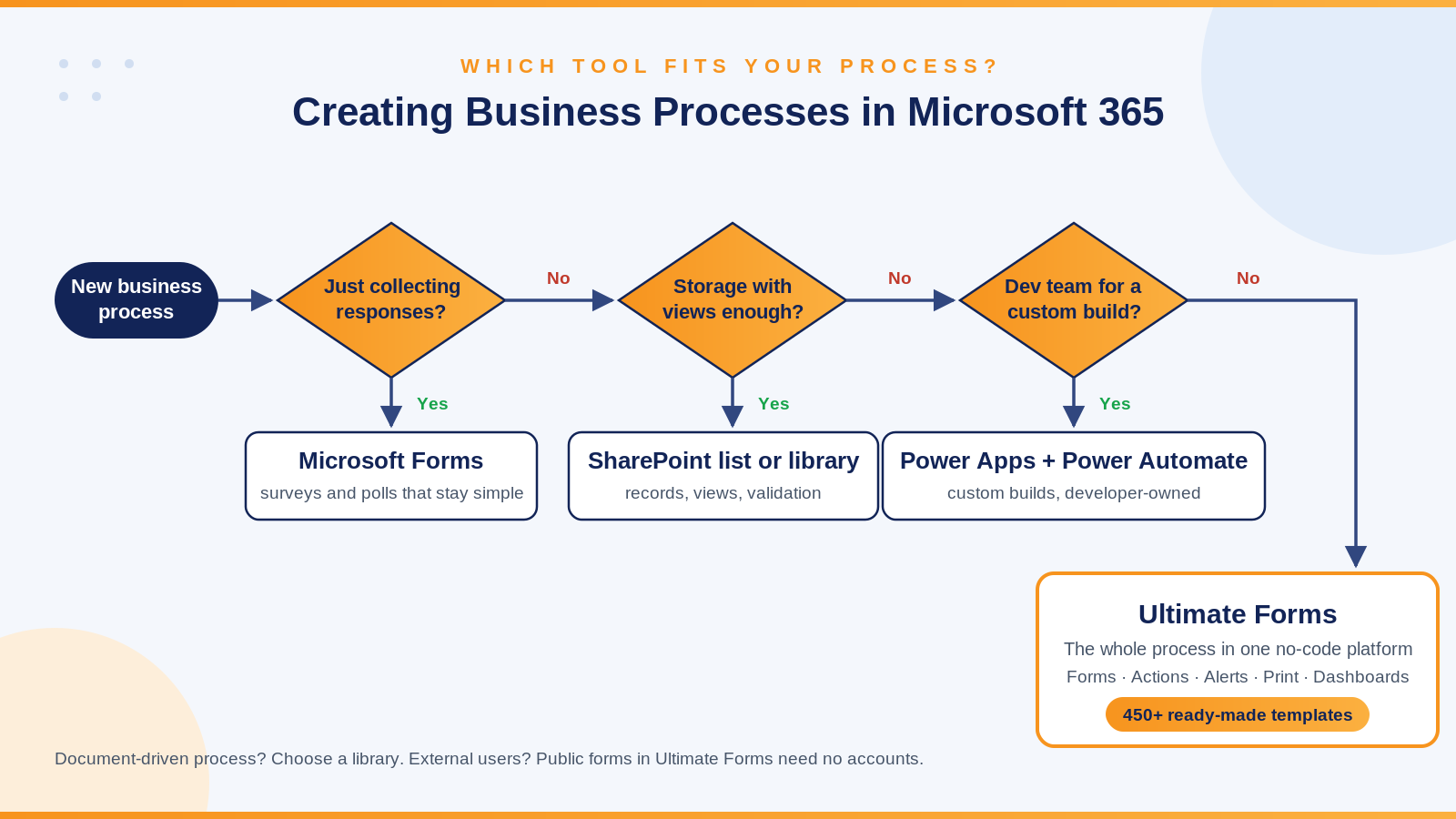
Use Microsoft Forms when the process is a questionnaire and will stay one. Use plain SharePoint lists when storage with views is genuinely all you need. Reach for Power Apps and Power Automate when your organization has the development capacity and a requirement that truly demands custom construction. And when the goal is what it usually is, a working business process, owned and evolved by the people who run it, built this quarter, not next, the platform approach exists precisely so that the four-tool assembly is somebody else's hobby. Whichever route you take, start from the process map, start small, and ship something users touch within two weeks; momentum, not tooling, is what transformation actually runs on.
Frequently asked questions
Add your comment