Microsoft Forms is a survey tool that can write to SharePoint lists; Ultimate Forms is a full forms platform with tabs, permissions, validation, approvals, and automation. Which one you need depends on the process.
There is a Forms button on the SharePoint list command bar. It lets you create a Microsoft Forms survey and connect it to the list, so that responses are written to the list as new items. It looks like a quick way to add a form to a SharePoint list without any additional tools.
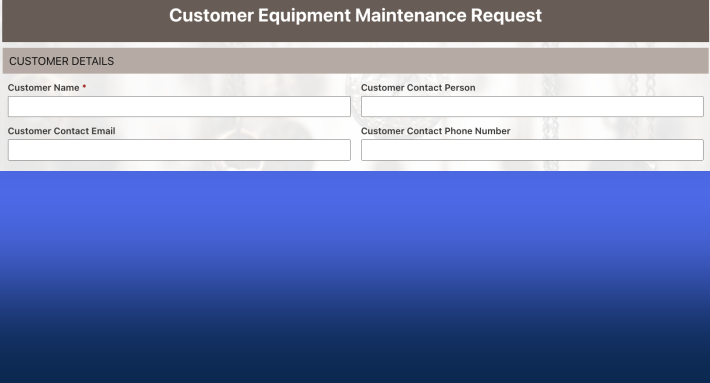
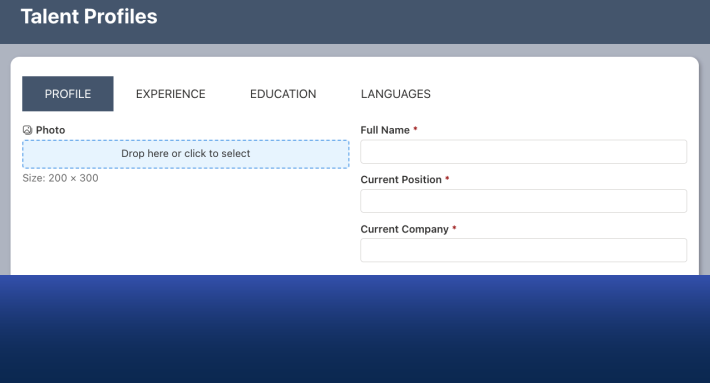
Ultimate Forms also adds a form to a SharePoint list. But the similarity ends there. Where Microsoft Forms gives you a simple survey connected to a list, Ultimate Forms gives you a fully capable business form — with tabs and sections, conditional logic that responds to the values being entered, column-level permissions that show different users different parts of the form, repeating line items with automatic calculations, validation rules that enforce business rules before data is saved, a built-in approval control, and e-signatures. All of it configured in the browser, by the person who manages the list, without writing code.
The distinction makes all the difference. Let me show why.
What Happens When You Use Microsoft Forms on a SharePoint List
When you create a form via the Forms button on a SharePoint list command bar, Microsoft Forms generates a survey and maps its questions to the list's columns. Anyone with the link can submit a response, and that response is written to the list as a new item.
For simple, one-directional data collection — an external registration form, a basic intake survey, a quick questionnaire — this is a reasonable approach. The form is shareable, accessible without a SharePoint account, and requires minimal configuration.
The problem is that it is fundamentally a survey tool, not a process tool. Microsoft Forms was designed to collect responses, not to manage records. Once a response is submitted, the form has no further role in the lifecycle of that record. It cannot be used to update the item. It cannot show a manager a different view of the same record for approval. It cannot adapt to who is opening it or what stage the process has reached.
The form and the list are two separate things. Microsoft Forms writes data in. After that, it is finished.
What Ultimate Forms Does Instead
Ultimate Forms takes a different approach entirely. It replaces the native SharePoint list form with its own form, which opens within SharePoint when a user clicks New on the list or opens an existing item for editing. There is no external tool, no survey link, and no separation between the form and the list it belongs to.
Because the Ultimate Forms form is the list form (just a significantly more capable one), it is present throughout the entire lifecycle of every record. The same form that a requester uses to submit a new item is the form a manager opens to review it, the form a technician updates to record progress, and the form HR opens to confirm completion. At each stage, column-level permissions control exactly what each role can see and edit.
This is the core structural difference. Microsoft Forms is a submission channel. Ultimate Forms is the interface through which a record is created, managed, approved, updated, and completed.
The Capability Gap in Practice
Editing existing records
Microsoft Forms creates new records. It cannot open an existing list item, display its current values, and allow a user to update specific fields. This means any process that involves reviewing, amending, or approving a record after initial submission cannot involve Microsoft Forms at all.
In Ultimate Forms, every list item — new or existing — opens through the same form. The requester sees the submission fields. The approver sees the approval section. The administrator sees everything. One form. One record. One interface throughout.
Conditional logic and adaptive behavior
Microsoft Forms supports basic question branching. A question can be shown or skipped based on the answer to a previous question. This works for surveys but falls short for structured business processes.
Ultimate Forms conditional logic operates at a different level. Conditions can evaluate multiple columns simultaneously using AND and OR logic. Tabs, sections, and individual columns can each have their own rules. A section can appear and become required when two conditions are both met. A field can be read-only for one role and editable for another. The form adapts to the person using it, the values entered, and the stage the process has reached.
Validation that enforces business rules
Microsoft Forms can mark a question as required and apply basic format checks. It cannot enforce that an end date is after a start date, that a budget code matches the selected department, or that a description contains sufficient detail to be actionable.
Ultimate Forms validation runs before an item is saved. Comparison rules, conditional required fields, pattern matching, cross-column logic, and AI-assessed content quality are all available and configured in the Form Designer without writing complex formulas or code.
Approvals embedded in the form
Routing a Microsoft Forms response through an approval process requires building a Power Automate flow separately. The approval decision is recorded in the flow, not in the list item. When the form or the list changes, the flow may need to be updated independently.
In Ultimate Forms, the Approval control is part of the form itself. The approver opens the same record the requester submitted, sees all the data in context, and records their decision within the form. The decision, the timestamp, and the full audit log are stored in the same list item — no external flow, no connector to maintain.
Column-level permissions
Every respondent who opens a Microsoft Form sees the same questions. There is no mechanism to show different fields to different roles or restrict access to sensitive sections based on who is opening the form.
In Ultimate Forms, column-level permissions are applied in the Form Designer. An employee sees their submission fields. A manager sees the approval section. A finance team member sees the budget fields. Each role sees exactly what is relevant to them — and nothing that is not.
Real Scenarios Where the Difference Is Decisive
Leave request
A Microsoft Form can capture the initial leave request. After that, it plays no role. The approval has to happen somewhere else — a Power Automate flow, a separate form, an email exchange — and the record in the SharePoint list is updated manually or not at all.
With Ultimate Forms, the employee submits the leave request through the form. The manager receives an automated notification, opens the same list item, and records the approval decision in the Approval control. The employee is notified automatically. The complete record — request, approval decision, dates confirmed — is in the SharePoint list, searchable and auditable.
Expense claim with line items
Microsoft Forms cannot support repeating line items. An expense claim with multiple line items cannot be captured in a single Microsoft Form submission without significant workarounds.
With Ultimate Forms, the expense claim form includes a repeating section where each expense is entered individually. The total is calculated automatically across all line items. Validation requires an attachment when any single amount exceeds a configurable threshold. The manager's approval section, visible only to the approving role, captures the authorization before the claim is processed.
IT support ticket
A Microsoft Form can capture the initial support request. Assignment, status updates, requester communication, and resolution notes all have to happen outside the form — typically through a separately maintained SharePoint list form, supplemented by a Power Automate flow for notifications.
With Ultimate Forms, the same form handles the entire ticket lifecycle. The submitter sees the request fields. The assigned technician sees the resolution tab. Automated actions assign the ticket on creation. Alerts notify the requester at each status change. Color-coded views show the IT team the current state of the queue without opening a single record.
Choosing the Right Tool
Microsoft Forms connected to a SharePoint list is appropriate when the goal is simple, one-directional data collection with no ongoing process attached — gathering registrations, collecting survey responses, or capturing initial intake where everything that follows happens outside the form entirely.
Ultimate Forms is appropriate when the form is the interface for a process that continues after the initial submission. When records need to be updated, reviewed, and approved. When different users need different views of the same record. When business rules need to be enforced at the point of entry. When the entire process needs to live inside SharePoint rather than across multiple disconnected tools.
For the vast majority of internal business processes, the form is not the end of the process. It is the beginning. That is where Ultimate Forms starts, and where Microsoft Forms connected to a SharePoint list stops.
Add your comment