Not every approval needs a human. Requests that meet clear criteria, a small loan amount, a qualifying salary, can approve themselves the moment they arrive, leaving people to decide only the exceptions. Ultimate Forms implements this in two parts: actions that auto-approve on conditions and alerts that route everything else to an approver, plus a third piece most systems forget, a daily tracking report that counts requests and approvals automatically. This guide builds all three around a personal loan process, and the pattern transfers to any high-volume approval. For where auto-approval sits among the other approval patterns in SharePoint, the complete guide maps the territory.
The case for approving automatically
High-volume approval queues share a secret: most of the decisions are not decisions. The $400 loan from an applicant earning $4,000 a month was never going to be rejected; the approver's click was a formality that cost a day of waiting. When the criteria are objective and the stakes are bounded, the rules can decide, instantly and consistently, and the humans can spend their judgment on the cases that need it.
The working example is a personal loan process, built on the loan calculator form from the companion article:
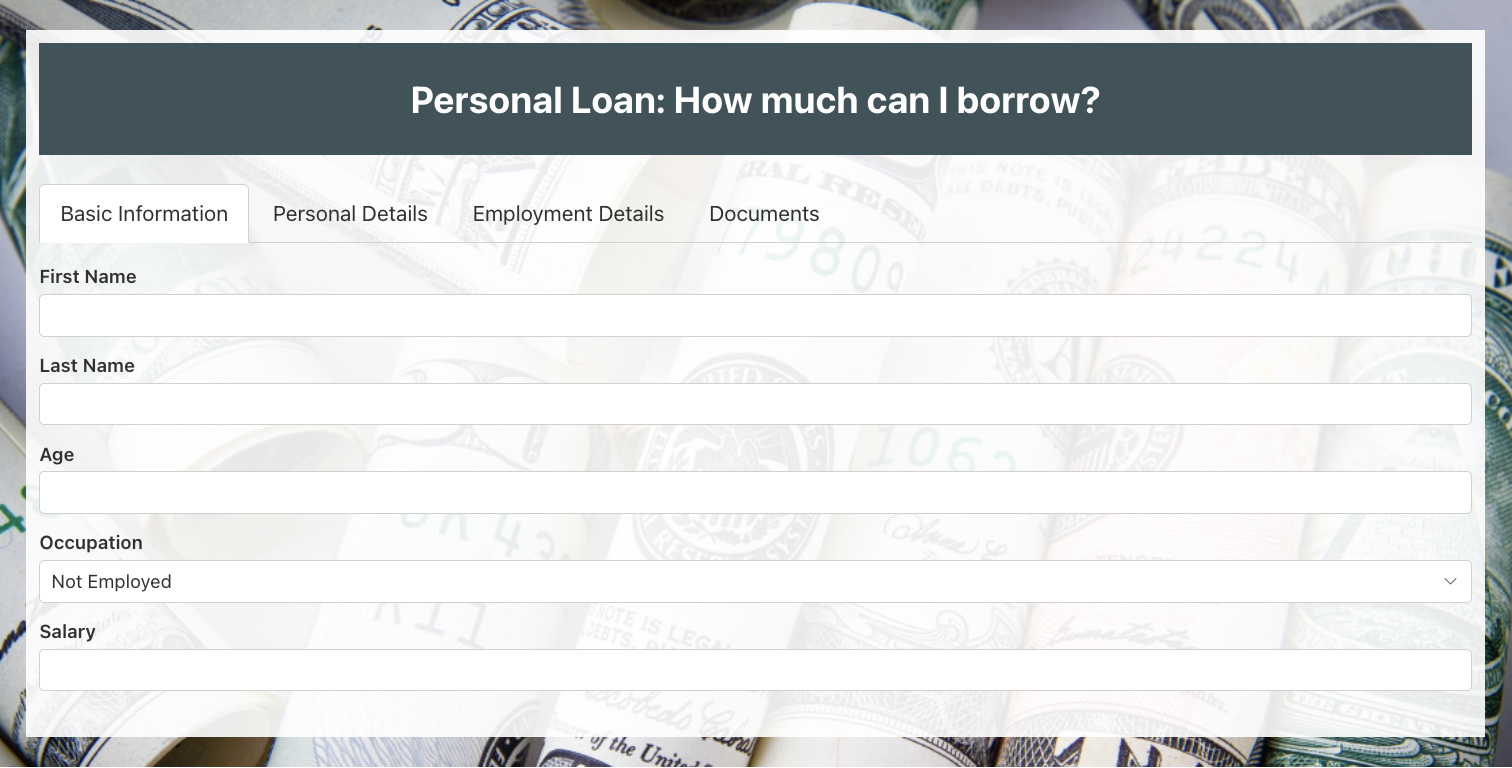
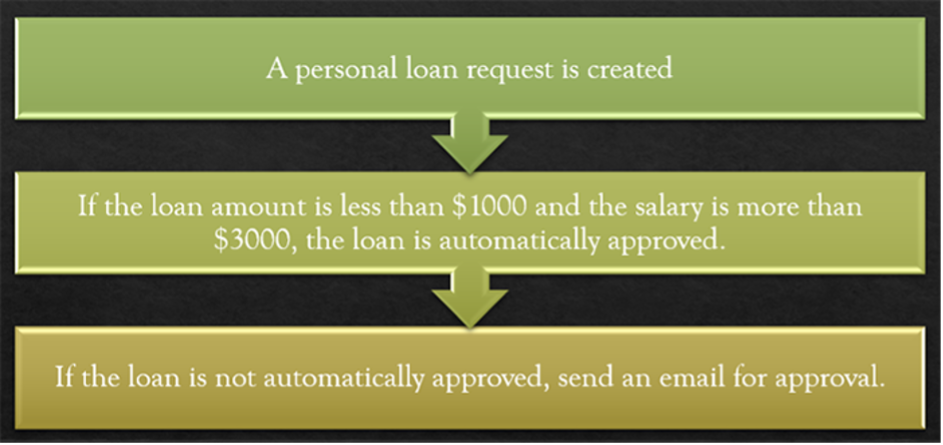
The business rules, agreed with stakeholders in one short discussion: auto-approve when the requested loan is under $1,000 and the requestor's salary is above $3,000; everything else goes to a human approver; and the requestor hears the outcome by email either way. The same logic must also re-run when an application is modified.
Why not Power Automate
The first attempt used Power Automate, and the flow worked. The problem surfaced at the handover: the business team found the connectors and branching logic hard to read, and every small change meant going back to a developer. A working flow that only its builder understands is a dependency, not a solution.
Actions in Ultimate Forms express the same logic as configuration: checkboxes, tabs, and conditions in plain terms, readable and maintainable by the people who own the lending rules. When the threshold changes from $1,000 to $1,500, the product team edits a condition, not a flowchart. The low-code myth article explores this contrast in depth; here it simply decided the toolchain.
Building the auto-approval action
The action that approves qualifying loans is one Update list item action with conditions.
Triggers. Actions run on the events you select, and multiple triggers can drive one action: Item is added and Item is modified together cover both the new application and the edited one, which was exactly the requirement. (The event list goes further than most expect, including attachment added or deleted, useful when a process must react to documents, and timer events for scheduled work, which the tracking report below uses.)
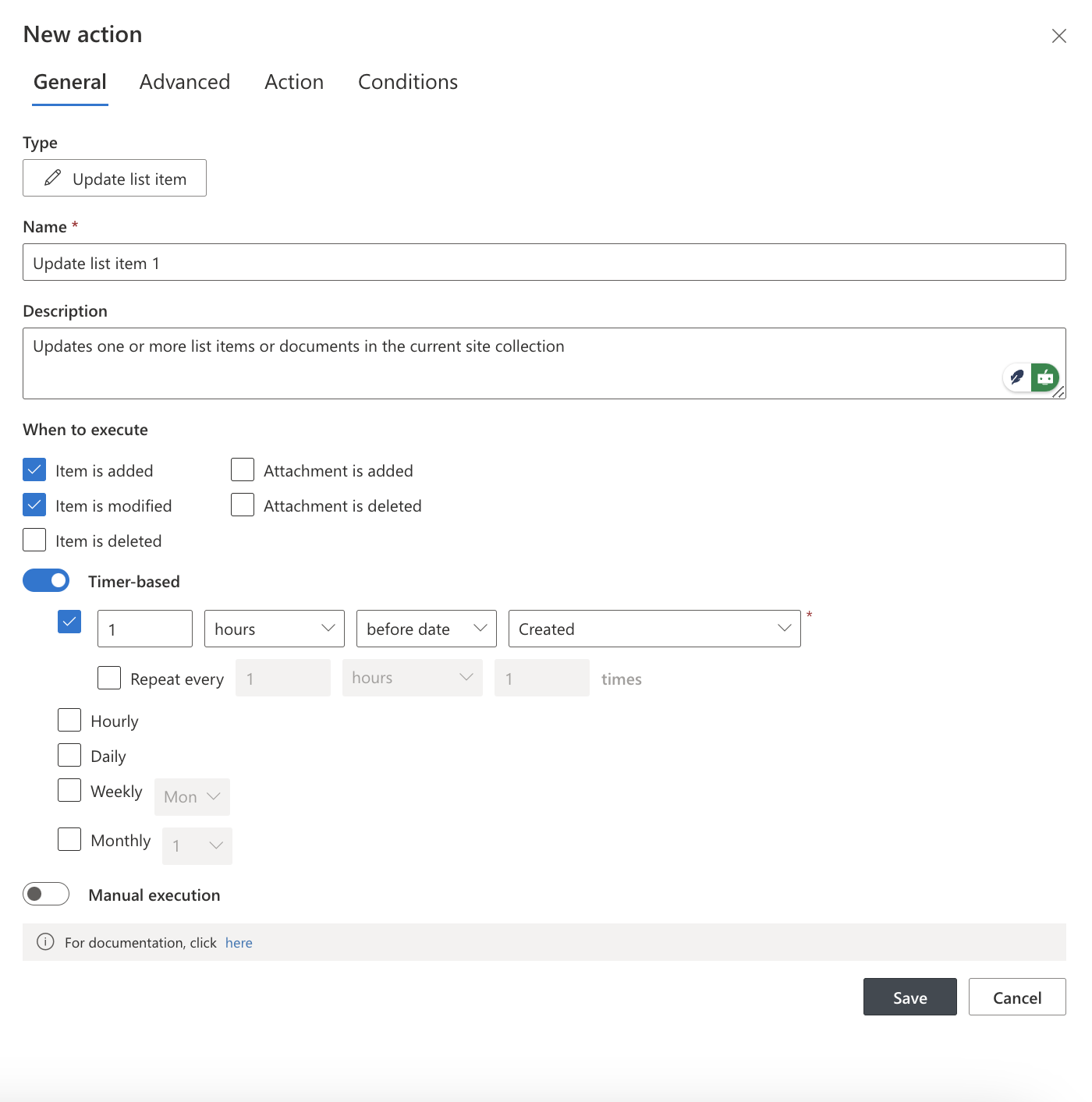
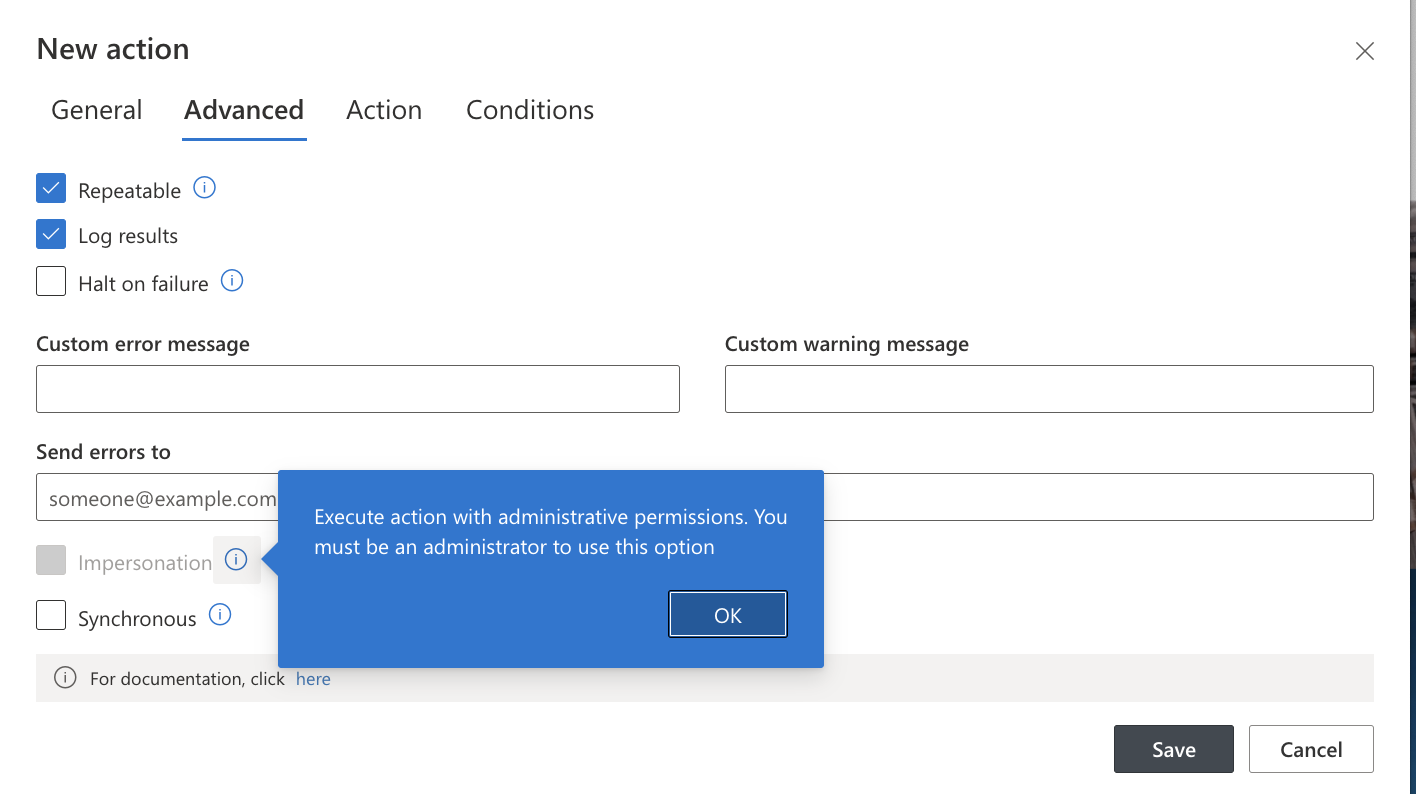
Advanced settings. A few switches here earn their keep in production: Manual execution for testing the action before trusting it, Repeatable execution so the action evaluates every qualifying item, Logging results for debugging, Error handling to stop and notify a responsible person on failure, and Permission management to let the action run even when the triggering user's own permissions would not suffice:
Conditions. The qualifying rules combine with AND: Loan Amount less than 1,000, AND Salary greater than 3,000. The conditions dropdown reads columns directly, and AND/OR operators combine them; the conditions tutorial explains how the system groups them, worth a read before building anything elaborate:
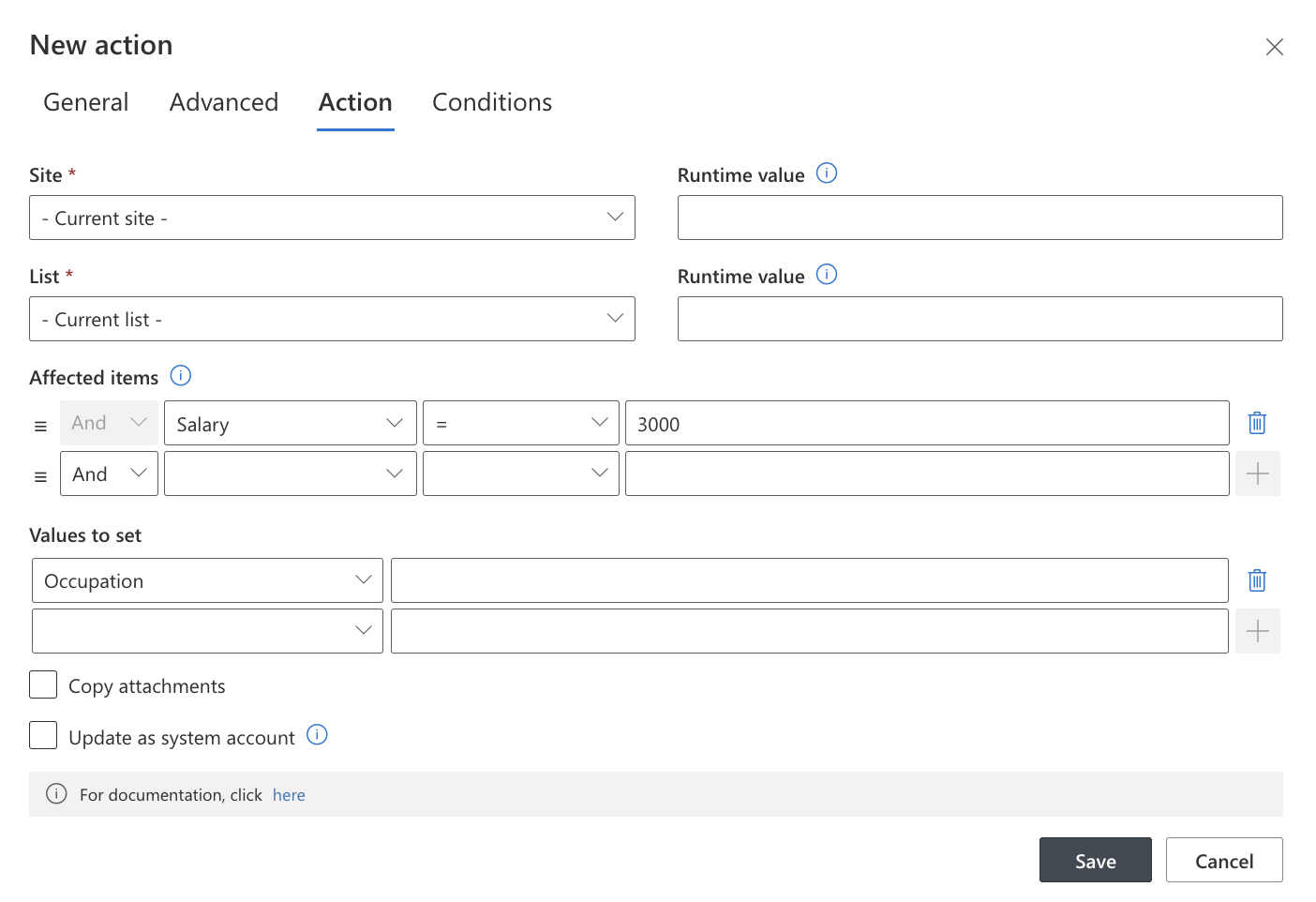
The outcome. Values to set writes Approved into the status column. Once saved, qualifying applications approve themselves the moment they are submitted or corrected.
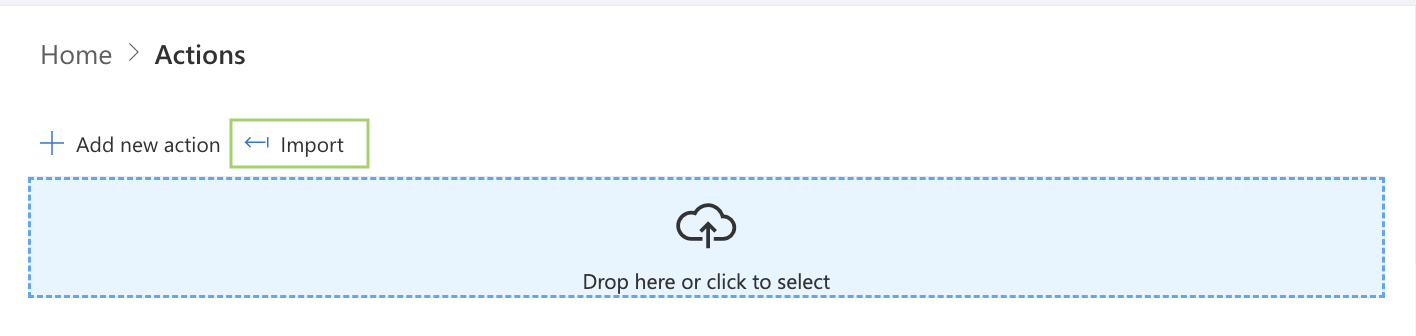
One more convenience for the next process: actions can be exported and imported, so this auto-approval action becomes a starting point elsewhere instead of a rebuild:
Routing the exceptions
Applications that fail the criteria need a person. Alerts handle the notification.
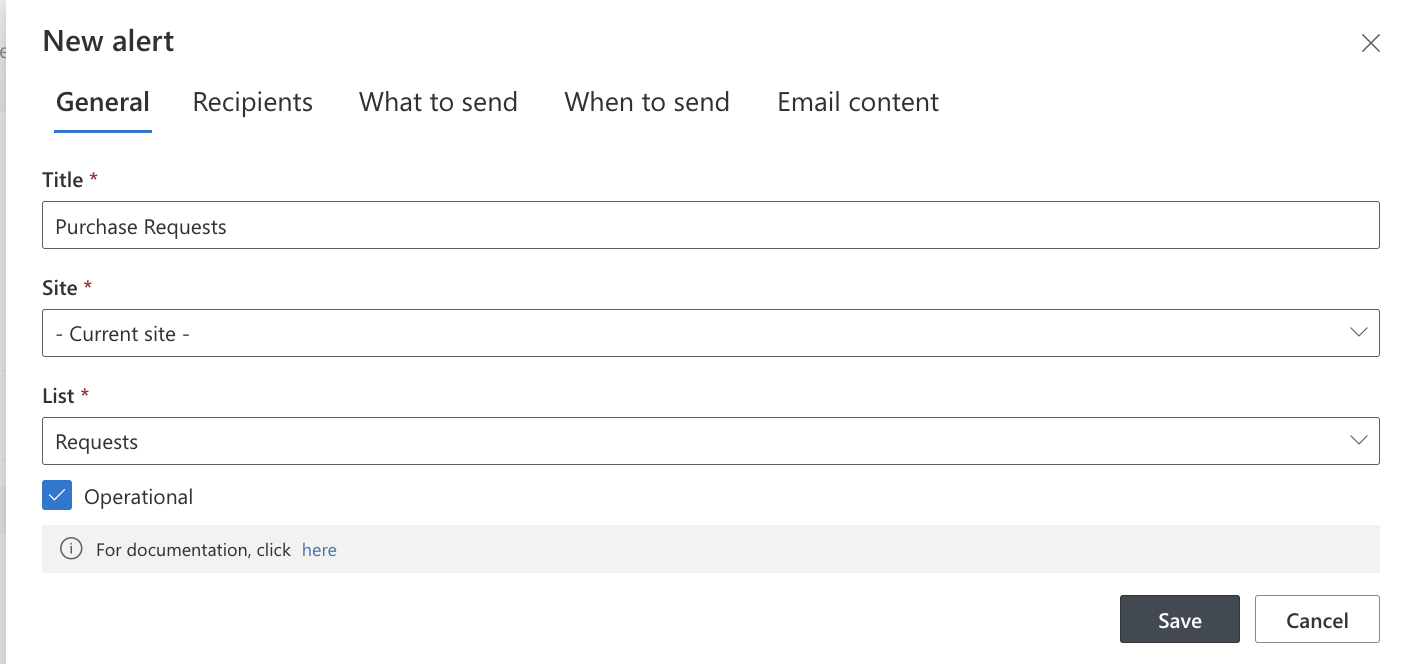
An alert conditioned on the non-qualifying case emails the approver that a decision is waiting, and companion alerts tell the requestor the outcome, approved or rejected, the moment the status changes:
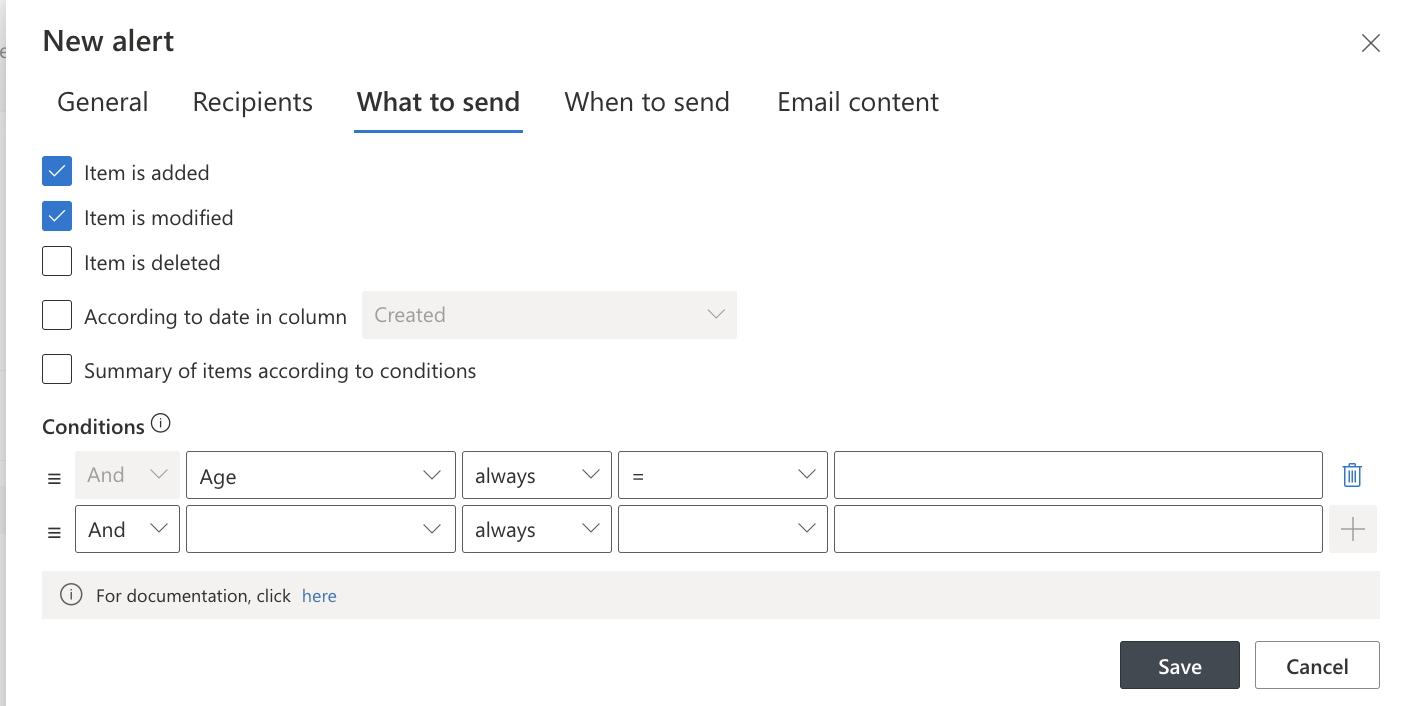
Two refinements complete the exception path. Write the notification well: the amount and the applicant in the subject, one link to the item. And for approvers who sit in Teams rather than Outlook, the same alerts deliver to chats and channels with mentions and action buttons. For a richer manual stage, staged decisions, comments, locking, history, the Approval control is the natural upgrade for the exception path, with auto-approval still skimming the routine cases off the top.
The daily tracking report
Approval systems answer "what should happen to this request." Management asks a different question: "how many, and how fast." The third build answers it permanently.
Create a small tracking list, and three actions populate it:
- A timer action at 6 AM daily creates the day's record, so the subsequent updates always have a row to write into.
- An action on every new application increments the day's request count.
- An action on every approval increments the day's approved count.
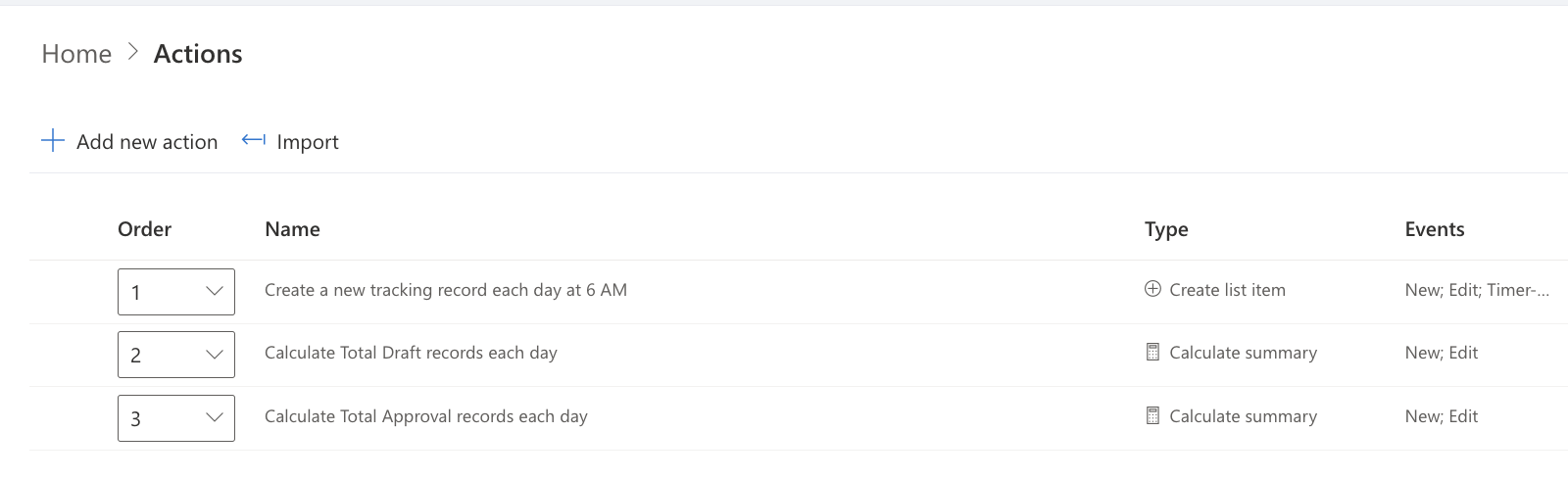
The result is a list where each row is a day and the columns are the day's volumes, which is exactly the shape reporting wants. Charts and counters turn it into trend lines with no exports: request volume over time, approval rates, the gap between the two. The auto-approval rate itself becomes visible, which closes the loop on the whole design: when 70 percent of applications approve automatically, the tracking list is where that number lives and where its drift gets noticed.
The pattern generalizes: any daily operational count, tickets opened, orders shipped, incidents closed, is the same three actions pointed at a different list.
One design note keeps the report trustworthy over time. The counters live on the tracking list, not computed on the fly, which means they capture the day as it happened: later edits, deletions, and reclassifications of the underlying applications do not quietly rewrite history. For compliance-minded processes, that stability is a feature, and where recalculation from live data is preferred instead, summary columns offer the always-current alternative. Choose captured history for reporting what happened, live summaries for monitoring what is.
What the finished system does
Submit a qualifying application and the status flips to Approved before the confirmation email cools. Submit a borderline one and the approver is notified, decides, and the requestor hears back, with every decision logged. And every morning at six, the tracking list quietly starts the day's row, so the month-end conversation about volumes is a glance at a chart instead of an archaeology project.
Each piece is ordinary configuration: one action, a few alerts, three more actions. The people who own the lending rules own the system, which is the property that outlasts every feature. For the patterns around this one, routing, escalation, signatures, and the rest, see the complete guide to SharePoint approval workflows.
Frequently asked questions
Add your comment